EM 24ai: Applying Management Agent Release Update (RU) from the EM web interface

Prerequisites

Before installing or uninstalling the RU, ensure that you meet the following requirements:

  1. Apply EM 24ai Release 1 Update 2 Patch 37629905 or it’s later Release Update version patch on the OMS before applying this RU.

    If you have not done this already, you can check my previous post.
  2. Deinstall this RU before deinstalling Enterprise Manager 24ai Release 1 Update 2 Patch 37629905 on OMS.

Installation

1. Login to the Enterprise Manager and navigate to Enterprise -> My Oracle Support -> Patches & Updates:

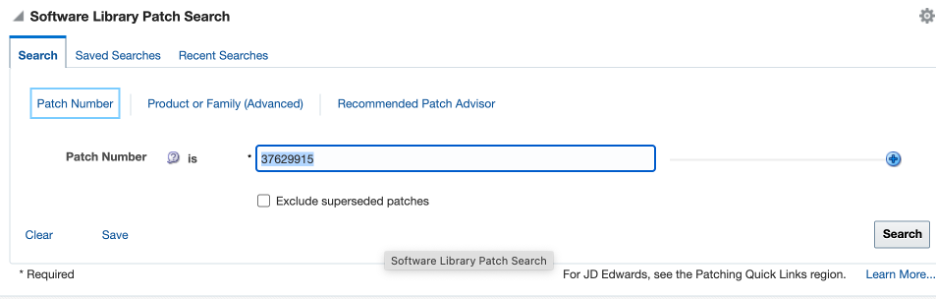
2. Enter the patch number (e.g. 37629915) in the “Software Library Patch Search” section and click Search:
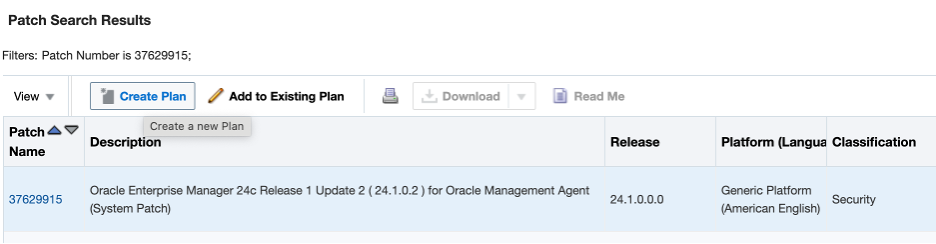
3. Select the patch and click “Create Plan.” :
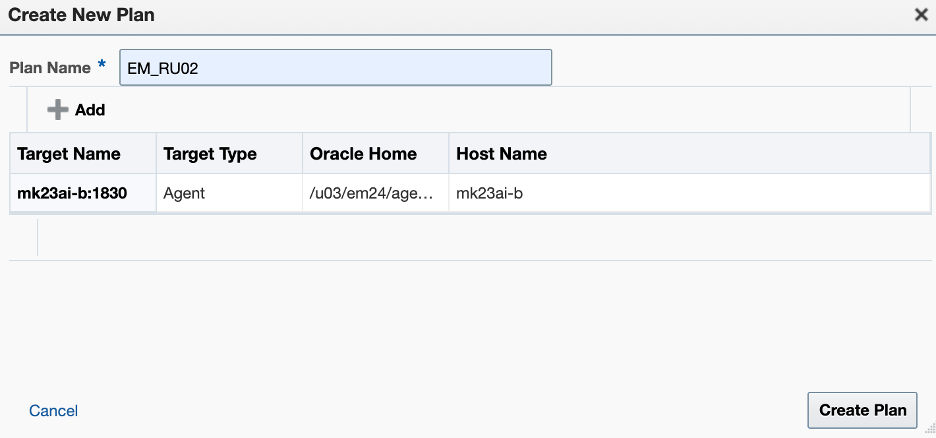
4. Enter the plan name and select the target agent:
5. Click the “Patches & Updates” hyperlink in the upper left corner:
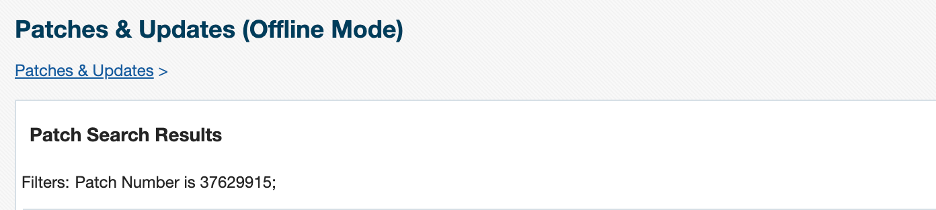
6. Click on the plan name:

7. Click Next:

8. Click Next:

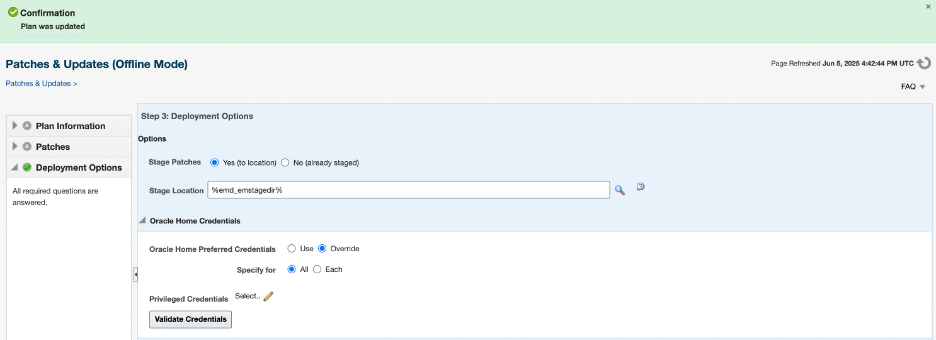
9. Deployment options:

In the Stage location, retain the default location (%emd_emstagedir%) available on the target machine, or edit the Stage Location to provide a new location for staging the Management Agent patches.
In the Oracle Home Credentials section, select Oracle Home Preferred Credentials if you have already set them earlier. You can otherwise click Override (like me):
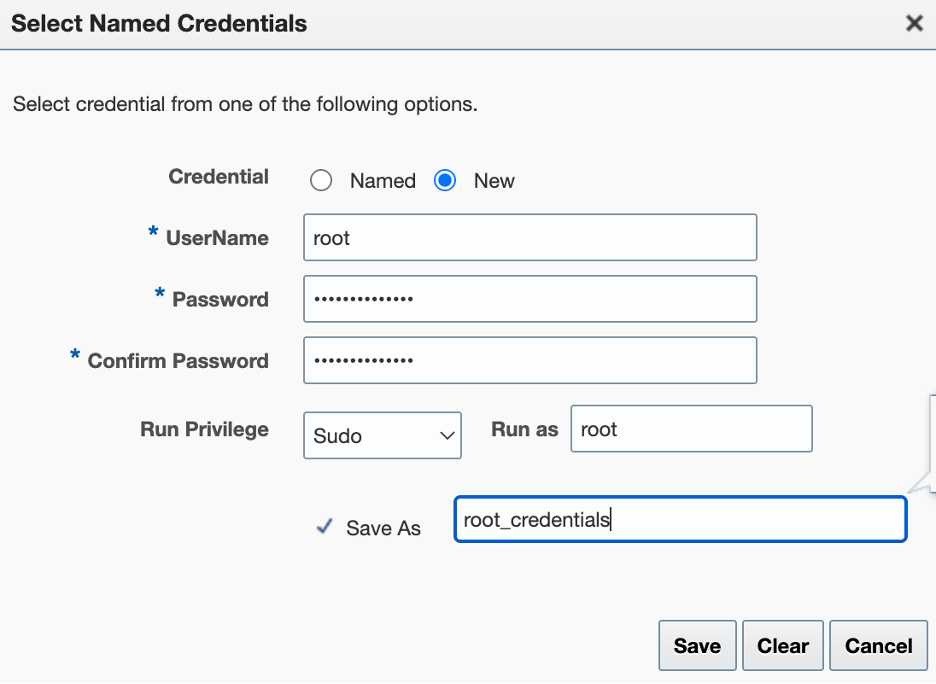
9. Click “Select…” next to “Privileged Credentials,” then choose “New” in the pop-up window:
10. Click Validate Credentials:

11. Click Analyze:
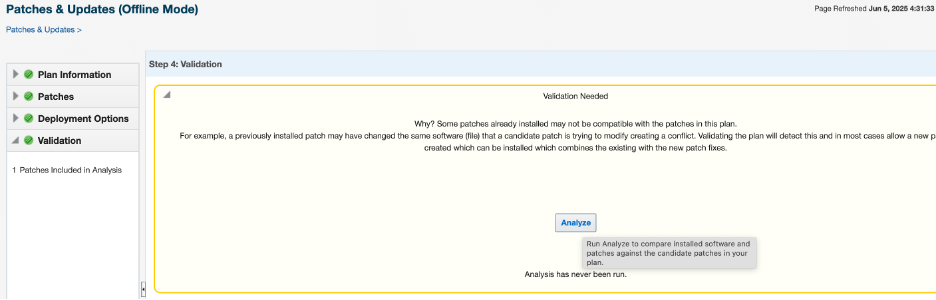
If analysis fails, click Show Detailed Results:
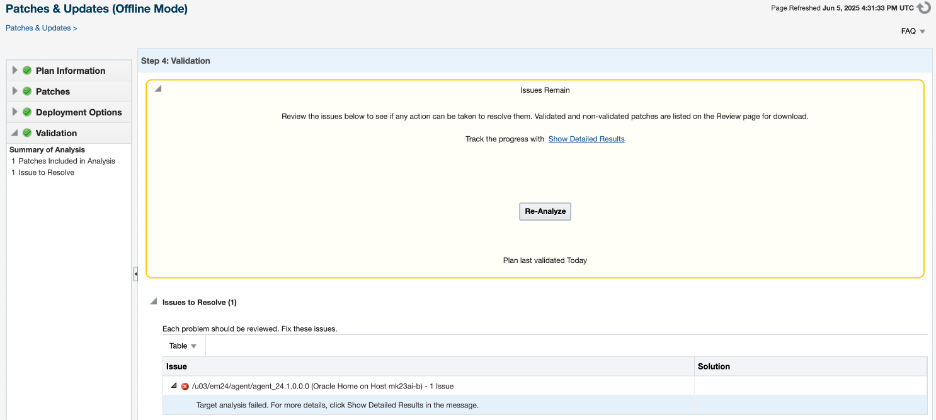
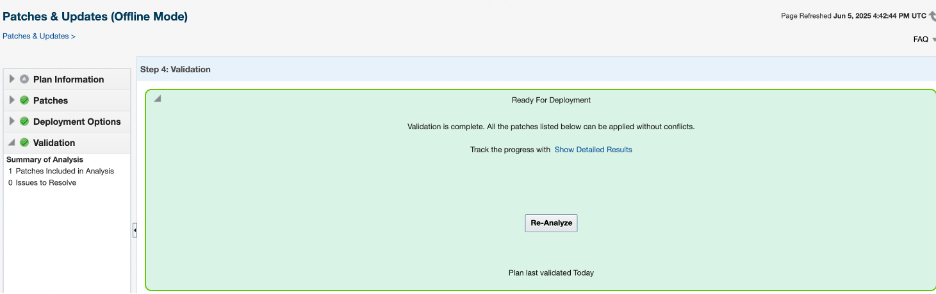
To view the complete log, click on “Download Logs” in the upper right corner. Correct failed components. In my case, I did not have enough swap space; after increasing it, I re-analyzed and it became ready for deployment:
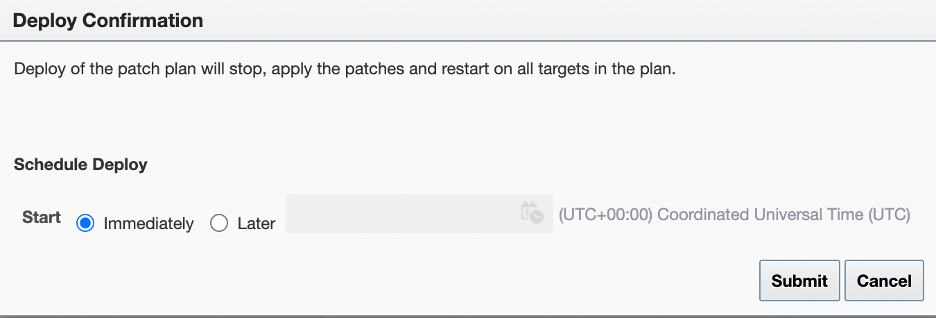
12. Click ‘Next’ and then ‘Deploy’. Select your desired time; I will choose immediately and click ‘Submit’.
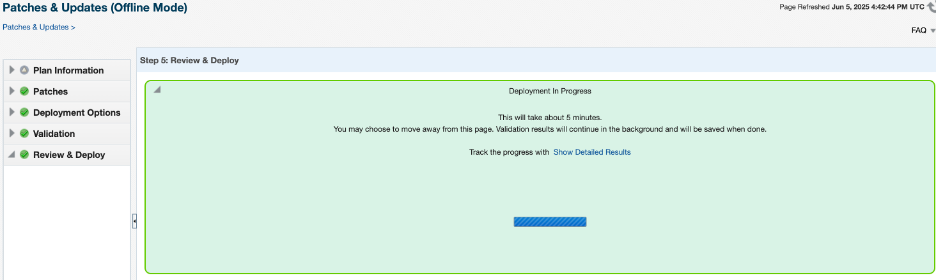
13. The deployment status:

The deployment is in progress:
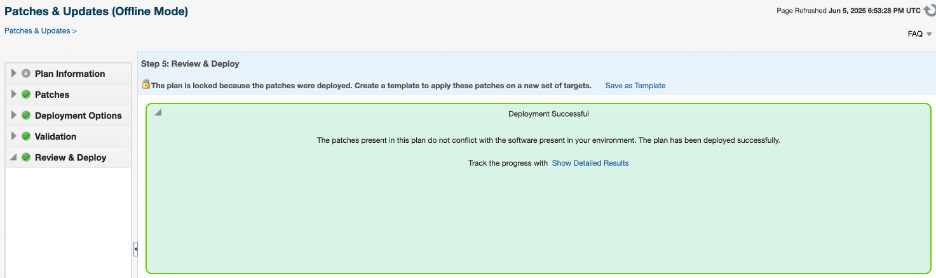
The deployment was successful:
14. You can check the applied patch using agentpatcher as well:

Set the oraclehome to proper agenthome and run lspatches:

$ export ORACLE_HOME=/u03/em24/agent/agent_24.1.0.0.0
$ /u03/em24/agent/agent_24.1.0.0.0/AgentPatcher/agentpatcher lspatches

oracle.sysman.si.agent.plugin/24.1.1.0.0 Plugin 37629915 37629956 Oracle Enterprise Manager for Systems Infrastructure 24ai Release 1 Plug-in Update 2 (24.1.1.2) for Oracle Management Agent

EM 24ai: This version of OMSPatcher is not compatible to apply the given patch

Problem:

While analyzing EM 24ai Release 1 Update 2 (24.1.0.2) for Oracle Management Service patch application, I encountered an error indicating that the OMSPatcher located under the OMS home is outdated and needs to be updated before starting the patching process.:

$ export ORACLE_HOME=/u03/em24/middleware/oms_home
$ /u03/em24/middleware/oms_home/OMSPatcher/omspatcher apply -analyze 37629905/
...
This version of OMSPatcher(13.9.24.1.0) is not compatible to apply the given patch.
Minimum Required Version of OMSPatcher to apply the patch is 13.9.24.4.0
Procure the compatible version from My Oracle Support, and try again.
OMSPatcher failed with error code 255

Solution:

1. Download patch 19999993 for EM 24.1.0.0.0 (for your version) from My Oracle Support

2. Backup the current “OMSPatcher” folder

    $ mv <MIDDLEWARE_HOME>/OMSPatcher <MIDDLEWARE_HOME>/OMSPatcher_backup

    For example:

    mv /u03/em24/middleware/oms_home/OMSPatcher /u03/em24/middleware/oms_home/OMSPatcher_backup

    3. Unzip the “p19999993_241000_Generic.zip” under /u03/em24/middleware/oms_home

      $ unzip /u03/install/p19999993_241000_Generic.zip -d /u03/em24/middleware/oms_home

      4. Check the version again and make sure the version is correct

      $ export ORACLE_HOME=/u03/em24/middleware/oms_home
      $ $ORACLE_HOME/OMSPatcher/omspatcher version

      OMSPatcher Version: 13.9.24.4.0
      OPlan Version: 12.2.0.1.16
      OsysModel build: Tue Apr 28 18:16:31 PDT 2020

      OMSPatcher succeeded.

      5. Retry running the analyze patch

      $ /u03/em24/middleware/oms_home/OMSPatcher/omspatcher apply -analyze 37629905/
      ...
      Checking if current repository database is a supported version
      Current repository database version is supported


      Prereq "checkComponents" for patch 37616329 passed.
      Prereq "checkComponents" for patch 37616365 passed.

      ...

      EM 24ai: Configure EM agent manually after failure

      Problem:

      While installing EM 24ai, everything was configured except for the agent which is the last step. It failed with the following vague error:

      ...
      1. state_dir=/u03/em24/agent/agent_inst
      2. agentBaseDir=/u03/em24/agent
      3. oraHome=/u03/em24/agent/agent_24.1.0.0.0
      INFO: oracle.sysman.top.agent:Agent Home is : {0}
      SEVERE: oracle.sysman.top.agent:Agent configuration has failed
      INFO: oracle.sysman.top.agent:AgentConfiguration:agent configuration finished with status = false
      INFO: oracle.sysman.top.agent:AgentConfiguration:agent configuration finished with status = false
      INFO: oracle.sysman.top.agent:The plug-in Agent Configuration Assistant has failed its perform method

      Solution:

      Make sure agent_inst directory is empty, otherwise rename the folder and recreate:

      $ cd /u03/em24/agent
      $ mv agent_inst agent_inst2
      $ mkdir agent_inst; chmod 755 agent_inst

      Make sure libnsl package is installed, otherwise install it using yum:

      $ yum install libnsl

      Reconfigure agent manually:

      $ /u03/em24/middleware/oms_home/oui/bin/runConfig.sh ORACLE_HOME=/u03/em24/middleware/oms_home MODE=perform ACTION=configure COMPONENT_XML={encap_oms.1_0_0_0_0.xml}

      Setting the invPtrLoc to /u03/em24/middleware/oms_home/oraInst.loc
      ...
      Setting system property CUSTOM_INVENTORY to {0}
      chain install is :true

      Cloning of agent home completed successfully
      Agent Configuration completed successfully
      The following configuration scripts need to be executed as the "root" user. Root script to run : /u03/em24/agent/agent_24.1.0.0.0/root.sh

      perform - mode finished for action: configure

      Run root.sh script that is requested in the output of the above command:

      # /u03/em24/agent/agent_24.1.0.0.0/root.sh

      It worked for me and I hope it will work for you as well. The solution was found after a lot of digging, and there might be another solution too.

      EM 24ai: error while loading shared libraries: libnsl.so.1: cannot open shared object file: No such file or directory

      Problem:

      While checking the status of the agent, I received the following error:

      $ /u03/em24/agent/agent_inst/bin/emctl status agent

      Oracle Enterprise Manager 24ai Release 1
      Copyright (c) 1996, 2024 Oracle Corporation. All rights reserved.
      ---------------------------------------------------------------
      /u03/em24/agent/agent_24.1.0.0.0/bin/emdctl: error while loading shared libraries: libnsl.so.1: cannot open shared object file: No such file or directory

      Solution:

      As root user, install libnsl package using yum

      # yum install libnsl

      Retry the command:

      $ /u03/em24/agent/agent_inst/bin/emctl status agent

      Oracle Enterprise Manager 24ai Release 1
      Copyright (c) 1996, 2024 Oracle Corporation. All rights reserved.
      ---------------------------------------------------------------
      Agent is Not Running

      Oracle EM 24ai: _allow_insert_with_update_check failed

      Problem:

      While installing Oracle Enterprise Manager 24ai, the check for the parameter value _allow_insert_with_update_check failed:

      Solution:

      If the repository database is a PDB, you need to set this parameter at PDB level.

      1) Connect to the repository database using sqlplus as SYS user and run:

      SQL> alter system set "_allow_insert_with_update_check"=true;

      2) Rerun the check:

      It succeeded this time:

      Oracle EM 24ai: Install the partitioning option on the EM repository database

      Problem:

      While installing Oracle Enterprise Manager 24ai, the check “Ensure that the Oracle partitioning option is installed” failed.

      Toubleshooting:

      Check if the EM repository database (the database you selected for the EM repository) has partitioning enabled:

      SQL> select value from v$option where parameter = 'Partitioning';

      VALUE
      ----------------------------------------------------------------
      FALSE

      The output above indicates that the partitioning is disabled.

      Solution:

      Let’s not think about the licensing part yet, since we are currently using Oracle for learning.

      If partitioning is disabled, enable it on the database as follows:

      1. Shut down the database using srvctl or sqlplus:

        srvctl stop database -d orclasm

        2. Connect to the database server as RBDMS owner and run the following commands:

        $ su - oracle
        $ cd $ORACLE_HOME/bin
        $ chopt enable partitioning

        The output of the command would appear as follows:

          Writing to /u01/app/oracle/product/23ai/dbhome_1/install/enable_partitioning_2025-05-30_21-46-30PM.log...
          /usr/bin/make -f /u01/app/oracle/product/23ai/dbhome_1/rdbms/lib/ins_rdbms.mk part_on ORACLE_HOME=/u01/app/oracle/product/23ai/dbhome_1
          /usr/bin/make -f /u01/app/oracle/product/23ai/dbhome_1/rdbms/lib/ins_rdbms.mk ioracle ORACLE_HOME=/u01/app/oracle/product/23ai/dbhome_1

          3. Start the database using srvctl or sqlplus:

          srvctl start database -d orclasm

          4. Connect to the database using sqlplus and verify the option status again:

          SQL> select value from v$option where parameter = 'Partitioning';

          VALUE
          ----------------------------------------------------------------
          TRUE

            5. Rerun the check again

            It shows succeeded this time: