Harbor: Self-signed certificates are suitable for quick localhost tests, but they are not recommended for production or shared environments.
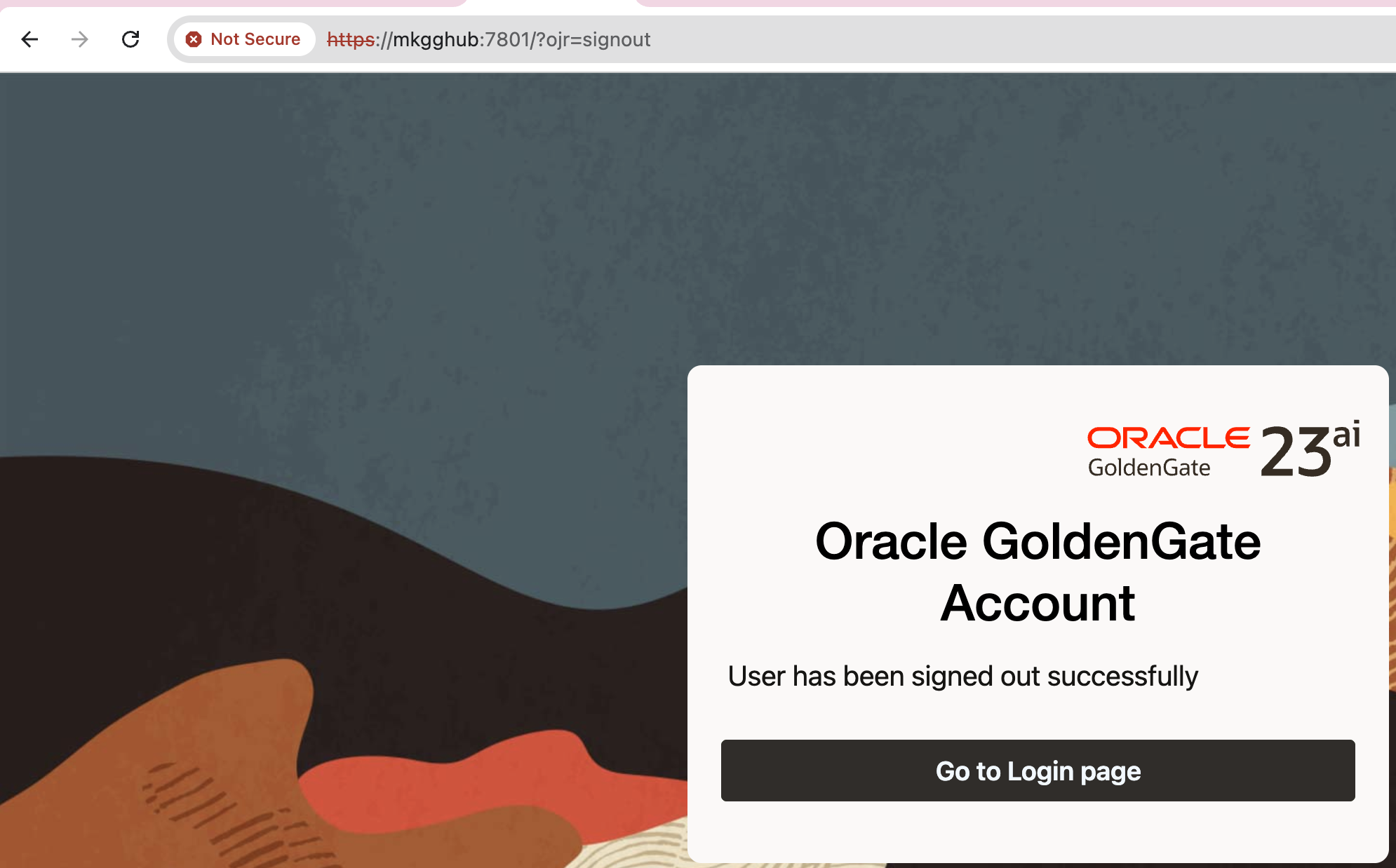
Chrome shows “Not Secure” for my test Golden Gate 23ai setup, where I decided to use a self-signed certificate:
Chrome does not trust the issuer (my self-signed Root CA), which is normal.
Solution
We need to trust Root CA on macOS. For the command line, please see below. I will start by explaining the GUI version for better visibility. However, I also have a simple command available, please check below.
Open Keychain Access -> System keychain -> File -> Import Items… -> pick ca-cert.pem.
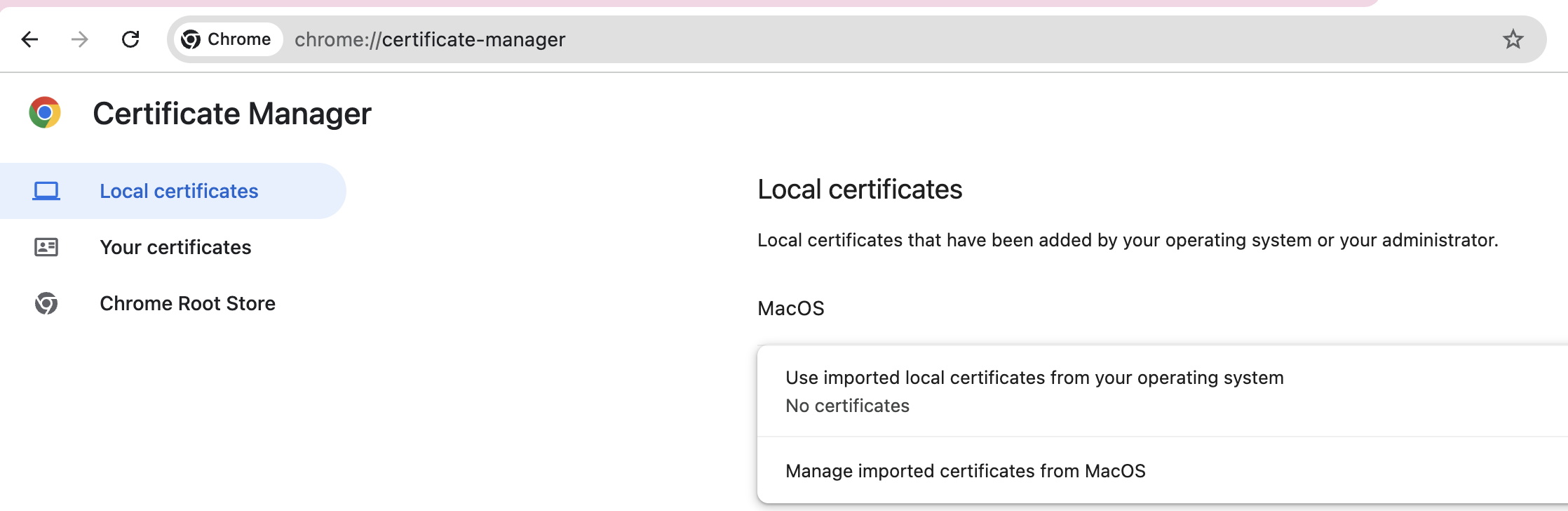
If you cannot find Keychain Access, then type chrome://certificate-manager/ in URL and click Manage imported certificates from MacOS
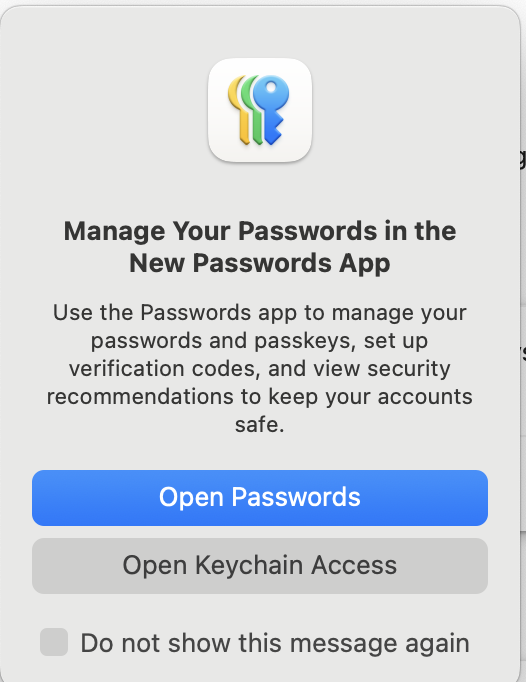
On the pop-up window, choose Open Keychain Access:
Since you are in the right section, now you can check the steps that I provided before.
Double-click the CA -> Trust -> When using this certificate: Always Trust.
Running the above command will install ca-cert.pem in the correct location. You still need to restart Chrome.
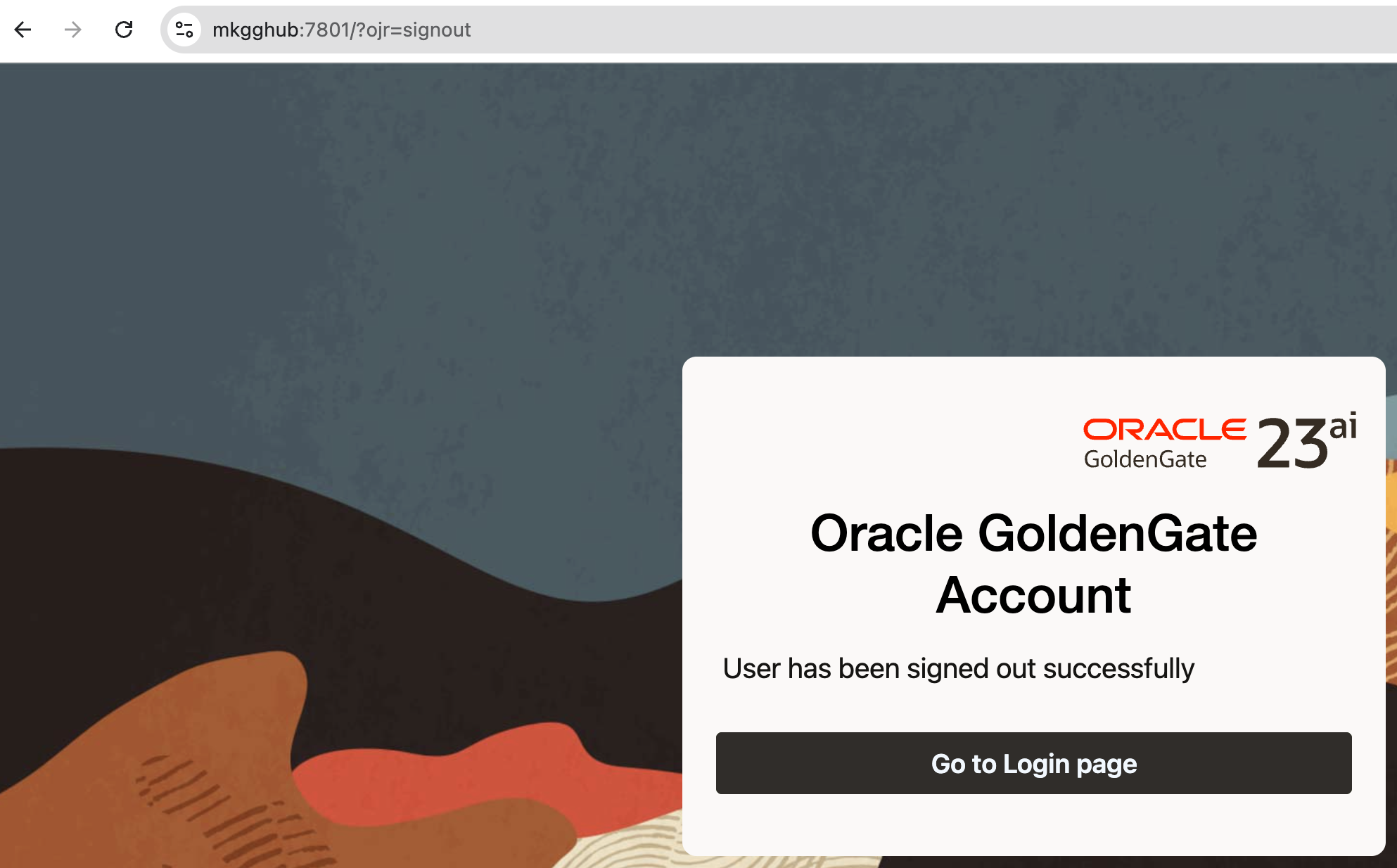
After restarting the Chrome, here is the result:
Note: Make sure your server certificate includes a Subject Alternative Name (SAN) for the exact hostname you’re visiting (e.g., mkgghub). CN alone isn’t enough for modern browsers.
When you have untrusted source and trusted target. Or in simple words, your untrusted source should not have IP address and manager port details of the trusted target system in the configuration. And the trusted target is allowed to know VIP or Host IP of the untrusted source.
How does it work?
1) Start command must be issued on the Trusted Target for the Alias Extract, that is intercepted by Manager. 2) Start command is forwarded to the Manager on the Untrusted Source. 3) Manager on the Untrusted Source starts Passive Extract. 4) Passive Extract retrieves data from source database. 5) After security validation, Manager on the Untrusted Source knows where to send Trails (initiator server IP). And sends captured data. 6) Trail files are read by Replicat. 7) Data from the Trails are applied to the database at the Trusted Target.
GGSCI (primrac1.example.com)> edit params mgr
PORT 7809
ACCESSRULE, PROG *, IPADDR *, PRI 1, ALLOW
AUTORESTART ER *, RETRIES 5, WAITMINUTES 1, RESETMINUTES 60
AUTOSTART ER *
On the target:
GGSCI (stbyrac1.example.com)> edit params mgr
PORT 7809
ACCESSRULE, PROG *, IPADDR *, PRI 1, ALLOW
AUTORESTART ER *, RETRIES 5, WAITMINUTES 1, RESETMINUTES 60
AUTOSTART ER *
ACCESSRULE is used to control connection access to the Manager process and the processes under its control. By default there is only deny rule.
For testing purposes I created a rule that grants access to all programs and all IP addresses. In production environment you have to filter incomming IPs. For more information about ACCESSRULE, please click here.
Modify Globals
To allow a remote Director server connection, add the following parameter in ./GLOBALS:
START and STOP commands must be run on Alias Extract. Any GGSCI command executed against the Alias Extract is forwarded to the untrusted source for execution against the Passive Extract.
If you try to STOP or START Passive Extract, you will get the following error:
GGSCI (primrac1.example.com as ggcw@orclgg)> start PASSEXTR
ERROR: START is not allowed against a passive group.
GGSCI (primrac1.example.com as ggcw@orclgg)> stop PASSEXTR
ERROR: STOP is not allowed against a passive group.
Run start on only Alias Extract:
GGSCI (stbyrac1.example.com as ggcw@orclgg)> start AlExtr
Sending START request to MANAGER@PRIMRAC1.EXAMPLE.COM:7809 …
Sending START request to MANAGER@stbyrac1.example.com:7809 …
Check Status
GGSCI (stbyrac1.example.com as ggcw@orclgg)> info all
Program     Status      Group       Lag at Chkpt  Time Since Chkpt
MANAGER     RUNNING
EXTRACT     RUNNING     ALEXTR
GGSCI (primrac1.example.com as ggcw@orclgg)> info all
Program     Status      Group       Lag at Chkpt  Time Since Chkpt
MANAGER     RUNNING
EXTRACT     RUNNING     PASSEXTR    00:00:00      00:18:14
For any possible problems you can check ggserr.log file under GG home.

 DBA Knowledge Base