Netbackup Restore by alternate client(Error: client is not validated to perform the requested operation)

Hello all,

If you have the following error “client is not validated to perform the requested operation” during restore, then you need to grant permission for the alternate client to access images other than it’s own.

Steps are the following:

1. Create a folder <Netbackup install path>\NetBackup\db\altnames.

2. If you want any client were able to restore any other clients backups, then create file named  “No.Restrictions”.(Note file name must not have any other extensions like .txt)

3. To grant one specified client a permission to browse and restore backups made by another client, create a file with the same name as the requesting client(with no extension like .txt) and write the name of the source client into the file.

Example: r2n1t should access r2n1 files:

Create folder C:\Program Files\Veritas\NetBackup\db\altnames
create file r2n1t and write r2n1 in it

That’s all.

ORA-19554, ORA-27211: Failed to load Media Management Library

Error text:

RMAN-03009: failure of allocate command on t1 channel at 03/30/2011 15:18:21
ORA-19554: error allocating device, device type: SBT_TAPE, device name:
ORA-27211: Failed to load Media Management Library
Additional information:2

Solution:

/usr/openv/netbackup/bin/libobk.so64 should have r-xr-xr-x

Or make link in $ORACLE_HOME/lib

cd $ORACLE_HOME/lib
ln -s /usr/openv/netbackup/bin/libobk.so64 libobk.so

Install Oracle Database 11g on Linux with ASM

Let’s assume that you have already installed Linux on your server. And disks are already bounded to the server.

1. Creating OS groups and users.

#Creating groups for Grid Infrastructure

groupadd asmadmin
groupadd asmdba
groupadd asmoper

#Creating groups for Oracle Software

groupadd oinstall
groupadd dba
groupadd oper

#Creating user for Grid Infrastructure

useradd -g oinstall -G dba,asmadmin,asmdba,asmoper -d /home/grid grid

#Creating user for Oracle Software

useradd -g oinstall -G dba,oper,asmdba -d /home/oracle oracle

#Setting password for users

passwd grid
passwd oracle

2. Creating necessary directories

mkdir -p /u01/app/grid
mkdir -p /u01/app/11.2.0/grid
mkdir -p /u01/app/oracle
chown -R grid:oinstall /u01
chown oracle:oinstall /u01/app/oracle
chmod -R 775 /u01

3. Creating .bash_profile-s

#For Oracle user

su – oracle
vi .bash_profile

if [ -f ~/.bashrc ]; then
. ~/.bashrc
fi

ORACLE_SID=orcl; export ORACLE_SID

ORACLE_UNQNAME=orcl; export ORACLE_UNQNAME

JAVA_HOME=/usr/local/java; export JAVA_HOME

ORACLE_BASE=/u01/app/oracle; export ORACLE_BASE

ORACLE_HOME=$ORACLE_BASE/product/11.2.0/db_1
export ORACLE_HOME

ORACLE_TERM=xterm; export ORACLE_TERM

NLS_DATE_FORMAT=”DD-MON-YYYY HH24:MI:SS”
export NLS_DATE_FORMAT

TNS_ADMIN=$ORACLE_HOME/network/admin; export TNS_ADMIN

ORA_NLS11=$ORACLE_HOME/nls/data; export ORA_NLS11

PATH=.:${JAVA_HOME}/bin:${PATH}:$HOME/bin:$ORACLE_HOME/bin
PATH=${PATH}:/usr/bin:/bin:/usr/bin/X11:/usr/local/bin
PATH=${PATH}:/u01/app/common/oracle/bin
export PATH

LD_LIBRARY_PATH=$ORACLE_HOME/lib
LD_LIBRARY_PATH=${LD_LIBRARY_PATH}:$ORACLE_HOME/oracm/lib
LD_LIBRARY_PATH=${LD_LIBRARY_PATH}:/lib:/usr/lib:/usr/local/lib
export LD_LIBRARY_PATH

CLASSPATH=$ORACLE_HOME/JRE
CLASSPATH=${CLASSPATH}:$ORACLE_HOME/jlib
CLASSPATH=${CLASSPATH}:$ORACLE_HOME/rdbms/jlib
CLASSPATH=${CLASSPATH}:$ORACLE_HOME/network/jlib
export CLASSPATH

THREADS_FLAG=native; export THREADS_FLAG

export TEMP=/tmp
export TMPDIR=/tmp

umask 022

#For Grid user

su – grid
vi .bash_profile

if [ -f ~/.bashrc ]; then
. ~/.bashrc
fi

ORACLE_SID=+ASM; export ORACLE_SID

JAVA_HOME=/usr/local/java; export JAVA_HOME

ORACLE_BASE=/u01/app/grid; export ORACLE_BASE

ORACLE_HOME=/u01/app/11.2.0/grid; export ORACLE_HOME

ORACLE_TERM=xterm; export ORACLE_TERM

NLS_DATE_FORMAT=”DD-MON-YYYY HH24:MI:SS”; export NLS_DATE_FORMAT

TNS_ADMIN=$ORACLE_HOME/network/admin; export TNS_ADMIN

ORA_NLS11=$ORACLE_HOME/nls/data; export ORA_NLS11

PATH=.:${JAVA_HOME}/bin:${PATH}:$HOME/bin:$ORACLE_HOME/bin
PATH=${PATH}:/usr/bin:/bin:/usr/bin/X11:/usr/local/bin
PATH=${PATH}:/u01/app/common/oracle/bin
export PATH

LD_LIBRARY_PATH=$ORACLE_HOME/lib
LD_LIBRARY_PATH=${LD_LIBRARY_PATH}:$ORACLE_HOME/oracm/lib
LD_LIBRARY_PATH=${LD_LIBRARY_PATH}:/lib:/usr/lib:/usr/local/lib
export LD_LIBRARY_PATH

CLASSPATH=$ORACLE_HOME/JRE
CLASSPATH=${CLASSPATH}:$ORACLE_HOME/jlib
CLASSPATH=${CLASSPATH}:$ORACLE_HOME/rdbms/jlib
CLASSPATH=${CLASSPATH}:$ORACLE_HOME/network/jlib
export CLASSPATH

THREADS_FLAG=native; export THREADS_FLAG

export TEMP=/tmp
export TMPDIR=/tmp

umask 022

4. Setting resource limits

Edit the following files:

# /etc/security/limits.conf

[root@orcl ~]# cat >> /etc/security/limits.conf <<EOF
grid soft nproc 2047
grid hard nproc 16384
grid soft nofile 1024
grid hard nofile 65536

oracle soft nproc 2047
oracle  hard nproc 16384
oracle soft nofile 1024
oracle hard nofile 65536
EOF

# /etc/pam.d/login

[root@orcl ~]# cat >> /etc/pam.d/login <<EOF
session required pam_limits.so
EOF

# /etc/profile

[root@orcl ~]# cat >> /etc/profile <<EOF
if [ \$USER = “oracle” ] || [ \$USER = “grid” ]; then
if [ \$SHELL = “/bin/ksh” ]; then
ulimit -p 16384
ulimit -n 65536
else
ulimit -u 16384 -n 65536
fi
umask 022
fi
EOF

# /etc/csh.login

[root@orcl ~]# cat >> /etc/csh.login <<EOF
if ( \$USER == “oracle” || \$USER == “grid” )
then
limit maxproc 16384
limit descriptors 65536
endif
EOF

# /etc/hosts

[root@orcl ~]#  vi /etc/hosts

127.0.0.1 localhost.localdomain localhost
192.168.34.150 orcl

5. Installing ASMlib and creating disk groups

Download link: http://www.oracle.com/technetwork/topics/linux/asmlib/index-101839.html

# To know your kernel version

uname -r
2.6.18-194.el5xen

# Download the following files

oracleasm-support-2.1.7-1.el5.x86_64.rpm
oracleasm-2.6.18-308.el5-2.0.5-1.el5.x86_64.rpm

oracleasmlib-2.0.4-1.el5.x86_64.rpm

# Installing

rpm -Uvh oracleasm-support-2.1.7-1.el5.x86_64.rpm
rpm -Uvh oracleasm-2.6.18-308.el5-2.0.5-1.el5.x86_64.rpm
rpm -Uvh oracleasmlib-2.0.4-1.el5.x86_64.rpm

# Configure ASM

/usr/sbin/oracleasm configure -i

Default user to own the driver interface []: grid
Default group to own the driver interface []: asmadmin
Start Oracle ASM library driver on boot (y/n) [n]: y
Scan for Oracle ASM disks on boot (y/n) [y]: y
Writing Oracle ASM library driver configuration: done

# Load ASM kernel module

/usr/sbin/oracleasm init

##Partition available disks for ASM

#list available disks and partitions

fdisk -l

#partitioning

fdisk /dev/sdb

Command (m for help): n
Command action
e extended
p primary partition (1-4)
p
Partition number (1-4): 1
First cylinder (1-52216, default 1):
Using default value 1
Last cylinder or +size or +sizeM or +sizeK (1-52216, default 52216):
Using default value 52216

Command (m for help): w
The partition table has been altered!

Calling ioctl() to re-read partition table.
Syncing disks.

fdisk /dev/sdc

Command (m for help): n
Command action
e extended
p primary partition (1-4)
p
Partition number (1-4): 1
First cylinder (1-52216, default 1):
Using default value 1
Last cylinder or +size or +sizeM or +sizeK (1-52216, default 52216): +100M

Command (m for help): w
The partition table has been altered!

Calling ioctl() to re-read partition table.
Syncing disks.

# Restart the server

init 6

# Creating ASM disks

/usr/sbin/oracleasm createdisk VOL1 /dev/sdb1
/usr/sbin/oracleasm createdisk CRSVOL /dev/sdc1

# List disks

/usr/sbin/oracleasm listdisks
VOL1
CRSVOL

# Testing disk discovery, that is used by DBCA

oracleasm-discover

Using ASMLib from /opt/oracle/extapi/64/asm/orcl/1/libasm.so
[ASM Library – Generic Linux, version 2.0.4 (KABI_V2)]
Discovered disk: ORCL:CRSVOL [208782 blocks (106896384 bytes), maxio 512]
Discovered disk: ORCL:VOL1 [838849977 blocks (429491188224 bytes), maxio 512]

6. Installing Oracle Grid Infrastructure

Download link: http://download.oracle.com/otn/linux/oracle11g/R2/linux.x64_11gR2_grid.zip

Login as a grid user.

# Unzip and install

mkdir  /home/grid/myinstall
unzip /tmp/linux.x64_11gR2_grid.zip  -d  /home/grid/myinstall

cd /home/grid/myinstall
chmod -R 777 *
./runInstaller

Choose the following options:

6.1. Install and Configure Grid Infrastructure for a Standalone Server

6.2.  English

6.3. English

6.4.
Disk Group Name: CRS
Redundancy: External
Add Disks->Candidate Disks, choose just  ORCL:CRSVOL

6.5. Speciify password(s).

6.6.
ASM Database Administrator(OSDBA) Group : asmdba
ASM Instance Administration Operator(OSOPER) Group: asmoper
ASM Instance Administrator(OSASM) Group: asmadmin

6.7.
Oracle Base: /u01/app/grid
Software Location: /u01/app/11.2.0/grid

6.8. On the pop-up windows press Yes.

6.9. Inventory Directory: /u01/app/oraInventory

6.10. On the prerequisite checks page, there will be failed checks. To solve:

6.10.1 Press Fix & Check Again
6.10.2 Login as root user and run the following:

[root@orcl ~]# /tmp/CVU_11.2.0.1.0_grid/runfixup.sh

6.10.3 Press OK on the Execute Fixup window

Left just libaio* and unixODBC* packages that should be installed. To solve:

6.10.4 Mount Oracle Enterprise Linux installation disk and go to the Server folder, where rpms are located.

[root@orcl Server]# rpm -Uvh libaio-devel-0.3.106-5.i386.rpm
warning: libaio-devel-0.3.106-5.i386.rpm: Header V3 DSA signature: NOKEY, key ID 1e5e0159
Preparing…                ########################################### [100%]
1:libaio-devel           ########################################### [100%]
[root@orcl Server]# rpm -Uvh libaio-devel-0.3.106-5.x86_64.rpm
warning: libaio-devel-0.3.106-5.x86_64.rpm: Header V3 DSA signature: NOKEY, key ID 1e5e0159
Preparing…                ########################################### [100%]
1:libaio-devel           ########################################### [100%]
[root@orcl Server]# rpm -Uvh unixODBC-2.2.11-7.1.i386.rpm
warning: unixODBC-2.2.11-7.1.i386.rpm: Header V3 DSA signature: NOKEY, key ID 1e5e0159
Preparing…                ########################################### [100%]
1:unixODBC               ########################################### [100%]
[root@orcl Server]# rpm -Uvh unixODBC-2.2.11-7.1.x86_64.rpm
warning: unixODBC-2.2.11-7.1.x86_64.rpm: Header V3 DSA signature: NOKEY, key ID 1e5e0159
Preparing…                ########################################### [100%]
1:unixODBC               ########################################### [100%]
[root@orcl Server]# rpm -Uvh unixODBC-devel-2.2.11-7.1.i386.rpm
warning: unixODBC-devel-2.2.11-7.1.i386.rpm: Header V3 DSA signature: NOKEY, key ID 1e5e0159
Preparing…                ########################################### [100%]
1:unixODBC-devel         ########################################### [100%]
[root@orcl Server]# rpm -Uvh unixODBC-devel-2.2.11-7.1.x86_64.rpm
warning: unixODBC-devel-2.2.11-7.1.x86_64.rpm: Header V3 DSA signature: NOKEY, key ID 1e5e0159
Preparing…                ########################################### [100%]
1:unixODBC-devel         ########################################### [100%]

6.10. 5   Press Check Again.(There should not be any error)

6.11.

[root@orcl ~]# /u01/app/oraInventory/orainstRoot.sh
[root@orcl ~]# /u01/app/11.2.0/grid/root.sh

Press enter…

7. Creating ASM disk groups for database

Connect as a grid user.

[grid@orcl ~]$ asmca

7.1 Press Create button.

7.2
Disk Group Name: DATA
Redundancy: External(None)
Select Member Disks->Show Eligible, choose ORCL:VOL1

8. Installing Database, create instance on ASM

Connect as an oracle user.

Download Link: http://www.oracle.com/technetwork/database/enterprise-edition/downloads/index.html?ssSourceSiteId=ocomen

Unzip downloaded file to /home/oracle/myinstall.

[oracle@orcl linux.x64_11gR2_database]$ ./runInstaller

8.1 Uncheck “I with to receive security updates via My Oracle Support”

8.2 On the pop-up window choose yes.

8.3 Install database software only

8.4 Single instance database installation

8.5 English

8.6 Enterprise Edition (4.29GB)

8.7
Oracle Base: /u01/app/oracle
Software Location:  /u01/app/oracle/product/11.2.0/db_1

8.8
Database Administrator(OSDBA) Group: dba
Database Operator(OSOPER) Group: oper

8.9 I have some failed checks that are fixable so I press Fix & Check Again button, login as a root user and run:

[root@orcl ~]# /tmp/CVU_11.2.0.1.0_oracle/runfixup.sh

Click OK on the Execute Fixup window.

8.10

[root@orcl ~]# /u01/app/oracle/product/11.2.0/db_1/root.sh
Press Enter…
y
y
y

9. Run DBCA as an oracle user.

[oracle@orcl ~]$ dbca

and follow the steps (choose ASM instead of File System option)

That’s all.
Install PL/SQL Developer under Wine on Linux

First of all, let’s install Wine.

Note: when in the beginning there is # sign, means user is root and where there is $ the user is oracle.

Installing Wine

But if you have internet access you can run just the following :

# sudo apt-get install wine

Because of I don’t have internet on my server, I use the following steps to install wine.

0. Before installing wine you must have flex version 2.5.33 or more.

Download link: http://flex.sourceforge.net/

# cd flex-2.5.33
# make
# make install
# make clean
# make distclean
# flex –version

1. Download wine installation from: http://www.winehq.org/download/

Section: Wine Source Downloads

My downloaded file is named wine-1.3.13.tar.bz2.

2. Extract

# tar -jxvf wine-1.3.13.tar.bz2
#  cd wine-1.3.13
#  ./configure
#  make depend
#  make
#  make install

It needs some time to complete, so be patient. 🙂

Installing the Oracle Client

1. Download file from here: http://www.oracle.com/technetwork/database/features/instant-client/index-097480.html

I choose Instant Client for Microsoft Windows (32-bit) and then instantclient-basic-nt-11.2.0.3.0.zip here are all files required to run OCI, OCCI, and JDBC-OCI applications.

2. Extract

$ unzip instantclient-basic-nt-11.2.0.3.0.zip

3. Create necessary directories, locate software and set variables

Run winecfg, it will create .wine directory under $HOME.

$ winecfg

Under Drives tab, there will be entries like:

Letter   |  Drive Mapping
C:         |  ../drive_c
Z:          | /

Means our C drive will be $HOME/.wine/drive_c

Now create directories……..

$ cd $HOME/.wine/drive_c
$ mkdir -p oracle/bin
$ mkdir -p oracle/network/admin

Go to the directory where you have extracted instantclient_11_2 and copy its content to oracle/bin directory:
$ mv instantclient_11_2/*  $HOME/.wine/drive_c/oracle/bin

Now we have all neccessary .dll files in $HOME/.wine/drive_c/oracle/bin the same as C:\oracle\bin

Modifying regedit…

$ wine regedit

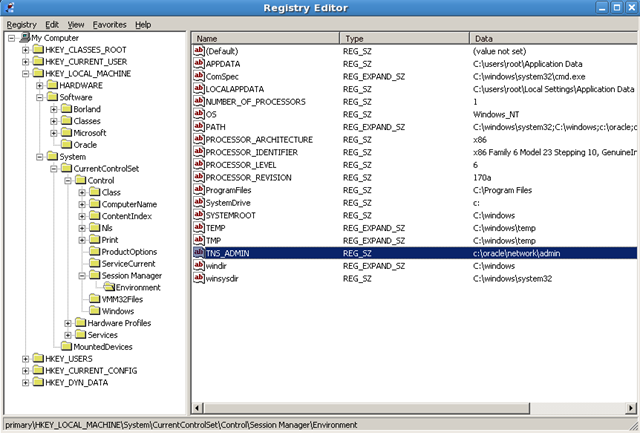
Under HKEY_LOCAL_MACHINE\Software add new key called Oracle.
Under HKEY_LOCAL_MACHINE\System\CurrentControlSet\Control\SessionManager\Environment
Edit the following values at the end of the PATH variable: c:\oracle;c:\oracle\bin
Create new string value named TNS_ADMIN with the value data c:\oracle\network\admin.

image

Now place sqlnet.ora and tnsnames.ora files into the c:\oracle\network\admin directory:

–SQLNET.ORA

SQLNET.AUTHENTICATION_SERVICES= (NTS)

NAMES.DIRECTORY_PATH= (TNSNAMES, EZCONNECT)

–TNSNAMES.ORA

ORCL =
(DESCRIPTION =
(ADDRESS = (PROTOCOL = TCP)(HOST = compname)(PORT = 1521))
(CONNECT_DATA =
(SERVER = DEDICATED)
(SERVICE_NAME = orcl)
)
)

Installing PL/SQL Developer

1. Download the software from here(note, it is a trial): http://www.allroundautomations.com/

Install and run the software.

You will see incomplete login window, where “Connect as” field is not displayed.

Now let’s solve this:

1. Close the window and under Preferences->Oracle->Connection fill the following fields:

Oracle Home (empty is autodetect): C:\oracle
OCI library (empty is autodetect): C:\oracle\bin\oci.dll

2. Preferences-> User Interface->Appearance  uncheck Faded disabled buttons

Re-run PL/SQL Developer.

That’s it.

ORACLE BI Admintool.exe “The connection has failed”

First of all, let’s briefly describe Oracle Business Intelligence  Administartion Tool.

This tool is for to build, create, manage Oracle BI repository. The tool can be downloaded from Oracle site:

http://www.oracle.com/technetwork/middleware/bi-enterprise-edition/downloads/bus-intelligence-11g-165436.html

choose Oracle Business Intelligence Developer Client Tools Installer.

As you can see the tool is just for windows. I don’t know why, maybe Oracle gays are so busy, I hope it will be for Linux too.

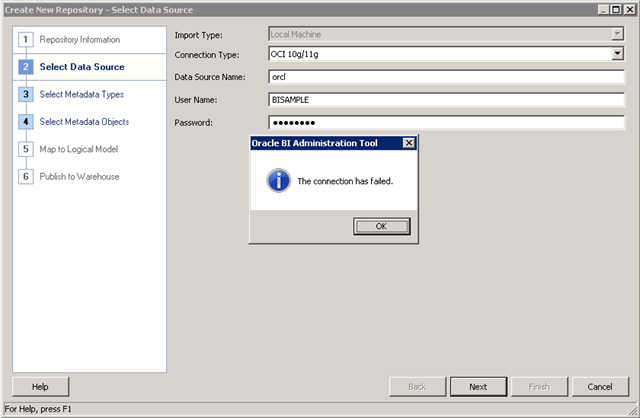
The installation for Oracle BI Suite(not Admin Tool) is for Windows as well as Linux. Installing on Windows is much easier, but because of I prefer Linux for my servers, I installed it on Linux. Unfortunately, I was not able to use Admin Tool on my Linux, and of course I did not want to install it with Wine. So I decided to configure Admintool.exe on windows with Oracle database client installed on it and tried to connect to the remote database called orcl. The error was the following “The connection has failed”

image

If you have the same error and all previous steps are satisfied (means you have installed Oracle client and AdminTool.exe on windows, you have database instance on somewhere that you can connect) the solution is very simple.

1. Close admin tool .

2. Describe TNS_ADMIN environment variable and set it to the value where tnsnames.ora file is located:

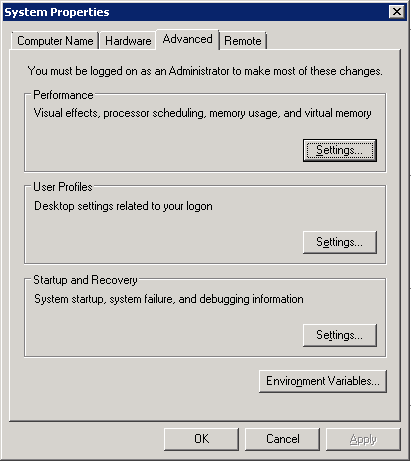
My Computer->Properties->Advanced System Settings. Appears the following windows and choose Environment Variables

image


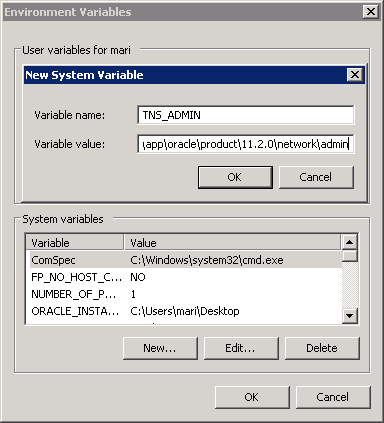
Click New button in System variables section and fill fields by the following:

Variable name: TNS_ADMIN

Variable value: %ORACLE_HOME%networkadmin

image


Click OK

3. Re-run AdminTool.exe

That is all, good luck. I hope the post was helpful for you.

ORACLE BI Admintool.exe “The connection has failed”

First of all, let’s briefly describe Oracle Business Intelligence  Administartion Tool.

This tool is for to build, create, manage Oracle BI repository. The tool can be downloaded from Oracle site:

http://www.oracle.com/technetwork/middleware/bi-enterprise-edition/downloads/bus-intelligence-11g-165436.html

choose Oracle Business Intelligence Developer Client Tools Installer.

As you can see the tool is just for windows. I don’t know why, maybe Oracle gays are so busy, I hope it will be for Linux too.

The installation for Oracle BI Suite(not Admin Tool) is for Windows as well as Linux. Installing on Windows is much easier, but because of I prefer Linux for my servers, I installed it on Linux. Unfortunately, I was not able to use Admin Tool on my Linux, and of course I did not want to install it with Wine. So I decided to configure Admintool.exe on windows with Oracle database client installed on it and tried to connect to the remote database called orcl. The error was the following “The connection has failed”

image

If you have the same error and all previous steps are satisfied (means you have installed Oracle client and AdminTool.exe on windows, you have database instance on somewhere that you can connect) the solution is very simple.

1. Close admin tool .

2. Describe TNS_ADMIN environment variable and set it to the value where tnsnames.ora file is located:

My Computer->Properties->Advanced System Settings. Appears the following windows and choose Environment Variables

image


Click New button in System variables section and fill fields by the following:

Variable name: TNS_ADMIN

Variable value: %ORACLE_HOME%\network\admin

image


Click OK

3. Re-run AdminTool.exe

That is all, good luck. I hope the post was helpful for you.

Database not nomounting: ORA-00848: STATISTICS_LEVEL cannot be set to BASIC with SGA_TARGET or MEMORY_TARGET

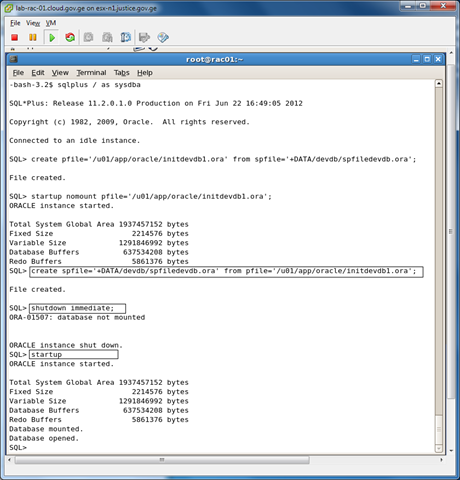
I have Oracle database with ASM. Database is started by spfile, that is located on ASM. I have pfile that indicates to spfile.

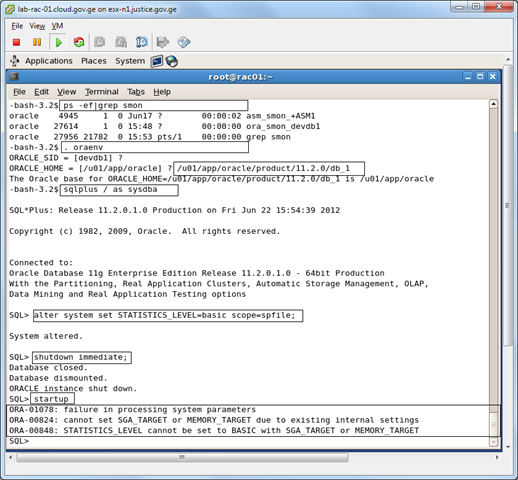
Let’s start from the beginning. I run the following command:

alter system set STATISTICS_LEVEL=basic scope=spfile;

Restarted the database and tried to startup. Got the following error:

ORA-00848 STATISTICS_LEVEL cannot be set to BASIC with SGA_TARGET or MEMORY_TARGET

And because of this database is not nomounting.

image

My parameter file content is:

–/u01/app/oracle/product/11.2.0/db_1/dbs/initdevdb1.ora

SPFILE=’+DATA/devdb/spfiledevdb.ora’;

So let’s solve it. My aim is to set STATISTICS_LEVEL parameter to TYPICAL and start the database normally.

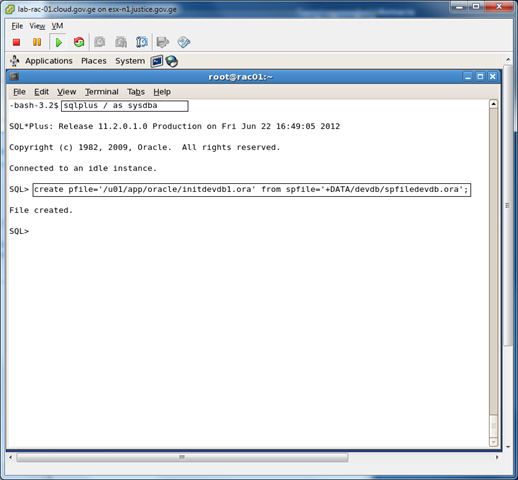
1. Create pfile from spfile.

image

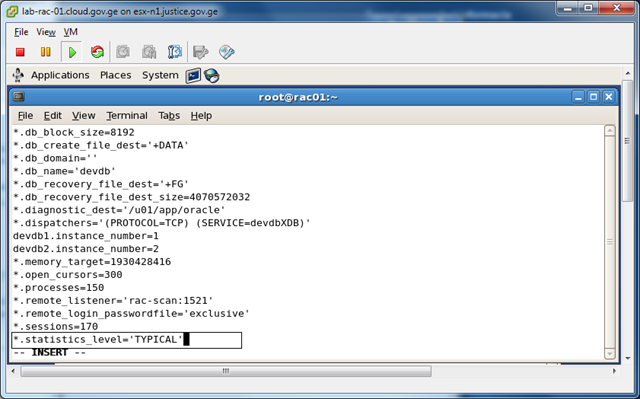
2. Change parameter file initdevdb1.ora(which was created form spfile)  and set statistics_level parameter to TYPICAL.

vi  /u01/app/oracle/initdevdb1.ora

image

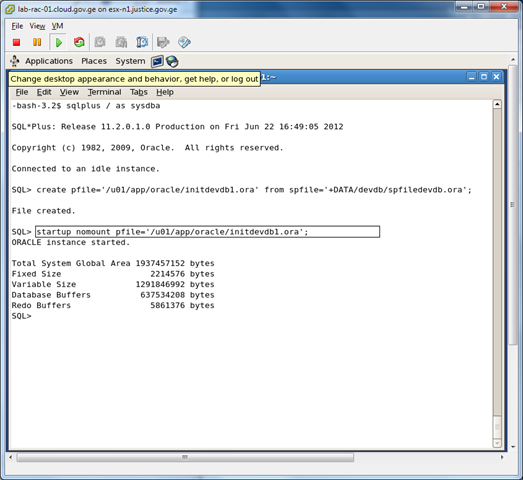
3. Nomount database with newly created pfile.

image

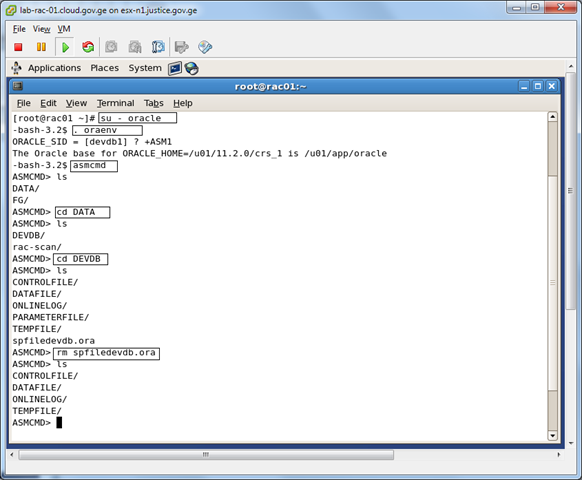
4. Delete old spfile using ASMCMD.

image

5.  create spfile from pfile.

image

Note: Default location for pfile is $ORACLE_HOME/dbs. STARTUP command reads pfile from default location, that in our case refers to spfile located on ASM.

That’s it!

External table with ORACLE_LOADER

Today, I will discuss how to create external table and show you the primary usage of it. 

Data in external table is saved outside of the database. To easily understand what does it mean, let’s discuss the following example:
user1 is the user, who is connected to the ORCL database and should see mytable content.
user2 is the user, who modifies data.csv file using Excel and places it in the directory accessible for oracle database.

Pic 1.

image

This approach may be achieved by ORACLE_LOADER or ORACLE_DATA.

In my example , I will use ORACLE_LOADER.

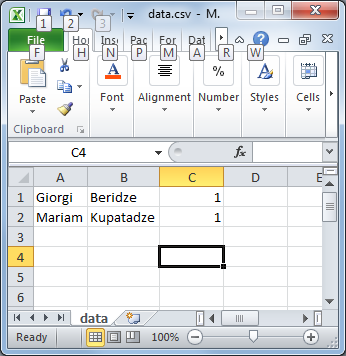
1. Create csv document and fill it with some data:

image

2. Change data.csv  with data.txt. So change csv extension to txt.

This will help you to determine by which character is data separated.

image

As you can see records are separated by newline and delimiter is comma (,)

So let’s write a script:

3.

/*Create necessary directories 

  Bad file will be saved in bad_dir. As you know bad file is for saving data, 
that was not loaded into the database because of some error.

*/


create directory data_dir as 'D:\data';

create directory bad_dir as 'D:\data\bad';

create directory log_dir as 'D:\log';


/*Create table owner*/

create user a identified by a default tablespace USERS;

/*Grant necessary privileges*/

grant create session to a;

grant read on directory data_dir to a;

grant write on directory bad_dir to a;

grant write on directory log_dir to a;

grant create table to a;

/*Connect as “a” user and create external table*/

Create table data_table(

  Name varchar2(30),

  Surname varchar2(60),

  quantity number

) 

organization external(

   type ORACLE_LOADER

   default directory data_dir

   access parameters(

     records delimited by newline

     badfile bad_dir:'data.bad'

     logfile log_dir:'data.log'

     fields terminated by ','

     missing field values are null

     (name,surname,quantity)

   )

  location('data.txt')

)

parallel

reject limit unlimited;


I think external table options are self-explanatory….

Let’s check table content:

SQL> select * from data_table;


NAME       SURNAME     QUANTITY

---------- ----------- ----------

Mariam     Kupatadze   1

Giorgi     Beridze     1

Change the content of data.txt file to the following

/*data.txt*/

Giorgi,Beridze,1

Mariam,Kupatadze,2

and re-run the query

SQL> select * from data_table;
 
NAME       SURNAME     QUANTITY
---------- ----------- ----------
Mariam     Kupatadze   2
Giorgi     Beridze     1

as you can see changes were reflected.

Note, external table is read only. Let’s try updating it:

update  data_table set surname='Kupa' where surname='Kupatadze';

You will get an error

image

Now let’s change the content of data.txt to the following

/*data.txt*/

Giorgi,Beridze,1

Mariam,Kupatadze,2

mmmmmm,mmmmmmm,mmm

and re-run the query

SQL> select * from data_table; 


NAME       SURNAME     QUANTITY

---------- ----------- ----------

Mariam     Kupatadze   2

Giorgi     Beridze     1 


There is no changes, why  ?

Now let’s see the log file and then bad file:

At the end of the log file you will notice the following error:

error processing column QUANTITY in row 3 for datafile D:\data\data.csv

ORA-01722: invalid number

In the bad file, there is:

mmm,mmm,mmm

Because of quantity column type was number, string “mmm” was not inserted in it. 
So log file showed us the error “invalid number” and bad file saved data that was causing an error.

I hope it was helpful for you. Good Luck!

GRANT ANY OBJECT PRIVILEGE

Real world scenario:

I have users: A_DBA, B_JUNIOR, C_MAIN, D_USERS.

I want my junior, user B_JUNIOR,  to grant execute privilege on C_MAIN.testProc to D_USERS, without having him execute privilege on C_MAIN.testProc.

So I want my junior to grant(JUST grant) object privilege on one schema to another schema .

Solution:

GRANT ANY OBJECT PRIVILEGE  is the privilege which solves it.

SQL> connect A_DBA/ta@MYDB

Connected to Oracle Database 11g Enterprise Edition Release 11.2.0.1.0 

Connected as A_DBA

SQL> grant GRANT ANY OBJECT PRIVILEGE to B_JUNIOR.

Grant succeeded

SQL> connect B_JUNIOR/a@MYDB

Connected to Oracle Database 11g Enterprise Edition Release 11.2.0.1.0 

Connected as B_JUNIOR 

SQL> grant execute on C_MAIN.testProc to D_USERS

Grant succeeded

————————————BUT, junior can’t execute itself

SQL> exec C_MAIN.testProc;

begin C_MAIN.testProc; end;

ORA-06550: line 2, column 7:

PLS-00201: identifier 'C_MAIN.TESTPROC' must be declared

ORA-06550: line 2, column 7:

PL/SQL: Statement ignored

Oracle’s Password File: remote_login_passwordfile

Oracle’s password file helps you to authenticate the database until the instance has been started. As you can guess, the password cannot be saved in DB , because DBAs will not be able to access database until instance is started.

There are two methods to authentication the DBA:

1. OS authentication.

2. Password file authentication.

The initialization parameter remote_login_passwordfile indicates which method should be used.

Available Values:

1. NONE : No password file is used.  Authentication happens via OS.

2. EXCLUSIVE: This is a default value. Password file can only be used by one database. It enables you to grant SYSDBA or SYSOPER privileges to the users other than SYS. You are also able to change their passwords, which can’t be done in SHARED mode.

Note: Entries in password file is created automatically when you grant SYSDBA or SYSOPER privileges to the user. If user has any of these privileges, entry exists in password file. If you revoke  both of them entry will be deleted automatically.

To check what user entries are located in passwordfile:

select * from v$pwfile_users;

3. SHARED: Means password file is shared and one or more database can use it. But this also means that ONLY SYS user can be added to the password file. And you are not able to change its password.  

Note: Password file can contain non-SYS users, only if they were added before the value of this parameter has been changed to SHARED.

Note:  In Real Application Clusters each instance must have the same value.

Password file is created with the orapwd.