Renaming Logfiles

Renaming logfiles in Oracle database requires several steps to be performed. If you want to move logfile to another destination or you just want to give it the meaningful name  you should do the logfile renaming.

Note that before renaming logfile, target online redo log should exist. Operating system file is not renamed just control file is updated and pointed to the new redo logfile.

First of all, let’s identify existing redo logfiles.

–Query this:

select member
from v$logfile

–My result

MEMBER
------------------------------------------------
C:\ORACLE\PRODUCT\10.2.0\ORADATA\ORCL\REDO04.LOG
C:\ORACLE\PRODUCT\10.2.0\ORADATA\ORCL\REDO02.LOG
C:\ORACLE\PRODUCT\10.2.0\ORADATA\ORCL\REDO01.LOG

You can’t directly rename it you should do the following steps:

1. Shutdown the database

SQL>shutdown immediate;

2. Copy/rename logfile to the new location by using OS command.

3. Mount the database.

SQL>startup mount;

4. Rename the logfile in the controlfile.

SQL>alter database rename
file 'C:\ORACLE\PRODUCT\10.2.0\ORADATA\ORCL\REDO04.LOG'
to 'C:\ORACLE\PRODUCT\10.2.0\ORADATA\ORCL\REDO03.LOG';

5. Open the database

SQL>alter database open;

6. It is recommended to backup the controlfile.

To check that logfile was given the desired name, do the following.

–Query this:

select member
from v$logfile

–My result

MEMBER
------------------------------------------------
C:\ORACLE\PRODUCT\10.2.0\ORADATA\ORCL\REDO03.LOG
C:\ORACLE\PRODUCT\10.2.0\ORADATA\ORCL\REDO02.LOG
C:\ORACLE\PRODUCT\10.2.0\ORADATA\ORCL\REDO01.LOG

Another way is to add lofile member by desired name and location, then drop the existing logfile member.

Adding a Member

alter database add logfile member
'C:\ORACLE\PRODUCT\10.2.0\ORADATA\ORCL\REDO03.LOG'
to ('C:\ORACLE\PRODUCT\10.2.0\ORADATA\ORCL\REDO04.LOG');

This script adds lofile member to the same redo log group and the size will be same as REDO04.LOG.

–To see the result

select group#
       ,member
from v$logfile

–Result

GROUP#|MEMBER
---------------------------------------------------------
3     | C:\ORACLE\PRODUCT\10.2.0\ORADATA\ORCL\REDO04.LOG
3     | C:\ORACLE\PRODUCT\10.2.0\ORADATA\ORCL\REDO03.LOG
2     | C:\ORACLE\PRODUCT\10.2.0\ORADATA\ORCL\REDO02.LOG
1     | C:\ORACLE\PRODUCT\10.2.0\ORADATA\ORCL\REDO01.LOG

Deleting a Member

Take into the consideration that you can only drop redo log members that are not in the current or active redo log group.

Current redo log group is the group in which redo data is being written right now.
Active redo log group is the group that are required for instance recovery.
The other one is inactive group, you can only drop member from inactive group.

You can switch between redo log groups and make redo log member inactive. Remember that log switching forces archiver to archive redo log group and also makes log group not current.

alter system switch logfile;

Note that this is the manual switch. In general switching between redo log groups happens in the following cases:

* When the redo log file is full.
* When the instance is shut down with normal, transactional, or immediate.
* When a tablespace is put into backup mode or is changed to read-only.

–To drop the member

alter database drop logfile member
'C:\ORACLE\PRODUCT\10.2.0\ORADATA\ORCL\REDO04.LOG';

Note that OS file is not removed you should manually delete it.
Identifying Unused Objects in Database

Sometimes in the database, there exist objects that have never been used. As you can guess they are junk objects and are waisting necessary space in the database. So we should identify them and remove from the DB. Oracle offers us some useful techniques to do this.

First of all, you should turn on monitoring process on that objects that are the most candidates of junk.

For example:

Assume that index sal_indx is considered to be the object, which has never been used. For to identify it, let’s turn on monitoring on that index.

–In your schema

alter index sal_indx monitoring usage;

–In other schema

alter index schemaName.sal_indx monitoring usage;

To check if it is monitored, query the following view

select index_name
       ,table_name
       ,monitoring as mon
       ,used
       ,start_monitoring
from v$object_usage;

–The Result

INDEX_NAME | TABLE_NAME | MON | USED | START_MONITORING
-----------------------------------------------------------
SAL_INDX   | SALARY     | YES | NO   | 02/13/2011 21:48:25

Note: the result shows that this index has not been used since we tuned on monitoring, but it still doesn’t mean that this object is junk. It depends on what is the maximum period of time in which this object should be used. For example, if you know that this object should be used minimum once in a day, let it to be monitored till tomorrow, then query again v$object_usage view and you will see if this object has been used since yesterday or not and identify its necessity.

For example, someone run the following query:

select *
from salary
where id=1;

Assume that index sal_indx is created on id column of salary table.

–Check again the v$object_usage view

select index_name
       ,table_name
       ,monitoring as mon
       ,used
       ,start_monitoring
from v$object_usage;

–The Result

INDEX_NAME | TABLE_NAME | MON | USED | START_MONITORING
-----------------------------------------------------------
SAL_INDX   | SALARY     | YES | YES  | 02/13/2011 21:48:25

From here you can identify that this index is necessary and should not be removed from database.

Turning Off Monitoring

–In your schema

alter index sal_indx nomonitoring usage;

–In other schema

alter index schemaName.sal_indx nomonitoring usage;

–Check if the monitoring is disabled

select index_name
       ,table_name
       ,monitoring as mon
       ,used
       ,start_monitoring
from v$object_usage;

–The Result

INDEX_NAME | TABLE_NAME | MON | USED | START_MONITORING
-----------------------------------------------------------
SAL_INDX   | SALARY     | NO  | YES  | 02/13/2011 21:48:25

Oracle Database Auditing

Oracle auditing is a very powerful thing. It gives you the ability to track of users’ activities.
You can simply identify what they are doing to your DB:).

Audit records can be stored in Operating System files on in Database. Initialization parameter audit_trail identifies where audit logs should be saved.

–To save it in OS, open initSID.ora parameter file and add/change the following parameter:

*.audit_trail = OS

–To save it in Database:

*.audit_trail = DB

There exists additional option when you are saving logs in the database. If you set audit_trail parameter to db_extended, it will tell the database to record audit records in the database together with bind variables (SQLBIND) and also (SQLTEXT).

*.audit_trail = DB_EXTENDED

–To see if it is enabled, query the following:

select name,value
from v$parameter
where name='audit_trail' ;

–My result is:

NAME        VALUE
------------------
audit_trail DB

Note you should reboot the database for the change to take effect.

In my case logs will be recorded in SYS.AUD$ table. But if you set audit_trail=OS, then you should also indicate where to save log files. Initialization parameter audit_file_dest indicates it. Default is:

–In Windows

%ORACLE_BASE%\ADMIN\ORCL\ADUMP

–In Unix

$ORACLE_HOME/rdbms/audit

There are four levels of auditing: statement, privilege, object, and fine-grained access.

1. Statement Auditing

This auditing involves monitoring of execution of SQL statements.

For example:

audit create table;
audit drop table;
audit truncate table;

–Or simply

audit table;

You also have the ability to audit statements executed by some special user.

For example:

audit create table by mkupatadze;

Or you can audit statements executed by some special user whenever this SQL statement fails or successes.

For example:

audit create table by mkupatadze whenever not successful;

or

audit create table by mkupatadze whenever successful;

Default is both of them successful and not successful.

Other options which you can use in auditing are by access and by session.
By access – one audit record will be created for each executed statement.
By session -oracle will try to merge multiple audit entries into one record when the session and the action audited match. But it only works for SQL statements other than DDL.

If statement is DDL then oracle behaves as if you indicated by access option. So one audit record will be created for each executed DDL statement doesn’t matter which option you indicated.(It is very important to note)

For example:

audit create table by mkupatadze by access whenever successful;

So one audit record will be created for each executed create table statement by mkupatadze user whenever it is successful.

1.1 Identifying Enabled Statement Auditing Options

–Query the following view:

select user_name
       ,audit_option
       ,success
       ,failure
from dba_stmt_audit_opts

–My result

USER_NAME   | AUDIT_OPTION | SUCCESS    | FAILURE
--------------------------------------------------------
MKUPATADZE  | CREATE TABLE | BY ACCESS  | BY ACCESS

1.2 Disabling Statement Auditing

noaudit table;
noaudit create table by mkupatadze;

Note that whenever successful or whenever not successful options is not necessary.

2. Privilege Auditing

This audit option audits privileges, for example, select any table,create any table… and so on..

Audit Example:

audit create any table;
audit create any table by mkupatadze;
audit create any table by mkupatadze by access;
audit create any table by mkupatadze by access whenever successful;

In the first example, one audit record will be created for each executed create any table statement. The second one specifies the user…Other examples are self-explanatory.

2.1 Identifying Enabled Privilege Auditing Options

–Query this

select user_name
       ,privilege
       ,success
       ,failure
from dba_priv_audit_opts

–My result

USER_NAME |PRIVILEGE       |SUCCESS  |FAILURE
----------------------------------------------
NULL      |CREATE ANY TABLE|BY ACCESS|BY ACCESS
MKUPATADZE|CREATE ANY TABLE|BY ACCESS|BY ACCESS

2.2 Disabling Privilege Auditing

noaudit create any table;
noaudit create any table by mkupatadze;
noaudit create any table by mkupatadze whenever successful;

Note that if you have enabled auditing for some user,in my case mkupatadze, you must indicate by username clause to disable it. As you have seen in previous section, two different records were created in dba_priv_audit_opts for mkupatadze and for other users.

Also note that by access or by session clauses must not be specified, or it gives an error.

3. Object Auditing

Auditing the execution of SQL statements that require a specific object privilege, such as SELECT, INSERT, UPDATE, DELETE, or EXECUTE. It is enabled for all users or no users, means that you can not specify special user like it was in previous auditing options.

For example:
audit select on hr.employees;
audit select on hr.employees by access;
audit select on hr.employees by session whenever successful;

3.1 Identifying Enabled Object Auditing Options

–Query this

select owner
        , object_name
        , object_type
        , del
        , sel
from dba_obj_audit_opts

–My result

OWNER     |OBJECT_NAME|OBJECT_TYPE|DEL|SEL
------------------------------------------
MKUPATADZE|EMPLOYEES  |TABLE      |-/-|S/A

Note that I have selected just DEL and SEL, there are many. DEL means delete object privilege, SEL means select object privilege.
The symbol “-” means that no audit option is enabled.
“A” means by access.
“S” means by session.
From “S/A” means that by session auditing is enables when it is successful and by access auditing is enabled when it is not successful.
So first place is for successful and second one for not successful auditing.

3.2 Disabling Object Auditing

noaudit select on hr.employees;
noaudit select on hr.employees whenever successful;

Note that by access or by session must not be specified.

See Audit Logs

The view dba_audit_trail is based on the SYS.AUD$ table. So if you query from this view, you will see the content of SYS.AUD$ table.

select username, timestamp, action_name
from dba_audit_trail

or

select * from sys.aud$

Purging Audit Logs

You can manually delete records from sys.aud$ table or create a job which periodically purges the table. SYS.AUD$ table is created in SYSTEM tablespace by default.

To manually purge audit records older than 60 days, execute the following as user SYS:

delete from sys.aud$ where timestamp# < sysdate-60;
Some aspects in this post is from Sybex.OCA.Oracle.10g.Administration.I.Study.Guide.1Z0-042 book.

Securing the Oracle Listener

Oracle listener is a server process, which listens incoming connections on the specified port(default is 1521) and redirects them to the database server. It is not limited to database connections, but it also can be used to access executable programs on the database server. As you can guess executing external procedures sometimes is not secure, because listener can be used by hackers to execute malicious programs.

There are several security options:

1.Setting the password for listener

It can be accomplished by the several ways:

1.1. Add the following entry to the listener.ora file.

PASSWORD_LISTENER=YourPassword

–Reload the listener

lsnrctl>reload

Note that password, in this case, is a plain text.

1.2. Using CHANGE_PASSWORD command

lsnrctl> change_password
Old password:
New password:
Reenter new password:
....

Note that Old password option asks you to enter the old password for listener, but if it doesn’t exist(means that listener currently not have the password) press the Enter key(do not enter anything).

You should save the configuration of the listener. Before saving, set its password, because listener is governed by the password right now and for to save the configuration you should enter the password for the listener.

lsnrctl> set password
Password:
lsnrctl> save_config

–To check, open listener.ora file and you will see the entry like this:

#----ADDED BY TNSLSNR 06-FEB-2011 23:40:18---
PASSWORDS_LISTENER = ADD733DA61CD19A5
#--------------------------------------------

Note that the password is in an encrypted format.

2. Controlling the Access

Valid Node Cheching it the functionality by which access can be controlled for some specific hosts.

This functionality is implemented by manually adding some entries to sqlnet.ora file.

Valid entries are:

TCP.VALIDNODE_CHECKING – YES/NO, its value should be YES to enable valid node checking.

TCP.INVITED_NODES – values are ip addresses or hostnames, from where requests can be accepted.

TCP.EXCLUDED_NODES – values are ip addresses or hostnames, from where requests should not be accepted.

Note that just one option TCP.INVITED_NODES or TCP.EXCLUDED_NODES may be specified, not both of them. Because they are mutually exclusive. Also wild card values can not be used, each individual ip/hostname should be specified.

For example:

We need to configure oracle net configuration like that just request from 192.168.11.2 and Reichel can be accepted. To do this, we should add the following entries to sqlnet.ora file:

tcp.validnode_checking=yes
tcp.invited_nodes=(192.168.11.2, Reichel)

–Restart the listener

lsnrctl> stop
lsnrctl> start

3. Using the Listener Logging

Enabling this feature gives you an ability to track down all listener activities. For example, it may contain brute force password attack symptoms. Error TNS-01169 in the log file indicates that someone was trying to enter the password for the listener but failed.

To turn on the logging, the following parameters should be used:

LOG_DIRECTORY – location where log files should be created.

LOG_FILE – name of the log file.

LOG_STATUS – ON/OFF , to enable logging set its value to ON.

lsnrctl> set log_directory C:\oracle\product\10.2.0\oralsnrlogs
lsnrctl> set log_file listener_ora.log
lsnrctl> set log_status on

You should save the configuration. Restarting listener is not necessary.

4. Removing External Procedure Services

This service is defined in listener.ora file.

–listener.ora file.

SID_LIST_LISTENER =
(SID_LIST =
(SID_DESC =
(SID_NAME = ORCL)
(ORACLE_HOME = C:\oracle\product\10.2.0\db_1)
(PROGRAM = ORCL)
)
(SID_DESC =
(SID_NAME = PLSExtProc)
(ORACLE_HOME = C:\oracle\product\10.2.0\db_1)
(PROGRAM = extproc)
)
)
LISTENER =
(DESCRIPTION_LIST =
(DESCRIPTION =
(ADDRESS = (PROTOCOL = TCP)(HOST = Mariami-PC)(PORT = 1521))
(ADDRESS = (PROTOCOL = IPC)(KEY = EXTPROC0))
)
)

Underlined rows need to be removed. After removing reload the listener.

5. Creating a Separate Listener for External Procedures

I think that this choice is better than explicitly removing external procedure entries from listener.ora file. You can run another lister, which listens just external procedures, under limited operating user or limit the libraries from which procedures can be executed.

5.1 Executing listener under limited OS user

When external procedure is called it runs the extproc agent process, which inherits privileges from OS user under which the listener process was started.

This user should not have any permission to access files owned by oracle user account.No permission to read data files. For this user, listener.ora file must be readonly.

5.2 Limiting libraries

As I said you can  limit libraries from where external procedures can be executed. You can do it by the following way:

–In listener.ora file

(ENVS="EXTPROC_DLLS=ONLY:/usr/libjava.so:/usr/lib/libz.so,PATH=$PATH")

ENVS -is used to define any environment variable.
EXTPROC_DLLS -list of libraries that can be accessed,list is separated by colon.
ONLY – only specified libraries list.

6. ADMIN_RESTRICTIONS Parameter

If the value of this parameter is ON in listener.ora file, than listener file can only be modified manually. It disallows all SET commands.

Above post is extracted and modified from Sybex.OCA.Oracle.10g.Administration.II.Study.Guide.1Z0-042

Oracle Database Resource Management (DRM)

Oracle Database Resource Manager is a pretty useful utility for DBAs. It simplifies distribution of resources(CPU time, idle time…) between users.

Three main elements are included in DRM:

1. Resource Consumer Groups
Resource Consumer Groups are groups to which user sessions can be assigned.
2. Resource Plans
It consists of Resource Plan Directives which decide how resources can be allocated for Resource Consumer Groups(same as user sessions).
3. Resource Plan Directives
As I said previously, it decides how resources should be distributed between users.

Resources are:
CPU usage, idle time, process execution time, number of sessions, etc.

After a brief summary about what DRM is, let’s use it in the example.

0. Privilege Needed for to use DRM

You must have ADMINISTER_RESOURCE_MANAGER system privilege to use it. This privilege is the default for DBA role.

You know how to grant privileges to users, by the following way:

grant privilege to user;

But this privilege(ADMINISTER_RESOURCE_MANAGER) can’t be granted by this way, you must use the following syntax:

begin
 dbms_resource_manager_privs.grant_system_privilege(
    grantee_name   => 'hr',
    privilege_name => 'administer_resource_manager',
    admin_option   => false);
end;

1. Creating Pending Area

First step is to create a Pending Area. This is like a room in which resource management objects are created and validated before their activation.

begin
 dbms_resource_manager.create_pending_area();
end;

2. Creating Resource Consumer Groups

For the first point you must define unique group name and the description.

begin
 dbms_resource_manager.create_consumer_group(
    consumer_group => 'group1',
    comment => 'This is the first resource consumer group');
end;

begin
 dbms_resource_manager.create_consumer_group(
    consumer_group => 'group2',
    comment => 'This is the second resource consumer group');
end;

–To see what resource consumer groups are in your database, query the following:

select *
from dba_rsrc_consumer_groups

The result may surprise you, because there will be some additional groups. By default there are four resource consumer groups:

DEFAULT_CONSUMER_GROUP – Users who are not assigned to some initial group, this will be default.

OTHER_GROUPS – Users who are assigned to groups, that are not part of the currently active plan, will become a member of this group. You can not assign users to this group manually.

SYS_GROUP – It is used by Oracle-provided SYSTEM_PLAN.

LOW_GROUP – It is used by Oracle-provided SYSTEM_PLAN.

3. Creating Resource Plans

begin
 dbms_resource_manager.create_plan(
    plan=> 'plan1',
    comment => 'This is the first resource plan');
end;

begin
 dbms_resource_manager.create_plan(
    plan=> 'plan2',
    comment => 'This is the second resource plan',

    cpu_mth=> 'ratio');
end;

Note:
cpu_mth is a CPU allocation method, the valid values are:

EMPASIS -Allocated amount is considered as a percentage(the default).

RATIO     -Allocated amount is considered as a ration of total CPU.

4. Creating Resource Plans Directives

–Creating Resource Plan Directives for plan1

begin
 dbms_resource_manager.create_plan_directive(
    plan=> 'plan1',
    group_or_subplan => 'sys_group',
    comment => 'Alocating CPU resource for sys_group',
    cpu_p1 =>90 );
end;

begin
 dbms_resource_manager.create_plan_directive(
    plan=> 'plan1',
    group_or_subplan => 'group1',
    comment => 'Alocating CPU resource for group1',
    cpu_p1 =>10 );
end;

begin
 dbms_resource_manager.create_plan_directive(
    plan=> 'plan1',
    group_or_subplan => 'other_groups',
    comment => 'Alocating CPU resource for other_groups',
    cpu_p2 =>100 );
end;

Note: 90%  of CPU resources is allocated on level 1 for sys_group, and 10% for group1.
100% of CPU resources is allocated on level 2 for other_group.

Groups at level 2 will share CPU resources not used by level 1 groups. And groups at level 3 will receive CPU time after level 1 and level 2.

–Creating Resource Plan Directives for plan2

begin
 dbms_resource_manager.create_plan_directive(
    plan=> 'plan2',
    group_or_subplan => 'sys_group',
    comment => 'Alocating CPU resource for sys_group',
    cpu_p1 =>4);
end;

begin
 dbms_resource_manager.create_plan_directive(
    plan=> 'plan2',
    group_or_subplan => 'group2',
    comment => 'Alocating CPU resource for group2',
    cpu_p1 =>4 );
end;

begin
 dbms_resource_manager.create_plan_directive(
    plan=> 'plan2',
    group_or_subplan => 'other_groups',
    comment => 'Alocating CPU resource for other_groups',
    cpu_p2 =>1 );
end;

Note: CPU allocation ratio for plan2 will be 4:4:1.

5. Validating the Pending Area

Validation ensures that:
1.Objects defined in a pending area exist,
2.All plan directives refer to either plans or resource groups(Plan directive can refer to plan(this plan is considered as a sub-plan) or consumer group).
3.Allocation percentage for a single leven can not exceed to 100%.
4. No deletion is allowed for top plans being used by an active instance.
5.An active plan schema can contain no more than 32 resource consumer groups.
6. Plan names cannot conflict with group names.
7.There must be a plan directive for OTHER_GROUPS.
8.No plan schema can contain loop.

If any of them are violated, error will occur and validating procedure fails.

begin
 dbms_resource_manager.validate_pending_area;
end;

6. Submitting the Pending Area

Submitting the pending area does the following steps: validates,submits and clears pending area. We validated it before submitting, because it is the preferable choice to check that everything is OK, before submit it(Move it to the data dictionary).
After submitting pending area, created plans are not activated! It just prepares plans for activation.

begin
 dbms_resource_manager.submit_pending_area;
end;

7. Activating the Resource Plans

There are two ways, to activate plan:

1. ALTER SYSTEM
2. RESOURCE_MANAGER_PLAN

The first method:

alter system set resource_manager_plan='plan1' [scope=both];

Note: [scope=both] is optional, you can choose it if you want to make changes permanent. The option both means memory and spfile(database must be started by spfile).

The second method:

In the init.ora file add the following:

RESOURCE_MANAGER_PLAN=plan1

8. Switching between Resource Plans

alter system set resource_manager_plan='plan2' [scope=both];

System altered. 

alter system set resource_manager_plan='plan1' [scope=both]; 

System alered.

Oracle Heterogeneous Services(hsODBC)

Heterogeneous Services provide the ability to communicate with non-Oracle databases and services.

I will discuss, how to communicate with SQL Server 2005 from Oracle.

1. First of all, you should have a trusted username in SQL Server 2005 to connect to the SQL database.

If you don’t have it, do the following:

1.1 Connect to the SQL Server 2005 database.
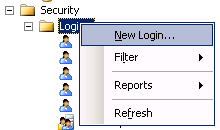
1.2 In the Object Explorer, expand the Security folder, then Logins and create new login.

New Login...(Sql Server 2005)

1.3 In General, type Login name, choose SQL Server authentication, type password for user, uncheck User must change password at next login, choose English in Default language.

Login_New(SQL Server 2005)

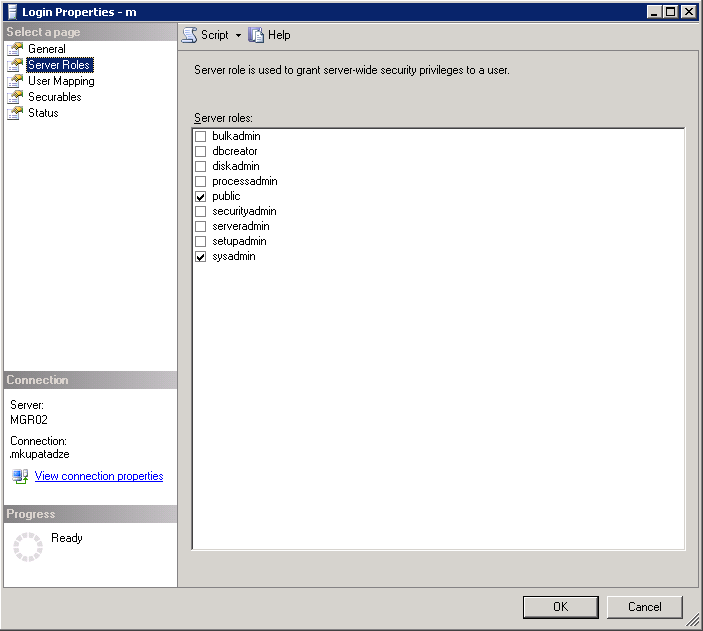
1.4 In the Server Roles, public and sysadmin roles should be checked.

Login Properties_Server Roles(SQL Server 2005)

1.5 In the User Mapping, check the database for which this user will be owner(Note that this database should be the database from where you want to query data).

Login_Properties_User_Mapping(SQL Server 2005)

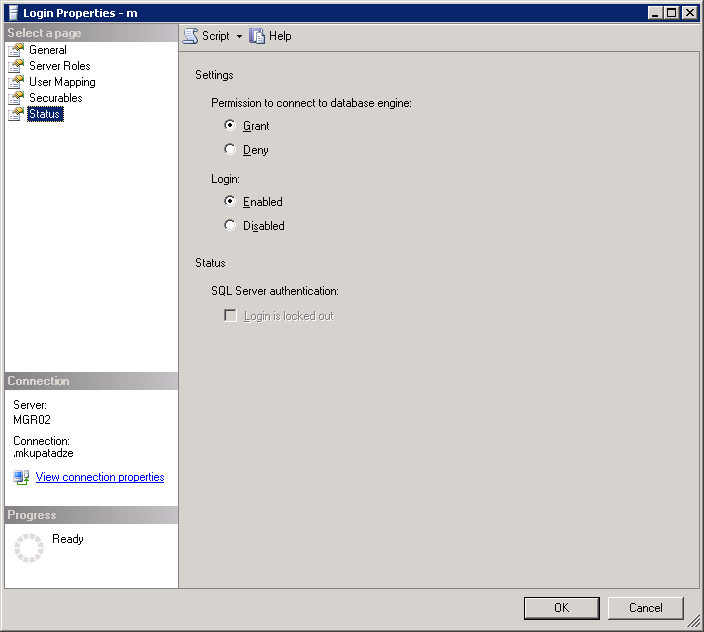
1.6 In Status.

Login_Properties_Status

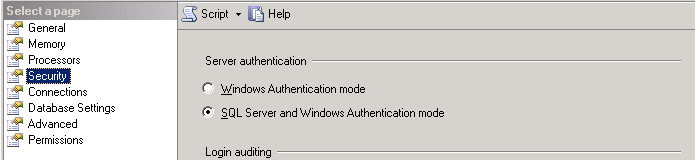
1.7 Right click on the server in the Object Explorer window, choose properties, in Security, choose SQL Server and Windows Authentication mode.

Server Properties_Sequrity(SQL Server 2005)

1.8 Reload the server.

2. Now, when you already have a trusted user in SQL Server 2005. Let’s install ODBC driver for sql server on the computer where Oracle is installed.

2.1 Start -> Control Panel -> Administrative Tools -> Data Sources (ODBC), go to System DSN tab, click Add button.

ODBC Data Source Administrator_System DSN

2.2 Choose SQL Server, click Finish.

Create New Data Source

2.3 In the Name field, type some name, we will use it later as a SID_NAME. In Server field, type the IP of the server, where SQL Server 2005 database is installed.

Create a New Data Source to SQL Server(Data Source)

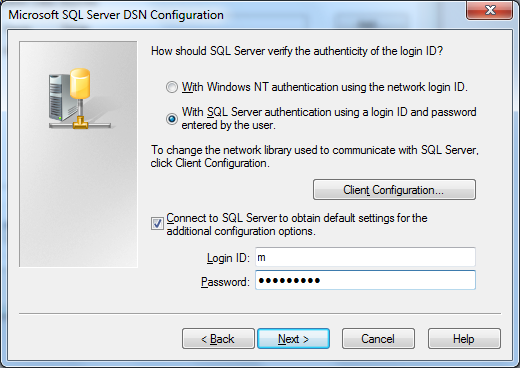
2.4 Choose second radio button, and type Login ID and Password for the user, which is a trusted user in SQL Server 2005(We have created it before, section 1).

Create a New Data Source to SQL Server

2.5 Check Change the default database to, and choose your database(Note this should be the database from where you want to query data).

Microsoft_SQL_Server_DNS_Configuration

2.6 Leave default settings.

Microsoft_SQL_Server_DNS_Configuration_2

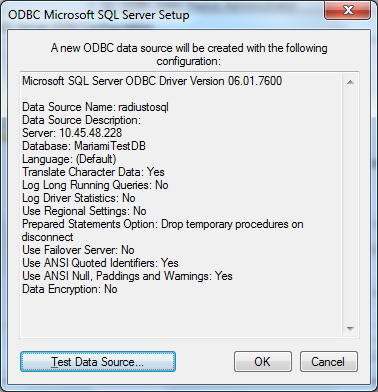
2.7  This window shows you the summary, click Test Data Source button.

ODBC Microsoft SQL Server Setup

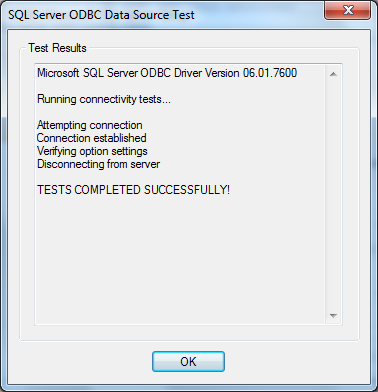
2.8 If you have indicated the correct settings, it should be successful.

SQL Server ODBC Data Source Test

3. Now, it’s time to configure in Oracle the following files: listener.ora, tnsnames.ora and %ORACLE_HOME%\hs\admin\inithsodbc.ora.

3.1 In listener.ora file add the following entries:

listenerradiustosql =
    (ADDRESS_LIST=
        (ADDRESS=(PROTOCOL=tcp)(HOST=localhost)(PORT=1522))
         (ADDRESS=(PROTOCOL=ipc)(KEY=PNPKEY))
)
SID_LIST_listenerradiustosql=
(SID_LIST=
   (SID_DESC=
     (SID_NAME=radiustosql)
     (ORACLE_HOME = C:\oracle\product\10.2.0\db_1)--Your oracle home
     (PROGRAM=hsodbc)
    )
)

Note: HOST must be localhost(127.0.0.1) not the computer IP, on where oracle is installed.
PORT is non-default port 1522, or choose the port which is free.
You should have two different listeners, one for Oracle itself and other one for radiustosql.

3.2 In tnsnames.ora file add the following entries:

radiustosql  =
  (DESCRIPTION=
    (ADDRESS=(PROTOCOL=tcp)(HOST=localhost)(PORT=1522))
    (CONNECT_DATA=(SID=radiustosql))
    (HS=OK)
  )

3.3  Rename %ORACLE_HOME%\hs\admin\inithsodbc.ora to %ORACLE_HOME%\hs\admin\initradiustosql.ora and change its content to the following:

# This is a sample agent init file that contains the HS parameters that are
# needed for an ODBC Agent.

#
# HS init parameters
#
HS_FDS_CONNECT_INFO = radiustosql
HS_FDS_TRACE_LEVEL = OFF

#
# Environment variables required for the non-Oracle system
#
#set <envvar>=<value>

3.4 Reload both Listeners: Oracle listener and newly created listenerradiustosql.

–To start default listener

>lsnrctl stop
>lsnrctl start

–To start non-default listener

>lsnrctl stop listenerradiustosql
>lsnrctl start listenerradiustosql

4. Connect to Oracle database and create database link.

4.1
–To create database link

create database link radiustosql
connect to m identified by itsPassword using 'radiustosql'

–To check if it works, run the following:

SELECT *
FROM dual@radiustosql

–Output

DUMMY
--------
X

Retrieving data from Active Directory to SQL Server 2005

We will use Visual Basic script to retrieve data from Active Directory. This script will pass data to the SQL Server procedure, which will insert it to the database table.

Just for Note: I used WinNT in visual basic instead of LDAP, and it was smaller script than this one, which I have written below:). But when I was trying to run this script error code: 8000500D was arising, error was indicating to the department property… Unfortunately, I couldn’t find the solution how to retrieve department property using WinNT, that is why I decided to write code by LDAP(code is written below).

So let’s start.

1. Connect to the database.

–First of all let’s create a table, which will hold this information.

CREATE TABLE [ADUsersTable] (
[UserId]     [int] IDENTITY (1, 1) NOT NULL PRIMARY KEY,
[Username]   [nvarchar] (1000),
[FullName]   [nvarchar] (1000),
[Department] [nvarchar] (1000)
)

Note: If IDENTITY(1,1)option is new for you, click here to clarify.

–Create procedure.

CREATE PROCEDURE ad_addProc
@Username   nvarchar(1000),
@Fullname   nvarchar(1000),
@Department nvarchar(1000)
AS
BEGIN
   INSERT INTO [ADUsersTable] ([Username], [FullName], [Department])
   VALUES(@Username ,@Fullname,@Department)
END

2. On the computer,  where SQL server is installed, create a text file, insert the following Visual Basic script and rename this file to AdUsers.vbs

Option Explicit
Dim oDomain
Dim MyConnection
Dim MyCommand
Dim par1
Dim par2
Dim par3
‘Domain is bg.ge
Set oDomain = GetObject("LDAP://dc=bg,dc=ge")
Set MyConnection = CreateObject("ADODB.Connection")
'Create SQL connection string,  to connect to the database.
MyConnection.Open "Driver={SQL Server};server(local);
database=DBname;uid=BOG0\mkupatadze;pwd=*****;Trusted_Connection=yes;"

Set MyCommand = CreateObject("ADODB.Command")
Set MyCommand.ActiveConnection = MyConnection
Set par1 = MyCommand.CreateParameter("@Username", 202, 1, 1000)
Set par2 = MyCommand.CreateParameter("@Fullname", 202, 1, 1000)
Set par3 = MyCommand.CreateParameter("@Department", 202, 1, 1000)
'Note that ad_addProc is the procedure created in SQL Server database.
MyCommand.CommandText = "ad_addProc"
MyCommand.CommandType = 4
MyCommand.Parameters.Append par1
MyCommand.Parameters.Append par2
MyCommand.Parameters.Append par3
RetrDataFromAD(oDomain)
‘Write the recursive function.
Sub RetrDataFromAD(oArray)
   Dim oADObject
   For Each oADObject in oArray
     ‘If error occurs, script will not be terminated.
     On Error Resume Next
     ‘Clearing  values of parameters
     par1.Value =" "
     par2.Value =" "
     par3.Value =" "
     Select Case oADObject.Class
       Case "user"
          ‘sAMAccountName is the username
          par1.Value = oADObject.Get("sAMAccountName")
          par2.Value = oADObject.Get("name")
          par3.Value = oADObject.Get("department")
          MyCommand.Execute
       Case "organizationalUnit" , "container"
          RetrDataFromAD(oADObject)
     End Select
    Next
End Sub
MyConnection.Close()

Double Click on that file and to see the result run the following query:

Select *
from [ADUsersTable]

Identity Columns

The syntax of the identity property is the following:

IDENTITY[(seed ,increment)]

Note: If you do not indicate seed and increment options, the default value for each of them will be 1. So IDENTITY(1,1) and IDENTITY is the same.

When the column is created by this property , numeric sequence will be created for you and this column will hold the sequential values, started by seed and incremented by increment parameter values.

For example:

–Create table by this property

CREATE TABLE [ADUsersTable] (
[UserId]     [int] IDENTITY (1, 1) NOT NULL PRIMARY KEY,
[Username]   [nvarchar] (1000),
[FullName]   [nvarchar] (1000),
[Department] [nvarchar] (1000)
)

–Insert rows

INSERT INTO [ADUsersTable] ([Username], [FullName], [Department])
VALUES('MKUPATADZE' ,'MARIAM KUPATADZE','IT')

INSERT INTO [ADUsersTable] ([Username], [FullName], [Department])
VALUES('GBERIDZE' ,'GIORGI BERIDZE','IT')

–Query data

SELECT *
FROM [ADUsersTable]

–Result

USERID|USERNAME     |FULLNAME          |DEPARTMENT
 1    | MKUPTADZE   | MARIAM KUPATADZE | IT
 2    | GBERIDZE    | GIORGI BERIDZE   | IT

–Insert another row and rollback it, let’s see what happens

BEGIN TRAN

INSERT INTO [ADUsersTable] ([Username], [FullName], [Department])
VALUES('AGANDILIANI' ,'ANNA GANDILIANI','IT')

ROLLBACK TRAN

–Insert one more row

INSERT INTO [ADUsersTable] ([Username], [FullName], [Department])
VALUES('SCHELISHVILI' ,'SOPHO CHELISHVILI','IT')

–Query data

SELECT *
FROM [ADUsersTable]

–Result

USERID|USERNAME     |FULLNAME          |DEPARTMENT
 1    | MKUPTADZE   | MARIAM KUPATADZE | IT
 2    | GBERIDZE    | GIORGI BERIDZE   | IT
 4    | SCHELISHVILI| SOPHO CHELISHVILI| IT

As you can see rolling back the transaction does not reset the current value of the sequence.

–To see the current value of the sequence, run the following:

DBCC checkident(ADUsersTable)

My result

Checking identity information:current identity value '4',current column value '4'.

Inserting desired identity values

By default, you can’t indicate value during insert for the column which was created by IDENTITY property. If you try the following command:

INSERT ADUsersTable (UserId,Username,FullName,Department)
VALUES(3,'VDALAKISHVILI','VASIL DALAKISHVILI','IT')

–It will arise the following error

Cannot insert explicit value for identity column in table 'ADUsersTable'
when IDENTITY_INSERT is set to OFF.

–To solve this, set IDENTITY_INSERT to ON, insert rows and then set IDENTITY_INSERT to OFF

SET IDENTITY_INSERT ADUsersTable ON

INSERT ADUsersTable (UserId,Username,FullName,Department)
VALUES(3,'VDALAKISHVILI','VASIL DALAKISHVILI','IT')

SET IDENTITY_INSERT ADUsersTable OFF

Note: If you do not turn off IDENTITY_INSERT, then you will not be able to use the generated sequence. Every time you run the INSERT statement you will be forced to indicate value for USERID column.

–Query data

SELECT * FROM ADUsersTable

–Result

USERID|USERNAME      |FULLNAME           |DEPARTMENT
 1    | MKUPTADZE    | MARIAM KUPATADZE  | IT
 2    | GBERIDZE     | GIORGI BERIDZE    | IT
 3    | VDALAKISHVILI| VASIL DALAKISHVILI| IT
 4    | SCHELISHVILI | SOPHO CHELISHVILI | IT

–To see the current value of the sequence , run the following:

DBCC checkident(ADUsersTable)

–The result

Checking identity information:current identity value '4',current column value '4'.

Note: If the desired value is less then the current value of the sequence, the current value will not be affected. As in our case, we inserted value 3, the current value was 4, that’s why current value was not affected.

But if the desired value is more then the current value of the sequence, current value will be affected.

For example:

–Repeat the previous steps, but now let’s insert higher value than the current one

SET IDENTITY_INSERT ADUsersTable ON

INSERT ADUsersTable (UserId,Username,FullName,Department)
VALUES(7,'TMAISURADZE','TEMUR MAISURADZE','IT')

SET IDENTITY_INSERT ADUsersTable OFF

–Query data

SELECT * FROM ADUsersTable

–Result

USERID|USERNAME      |FULLNAME           |DEPARTMENT
 1    | MKUPTADZE    | MARIAM KUPATADZE  | IT
 2    | GBERIDZE     | GIORGI BERIDZE    | IT
 3    | VDALAKISHVILI| VASIL DALAKISHVILI| IT
 4    | SCHELISHVILI | SOPHO CHELISHVILI | IT
 7    | TMAISURADZE  | TEMUR MAISURADZE  | IT

–To see the current value of the sequence , run the following:

DBCC checkident(ADUsersTable)

–The result

Checking identity information:current identity value '7',current column value '7'.

That’s all. 🙂

What is orapwd?

Orapwd is the Oracle utility to create password file.  The syntax is the following:

orapwd file=file_name
password=password for SYS
[entries=number_of_users]
[force=Y/N]
[ignorecase=Y/N]
[nosysdba=Y/N]

Where,
file– is the password file name. If you do not indicate the full path, then file will be created in the current directory.
password-is the password for sys user.
entries– is the maximum number of users that can be granted sysdba or sysoper privileges.
force-if the value of this parameter is Y then the existing password file will be overwritten.
ignorecase– password will be case insensitive.

Note: parameters that are enclosed by ‘[‘ and ‘]’ are optional.

For example:

 orapwd file= pwdorcl password=sys entries=20

Explanation:

Password file, called pwdorcl.ora, will be created in the current directory. The password for sys user will be sys and maximum 20 users can be granted sysdba or sysoper privileges.

Note: Default location of the password file on Windows is %ORACLE_HOME%\database\ and name is pwd%ORACLE_SID%.ora ….. On Linux $ORACLE_HOME\dbs and name orapw$ORACLE_SID. If you do not consider this you will get error:  ORA-01017

In addition to password file creation:

The initialization parameter remote_login_passwordfile must be set to the appropriate value:

  • None: means that Oracle will behave like that the password file doesn’t exist. Which will cause that no privileged connections will be allowed over nonsecure connections.
  • Exclusive: means that the password file will be used with the only one database instance. Setting this value gives the ability to grant/revoke sysdba or sysoper privileges to/from users(Note that granting or revoking privs. causes the password file modifications). It also enables you to change password of SYS user with ALTER USER command. It is the default value.
  • Shared: It is used by multiple DBs, which are running on the same server, or with RAC. Setting this value prohibits you from changing the password file. If you try to change the password file generates the error. To make available to modify this file, first change this parameter to exclusive, modify file and change it back to the share value.

To see how many users are added to the password file run the following command:

select *
from v$pwfile_users

–My output is the following

USERNAME |SYSDBA |SYSOPER
SYS      |TRUE   |TRUE

Deleting password file

To remove the password file, first delete it and then set the initialization parameter remote_login_passwordfile to none. After that, the users that can authenticate by the operating system will be able to connect  to the database as sysdba/sysoper.

How to restore database in SQL Server 2005

I will discuss how to restore database in SQL Server 2005, by the very simple way.
So let’s start:

1. Run  SQL Server Management Studio.

2. In Object Explorer, choose Databases , right click and choose Restore Database…

Restore Database(SQL Server 2005)

3. In the new window, select the database name which you want to restore (my database name is MariamDB).

Destination for restore(SQL Server 2005)

4. On the same window, in Source for restore section, choose From device option, and click browse button.
Source for restore(SQL Server 2005)

5. In Specify Backup window, click Add button.
Specify Backup(SQL Server 2005)

6. Choose the destination where your backup(.bak) file exists, and click OK.
Locate Backup File(SQL Server 2005)

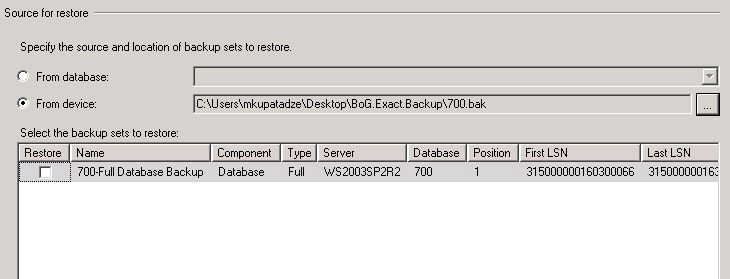
7. Picture should look like this:
Source for restore_Select the backup sets to restore(SQL Server 2005)

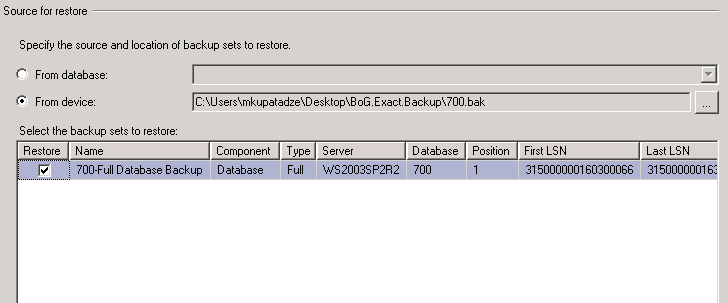
8. Check the row, which is showing your backup file information.
Source for restore_Select the backup sets to restore(checked)(SQL Server 2005)

9. Go to the options, and check Overwrite the existing database, and click OK.
Restore Database_Options(SQL Server 2005)

That is all! 🙂