Automatic Tablespace Point-in-Time Recovery(TSPIR) in Oracle 11gR2

Automatic tablespace point-in-time recovery is very useful in the following situations:

1.  You want to recover just one tablespace to the point in time other than rest of the tablespaces.

2. You want to recover dropped tablespace.

3. You want to recover data in table that was lost after changing structure of the table. Note that you are not able to use Flashback Table feature to recover data that was lost after changing table structure, it is not permitted.

TSPITR has a number of restrictions, a quick summary of which follows:

1.  You can’t restore tablespaces with objects owned by SYS. Any tablespace with replicated master tables cannot be recovered with TSPITR.

2. Tablespaces with snapshot logs are not supported.

3. You can’t restore tablespaces that contain rollback segments.

4. If an object within the tablespace to be recovered has one of the following types, then TSPITR is not supported:

    1. VARRAY
    2. Nested tables 
    3. External files

5. The current physical structure of the undo and rollback segments in the target database
must be unchanged between the point you wish to recover to and the current point.

6. Once you have completed TSPITR on a given tablespace, all previous backups of that tablespace are no longer usable for future TSPITR recoveries of that tablespace. So you should backup your tablespace after TSPITR in case you need to run another TSPITR.

So, let’s start automatic TSPITR…Note that we are not using recovery catalog.

1. Identify the time to which you want to recover your tablespace. Don’t misidentify the time or you will not be able to retry the recovery.(As we mentioned in the section 6 of TSPITR restrictions, all previous backups will no longer be usable for future TSPITR)

2. Make sure that objects in that tablespace are self-contained.

Let’s say we have the tablesapace called “TEST”.  It contains table “TEST_TABLE” but indexes on that table resides on another tablespace called “TEST_IDX”. In this case, if you want to recover “TEST” tablespace to some point-in-time , then you must also recover “TEST_IDX” tablespace to the same point-in-time(or you will loose indexes).

To identify dependent tablesapaces, run the following:

SQL> select obj1_owner
       ,obj1_name
       ,obj1_type
       ,ts2_name
       ,reason
from sys.ts_pitr_check
where ( ts1_name in (‘TEST’)
and ts2_name not in (‘TEST’) )
or ( ts1_name not in (‘TEST’)
and ts2_name in (‘TEST’) );

OBJ1_OWNER OBJ1_NAME  OBJ1_TYPE TS2_NAME REASON
TEST_USR       TEST_TABLE TABLE           TEST_IDX Tables and associated indexes not fully contained in the recovery set

This would return no rows if there were no dependencies. If there were any, you would see a
row describing each of them, as shown above.

In our case, there is an index associated with TEST_TABLE table and it resides in TEST_IDX tablespace. We should restore it also.

3. Identify what objects will be dropped after recovering tablespace.

Run the following,

SQL> select *
from ts_pitr_objects_to_be_dropped
where tablespace_name=’TEST’

OWNER NAME CREATION_TIME TABLESPACE_NAME
TEST_USR TEST_TABLE 4/19/2013 12:19:18 PM TEST

For example, if you are going to recover tablespace to 4/19/2013 12:00:00PM  then TEST_TABLE will be dropped.

4. Start test case.

Now we create 2 tablespaces TEST and TEST_IDX . Create TEST_USR user. Create TEST_TABLE table in TEST tablespace and TEST_INDEX in TEST_IDX. Fill table with data. Backup database. Before dropping table we save current SCN and then  drop table. We will do TBSPIR until the saved SCN.

Step 0 :  Clean the previous failed TSPIR

SQL> exec dbms_backup_restore.manageauxinstance (‘instance_name’,1) ;

instance_name will be generated automatically, and you should see it in RMAN output.

Step 1. Create TEST and TEST_IDX tablespaces.

SQL> CREATE TABLESPACE TEST DATAFILE
  ‘D:\APP\ORACLE\ORADATA\ORCL\TEST.DBF’ SIZE 104857600
  AUTOEXTEND ON NEXT 1048576 MAXSIZE 32767M;
 
  SQL> CREATE TABLESPACE TEST_IDX DATAFILE
  ‘D:\APP\ORACLE\ORADATA\ORCL\TEST_IDX.DBF’ SIZE 104857600
  AUTOEXTEND ON NEXT 1048576 MAXSIZE 32767M; 

Step 2. Create TEST_USR user, grant privileges.

SQL> CREATE USER TEST_USR IDENTIFIED BY TEST
DEFAULT TABLESPACE TEST;

SQL> GRANT CONNECT,RESOURCE TO TEST_USR;

Step 3. Create TEST_TABLE table.

SQL> CREATE TABLE TEST_USR.TEST_TABLE(A DATE);

Step 4. Create TEST_INDEX index.

SQL> CREATE INDEX TEST_USR.TEST_INDEX
ON  TEST_USR.TEST_TABLE(A)
TABLESPACE TEST_IDX;

Step 5. Fill data.

SQL> INSERT INTO TEST_USR.TEST_TABLE
VALUES(SYSDATE);

SQL> INSERT INTO TEST_USR.TEST_TABLE
VALUES(SYSDATE);

SQL> COMMIT;

Step 6.

SQL> SELECT *
FROM TEST_USR.TEST_TABLE

A
4/19/2013 12:20:16 PM

Step 7. Backup database.

RMAN> backup database plus archivelog;

Step 8.  Note the current SCN.

SQL> SELECT CURRENT_SCN
FROM V$DATABASE

CURRENT_SCN
2091595

Step 9. Drop table.

DROP TABLE TEST_USR.TEST_TABLE

Step 10. Create tables in SYSTEM and TEST_IDX tablespaces.

SQL> CREATE TABLE TEST_USR.TEST_USR_SYSTEM(A DATE)
TABLESPACE SYSTEM;

SQL> INSERT INTO TEST_USR.TEST_USR_SYSTEM VALUES(SYSDATE);

SQL> COMMIT;

SQL> CREATE TABLE TEST_USR.TEST_USR_TEST_IDX(A DATE)
TABLESPACE TEST_IDX;

SQL> INSERT INTO TEST_USR.TEST_USR_TEST_IDX VALUES(SYSDATE);

SQL> COMMIT;

This is just for to see that just TEST and TEST_IDX tablespaces are affected. And not SYSTEM or any other tablespaces. Smile

Step 11. Do TSPIR.

Note: Auxiliary destination must already exist and oracle software owner must be able to write into it.

!!! You should recover dependent tablespaces also , or data in these tablespaces will be lost.

For example: If you just recover TEST tablespace, then index on TEST_TABLE will be lost(resides in TEST_IDX tablespasce)… Note also that if you try to recover just TEST_IDX tablespace it will cause the following error:

The transportable set is not self-contained, violation list is Index TEST_USR.TEST_INDEX in tablespace TEST_IDX points to table TEST_USR.TEST_TABLE in tablespace TEST.

!!! Recoverable tablespaces must not contain SYS objects, or it will fail.

!!! Identify the exact point of time or after recovering tablespace, you will not be able to re-run TSPIR by existing backups.

After recovering tablespaces, if you run list backup command:

RMAN> list backup;

File LV Type Ckp SCN    Ckp Time            Name
—- — —- ———- ——————- —-
1       Full 2084320    19-04-2013 16:52:21 D:\APP\ORACLE\ORADATA\ORCL\SYSTEM01.DBF
2       Full 2084320    19-04-2013 16:52:21 D:\APP\ORACLE\ORADATA\ORCL\SYSAUX01.DBF
3       Full 2084320    19-04-2013 16:52:21 D:\APP\ORACLE\ORADATA\ORCL\UNDOTBS01.DBF
4       Full 2084320    19-04-2013 16:52:21 D:\APP\ORACLE\ORADATA\ORCL\USERS01.DBF
5       Full 2084320    19-04-2013 16:52:21
6       Full 2084320    19-04-2013 16:52:21

There are empty strings across recovered tablespaces.

So after TSPIR , you must re-take backup of the recovered tablespaces.

Starting TSPIR…

RMAN> recover tablespace "TEST","TEST_IDX" until scn 2091595 auxiliary destination ‘D:\oracle’;

Starting recover at 19-04-2013 17:57:28
using target database control file instead of recovery catalog
allocated channel: ORA_DISK_1
channel ORA_DISK_1: SID=17 device type=DISK
RMAN-05026: WARNING: presuming following set of tablespaces applies to specified point-in-time

List of tablespaces expected to have UNDO segments
Tablespace SYSTEM
Tablespace UNDOTBS1

Creating automatic instance, with SID=’uecp’

initialization parameters used for automatic instance:
db_name=ORCL
db_unique_name=uecp_tspitr_ORCL
compatible=11.2.0.0.0
db_block_size=8192
db_files=200
sga_target=280M
processes=50
db_create_file_dest=D:\oracle
log_archive_dest_1=’location=D:\oracle’
#No auxiliary parameter file used

starting up automatic instance ORCL

Oracle instance started

Total System Global Area     292933632 bytes

Fixed Size                     1374164 bytes
Variable Size                100665388 bytes
Database Buffers             184549376 bytes
Redo Buffers                   6344704 bytes
Automatic instance created
Running TRANSPORT_SET_CHECK on recovery set tablespaces
TRANSPORT_SET_CHECK completed successfully

contents of Memory Script:
{
# set requested point in time
set until  scn 2091595;
# restore the controlfile
restore clone controlfile;
# mount the controlfile
sql clone ‘alter database mount clone database’;
# archive current online log
sql ‘alter system archive log current’;
# avoid unnecessary autobackups for structural changes during TSPITR
sql ‘begin dbms_backup_restore.AutoBackupFlag(FALSE); end;’;
}
executing Memory Script

executing command: SET until clause

Starting restore at 19-04-2013 17:58:39
allocated channel: ORA_AUX_DISK_1
channel ORA_AUX_DISK_1: SID=59 device type=DISK

channel ORA_AUX_DISK_1: starting datafile backup set restore
channel ORA_AUX_DISK_1: restoring control file
channel ORA_AUX_DISK_1: reading from backup piece D:\APP\ORACLE\FLASH_RECOVERY_AREA\ORCL\BACKUPSET\2013_04_19\O1_MF_NCSNF_TAG20130419T175122_8Q2M0XGP_.BKP
channel ORA_AUX_DISK_1: piece handle=D:\APP\ORACLE\FLASH_RECOVERY_AREA\ORCL\BACKUPSET\2013_04_19\O1_MF_NCSNF_TAG20130419T175122_8Q2M0XGP_.BKP tag=TAG20130419T175122
channel ORA_AUX_DISK_1: restored backup piece 1
channel ORA_AUX_DISK_1: restore complete, elapsed time: 00:00:01
output file name=D:\ORACLE\ORCL\CONTROLFILE\O1_MF_8Q2MDJ5K_.CTL
Finished restore at 19-04-2013 17:58:41

sql statement: alter database mount clone database

sql statement: alter system archive log current

sql statement: begin dbms_backup_restore.AutoBackupFlag(FALSE); end;

contents of Memory Script:
{
# set requested point in time
set until  scn 2091595;
plsql <<<– tspitr_2
declare
  sqlstatement       varchar2(512);
  offline_not_needed exception;
  pragma exception_init(offline_not_needed, -01539);
begin
  sqlstatement := ‘alter tablespace ‘||  ‘"TEST"’ ||’ offline immediate’;
  krmicd.writeMsg(6162, sqlstatement);
  krmicd.execSql(sqlstatement);
exception
  when offline_not_needed then
    null;
end; >>>;
plsql <<<– tspitr_2
declare
  sqlstatement       varchar2(512);
  offline_not_needed exception;
  pragma exception_init(offline_not_needed, -01539);
begin
  sqlstatement := ‘alter tablespace ‘||  ‘"TEST_IDX"’ ||’ offline immediate’;
  krmicd.writeMsg(6162, sqlstatement);
  krmicd.execSql(sqlstatement);
exception
  when offline_not_needed then
    null;
end; >>>;
# set destinations for recovery set and auxiliary set datafiles
set newname for clone datafile  1 to new;
set newname for clone datafile  3 to new;
set newname for clone datafile  2 to new;
set newname for clone tempfile  1 to new;
set newname for datafile  5 to
"D:\APP\ORACLE\ORADATA\ORCL\TEST.DBF";
set newname for datafile  6 to
"D:\APP\ORACLE\ORADATA\ORCL\TEST_IDX.DBF";
# switch all tempfiles
switch clone tempfile all;
# restore the tablespaces in the recovery set and the auxiliary set
restore clone datafile  1, 3, 2, 5, 6;
switch clone datafile all;
}
executing Memory Script

executing command: SET until clause

sql statement: alter tablespace "TEST" offline immediate

sql statement: alter tablespace "TEST_IDX" offline immediate

executing command: SET NEWNAME

executing command: SET NEWNAME

executing command: SET NEWNAME

executing command: SET NEWNAME

executing command: SET NEWNAME

executing command: SET NEWNAME

renamed tempfile 1 to D:\ORACLE\ORCL\DATAFILE\O1_MF_TEMP_%U_.TMP in control file

Starting restore at 19-04-2013 17:58:58
using channel ORA_AUX_DISK_1

channel ORA_AUX_DISK_1: starting datafile backup set restore
channel ORA_AUX_DISK_1: specifying datafile(s) to restore from backup set
channel ORA_AUX_DISK_1: restoring datafile 00001 to D:\ORACLE\ORCL\DATAFILE\O1_MF_SYSTEM_%U_.DBF
channel ORA_AUX_DISK_1: restoring datafile 00003 to D:\ORACLE\ORCL\DATAFILE\O1_MF_UNDOTBS1_%U_.DBF
channel ORA_AUX_DISK_1: restoring datafile 00002 to D:\ORACLE\ORCL\DATAFILE\O1_MF_SYSAUX_%U_.DBF
channel ORA_AUX_DISK_1: restoring datafile 00005 to D:\APP\ORACLE\ORADATA\ORCL\TEST.DBF
channel ORA_AUX_DISK_1: restoring datafile 00006 to D:\APP\ORACLE\ORADATA\ORCL\TEST_IDX.DBF
channel ORA_AUX_DISK_1: reading from backup piece D:\APP\ORACLE\FLASH_RECOVERY_AREA\ORCL\BACKUPSET\2013_04_19\O1_MF_NNNDF_TAG20130419T175122_8Q2LYVQ3_.BKP
channel ORA_AUX_DISK_1: piece handle=D:\APP\ORACLE\FLASH_RECOVERY_AREA\ORCL\BACKUPSET\2013_04_19\O1_MF_NNNDF_TAG20130419T175122_8Q2LYVQ3_.BKP tag=TAG20130419T175122
channel ORA_AUX_DISK_1: restored backup piece 1
channel ORA_AUX_DISK_1: restore complete, elapsed time: 00:01:05
Finished restore at 19-04-2013 18:00:04

datafile 1 switched to datafile copy
input datafile copy RECID=4 STAMP=813175204 file name=D:\ORACLE\ORCL\DATAFILE\O1_MF_SYSTEM_8Q2MF36L_.DBF
datafile 3 switched to datafile copy
input datafile copy RECID=5 STAMP=813175204 file name=D:\ORACLE\ORCL\DATAFILE\O1_MF_UNDOTBS1_8Q2MF3K3_.DBF
datafile 2 switched to datafile copy
input datafile copy RECID=6 STAMP=813175204 file name=D:\ORACLE\ORCL\DATAFILE\O1_MF_SYSAUX_8Q2MF3BV_.DBF

contents of Memory Script:
{
# set requested point in time
set until  scn 2091595;
# online the datafiles restored or switched
sql clone "alter database datafile  1 online";
sql clone "alter database datafile  3 online";
sql clone "alter database datafile  2 online";
sql clone "alter database datafile  5 online";
sql clone "alter database datafile  6 online";
# recover and open resetlogs
recover clone database tablespace  "TEST", "TEST_IDX", "SYSTEM", "UNDOTBS1", "SYSAUX" delete archivelog;
alter clone database open resetlogs;
}
executing Memory Script

executing command: SET until clause

sql statement: alter database datafile  1 online

sql statement: alter database datafile  3 online

sql statement: alter database datafile  2 online

sql statement: alter database datafile  5 online

sql statement: alter database datafile  6 online

Starting recover at 19-04-2013 18:00:06
using channel ORA_AUX_DISK_1

starting media recovery

archived log for thread 1 with sequence 15 is already on disk as file D:\APP\ORACLE\FLASH_RECOVERY_AREA\ORCL\ARCHIVELOG\2013_04_19\O1_MF_1_15_8Q2M11L9_.ARC
archived log for thread 1 with sequence 16 is already on disk as file D:\APP\ORACLE\FLASH_RECOVERY_AREA\ORCL\ARCHIVELOG\2013_04_19\O1_MF_1_16_8Q2MDSHL_.ARC
archived log file name=D:\APP\ORACLE\FLASH_RECOVERY_AREA\ORCL\ARCHIVELOG\2013_04_19\O1_MF_1_15_8Q2M11L9_.ARC thread=1 sequence=15
archived log file name=D:\APP\ORACLE\FLASH_RECOVERY_AREA\ORCL\ARCHIVELOG\2013_04_19\O1_MF_1_16_8Q2MDSHL_.ARC thread=1 sequence=16
media recovery complete, elapsed time: 00:00:02
Finished recover at 19-04-2013 18:00:10

database opened

contents of Memory Script:
{
# make read only the tablespace that will be exported
sql clone ‘alter tablespace  "TEST" read only’;
sql clone ‘alter tablespace  "TEST_IDX" read only’;
# create directory for datapump import
sql "create or replace directory TSPITR_DIROBJ_DPDIR as ”
D:\oracle”";
# create directory for datapump export
sql clone "create or replace directory TSPITR_DIROBJ_DPDIR as ”
D:\oracle”";
}
executing Memory Script

sql statement: alter tablespace  "TEST" read only

sql statement: alter tablespace  "TEST_IDX" read only

sql statement: create or replace directory TSPITR_DIROBJ_DPDIR as ”D:\oracle”

sql statement: create or replace directory TSPITR_DIROBJ_DPDIR as ”D:\oracle”

Performing export of metadata…
   EXPDP> Starting "SYS"."TSPITR_EXP_uecp":
   EXPDP> Processing object type TRANSPORTABLE_EXPORT/PLUGTS_BLK
   EXPDP> Processing object type TRANSPORTABLE_EXPORT/TABLE
   EXPDP> Processing object type TRANSPORTABLE_EXPORT/INDEX
   EXPDP> Processing object type TRANSPORTABLE_EXPORT/INDEX_STATISTICS
   EXPDP> Processing object type TRANSPORTABLE_EXPORT/POST_INSTANCE/PLUGTS_BLK
   EXPDP> Master table "SYS"."TSPITR_EXP_uecp" successfully loaded/unloaded
   EXPDP> ******************************************************************************
   EXPDP> Dump file set for SYS.TSPITR_EXP_uecp is:
   EXPDP>   D:\ORACLE\TSPITR_UECP_36510.DMP
   EXPDP> ******************************************************************************
   EXPDP> Datafiles required for transportable tablespace TEST:
   EXPDP>   D:\APP\ORACLE\ORADATA\ORCL\TEST.DBF
   EXPDP> Datafiles required for transportable tablespace TEST_IDX:
   EXPDP>   D:\APP\ORACLE\ORADATA\ORCL\TEST_IDX.DBF
   EXPDP> Job "SYS"."TSPITR_EXP_uecp" successfully completed at 18:01:30
Export completed

contents of Memory Script:
{
# shutdown clone before import
shutdown clone immediate
# drop target tablespaces before importing them back
sql ‘drop tablespace  "TEST" including contents keep datafiles’;
sql ‘drop tablespace  "TEST_IDX" including contents keep datafiles’;
}
executing Memory Script

database closed
database dismounted
Oracle instance shut down

sql statement: drop tablespace  "TEST" including contents keep datafiles

sql statement: drop tablespace  "TEST_IDX" including contents keep datafiles

Performing import of metadata…
   IMPDP> Master table "SYS"."TSPITR_IMP_uecp" successfully loaded/unloaded
   IMPDP> Starting "SYS"."TSPITR_IMP_uecp":
   IMPDP> Processing object type TRANSPORTABLE_EXPORT/PLUGTS_BLK
   IMPDP> Processing object type TRANSPORTABLE_EXPORT/TABLE
   IMPDP> Processing object type TRANSPORTABLE_EXPORT/INDEX
   IMPDP> Processing object type TRANSPORTABLE_EXPORT/INDEX_STATISTICS
   IMPDP> Processing object type TRANSPORTABLE_EXPORT/POST_INSTANCE/PLUGTS_BLK
   IMPDP> Job "SYS"."TSPITR_IMP_uecp" successfully completed at 18:01:57
Import completed

contents of Memory Script:
{
# make read write and offline the imported tablespaces
sql ‘alter tablespace  "TEST" read write’;
sql ‘alter tablespace  "TEST" offline’;
sql ‘alter tablespace  "TEST_IDX" read write’;
sql ‘alter tablespace  "TEST_IDX" offline’;
# enable autobackups after TSPITR is finished
sql ‘begin dbms_backup_restore.AutoBackupFlag(TRUE); end;’;
}
executing Memory Script

sql statement: alter tablespace  "TEST" read write

sql statement: alter tablespace  "TEST" offline

sql statement: alter tablespace  "TEST_IDX" read write

sql statement: alter tablespace  "TEST_IDX" offline

sql statement: begin dbms_backup_restore.AutoBackupFlag(TRUE); end;

Removing automatic instance
Automatic instance removed
auxiliary instance file D:\ORACLE\ORCL\DATAFILE\O1_MF_TEMP_8Q2MHOX7_.TMP deleted
auxiliary instance file D:\ORACLE\ORCL\ONLINELOG\O1_MF_3_8Q2MHJJJ_.LOG deleted
auxiliary instance file D:\ORACLE\ORCL\ONLINELOG\O1_MF_2_8Q2MHGMY_.LOG deleted
auxiliary instance file D:\ORACLE\ORCL\ONLINELOG\O1_MF_1_8Q2MHC0J_.LOG deleted
auxiliary instance file D:\ORACLE\ORCL\DATAFILE\O1_MF_SYSAUX_8Q2MF3BV_.DBF deleted
auxiliary instance file D:\ORACLE\ORCL\DATAFILE\O1_MF_UNDOTBS1_8Q2MF3K3_.DBF deleted
auxiliary instance file D:\ORACLE\ORCL\DATAFILE\O1_MF_SYSTEM_8Q2MF36L_.DBF deleted
auxiliary instance file D:\ORACLE\ORCL\CONTROLFILE\O1_MF_8Q2MDJ5K_.CTL deleted
Finished recover at 19-04-2013 18:02:05

RMAN>

Step 12. Make TEST and TEST_IDX tablespaces online.

ALTER TABLESPACE TEST ONLINE;

ALTER TABLESPACE TEST_IDX ONLINE;

Step 13.  Check what was and wasn’t recovered.

SQL> select *
from TEST_USR.TEST_USR_SYSTEM;

A
4/19/2013 5:53:01 PM

SQL> select *
from TEST_USR.TEST_USR_TEST_IDX;

ORA-00942: table or view does not exist

SQL> select *
from TEST_USR.TEST_TABLE;

A
4/19/2013 5:50:44 PM


So just “TEST” and “TEST_IDX” tablespaces are affected, nice Smile

Good Luck!

Multipath configuration on RHEL6

1. Check if you have already installed device-mapper-multipath rpm, if not then install it.

rpm -qa device-mapper-multipath

2. If /etc/multipath.conf file doesn’t exist, then copy it from /usr/share/doc/device-mapper-multipath-*

cp /usr/share/doc/device-mapper-multipath-0.4.9/multipath.conf /etc/multipath.conf

3. Find WWIDs that should be added to multipath configuration.

# scsi_id -g -u /dev/sdb
36001438009b044d90000900000780000

4. Edit the /etc/multipath.conf configuration file

defaults {
        user_friendly_names yes
        path_grouping_policy    failover
}

blacklist {
        wwid "*"
}

blacklist_exceptions {
        wwid "36001438009b044d90000900000780000"
}

multipaths {
        multipath {
                wwid                    "36001438009b044d90000900000780000"
                alias                   asm1
        }
}

5.  Add module to the Linux kernel:

modprobe dm-multipath

6. Start multipath service:

service multipathd start

7. If you have any syntax errors or any parameters that do not work in your Linux version, the following command will show:

multipath -d

8. Commit the configuration:

multipath -v2

9. The following command must find the paths , or you have a bad configuration in multipath.conf file:

multipath -ll

10. Make devices configured after a reboot:

chkconfig multipathd on

If you have made any mistakes in multipath.conf file then correct them and do  the following steps to make changes take affect :

1. edit the /etc/multipath.conf

2.  Reload the multipath service:

service multipathd reload

3.  Remove all unused multipath devices

multipath -F

4.  Check again that syntax is correct:

multipath –d

5.  Commit the changes:

multipath –v2

Note that, this configuration is very simple, but it is working also perfectly.

For more multipath options and more sophisticated configuration, see the following documentation.

Installation problem of OEL6 on HP ProLiant DL360e Gen8 with HP Dynamic Smart Array B320i Controller

This post is dedicated to the Oracle Enterprise Linux 6.x installation on HP server with Dynamic Smart Array B320i Controller.

Brief description of the problem:

During OEL6 installation on HP server installer was not able to see local disks, on which system should be installed. Local disk specification was the following: Two 300GB disks involved into the RAID 1 and controller for RAID was Dynamic Smart Array B320i.

Installer was able to see multipath devices and any other external devices, like flash drive, but not local disks.

On HP site, there is written that the minimum supported Oracle Linux updates for HP  DL380e series are the following:

DL380e Gen8

  • Oracle Linux/UEK 6.2
  • Oracle Linux/UEK 5.8

Minimum support includes all future updates of the indicated release unless a maximum is listed. (Example: Oracle 6 implies support for Oracle 6.x, unless it’s specifically called out in the notes as "not supported with 6.x")”

And HP also declaims that it gives its drivers to the supported OSs manufacturers.

To tell the truth, I’ve tried Oracle Enterprise Linux 5.5, 6.0, 6.2 and 6.4 versions, but none of them was able to see the local storage.

After a lot of troubleshooting, I found the solution.

Solution:

The solution implies the HP Dynamic Smart Array SATA RAID Controller Driver for Red Hat Enterprise Linux 6 installation before OS installation.

1. Download drivers from the following link, click here.

Note: hpvsa-1.2.4-4.rhel6u1.x86_64.dd.gz is for RHEL6.1
hpvsa-1.2.4-4.rhel6u2.x86_64.dd.gz is for RHEL6.2
hpvsa-1.2.4-4.rhel6u3.x86_64.dd.gz is for RHEL6.3

Because of we are installing Oracle Enterprise Linux 6.2 which is based on RHEL6.2, we need hpvsa-1.2.4-4.rhel6u2.x86_64.dd.gz.

2. Extract gz file, you should have file with the extension of dd. Write this file to the flash drive and connect it to the server.

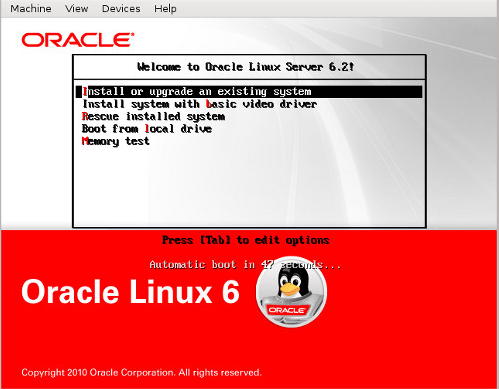
3. Put Oracle Enterprise Linux 6.2 installation disk and when the following window appears, press the TAB.

image

At the end of the command write install dd(separated from the previous command with space) and press Enter.

4. Choose the driver file, that we mentioned earlier and continue the installation.

Oracle EL should now see the local disk without any problem. Good Luck.

Configure SSL Connections on Report Server(https)

You must have a server certificate installed on the computer. Ask for the certificate to your sysadmins(windows admins), or request a certificate from a trusted certificate authority.

The following steps do not include instructions for requesting, generating, downloading, or installing a certificate. You must have a certificate installed and available to use.

So let’s start.

1. Run Reporting Services Configuration Manager and connect to the reporting server.

2. In Web Service URL section –> SSL Certificate –> choose your certificate –> click Apply.

3. Report Manager URL section –> Advanced button –> Multiple SSL identities for Report Manager section –>

click Add button –> in Certificate choose your certificate and click OK –> OK.

4. Stop and Start your Reporting service, from the first section of the configuration manager.

5. Check that the URL works by indicating https instead of http.

Create Oracle Backup Job in Backup Exec

It is very easy to backup Oracle from Backup Exec than Netbackup 🙂 So let’s discuss how to do it.

Some details:

Client Server IP: 10.0.1.100
Client Hostname: orcl_node
Media Server IP: 192.168.1.100

You should have installed RALUS Agent(Backup Exec client software) on client machine, if not see my post “Install Backup Exec Client(Remote Agent) on Linux”(There is also Agent configuration, but we will discuss this configuration in this post also, so just see the client installation section)

1. Configurations on client side

1.1 Oracle user (user that is the oracle software owner) must be in the beoper group.

# id oracle
uid=501(oracle) gid=503(oinstall) groups=503(oinstall),501(asmdba),504(dba),505(oper)

# usermod -G asmdba,dba,oper,beoper oracle

# id oracle
uid=501(oracle) gid=503(oinstall) groups=503(oinstall),501(asmdba),504(dba),505(oper),506(beoper)

1.2. Configure RALUS agent on client machine

# /opt/VRTSralus/bin/AgentConfig

Symantec Backup Exec Remote Agent Utility
     Choose one of the following options:
     1. Configure database access
     2. Configure Oracle instance information
     3. Quit
     Please enter your selection: 1

Configuring machine information
     Choose one of the following options:
     1. Add system credentials for Oracle operations
     2. Edit system credentials used for Oracle operations
     3. Remove system credentials used for Oracle operations
     4. View system credentials used for Oracle operations
     5. Quit
     Please enter your selection: 1
     Enter a user name that has local system credentials: oracle
     Enter the password:
     Re-enter password:
     Validating credentials…….
     Do you want to use a custom port to connect to the media server during Oracle operations? (Y/N): N
     Commit Oracle operation settings to the configuration file? (Y/N): Y
     SUCCESS: Successfully added the entry to the configuration file.

Configuring machine information
     Choose one of the following options:
     1. Add system credentials for Oracle operations
     2. Edit system credentials used for Oracle operations
     3. Remove system credentials used for Oracle operations
     4. View system credentials used for Oracle operations
     5. Quit
     Please enter your selection: 5

Symantec Backup Exec Remote Agent Utility
     Choose one of the following options:
     1. Configure database access
     2. Configure Oracle instance information
     3. Quit
     Please enter your selection: 2

If this computer is a RAC node, you must perform additional steps for configuration before you continue. Refer to the readme for these additional steps.

Configuring the Oracle Agent
Choose one of the following options:
1. Add a new Oracle instance to protect
2. Edit an existing Oracle instance
3. Delete an existing Oracle instance
4. View Oracle instance entries that have been added in the Remote Agent Utility
5. Quit
Please enter your selection: 1
     Select an Oracle instance to configure
Entry 1. orcl
Enter the number 0 to go back
Enter your selection: 1
     Enter the Oracle database SYSDBA user name: SYS
Enter the Oracle database SYSDBA password:
Re-enter password:
Validating credentials…….
Enter the media server name or IP address:      The length of the entered data is greater than the maximum permitted length.
Enter the media server name or IP address: 192.168.1.100
     Do you use a recovery catalog? (Y/N):N
     Do you want to use a customized job template? (Y/N): N
     Commit Oracle operation settings to the configuration file? (Y/N): Y
     Created symbolic link for /opt/VRTSralus/bin/libobk.so at /u01/app/oracle/product/11.2.0/db_1/lib/libobk.so
SUCCESS: Successfully added the entry to the configuration file.

Configuring the Oracle Agent
Choose one of the following options:
1. Add a new Oracle instance to protect
2. Edit an existing Oracle instance
3. Delete an existing Oracle instance
4. View Oracle instance entries that have been added in the Remote Agent Utility
5. Quit
Please enter your selection: 5

Symantec Backup Exec Remote Agent Utility
Choose one of the following options:
1. Configure database access
2. Configure Oracle instance information
3. Quit
Please enter your selection: 3

2. Configurations on media server side

Run Backup Exec from start menu.

2.1 Adding client info.

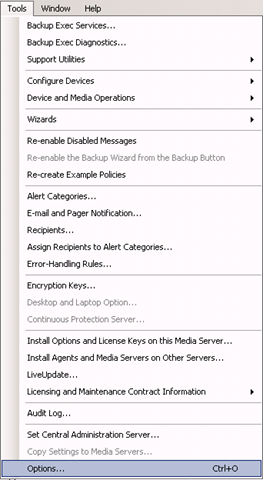
From the menu bar click Tools->Options

Backup_Exec_Tools_Options

In Job Defaults section –> Oracle –> click button Modify list

image

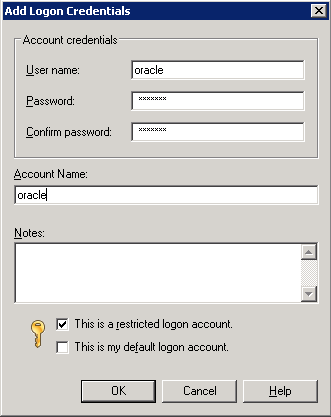
Click New button –> again New button –> and again New button

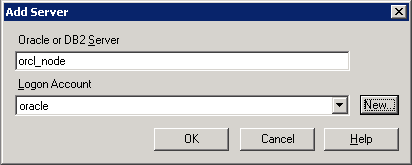
Fill the fields,

Username: oracle
Password:
Confirm Password:
Account Name: oracle

image

click OK

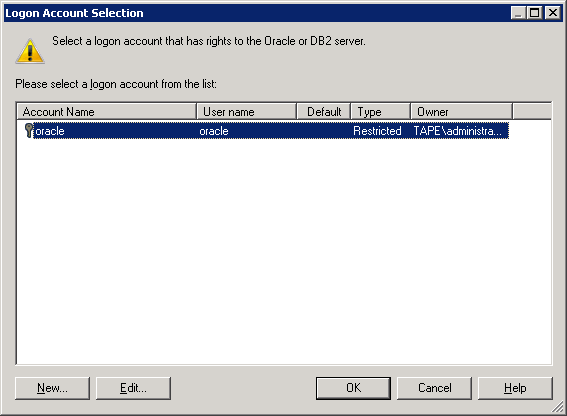
image

click OK.

image

click OK -> click OK –> click OK

2.2 Creating backup job.

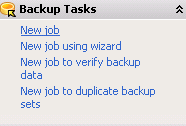
From the left pane-> Backup Tasks-> New job

image

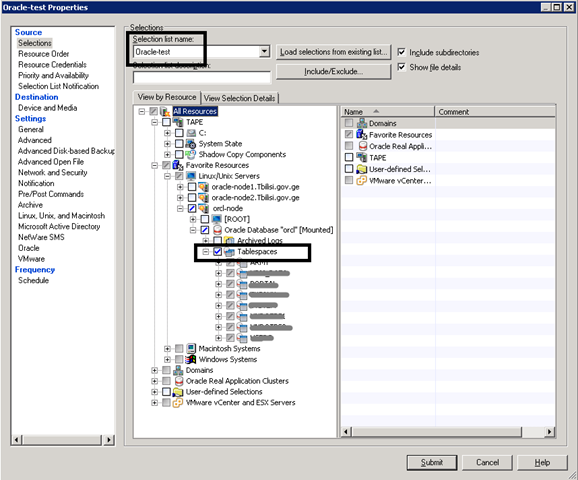
In Source section->Selections

Selection list name: Enter the name you want, let it be Oracle-test

Check View by Resource->All Resources-> Favorite Resources->orcl-node->Oracle Database “orcl”..->Tablespaces

image

I will not discuss all sections in detail, they are self-explanatory..

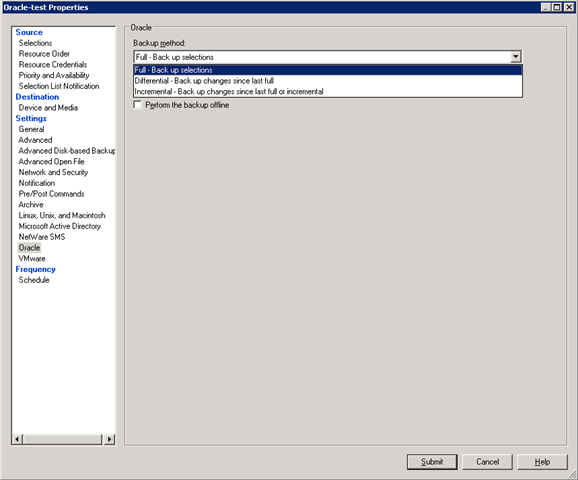
In Settings section-> Oracle –> choose Backup method and other necessary options like Delete backed up archive log files and so on…

image

By default job will run immediately after clicking the Submit button , but if you want to configure the schedule of your job , do the following:

In Frequency section –>Schedule->  choose Run according to schedule-> click Edit Schedule Details button and choose your appropriate schedule..

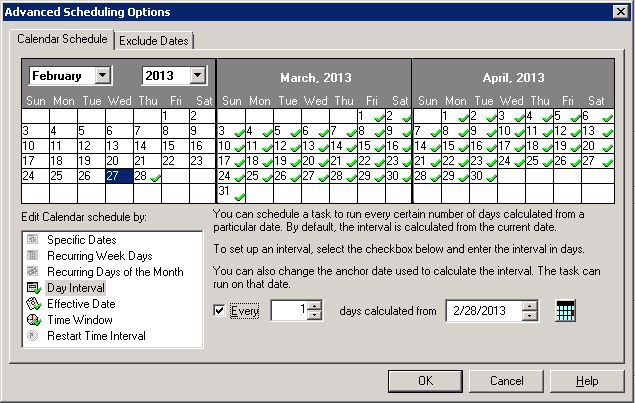
For example if you want your backup to run everyday at 1:00AM and no later than 11:00AM, click Day Interval –> check Every and write 1

image

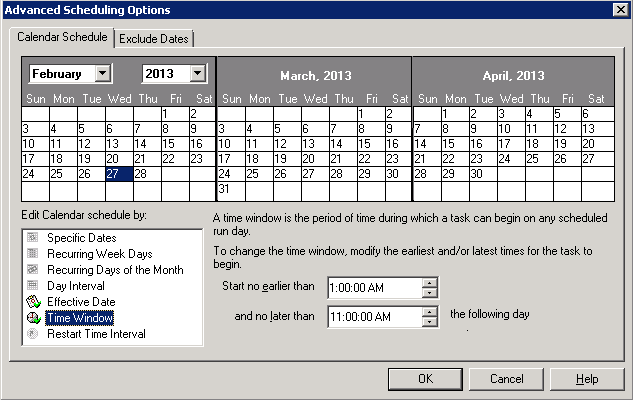
In Time Window, fill :

Start no earlier than: 1:00AM
and no later than: 11:00AM

image

Click OK.

Click Submit button.

That’s it.

Supported Oracle Versions and Operating Systems

I was trying to install Oracle 10.2.0.1 on Windows Server 2008 R2 and of course this installation was UNSUCCESSFUL. So I decide to post Oracle versions and Operating System list. Here it is:

Oracle versions

Windows Server versions

Oracle 10g, Release 2 (10.2.0.1.0)
  • Windows Server 2003 (64-bit)
Oracle 10g, Release 2 (10.2.0.2.0, 10.2.0.3.0)
    • Windows Server 2003 (64-bit)

    • Windows Server 2003 (64-bit) R2

Oracle 10g, Release 2 (10.2.0.4.0)
  • Windows Server 2003 (64-bit)

  • Windows Server 2003 (64-bit) R2

  • Windows Server 2008 (64-bit)

Oracle 10g, Release 2 (10.2.0.5.0)
  • Windows Server 2003 (64-bit)

  • Windows Server 2003 (64-bit) R2

  • Windows Server 2008 (64-bit)

  • Windows Server 2008 (64-bit) R2

Oracle 11g, Release 1 (11.1.0.6.0)
  • Windows Server 2003 (64-bit)

  • Windows Server 2003 (64-bit) R2

Oracle 11g, Release 1 (11.1.0.7.0)
  • Windows Server 2003 (64-bit)

  • Windows Server 2003 (64-bit) R2

  • Windows Server 2008 (64-bit)

Oracle 11g, Release 2 (11.2.0.1.0, 11.2.0.2.0)
  • Windows Server 2003 (64-bit)

  • Windows Server 2003 (64-bit) R2

  • Windows Server 2008 (64-bit)

  • Windows Server 2008 (64-bit) R2

Install Backup Exec Client(Remote Agent) on Linux

RALUS is a remote agent installation , simply Linux client of Backup exec that can be retrieved from Backup Exec installation DVD in LinuxUnixMac folder.

Some details:

Client Server IP: 10.0.1.100
Client Hostname: orcl_node
Domain: sa.ge
Media Server IP: 192.168.1.100

Create some installation directory and locate RALUS installation file to this folder.

1. Installation

# mkdir /0
# cd /0
# tar -xvf RALUS_RMALS_RAMS-4164.5.tar
# ./installralus

Step 1:

Enter the system names separated by spaces on which to install RALUS: (oracle-node1.tbilisi.gov.ge)10.0.1.100

Checking system communication:

Checking OS version on 10.0.1.100 ………….. Linux 2.6.18-194.el5
Checking system support for 10.0.1.100 … Linux 2.6.18-194.el5 supported by RALUS

Initial system check completed successfully.

Press Enter.

Step 2:

Press Enter.

Step 3:

If the output is:

Checking file system space ……………. required space is available

Then  press Enter

Step 4:

To display the Remote Agent as a selection in a media server’s backup selection tree, and to be able to specify a local network for use between the Remote Agent and a media server, enter the names or IP addresses of the media servers that you want the Remote Agent on ‘10.0.1.100’ to communicate with.

An IP Address: XXX.XXX.XXX.XXX
A Host Name: COMPUTERNAME

Enter a directory host:192.168.1.100

Do you want to add another name or address for this agent? [y, n] (n)

Step 5:

If the information is correct press Enter

Step 6:

In this step beoper group will be created if it doesn’t exist and root user will be added to this group.

Press Enter

Press Enter

Press Enter (choosing y option by default)

Press Enter(choosing n option by default)

Press Enter (choosing y option by default)

Press Enter

Step 7 :

Checking VRTSralus package ………………………… not installed

Press Enter

Step 8:

Installing VRTSralus 13.0.4164 on 10.0.1.100 …… done 1 of 1 steps

Press Enter

Step 9 :

Creating configuration files on 10.0.1.100  ………………… Done

Press Enter

RALUS installation is complete, now it’s time to configure it.

2. Configuration on Client

Step 1:

Run AgentConfig:

# /opt/VRTSralus/bin/AgentConfig

Symantec Backup Exec Remote Agent Utility
Choose one of the following options:
1. Configure database access
2. Configure Oracle instance information
3. Quit
Please enter your selection: 1

Configuring machine information
Choose one of the following options:
1. Add system credentials for Oracle operations
2. Edit system credentials used for Oracle operations
3. Remove system credentials used for Oracle operations
4. View system credentials used for Oracle operations
5. Quit
Please enter your selection: 1
     Enter a user name that has local system credentials: oracle
Enter the password:
Re-enter password:
Validating credentials…….
Do you want to use a custom port to connect to the media server during Oracle operations? (Y/N): N
     Commit Oracle operation settings to the configuration file? (Y/N): Y
     SUCCESS: Successfully added the entry to the configuration file.

Configuring machine information
Choose one of the following options:
1. Add system credentials for Oracle operations
2. Edit system credentials used for Oracle operations
3. Remove system credentials used for Oracle operations
4. View system credentials used for Oracle operations
5. Quit
Please enter your selection: 5

Symantec Backup Exec Remote Agent Utility
Choose one of the following options:
1. Configure database access
2. Configure Oracle instance information
3. Quit
Please enter your selection: 2

If this computer is a RAC node, you must perform additional steps for configuration before you continue. Refer to the readme for these additional steps.

Configuring the Oracle Agent
Choose one of the following options:
1. Add a new Oracle instance to protect
2. Edit an existing Oracle instance
3. Delete an existing Oracle instance
4. View Oracle instance entries that have been added in the Remote Agent Utility
5. Quit
Please enter your selection: 1
     Select an Oracle instance to configure
Entry 1. orcl
Enter the number 0 to go back
Enter your selection: 1
     Enter the Oracle database SYSDBA user name: SYS
Enter the Oracle database SYSDBA password:
Re-enter password:
Validating credentials…….
Enter the media server name or IP address:      The length of the entered data is greater than the maximum permitted length.
Enter the media server name or IP address: 192.168.1.100
     Do you use a recovery catalog? (Y/N):N
     Do you want to use a customized job template? (Y/N): N
     Commit Oracle operation settings to the configuration file? (Y/N): Y
     Created symbolic link for /opt/VRTSralus/bin/libobk.so at /u01/app/oracle/product/11.2.0/db_1/lib/libobk.so
SUCCESS: Successfully added the entry to the configuration file.

Configuring the Oracle Agent
Choose one of the following options:
1. Add a new Oracle instance to protect
2. Edit an existing Oracle instance
3. Delete an existing Oracle instance
4. View Oracle instance entries that have been added in the Remote Agent Utility
5. Quit
Please enter your selection: 5

Symantec Backup Exec Remote Agent Utility
Choose one of the following options:
1. Configure database access
2. Configure Oracle instance information
3. Quit
Please enter your selection: 3

Start agent:

# /etc/init.d/VRTSralus.init start
Starting Symantec Backup Exec Remote Agent ……
Starting Symantec Backup Exec Remote Agent:                              [  OK  ]

3. Configuration on Media Server

To make media server see your client do the following steps:

Step 1:

Run Start->-All Programs>Symantec Backup Exec->Backup Exec 2010

Step 2:

Tools->Options->Oracle –>click Modify List button->click New button and fill the following fields, by the following way:

Oracle or DB2 Server: 10.0.1.100
Logon Account  ->>>>click New button –>click New button and fill the following fields, by the following way:

User name: oracle
Password: enter oracle password for client server
Confirm Password: enter the password again
Account Name: oracle

click OK.

You will also need to configure SYS  user account.

And choose oracle in Logon Account  field.

click OK.

Do the same steps for 2 more times, just change Oracle or DB2 Server filed to orcl_node(instead of 10.0.1.100) for the first time and orcl_node.sa.ge for the second time

Step 3:

On media server , in hosts file add client entry.

That is all.

Install Oracle 11.2.0.3 with ASM on Centos 6.3

For RHEL 6, Oracle will provide ASMLib software and updates only when configured with a kernel distributed by Oracle. Oracle will not provide ASMLib packages for kernels distributed by Red Hat as part of RHEL 6. ASMLib updates will be delivered via Unbreakable Linux Network (ULN), which is available to customers with Oracle Linux support. ULN works with both Oracle Linux or Red Hat Linux installations, but ASMLib usage will require replacing any Red Hat kernel with a kernel provided by Oracle.

Because of the above announcement we use UDEV rules to prepare disks for ASM installation.

So let’s start.

1. Install required RPMs.

RPM names:

compat-libcap1-1.10-1.i686.rpm
compat-libcap1-1.10-1.x86_64.rpm
compat-libstdc++-33-3.2.3-69.el6.x86_64.rpm
elfutils-devel-0.152-1.el6.x86_64.rpm
elfutils-libelf-devel-0.152-1.el6.x86_64.rpm
gcc-c++-4.4.6-4.el6.x86_64.rpm
glibc-2.12-1.80.el6.i686.rpm
glibc-devel-2.12-1.80.el6.i686.rpm
libaio-0.3.107-10.el6.i686.rpm
libaio-devel-0.3.107-10.el6.x86_64.rpm
libattr-2.4.44-7.el6.i686.rpm
libcap-2.16-5.5.el6.i686.rpm
libgcc-4.4.6-4.el6.i686.rpm
libstdc++-devel-4.4.6-4.el6.x86_64.rpm
libtool-ltdl-2.2.6-15.5.el6.i686.rpm
ncurses-devel-5.7-3.20090208.el6.i686.rpm
ncurses-libs-5.7-3.20090208.el6.i686.rpm
nss-softokn-freebl-3.12.9-11.el6.i686.rpm
pdksh-5.2.14-30.x86_64.rpm
readline-6.0-4.el6.i686.rpm

If you have Centos installation disk, these RPMs should be locate there. Or you can download them from  http://rpm.pbone.net/

Note: if during installing pdksh-5.2.14-30.x86_64.rpm it says that package conflicts with ksh then you should erase ksh package and install pdksh, like this:

# rpm -qa | grep ksh
# rpm -e ksh-…
# rpm –ivh pdksh-5.2.14-30.x86_64.rpm

2. Configure Kernel:

# vi /etc/sysctl.conf

kernel.shmall = 2097152
kernel.shmmax = 982431744
kernel.shmmni = 4096
kernel.sem = 250 32000 100 128
fs.file-max = 6815744
fs.aio-max-nr = 1048576
net.ipv4.ip_local_port_range = 9000 65500
net.core.rmem_default = 262144
net.core.rmem_max = 4194304
net.core.wmem_default = 262144
net.core.wmem_max = 1048576

To make changes take effect:

# sysctl –p

Edit /etc/pam.d/login :

# vi /etc/pam.d/login

session required pam_limits.so

Edit /etc/security/limits.conf:

# vi /etc/security/limits.conf

oracle soft  nproc   2047
oracle hard  nproc   16384
oracle soft  nofile  1024
oracle hard  nofile  65536

grid   soft  nproc   2047
grid   hard  nproc   16384
grid   soft  nofile  1024
grid   hard  nofile  65536

Run the following to add lines in /etc/pam.d/login:

[root@orcl ~]# cat >> /etc/pam.d/login <<EOF
session required pam_limits.so
EOF

Run the following to add lines in /etc/profile:

[root@orcl ~]# cat >> /etc/profile <<EOF
if [ \$USER = "oracle" ] || [ \$USER = "grid" ]; then
if [ \$SHELL = "/bin/ksh" ]; then
ulimit -p 16384
ulimit -n 65536
else
ulimit -u 16384 -n 65536
fi
umask 022
fi
EOF

Run the following to add lines in /etc/csh.login

[root@orcl ~]# cat >> /etc/csh.login <<EOF
if ( \$USER == "oracle" || \$USER == "grid" )
then
limit maxproc 16384
limit descriptors 65536
endif
EOF

Disable SELinux:

# /usr/sbin/getenforce
Enforcing

# /usr/sbin/setenforce 0

To make changes permanent, change /etc/sysconfig/selinux file by the following way:

cat /etc/sysconfig/selinux

# This file controls the state of SELinux on the system.
# SELINUX= can take one of these three values:
#     enforcing – SELinux security policy is enforced.
#     permissive – SELinux prints warnings instead of enforcing.
#     disabled – No SELinux policy is loaded.
SELINUX=disabled
# SELINUXTYPE= can take one of these two values:
#     targeted – Targeted processes are protected,
#     mls – Multi Level Security protection.
SELINUXTYPE=targeted

To check the status again:

# /usr/sbin/getenforce
Disabled

3.  Creating OS groups and users.

#Creating groups for Grid Infrastructure

groupadd asmadmin
groupadd asmdba
groupadd asmoper

#Creating groups for Oracle Software

groupadd oinstall
groupadd dba
groupadd oper

#Creating user for Grid Infrastructure

useradd -g oinstall -G dba,asmadmin,asmdba,asmoper -d /home/grid grid

#Creating user for Oracle Software

useradd -g oinstall -G dba,oper,asmdba -d /home/oracle oracle

#Setting password for users

passwd grid
passwd oracle

4. Creating necessary directories

mkdir -p /u01/app/grid
mkdir -p /u01/app/11.2.0/grid
mkdir -p /u01/app/oracle
chown -R grid:oinstall /u01
chown oracle:oinstall /u01/app/oracle
chmod -R 775 /u01

5. Creating .bash_profile-s

#For Oracle user

su – oracle
vi .bash_profile

if [ -f ~/.bashrc ]; then
. ~/.bashrc
fi

ORACLE_SID=orcl; export ORACLE_SID

ORACLE_UNQNAME=orcl; export ORACLE_UNQNAME

JAVA_HOME=/usr/local/java; export JAVA_HOME

ORACLE_BASE=/u01/app/oracle; export ORACLE_BASE

ORACLE_HOME=$ORACLE_BASE/product/11.2.0/db_1
export ORACLE_HOME

ORACLE_TERM=xterm; export ORACLE_TERM

NLS_DATE_FORMAT="DD-MON-YYYY HH24:MI:SS"
export NLS_DATE_FORMAT

TNS_ADMIN=$ORACLE_HOME/network/admin; export TNS_ADMIN

ORA_NLS11=$ORACLE_HOME/nls/data; export ORA_NLS11

PATH=.:${JAVA_HOME}/bin:${PATH}:$HOME/bin:$ORACLE_HOME/bin
PATH=${PATH}:/usr/bin:/bin:/usr/bin/X11:/usr/local/bin
PATH=${PATH}:/u01/app/common/oracle/bin
export PATH

LD_LIBRARY_PATH=$ORACLE_HOME/lib
LD_LIBRARY_PATH=${LD_LIBRARY_PATH}:$ORACLE_HOME/oracm/lib
LD_LIBRARY_PATH=${LD_LIBRARY_PATH}:/lib:/usr/lib:/usr/local/lib
export LD_LIBRARY_PATH

CLASSPATH=$ORACLE_HOME/JRE
CLASSPATH=${CLASSPATH}:$ORACLE_HOME/jlib
CLASSPATH=${CLASSPATH}:$ORACLE_HOME/rdbms/jlib
CLASSPATH=${CLASSPATH}:$ORACLE_HOME/network/jlib
export CLASSPATH

THREADS_FLAG=native; export THREADS_FLAG

export TEMP=/tmp
export TMPDIR=/tmp

umask 022

#For Grid user

su – grid
vi .bash_profile

if [ -f ~/.bashrc ]; then
. ~/.bashrc
fi

ORACLE_SID=+ASM; export ORACLE_SID

JAVA_HOME=/usr/local/java; export JAVA_HOME

ORACLE_BASE=/u01/app/grid; export ORACLE_BASE

ORACLE_HOME=/u01/app/11.2.0/grid; export ORACLE_HOME

ORACLE_TERM=xterm; export ORACLE_TERM

NLS_DATE_FORMAT="DD-MON-YYYY HH24:MI:SS"; export NLS_DATE_FORMAT

TNS_ADMIN=$ORACLE_HOME/network/admin; export TNS_ADMIN

ORA_NLS11=$ORACLE_HOME/nls/data; export ORA_NLS11

PATH=.:${JAVA_HOME}/bin:${PATH}:$HOME/bin:$ORACLE_HOME/bin
PATH=${PATH}:/usr/bin:/bin:/usr/bin/X11:/usr/local/bin
PATH=${PATH}:/u01/app/common/oracle/bin
export PATH

LD_LIBRARY_PATH=$ORACLE_HOME/lib
LD_LIBRARY_PATH=${LD_LIBRARY_PATH}:$ORACLE_HOME/oracm/lib
LD_LIBRARY_PATH=${LD_LIBRARY_PATH}:/lib:/usr/lib:/usr/local/lib
export LD_LIBRARY_PATH

CLASSPATH=$ORACLE_HOME/JRE
CLASSPATH=${CLASSPATH}:$ORACLE_HOME/jlib
CLASSPATH=${CLASSPATH}:$ORACLE_HOME/rdbms/jlib
CLASSPATH=${CLASSPATH}:$ORACLE_HOME/network/jlib
export CLASSPATH

THREADS_FLAG=native; export THREADS_FLAG

export TEMP=/tmp
export TMPDIR=/tmp

umask 022


6. Add disks for ASM

If your disk is not partitioned yet, partition it by fdisk utility.

At this point you will need SCSI identifier.

So if your disk is physical just run the following command to identify it:

# scsi_id -g -u -d /dev/sdb
36000c292dfddac7b8934d3293313098e

Or if you have virtual disk , you will need to set disk.EnableUUID parameter to TRUE to see this identifier:

Shutdown VM, go to the directory where VM files are stored and edit VMX file. Add the following line:

disk.EnableUUID = "TRUE"

Restart your VM and run the above command (scsi_id -g -u -d /dev/sdb)

We will use this identifier for the UDEV rules to set permissions and alias for the new device in /etc/udev/rules.d/50-udev.rules file.

# vi /etc/udev/rules.d/50-udev.rules

KERNEL=="sd?1", BUS=="scsi", PROGRAM=="/sbin/scsi_id -g -u -d /dev/$parent",
RESULT=="36000c292dfddac7b8934d3293313098e", NAME="oracleasm/asm-disk1",
OWNER="oracle", GROUP="dba", MODE="0660"

Restart udev, by the following way:

# /sbin/start_udev
Starting udev:                                             [  OK  ]

Check that alias exists:

# ls -la /dev/oracleasm/*
brw-rw—- 1 oracle dba 8, 17 Feb 18 12:49 /dev/oracleasm/asm-disk1

7. Install grid

Go to the grid installation folder and run:

./runInstaller

Step 1:

Skip Software Updates.

Step 2:

Configure Oracle Grid Infrastructure for a Standalone Server.

Step 3:

Click Next.

Step 4:

Select the Change Discovery Path button and enter /dev/oracleasm.

There should appear /dev/oracleasm/asm-disk-1 and check it.

Type disk group name as DATA01.

Step 5:

Set the passwords for the SYS and ASMSNMP accounts:

Step 6:

ASM Database Administrator(OSDBA) Group : asmdba
ASM Instance Administration Operator(OSOPER) Group: asmoper
ASM Instance Administrator(OSASM) Group: asmadmin

Step 7:

Click Next.

Step 8:

Click Next.

Step 9:

Click Install.

After pop-upping the window , asking to run

      • /u01/app/oraInventory/orainstRoot.sh
  • /u01/app/oracle/product/11.2.0/db_1/root.sh

run these scripts one by one and click OK on pop-up window.

Note: if root.sh script shows the error like this:

…error while loading shared libraries: libcap.so.1: …

Then in your system libcap-1 and libcap-2 RPMs are missing, first install them.

8. Install database

Go to the database installation folder and run:

./runInstaller

Step 1:

I don’t want any more spam thanks.

Step 2:

Skip the updates.

Step 3:

Create and configure a database.

Step 4:

Server Class.

Step 5:

Single instance database installation.

Step 6:

Advanced install.

Step 7:

Choose the languages you want.

Step 8:

Enterprise Edition.

Step 9:

Choose the defaults.
Note: Grid and Database must be in the different folders.

Step 10:

General Purpose / Transaction Processing.

Step 11:

Write a database name.

Step 12:

Use Oracle Enterprise Manager Database Control for database management.

Step 13:

Use Automatic Storage Management.

Step 15:

Do not enable automated backups

Step 16:

Select the DATA01 diskgroup.

Step 17:

Set the passwords for the database.

Step 18:

Accept the defaults.

Database Administrator(OSDBA) Group: dba
Database Operator(OSOPER) Group: oper

Step 19:

Click Install to start the installer.

After the installation requires to run root.sh script, run it.

That is all.

Change Hostname in Linux(Red Hat)

1. Change the value of the HOSTNAME parameter to the new hostname:

# vi /etc/sysconfig/network

HOSTNAME=newhostname

2.  Edit hosts file:

# vi /etc/hosts

192.168.1.100    newhostname     newhostname.sa.ge

3. Reboot the system.

4. Check that the new hostname is set:

# hostname

newhostname    

SQL Server Reporting Services. Error: …Windows User Account Control (UAC) restrictions have been addressed

Error:
User ‘DomainUser’ does not have required permissions. Verify that sufficient permissions have been granted and Windows User Account Control (UAC) restrictions have been addressed.

Solution:

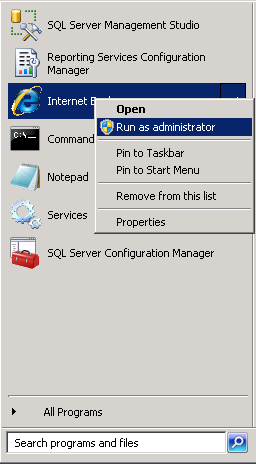
1. Run IE as Administrator:

image

2. Go to the Reporting Services address: http://localhost/Reports

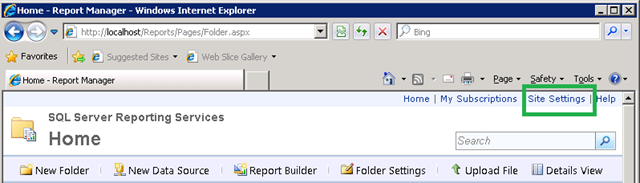
3. Go to the Site Settings:

image

4. In Security section –> click New Role Assignment

image

5. Add username or group that you want to grant permissions and choose appropriate role:

image

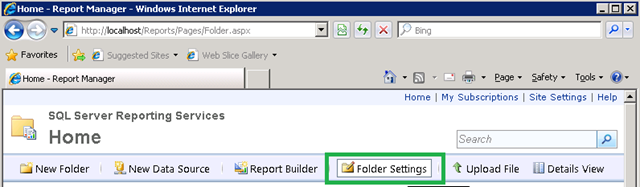
6. Go to the Home page and click Folder Settings:

image

7. Add username or group that you want to grant permission.

That’s all.