scsi_id not returning any output in a VM on VMware ESX

  1. scsi_id not returning result:

    scsi_id -g -u -d /dev/sdb
    No Result

  2. Start the vSphere Client, and log in to a vCenter Server.
  3.  Select Virtual Machines for which you want to retrieve disk unique id. I need this attribute for udev rules to prepare disks for ASM, for example.
  4.  Right-click the virtual machine for which you are enabling the disk UUID attribute, and select Power > Power Off.
    The virtual machine powers off.
  5. Right-click the virtual machine, and click Edit Settings.
  6. Click the Options tab, and select the General entry in the settings column.
  7. Click Configuration Parameters.
    The Configuration Paramters window appears.
  8. Click Add Row.
  9. In the Name column, enter disk.EnableUUID
  10. In the Value column, enter TRUE.
  11. Click OK and click Save.
  12. Power on the virtual machine.
  13. Now, it returns id:

    scsi_id -g -u -d /dev/sdb
    36000c292dfddac7b8934d3293313098e

Crontab -e You (oracle) are not allowed to use this program (crontab)

$ crontab -e
You (oracle) are not allowed to use this program (crontab)
See crontab(1) for more information

# The following files control crontab usage

/etc/cron.allow
/etc/cron.deny

# Go to the root user and add oracle user to the following file:

echo oracle > /etc/cron.allow

# Or delete oracle from /etc/cron.deny file. 🙂

Upgrade Oracle Database from 11g to 12c

  1. Download Oracle 12c software fromhttp://www.oracle.com/technetwork/database/enterprise-edition/downloads/database12c-linux-download-1959253.html

    unzip files:

    unzip linuxamd64_12102_database_1of2.zip
    unzip linuxamd64_12102_database_2of2.zip
  2. Make another home for 12c.
    mkdir -p /u01/app/oracle/product/12.1.0/dblb
  3. Change permissions for /u01 directory.  If 11g home is also located in /u01 you have already done the steps bellow. Just check that permissions are the following:
    chown -R oracle:oinstall /u01
    chmod -R 775 /u01
  4. Change the following parameters in response file, other parameters just leave blank.
    Response file is located in installation directory… extract_drectory/database/response/db_install.rsp

     oracle.install.option=INSTALL_DB_SWONLY
     ORACLE_HOSTNAME=DBServerHostname
     UNIX_GROUP_NAME=oinstall
     INVENTORY_LOCATION=/u01/app/oraInventory
     SELECTED_LANGUAGES=en
     ORACLE_HOME=/u01/app/oracle/product/12.1.0/dblb
     ORACLE_BASE=/u01/app/oracle
     oracle.install.db.InstallEdition=EE
     oracle.install.db.DBA_GROUP=dba
     oracle.install.db.OPER_GROUP=dba
     oracle.install.db.BACKUPDBA_GROUP=dba
     oracle.install.db.DGDBA_GROUP=dba
     oracle.install.db.KMDBA_GROUP=dba
     SECURITY_UPDATES_VIA_MYORACLESUPPORT=false
     DECLINE_SECURITY_UPDATES=true
  5. Go to the 12c installation folder  and run runInstaller, to install 12c home:
     ./runInstaller -silent -responseFile /install/database/response/db_install.rsp  -waitforcompletion -showProgress

    When it asks , connect to the server via root user and run

    /u01/app/oracle/product/12.1.0/dblb/root.sh
  6. At this time your database should be turned on from 11g home. Connect to the database via SYS user and run the following scripts: emremove.sql will remove EM repository. olspreupgrade.sql will run preupgrade scripts

    You should also purge the recyclebin. For reducing upgrade time.

    Note: these scripts should be run to the open database , that is turned on by 11g

    export ORACLE_HOME=/u01/app/oracle/product/11.2.0/dblb
     sqlplus / as sysdba
     @/u01/app/oracle/product/12.1.0/dblb/rdbms/admin/emremove.sql
     @/u01/app/oracle/product/12.1.0/dblb/rdbms/admin/olspreupgrade.sql
     purge recyclebin;
  7. Run DBUA from 12c home to upgrade existing database
    export ORACLE_HOME=/u01/app/oracle/product/11.2.0/dblb
    /u01/app/oracle/product/12.1.0/dblb/bin/dbua -silent \
    -sid ORCL \
    -oracleHome /u01/app/oracle/product/11.2.0/dblb \
    -diagnosticDest /u01/app/oracle \
    -recompile_invalid_objects true \
    -degree_of_parallelism 40 \
    -upgradeTimezone \
    -emConfiguration NONE \
    -keepHiddenParams \
    -gatheringStatistics \
    -upgrade_parallelism 40
  8. To check that everything was upgraded successfully, after successful message from the previous command, check the following:
    cat /etc/oratab
    ORCL:/u01/app/oracle/product/12.1.0/dblb:N
    cat /u01/app/oraInventory/ContentsXML/inventory.xml
     <VERSION_INFO>
     <SAVED_WITH>12.1.0.2.0</SAVED_WITH>
     <MINIMUM_VER>2.1.0.6.0</MINIMUM_VER>
     </VERSION_INFO>

    Update the following parameters in your  .bash_profile:

     export ORACLE_HOME=/u01/app/oracle/product/12.1.0/dblb
     export LD_LIBRARY_PATH=/u01/app/oracle/product/12.1.0/dblb/lib
  9. Network file configuration. Stop listener that was previously started from 11g. Move listener.ora and tnsnames.ora files to 12c home and rename them in old location. Start the listener from 12c home.
    /u01/app/oracle/product/11.2.0/dblb/bin/lsnrctl stop
    cp /u01/app/oracle/product/11.2.0/dblb/network/admin/listener.ora /u01/app/oracle/product/12.1.0/dblb/network/admin
    cp /u01/app/oracle/product/11.2.0/dblb/network/admin/tnsnames.ora /u01/app/oracle/product/12.1.0/dblb/network/admin
    mv /u01/app/oracle/product/11.2.0/dblb/network/admin/tnsnames.ora /u01/app/oracle/product/11.2.0/dblb/network/admin/tnsnames.ora.old
    mv /u01/app/oracle/product/11.2.0/dblb/network/admin/listener.ora /u01/app/oracle/product/11.2.0/dblb/network/admin/listener.ora.old
    /u01/app/oracle/product/12.1.0/dblb/bin/lsnrctl start
  10. Connect to the database using 12c home and check again the version in v$instance view:
    export ORACLE_HOME=/u01/app/oracle/product/12.1.0/dblb
    sqlplus / as sysdba
    select instance_name,version,status
    from v$instance;
  11. If you want to deinstall 11g home run the following :
    /u01/app/oracle/product/11.2.0/dblb/deinstall/deinstall

Multipath configuration on RHEL6

1. Check if you have already installed device-mapper-multipath rpm, if not then install it.

rpm -qa device-mapper-multipath

2. If /etc/multipath.conf file doesn’t exist, then copy it from /usr/share/doc/device-mapper-multipath-*

cp /usr/share/doc/device-mapper-multipath-0.4.9/multipath.conf /etc/multipath.conf

3. Find WWIDs that should be added to multipath configuration.

# scsi_id -g -u /dev/sdb
36001438009b044d90000900000780000

4. Edit the /etc/multipath.conf configuration file

defaults {
        user_friendly_names yes
        path_grouping_policy    failover
}

blacklist {
        wwid "*"
}

blacklist_exceptions {
        wwid "36001438009b044d90000900000780000"
}

multipaths {
        multipath {
                wwid                    "36001438009b044d90000900000780000"
                alias                   asm1
        }
}

5.  Add module to the Linux kernel:

modprobe dm-multipath

6. Start multipath service:

service multipathd start

7. If you have any syntax errors or any parameters that do not work in your Linux version, the following command will show:

multipath -d

8. Commit the configuration:

multipath -v2

9. The following command must find the paths , or you have a bad configuration in multipath.conf file:

multipath -ll

10. Make devices configured after a reboot:

chkconfig multipathd on

If you have made any mistakes in multipath.conf file then correct them and do  the following steps to make changes take affect :

1. edit the /etc/multipath.conf

2.  Reload the multipath service:

service multipathd reload

3.  Remove all unused multipath devices

multipath -F

4.  Check again that syntax is correct:

multipath –d

5.  Commit the changes:

multipath –v2

Note that, this configuration is very simple, but it is working also perfectly.

For more multipath options and more sophisticated configuration, see the following documentation.

Installation problem of OEL6 on HP ProLiant DL360e Gen8 with HP Dynamic Smart Array B320i Controller

This post is dedicated to the Oracle Enterprise Linux 6.x installation on HP server with Dynamic Smart Array B320i Controller.

Brief description of the problem:

During OEL6 installation on HP server installer was not able to see local disks, on which system should be installed. Local disk specification was the following: Two 300GB disks involved into the RAID 1 and controller for RAID was Dynamic Smart Array B320i.

Installer was able to see multipath devices and any other external devices, like flash drive, but not local disks.

On HP site, there is written that the minimum supported Oracle Linux updates for HP  DL380e series are the following:

DL380e Gen8

  • Oracle Linux/UEK 6.2
  • Oracle Linux/UEK 5.8

Minimum support includes all future updates of the indicated release unless a maximum is listed. (Example: Oracle 6 implies support for Oracle 6.x, unless it’s specifically called out in the notes as "not supported with 6.x")”

And HP also declaims that it gives its drivers to the supported OSs manufacturers.

To tell the truth, I’ve tried Oracle Enterprise Linux 5.5, 6.0, 6.2 and 6.4 versions, but none of them was able to see the local storage.

After a lot of troubleshooting, I found the solution.

Solution:

The solution implies the HP Dynamic Smart Array SATA RAID Controller Driver for Red Hat Enterprise Linux 6 installation before OS installation.

1. Download drivers from the following link, click here.

Note: hpvsa-1.2.4-4.rhel6u1.x86_64.dd.gz is for RHEL6.1
hpvsa-1.2.4-4.rhel6u2.x86_64.dd.gz is for RHEL6.2
hpvsa-1.2.4-4.rhel6u3.x86_64.dd.gz is for RHEL6.3

Because of we are installing Oracle Enterprise Linux 6.2 which is based on RHEL6.2, we need hpvsa-1.2.4-4.rhel6u2.x86_64.dd.gz.

2. Extract gz file, you should have file with the extension of dd. Write this file to the flash drive and connect it to the server.

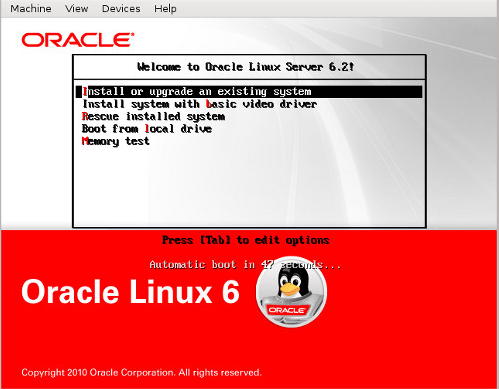
3. Put Oracle Enterprise Linux 6.2 installation disk and when the following window appears, press the TAB.

image

At the end of the command write install dd(separated from the previous command with space) and press Enter.

4. Choose the driver file, that we mentioned earlier and continue the installation.

Oracle EL should now see the local disk without any problem. Good Luck.

Install Backup Exec Client(Remote Agent) on Linux

RALUS is a remote agent installation , simply Linux client of Backup exec that can be retrieved from Backup Exec installation DVD in LinuxUnixMac folder.

Some details:

Client Server IP: 10.0.1.100
Client Hostname: orcl_node
Domain: sa.ge
Media Server IP: 192.168.1.100

Create some installation directory and locate RALUS installation file to this folder.

1. Installation

# mkdir /0
# cd /0
# tar -xvf RALUS_RMALS_RAMS-4164.5.tar
# ./installralus

Step 1:

Enter the system names separated by spaces on which to install RALUS: (oracle-node1.tbilisi.gov.ge)10.0.1.100

Checking system communication:

Checking OS version on 10.0.1.100 ………….. Linux 2.6.18-194.el5
Checking system support for 10.0.1.100 … Linux 2.6.18-194.el5 supported by RALUS

Initial system check completed successfully.

Press Enter.

Step 2:

Press Enter.

Step 3:

If the output is:

Checking file system space ……………. required space is available

Then  press Enter

Step 4:

To display the Remote Agent as a selection in a media server’s backup selection tree, and to be able to specify a local network for use between the Remote Agent and a media server, enter the names or IP addresses of the media servers that you want the Remote Agent on ‘10.0.1.100’ to communicate with.

An IP Address: XXX.XXX.XXX.XXX
A Host Name: COMPUTERNAME

Enter a directory host:192.168.1.100

Do you want to add another name or address for this agent? [y, n] (n)

Step 5:

If the information is correct press Enter

Step 6:

In this step beoper group will be created if it doesn’t exist and root user will be added to this group.

Press Enter

Press Enter

Press Enter (choosing y option by default)

Press Enter(choosing n option by default)

Press Enter (choosing y option by default)

Press Enter

Step 7 :

Checking VRTSralus package ………………………… not installed

Press Enter

Step 8:

Installing VRTSralus 13.0.4164 on 10.0.1.100 …… done 1 of 1 steps

Press Enter

Step 9 :

Creating configuration files on 10.0.1.100  ………………… Done

Press Enter

RALUS installation is complete, now it’s time to configure it.

2. Configuration on Client

Step 1:

Run AgentConfig:

# /opt/VRTSralus/bin/AgentConfig

Symantec Backup Exec Remote Agent Utility
Choose one of the following options:
1. Configure database access
2. Configure Oracle instance information
3. Quit
Please enter your selection: 1

Configuring machine information
Choose one of the following options:
1. Add system credentials for Oracle operations
2. Edit system credentials used for Oracle operations
3. Remove system credentials used for Oracle operations
4. View system credentials used for Oracle operations
5. Quit
Please enter your selection: 1
     Enter a user name that has local system credentials: oracle
Enter the password:
Re-enter password:
Validating credentials…….
Do you want to use a custom port to connect to the media server during Oracle operations? (Y/N): N
     Commit Oracle operation settings to the configuration file? (Y/N): Y
     SUCCESS: Successfully added the entry to the configuration file.

Configuring machine information
Choose one of the following options:
1. Add system credentials for Oracle operations
2. Edit system credentials used for Oracle operations
3. Remove system credentials used for Oracle operations
4. View system credentials used for Oracle operations
5. Quit
Please enter your selection: 5

Symantec Backup Exec Remote Agent Utility
Choose one of the following options:
1. Configure database access
2. Configure Oracle instance information
3. Quit
Please enter your selection: 2

If this computer is a RAC node, you must perform additional steps for configuration before you continue. Refer to the readme for these additional steps.

Configuring the Oracle Agent
Choose one of the following options:
1. Add a new Oracle instance to protect
2. Edit an existing Oracle instance
3. Delete an existing Oracle instance
4. View Oracle instance entries that have been added in the Remote Agent Utility
5. Quit
Please enter your selection: 1
     Select an Oracle instance to configure
Entry 1. orcl
Enter the number 0 to go back
Enter your selection: 1
     Enter the Oracle database SYSDBA user name: SYS
Enter the Oracle database SYSDBA password:
Re-enter password:
Validating credentials…….
Enter the media server name or IP address:      The length of the entered data is greater than the maximum permitted length.
Enter the media server name or IP address: 192.168.1.100
     Do you use a recovery catalog? (Y/N):N
     Do you want to use a customized job template? (Y/N): N
     Commit Oracle operation settings to the configuration file? (Y/N): Y
     Created symbolic link for /opt/VRTSralus/bin/libobk.so at /u01/app/oracle/product/11.2.0/db_1/lib/libobk.so
SUCCESS: Successfully added the entry to the configuration file.

Configuring the Oracle Agent
Choose one of the following options:
1. Add a new Oracle instance to protect
2. Edit an existing Oracle instance
3. Delete an existing Oracle instance
4. View Oracle instance entries that have been added in the Remote Agent Utility
5. Quit
Please enter your selection: 5

Symantec Backup Exec Remote Agent Utility
Choose one of the following options:
1. Configure database access
2. Configure Oracle instance information
3. Quit
Please enter your selection: 3

Start agent:

# /etc/init.d/VRTSralus.init start
Starting Symantec Backup Exec Remote Agent ……
Starting Symantec Backup Exec Remote Agent:                              [  OK  ]

3. Configuration on Media Server

To make media server see your client do the following steps:

Step 1:

Run Start->-All Programs>Symantec Backup Exec->Backup Exec 2010

Step 2:

Tools->Options->Oracle –>click Modify List button->click New button and fill the following fields, by the following way:

Oracle or DB2 Server: 10.0.1.100
Logon Account  ->>>>click New button –>click New button and fill the following fields, by the following way:

User name: oracle
Password: enter oracle password for client server
Confirm Password: enter the password again
Account Name: oracle

click OK.

You will also need to configure SYS  user account.

And choose oracle in Logon Account  field.

click OK.

Do the same steps for 2 more times, just change Oracle or DB2 Server filed to orcl_node(instead of 10.0.1.100) for the first time and orcl_node.sa.ge for the second time

Step 3:

On media server , in hosts file add client entry.

That is all.

Install Oracle 11.2.0.3 with ASM on Centos 6.3

For RHEL 6, Oracle will provide ASMLib software and updates only when configured with a kernel distributed by Oracle. Oracle will not provide ASMLib packages for kernels distributed by Red Hat as part of RHEL 6. ASMLib updates will be delivered via Unbreakable Linux Network (ULN), which is available to customers with Oracle Linux support. ULN works with both Oracle Linux or Red Hat Linux installations, but ASMLib usage will require replacing any Red Hat kernel with a kernel provided by Oracle.

Because of the above announcement we use UDEV rules to prepare disks for ASM installation.

So let’s start.

1. Install required RPMs.

RPM names:

compat-libcap1-1.10-1.i686.rpm
compat-libcap1-1.10-1.x86_64.rpm
compat-libstdc++-33-3.2.3-69.el6.x86_64.rpm
elfutils-devel-0.152-1.el6.x86_64.rpm
elfutils-libelf-devel-0.152-1.el6.x86_64.rpm
gcc-c++-4.4.6-4.el6.x86_64.rpm
glibc-2.12-1.80.el6.i686.rpm
glibc-devel-2.12-1.80.el6.i686.rpm
libaio-0.3.107-10.el6.i686.rpm
libaio-devel-0.3.107-10.el6.x86_64.rpm
libattr-2.4.44-7.el6.i686.rpm
libcap-2.16-5.5.el6.i686.rpm
libgcc-4.4.6-4.el6.i686.rpm
libstdc++-devel-4.4.6-4.el6.x86_64.rpm
libtool-ltdl-2.2.6-15.5.el6.i686.rpm
ncurses-devel-5.7-3.20090208.el6.i686.rpm
ncurses-libs-5.7-3.20090208.el6.i686.rpm
nss-softokn-freebl-3.12.9-11.el6.i686.rpm
pdksh-5.2.14-30.x86_64.rpm
readline-6.0-4.el6.i686.rpm

If you have Centos installation disk, these RPMs should be locate there. Or you can download them from  http://rpm.pbone.net/

Note: if during installing pdksh-5.2.14-30.x86_64.rpm it says that package conflicts with ksh then you should erase ksh package and install pdksh, like this:

# rpm -qa | grep ksh
# rpm -e ksh-…
# rpm –ivh pdksh-5.2.14-30.x86_64.rpm

2. Configure Kernel:

# vi /etc/sysctl.conf

kernel.shmall = 2097152
kernel.shmmax = 982431744
kernel.shmmni = 4096
kernel.sem = 250 32000 100 128
fs.file-max = 6815744
fs.aio-max-nr = 1048576
net.ipv4.ip_local_port_range = 9000 65500
net.core.rmem_default = 262144
net.core.rmem_max = 4194304
net.core.wmem_default = 262144
net.core.wmem_max = 1048576

To make changes take effect:

# sysctl –p

Edit /etc/pam.d/login :

# vi /etc/pam.d/login

session required pam_limits.so

Edit /etc/security/limits.conf:

# vi /etc/security/limits.conf

oracle soft  nproc   2047
oracle hard  nproc   16384
oracle soft  nofile  1024
oracle hard  nofile  65536

grid   soft  nproc   2047
grid   hard  nproc   16384
grid   soft  nofile  1024
grid   hard  nofile  65536

Run the following to add lines in /etc/pam.d/login:

[root@orcl ~]# cat >> /etc/pam.d/login <<EOF
session required pam_limits.so
EOF

Run the following to add lines in /etc/profile:

[root@orcl ~]# cat >> /etc/profile <<EOF
if [ \$USER = "oracle" ] || [ \$USER = "grid" ]; then
if [ \$SHELL = "/bin/ksh" ]; then
ulimit -p 16384
ulimit -n 65536
else
ulimit -u 16384 -n 65536
fi
umask 022
fi
EOF

Run the following to add lines in /etc/csh.login

[root@orcl ~]# cat >> /etc/csh.login <<EOF
if ( \$USER == "oracle" || \$USER == "grid" )
then
limit maxproc 16384
limit descriptors 65536
endif
EOF

Disable SELinux:

# /usr/sbin/getenforce
Enforcing

# /usr/sbin/setenforce 0

To make changes permanent, change /etc/sysconfig/selinux file by the following way:

cat /etc/sysconfig/selinux

# This file controls the state of SELinux on the system.
# SELINUX= can take one of these three values:
#     enforcing – SELinux security policy is enforced.
#     permissive – SELinux prints warnings instead of enforcing.
#     disabled – No SELinux policy is loaded.
SELINUX=disabled
# SELINUXTYPE= can take one of these two values:
#     targeted – Targeted processes are protected,
#     mls – Multi Level Security protection.
SELINUXTYPE=targeted

To check the status again:

# /usr/sbin/getenforce
Disabled

3.  Creating OS groups and users.

#Creating groups for Grid Infrastructure

groupadd asmadmin
groupadd asmdba
groupadd asmoper

#Creating groups for Oracle Software

groupadd oinstall
groupadd dba
groupadd oper

#Creating user for Grid Infrastructure

useradd -g oinstall -G dba,asmadmin,asmdba,asmoper -d /home/grid grid

#Creating user for Oracle Software

useradd -g oinstall -G dba,oper,asmdba -d /home/oracle oracle

#Setting password for users

passwd grid
passwd oracle

4. Creating necessary directories

mkdir -p /u01/app/grid
mkdir -p /u01/app/11.2.0/grid
mkdir -p /u01/app/oracle
chown -R grid:oinstall /u01
chown oracle:oinstall /u01/app/oracle
chmod -R 775 /u01

5. Creating .bash_profile-s

#For Oracle user

su – oracle
vi .bash_profile

if [ -f ~/.bashrc ]; then
. ~/.bashrc
fi

ORACLE_SID=orcl; export ORACLE_SID

ORACLE_UNQNAME=orcl; export ORACLE_UNQNAME

JAVA_HOME=/usr/local/java; export JAVA_HOME

ORACLE_BASE=/u01/app/oracle; export ORACLE_BASE

ORACLE_HOME=$ORACLE_BASE/product/11.2.0/db_1
export ORACLE_HOME

ORACLE_TERM=xterm; export ORACLE_TERM

NLS_DATE_FORMAT="DD-MON-YYYY HH24:MI:SS"
export NLS_DATE_FORMAT

TNS_ADMIN=$ORACLE_HOME/network/admin; export TNS_ADMIN

ORA_NLS11=$ORACLE_HOME/nls/data; export ORA_NLS11

PATH=.:${JAVA_HOME}/bin:${PATH}:$HOME/bin:$ORACLE_HOME/bin
PATH=${PATH}:/usr/bin:/bin:/usr/bin/X11:/usr/local/bin
PATH=${PATH}:/u01/app/common/oracle/bin
export PATH

LD_LIBRARY_PATH=$ORACLE_HOME/lib
LD_LIBRARY_PATH=${LD_LIBRARY_PATH}:$ORACLE_HOME/oracm/lib
LD_LIBRARY_PATH=${LD_LIBRARY_PATH}:/lib:/usr/lib:/usr/local/lib
export LD_LIBRARY_PATH

CLASSPATH=$ORACLE_HOME/JRE
CLASSPATH=${CLASSPATH}:$ORACLE_HOME/jlib
CLASSPATH=${CLASSPATH}:$ORACLE_HOME/rdbms/jlib
CLASSPATH=${CLASSPATH}:$ORACLE_HOME/network/jlib
export CLASSPATH

THREADS_FLAG=native; export THREADS_FLAG

export TEMP=/tmp
export TMPDIR=/tmp

umask 022

#For Grid user

su – grid
vi .bash_profile

if [ -f ~/.bashrc ]; then
. ~/.bashrc
fi

ORACLE_SID=+ASM; export ORACLE_SID

JAVA_HOME=/usr/local/java; export JAVA_HOME

ORACLE_BASE=/u01/app/grid; export ORACLE_BASE

ORACLE_HOME=/u01/app/11.2.0/grid; export ORACLE_HOME

ORACLE_TERM=xterm; export ORACLE_TERM

NLS_DATE_FORMAT="DD-MON-YYYY HH24:MI:SS"; export NLS_DATE_FORMAT

TNS_ADMIN=$ORACLE_HOME/network/admin; export TNS_ADMIN

ORA_NLS11=$ORACLE_HOME/nls/data; export ORA_NLS11

PATH=.:${JAVA_HOME}/bin:${PATH}:$HOME/bin:$ORACLE_HOME/bin
PATH=${PATH}:/usr/bin:/bin:/usr/bin/X11:/usr/local/bin
PATH=${PATH}:/u01/app/common/oracle/bin
export PATH

LD_LIBRARY_PATH=$ORACLE_HOME/lib
LD_LIBRARY_PATH=${LD_LIBRARY_PATH}:$ORACLE_HOME/oracm/lib
LD_LIBRARY_PATH=${LD_LIBRARY_PATH}:/lib:/usr/lib:/usr/local/lib
export LD_LIBRARY_PATH

CLASSPATH=$ORACLE_HOME/JRE
CLASSPATH=${CLASSPATH}:$ORACLE_HOME/jlib
CLASSPATH=${CLASSPATH}:$ORACLE_HOME/rdbms/jlib
CLASSPATH=${CLASSPATH}:$ORACLE_HOME/network/jlib
export CLASSPATH

THREADS_FLAG=native; export THREADS_FLAG

export TEMP=/tmp
export TMPDIR=/tmp

umask 022


6. Add disks for ASM

If your disk is not partitioned yet, partition it by fdisk utility.

At this point you will need SCSI identifier.

So if your disk is physical just run the following command to identify it:

# scsi_id -g -u -d /dev/sdb
36000c292dfddac7b8934d3293313098e

Or if you have virtual disk , you will need to set disk.EnableUUID parameter to TRUE to see this identifier:

Shutdown VM, go to the directory where VM files are stored and edit VMX file. Add the following line:

disk.EnableUUID = "TRUE"

Restart your VM and run the above command (scsi_id -g -u -d /dev/sdb)

We will use this identifier for the UDEV rules to set permissions and alias for the new device in /etc/udev/rules.d/50-udev.rules file.

# vi /etc/udev/rules.d/50-udev.rules

KERNEL=="sd?1", BUS=="scsi", PROGRAM=="/sbin/scsi_id -g -u -d /dev/$parent",
RESULT=="36000c292dfddac7b8934d3293313098e", NAME="oracleasm/asm-disk1",
OWNER="oracle", GROUP="dba", MODE="0660"

Restart udev, by the following way:

# /sbin/start_udev
Starting udev:                                             [  OK  ]

Check that alias exists:

# ls -la /dev/oracleasm/*
brw-rw—- 1 oracle dba 8, 17 Feb 18 12:49 /dev/oracleasm/asm-disk1

7. Install grid

Go to the grid installation folder and run:

./runInstaller

Step 1:

Skip Software Updates.

Step 2:

Configure Oracle Grid Infrastructure for a Standalone Server.

Step 3:

Click Next.

Step 4:

Select the Change Discovery Path button and enter /dev/oracleasm.

There should appear /dev/oracleasm/asm-disk-1 and check it.

Type disk group name as DATA01.

Step 5:

Set the passwords for the SYS and ASMSNMP accounts:

Step 6:

ASM Database Administrator(OSDBA) Group : asmdba
ASM Instance Administration Operator(OSOPER) Group: asmoper
ASM Instance Administrator(OSASM) Group: asmadmin

Step 7:

Click Next.

Step 8:

Click Next.

Step 9:

Click Install.

After pop-upping the window , asking to run

      • /u01/app/oraInventory/orainstRoot.sh
  • /u01/app/oracle/product/11.2.0/db_1/root.sh

run these scripts one by one and click OK on pop-up window.

Note: if root.sh script shows the error like this:

…error while loading shared libraries: libcap.so.1: …

Then in your system libcap-1 and libcap-2 RPMs are missing, first install them.

8. Install database

Go to the database installation folder and run:

./runInstaller

Step 1:

I don’t want any more spam thanks.

Step 2:

Skip the updates.

Step 3:

Create and configure a database.

Step 4:

Server Class.

Step 5:

Single instance database installation.

Step 6:

Advanced install.

Step 7:

Choose the languages you want.

Step 8:

Enterprise Edition.

Step 9:

Choose the defaults.
Note: Grid and Database must be in the different folders.

Step 10:

General Purpose / Transaction Processing.

Step 11:

Write a database name.

Step 12:

Use Oracle Enterprise Manager Database Control for database management.

Step 13:

Use Automatic Storage Management.

Step 15:

Do not enable automated backups

Step 16:

Select the DATA01 diskgroup.

Step 17:

Set the passwords for the database.

Step 18:

Accept the defaults.

Database Administrator(OSDBA) Group: dba
Database Operator(OSOPER) Group: oper

Step 19:

Click Install to start the installer.

After the installation requires to run root.sh script, run it.

That is all.
Change Hostname in Linux(Red Hat)

1. Change the value of the HOSTNAME parameter to the new hostname:

# vi /etc/sysconfig/network

HOSTNAME=newhostname

2.  Edit hosts file:

# vi /etc/hosts

192.168.1.100    newhostname     newhostname.sa.ge

3. Reboot the system.

4. Check that the new hostname is set:

# hostname

newhostname    

Change boot mode in Linux

There are 6 boot modes.

0 –  Halt (Shutdown)
1 – Single user mode
2 – Not yet implemented
3 – Full multi-user command line mode
4 – Not used.
5 – Full multi-user Graphical User Interface mode
6 – Reboot

Default mode is written into /etc/inittab file.

By changing the following line in that file,  the default boot mode will be changed:

id:5:initdefault:

If it is production server and you don’t need to use GUI interface you can set default boot mode to 3. This is beneficial, because  the mode 3 takes less memory(RAM)  than the mode 5.

id:3:initdefault:

Note: Be careful while changing the default mode, because the following values like 0(shutdown) or 6(reboot) will cause problems. Never try to set these values, I mean 0 or 6.

How to restore file permissions of the installed package to its default on Linux?

Hello all,

(Please, note that in command string instead of “” there are two dashes “- -“ like “–setperms” it is “– -setperms”)

By mistake, I run the following command on / directory:

chmod -R 777 *

I stopped this command, but unfortunately some file permissions were changed.

Because of that, I was not able to connect to the server with WinSCP and ssh was not working.

I looked in to the /var/log/messages and found the following entry:

Sep  6 15:02:37 stbynode sshd[24226]: fatal: /var/empty/sshd must be owned by root and not group or world-writable.

I run the following command on another server:

ls -la /var/empty/sshd
total 16
drwx–x–x 3 root root 4096 Sep 3 21:07 .
drwxr-xr-x 3 root root 4096 Sep 3 21:07 ..
drwxr-xr-x 2 root root 4096 Sep 3 21:36 etc

On my server it was:

ls -la /var/empty/sshd
total 16
drwxrwxrwx 3 root root 4096 Sep 3 14:00 .
drwxrwxrwx 3 root root 4096 Sep 3 14:00 ..
drwxrwxrwx 2 root root 4096 Sep 3 14:00 etc

You can change these permissions by hand (that will be boring if not only one file permissions have been changed)but there exist one very useful command:

rpm  –setperms {packagename}

This will reset package permissions, because of rpm database contains permission information.

So I run the following :

for p in $(rpm -qa); do rpm –setperms $p; done

Note this script will reset permissions of the  installed package, not user created file…

After completed this command , I was able to connect to the server with WinScp and  /var/empty/sshd permissions were set to drwxr-xr-x

To avoid such kind of situation my advice would be to save permission information everyday. By running the following command using crontab:

find / -exec stat –format “chmod %a ${MPOINT}%n” {} \; > /tmp/permissionsbackup.sh

Good Luck , I hope the post was helpful…