locate: command not found

Error message:

-bash: locate: command not found

Cause:

Locate is not installed.

Solution:

Find your OS installation disk and in Server folder find package like : mlocate-* ,  for me it is mlocate-0.15-1.el5.2.x86_64.rpm , and install it.

[root@node1 Server]# rpm -Uvh mlocate-0.15-1.el5.2.x86_64.rpm
warning: mlocate-0.15-1.el5.2.x86_64.rpm: Header V3 DSA signature: NOKEY, key ID 1e5e0159
Preparing… ########################################### [100%]
1:mlocate ########################################### [100%]

If you try to run locate again you will receive the following error:

locate: can not open `/var/lib/mlocate/mlocate.db’: No such file or directory

To solve, run:

updatedb

Congratulations, you are able to run locate without any error!
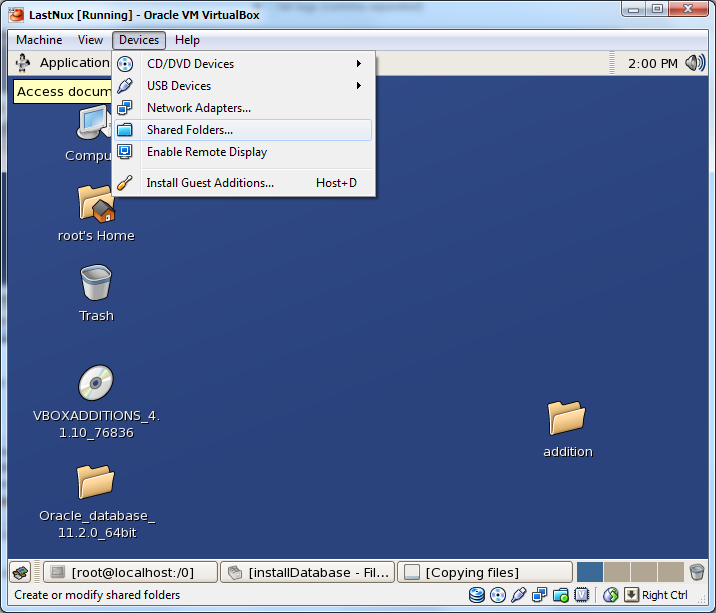
Install Guest Additions_use Shared Folders

Let’s assume that we have Linux as a guest OS.

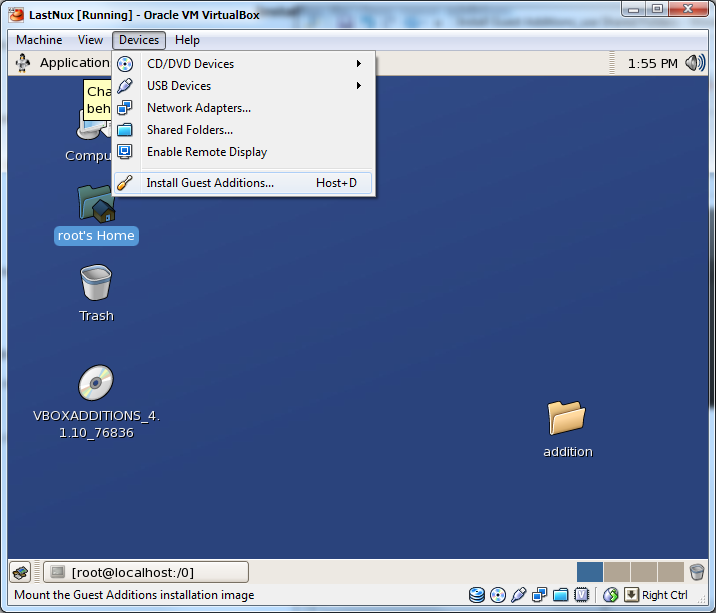
1. Install Guest Additions…

image

2. There will appear disk called like “VBOXADDITIONS_4.1.10_76836”. Copy content of the disk to another folder like this.

# mkdir /root/Desktop/addition

# cp /media/VBOXADDITIONS_4.1.10_76836  /root/Desktop/addition

# cd  /root/Desktop/addition

# sh ./VBoxLinuxAdditions.run

It will install guest additions.

Now reboot the system.

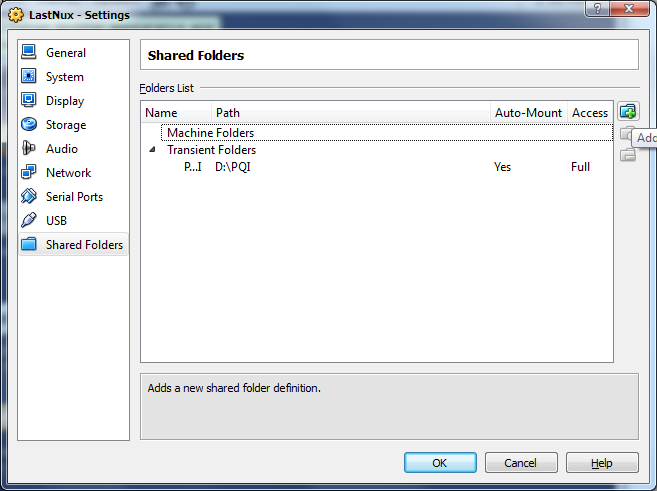
To use shared folder do this:

1.

image

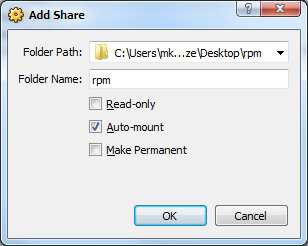
2. Click add

image

3.

image

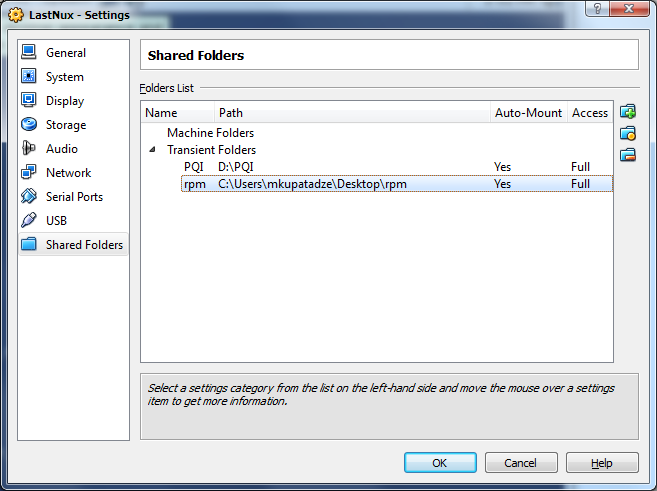
4.

image

5. Mount the content of shared folder to guest directory, like this:

# mkdir /0

# sudo mount -t vboxsf rpm /0

Desired content will be located in /0.

Tablespace Backup Using Cron on Linux

Let’s do all things, step by step:

1. Create directories for Backup, Script and Logs.

mkdir -p /u02/Backup/Backup

mkdir -p /u02/Backup/Scripts

mkdir -p /u02/Backup/Logs

2. Create backup script.

export ORACLE_BASE=/u01/app/oracle

export ORACLE_HOME=/u01/app/oracle/product/11.2.0/db_1

export ORACLE_SID=my_sid

$ORACLE_HOME/bin/rman target / msglog /u02/Backup/Logs/BackupTBS_MYTABLESPACE.log append << EOF

run{

backup tablespace MYTAVLESPACE format '/u02/Backup/Backup/BackupTBS_MYTABLESPACE_%T.bkp';

delete noprompt backup of tablespace MYTABLESPACE completed before 'SYSDATE-1';

}

EOF

save this script as  MYTABLESPACE_disk_backup.sh

3. Change permissions and owner of this file.

chown oracle:oinstall MYTABLESPACE_disk_backup.sh

chmod a+x MYTABLESPACE_disk_backup.sh

4. Create cron job.

su - oracle

crontab -e

--add the following line(this script will run at 8:00 PM everyday)

00 20 * * * /u02/Backup/Scripts/MYTABLESPACE_disk_backup.sh

cron format is the following:

minute (0-59), hour (0-23, 0 = midnight), day (1-31), month (1-12), weekday (0-6, 0 = Sunday)
*                    *                                    *                *                   *

asterisk means –> every

5. Reload cron service

su -

service crond reload

That is all.

Large Number of Trace Files Generated Every 5 min Under $ORACLE_BASE/grid/cv/log/

Hello all,

Recently, I’ve found that 14GB space was eaten by $ORACLE_BASE/grid/cv/log/.  As I found on metalink, this logging is enabled by default by implicitly setting SRVM_TRACE=”true”.

The reason is that EM Grid Control agent  verifies the status of the cluster  in every 5mins and the logs are being generated in the specified location.

If you don’t want agent to generate logs, do the following:

Modify cluvfy script, located in $ORACLE_BASE/grid/bin, by adding SRVM_TRACE=”false” at top of script(approximate line number is 25).

In addition, you can delete these logs without any problem to free up the space.

That is all.

Cannot retrieve repository metadata (repomd.xml) for repository: c5-media

Description of the Problem

I have newly installed Centos 5 and when I was trying to run Add/Remove Software I got the following error:

Unable To Retrieve Software Info, Package Manager

Also I tried installing package using yum, but showing the following:

Error: Cannot retrieve repository metadata (repomd.xml) for repository: c5-media.
Please verify its path and try again

Solution of the Problem

su –
vi /etc/yum.repos.d/CentOS-Media.repo

find the string “enabled=1”  to “enabled=0”.

That’s it. Just re-run Package Manager.

Configuring SSH access for VirtualBox Host to Guest

I have installed VirtualBox with CentOS. I’ve decided that it would be easier to connect VBox from Host terminal via SSH then using Vbox GUI environment. I’ve found this process a little bit difficult and fortunately have solved it.

Now, I want to share my knowledge with you:

Note: <VBoxName> will be the name of the Virtual Box Machine. To find it type command “hostname” on guest machine.

1. Open up the terminal window on Host machine, and run the following:

$ VBoxManage setextradata <VBoxName> “VBoxInternal/Devices/pcnet/0/LUN#0/Config/ssh/HostPort” 2222


1. 1 If you encounter the following error(if not ignore this section),

VBoxManage: error: Could not find a registered machine named “VBoxName”...
do the following:
$ VBoxManage createvm –name <VBoxName> –register


2.

$ VBoxManage setextradata <VMname> “VBoxInternal/Devices/pcnet/0/LUN#0/Config/ssh/HostPort” 2222

3.

$ VBoxManage setextradata <VMname> “VBoxInternal/Devices/pcnet/0/LUN#0/Config/ssh/GuestPort” 22

4.

$ VBoxManage setextradata <VMname> “VBoxInternal/Devices/pcnet/0/LUN#0/Config/ssh/Protocol” TCP

5.  Close the guest Machine Window (reboot is not enough)


6.
Open up the terminal window on Host machine and run:

$ ssh -l username -p 2222 <localhost>

Where <localhost> is the name of the Host machine.

6.1  If you get the following error(if not ignore this section):

ssh-exchange-identification connection closed by remote host

One of the solution is to start ssh on both HOTS/GUEST machines:

$ /etc/init.d/sshd start

7. That is all, and one more hint: username by which you want to connect to the Guest machine must have password.

Install VirtualBox Guest Additions on Centos 5.5

1. Login as a root user:

su –

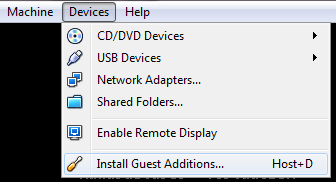
2. Go to the Devices->Install Guest Additions…

Install VirtualBox Guest Additions on Centos 5.5

3. Mount Guest Additions device:

mkdir /media/VGuestAdditions
mount -r /dev/cdrom /media/VGuestAdditions

4. Install the following packages:

yum install gcc
yum install kernel-devel
yum install kernel-headers

5. Install Guest Additions:

cd /media/VGuestAdditions
./VBoxLinuxAdditions.run

6. Restart the system:

reboot

Centos 5 wireless problem SIOCSIFFLAGS: No such file or directory

0. Connect as a root user.

1. First of all determine which wireless card you have:

/sbin/lspci | grep Wireless

My output is :

02:00.0 Network controller: Intel Corporation PRO/Wireless5100 ANG…

1.Download firmware from here.(This is for 5100,5300 and 5350 (iwlang))

2. Install downloaded package:

rpm -Uvh iwl5000-firmware-8.24.2.12-1.elrepo.noarch.rpm

3. Reload iwlagn module

modprobe -r iwlagn;
modprobe iwlagn

4. Start wlan0

ifconfig wlan0 up

5. Enable Network Manager:

chkconfig NetworkManager on
service NetworkManager start

That’s all!

User’s $HOME/.dmrc file is being ignored…(ERROR)

After changing my user’s home directory each logging to the computer was arising the following warning:

“User’s $HOME/.dmrc file is being ignored. This prevents the default session and language from being saved. File should be owned by user and have 644 permission. User $HOME directory must be owned by user and not writable by other users”

I solved it by the following way:

--Connect by your user.

chmod 644 ~/.dmrc
chown your_user_name ~/.dmrc
chmod 700 ~
chown your_user_name ~

Log out then Log in again…It should solve.

Gtk-WARNING **: cannot open display: :0.0

Connect as a normal user(I mean user who is logged into the x server).

!!!Not as a root user!!!

And allow any local user to load X displays:

$ xhost +

To disable it run the following:

$ xhost –