Setup netbackup to send mails

1. Installing and configuring BLAT 1.1 Download BLAT from here  http://sourceforge.net/projects/blat/ 1.2 Extract files, copy blat.exe and paste it into C:\Windows\System32 (indicate the correct path for your System32). 1.3 From the command line run the following:

> cd C:\Windows\System32
> blat -install <email server addr> <sender's addr>

Note: <sender’s addr> is the valid email account, which will be the primary sender of the email notifications. Example:

> blat -install mailserver.company.ge useraccount@company.ge

1.4 Testing the installation validity. Create a text file, for example, C:\textfile.txt with some text into it. And run the following from command line:

> blat C:\textfile.txt –s some_subject –to useraccount@company.ge

If blat is working,  useraccount@company.ge account should receive the mail. 2. Configuring nbmail.cmd script. 2.1 This script should be located in <install_path>\Veritas\NetBackup\bin , if not , go to the <install_path>\Veritas\NetBackup\bin\goodies and copy nbmail.cmd to <install_path>\Veritas\NetBackup\bin and then modify the script by the following way: For NetBackup 4.5 and 5.x systems find the following:

@rem @blat %3 -s %2 -t %1 -i NetBackup -server WARTHOG –q

For NetBackup 6.0 or 7.0 systems find the following:

@REM @IF "%~4"=="" (
@REM blat %3 -s %2 -t %1 -i NetBackup -server WARTHOG –q
@REM ) ELSE (
@REM blat %3 -s %2 -t %1 -i NetBackup -server WARTHOG -q -attach %4
@REM )

2.2 Remove all “@REM”. 2.3 Replace “WARTHOG” with the mail server name: For NetBackup 4.5 and 5.x systems find the following:

@rem @blat %3 -s %2 -t %1 -i NetBackup -server mailserver.company.ge –q

For NetBackup 6.0 or 7.0 systems find the following:

@REM @IF "%~4"=="" (
@REM blat %3 -s %2 -t %1 -i NetBackup -server mailserver.company.ge –q
@REM ) ELSE (
@REM blat %3 -s %2 -t %1 -i NetBackup -server mailserver.company.ge -q -attach %4
@REM )

3 Configure Netbackup to send mails to recipients.

3.1 Open Netbackup Administration Console We will use Master Servers and/or Clients properties under “NetBackup Management”-> “Host Properties”.

1. If you want NetBackup to send notification just  about Failed backups, do the following(just):

1.1 Write the mail address(or addresses, separated by commas) to where email notification should be sent  into “Master Servers” –> Properties –> “Global Attributes“->”Administrator email address“(It will cause Symantec to send mails about backups that ended with non-zero status)

2.  If you want to receive notifications about Failed and Successful backups as well, do the following:

2.1 Write the mail address(or addresses, separated by commas) to where email notification should be sent  into “Master Servers” –> Properties –> “Universal Settings” –> “Client Administrator’s email

and  check  “Server sends mail”(means server where netbackup is installed will send) or “Client sends mail”(if client, that is backed up, can send mails)….I prefer to check  “Server sends mail”.

2.2  Under  “Clients“->Properties –> “Universal Settings” check “Server sends mail”(if you’ve checked it in “Master Servers” –> Properties –> “Universal Settings”) or “Client sends mail”(if you’ve checked it in “Master Servers” –> Properties –> “Universal Settings”). So do the same for clients as you did  for master server, or it will fail.

and  in “Client Administrator’s email” write the mail address(or addresses, separated by commas) to where email notification should be sent.

That is all.

Large Number of Trace Files Generated Every 5 min Under $ORACLE_BASE/grid/cv/log/

Hello all,

Recently, I’ve found that 14GB space was eaten by $ORACLE_BASE/grid/cv/log/.  As I found on metalink, this logging is enabled by default by implicitly setting SRVM_TRACE=”true”.

The reason is that EM Grid Control agent  verifies the status of the cluster  in every 5mins and the logs are being generated in the specified location.

If you don’t want agent to generate logs, do the following:

Modify cluvfy script, located in $ORACLE_BASE/grid/bin, by adding SRVM_TRACE=”false” at top of script(approximate line number is 25).

In addition, you can delete these logs without any problem to free up the space.

That is all.

Oracle Universal Installer: Abnormal Program Termination

After installing/uninstalling Oracle  there may appear the following alert:

Abnormal Program Termination OUI

This is very known error.

To solve this, do the following steps:

Note that I am explaining the steps for installing Oracle, after you read this you will be able to solve the problem during uninstalling Oracle.

1. Find setup.exe file and go to its properties(right click -> properties)

setup_properties

2.  Go to “Compatibility” tab  and check “Run this program in compatibility mode for:“. Then choose “Windows XP (Service pack 3)” or what ever you prefer.

setup_properties_Compatibility

Click ok.

3. Right click “setup.exe” and choose “Run as administrator

That it! Good Luck!

Cannot retrieve repository metadata (repomd.xml) for repository: c5-media

Description of the Problem

I have newly installed Centos 5 and when I was trying to run Add/Remove Software I got the following error:

Unable To Retrieve Software Info, Package Manager

Also I tried installing package using yum, but showing the following:

Error: Cannot retrieve repository metadata (repomd.xml) for repository: c5-media.
Please verify its path and try again

Solution of the Problem

su –
vi /etc/yum.repos.d/CentOS-Media.repo

find the string “enabled=1”  to “enabled=0”.

That’s it. Just re-run Package Manager.

Database Mail – test is OK, but jobs do not notify

  1. Run SQL Server Management Studio.

  2. In Object Explorer, expand the server.

  3. Right-click on the SQL Server Agent and then click its Properties.

  4. Click Alert System.

  5. Check Enable Mail Profile.

  6. In the Mail system list choose Database Mail.

  7. In the Mail profile list select a mail profile.

  8. Restart the SQL Server Agent

Good Luck!

ORA-01017: invalid username/password; logon denied(database link error)

When I was creating database link from Oracle 10g to 11g like that:

SQL> create database link mylink_name connect to myuser_name identified by mypassword using 'MYSID';

Database link created

got ORA-01017 error.

Cause:

This may happen if in 11g database, there is enabled the following parameter:

SQL> show parameter sec_case_sensitive_logon;

NAME                                 TYPE        VALUE
----------------------------------- --------- ------------------------------
sec_case_sensitive_logon             boolean     TRUE


Solution:

Recreate database link by the following way:

SQL> drop database link mylink_name;

Database link dropped

SQL> create database link mylink_name connect to "myuser_name" identified by "mypassword" using 'MYSID';

Database link created

To check it:

SQL> select * from dual@mylink_name;

DUMMY
-----
X

Configuring SSH access for VirtualBox Host to Guest

I have installed VirtualBox with CentOS. I’ve decided that it would be easier to connect VBox from Host terminal via SSH then using Vbox GUI environment. I’ve found this process a little bit difficult and fortunately have solved it.

Now, I want to share my knowledge with you:

Note: <VBoxName> will be the name of the Virtual Box Machine. To find it type command “hostname” on guest machine.

1. Open up the terminal window on Host machine, and run the following:

$ VBoxManage setextradata <VBoxName> “VBoxInternal/Devices/pcnet/0/LUN#0/Config/ssh/HostPort” 2222


1. 1 If you encounter the following error(if not ignore this section),

VBoxManage: error: Could not find a registered machine named “VBoxName”...
do the following:
$ VBoxManage createvm –name <VBoxName> –register


2.

$ VBoxManage setextradata <VMname> “VBoxInternal/Devices/pcnet/0/LUN#0/Config/ssh/HostPort” 2222

3.

$ VBoxManage setextradata <VMname> “VBoxInternal/Devices/pcnet/0/LUN#0/Config/ssh/GuestPort” 22

4.

$ VBoxManage setextradata <VMname> “VBoxInternal/Devices/pcnet/0/LUN#0/Config/ssh/Protocol” TCP

5.  Close the guest Machine Window (reboot is not enough)


6.
Open up the terminal window on Host machine and run:

$ ssh -l username -p 2222 <localhost>

Where <localhost> is the name of the Host machine.

6.1  If you get the following error(if not ignore this section):

ssh-exchange-identification connection closed by remote host

One of the solution is to start ssh on both HOTS/GUEST machines:

$ /etc/init.d/sshd start

7. That is all, and one more hint: username by which you want to connect to the Guest machine must have password.

Reset root password in CentOS 5.5

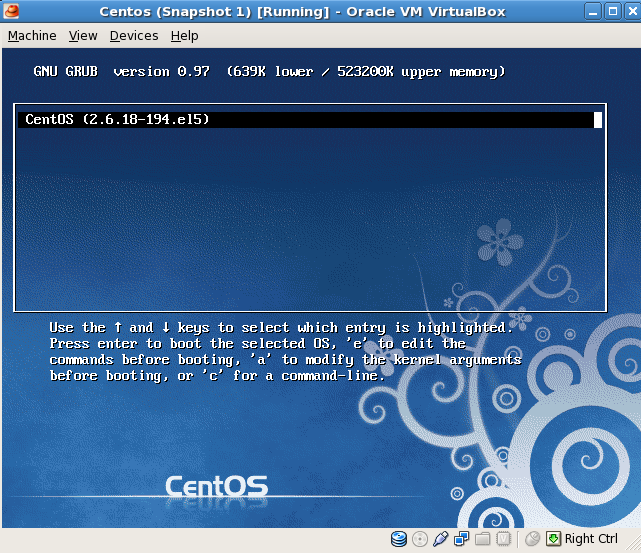
If you don’t know the root password and want to login in to the server, follow these instructions:

Picture 1: Press “e” to edit.

Centos 5.5 VirtualBox Reset root Password

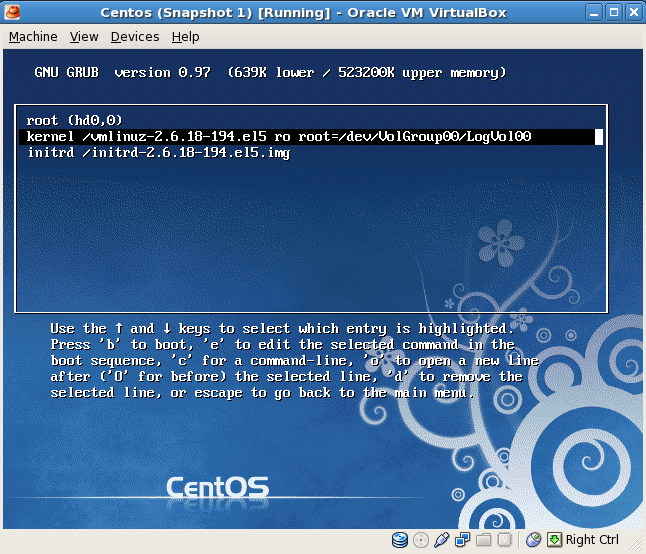
Picture 2: Press “e” to edit.

Centos 5.5 VirtualBox Reset root Password

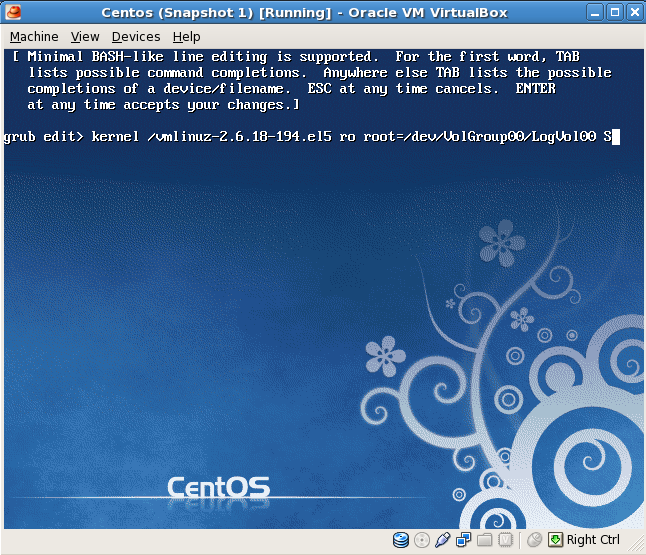
Picture 3: Type “S” at the end of the line. Press Enter.

Centos 5.5 VirtualBox Reset root Password

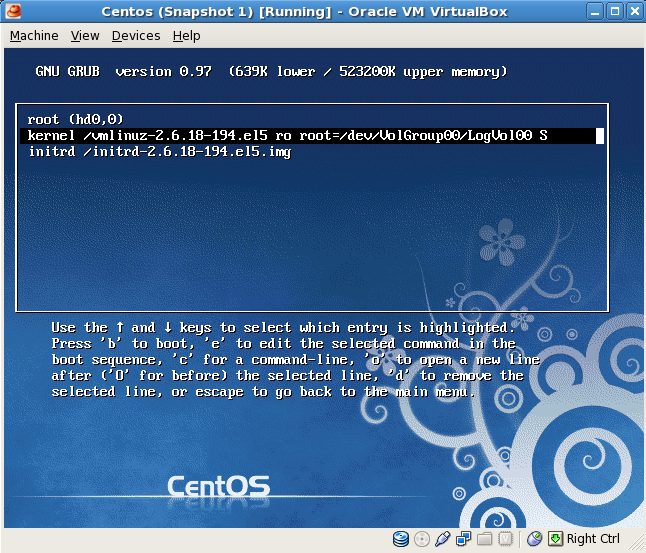
Picture 4: After pressing Enter, you will see the following picture. Press “b” to boot.

Centos 5.5 VirtualBox Reset root Password

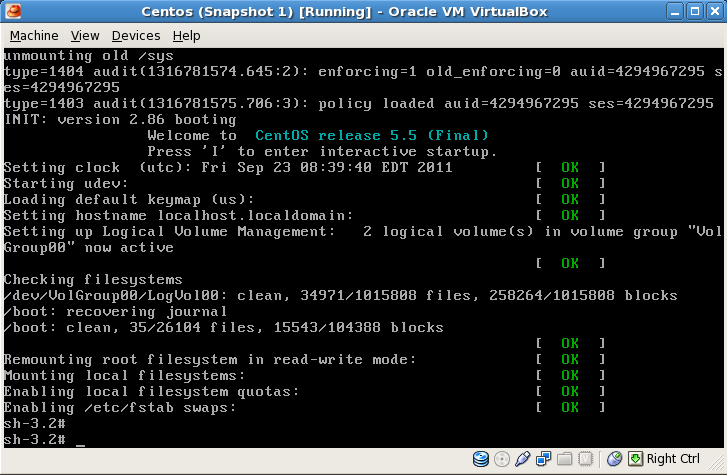
Picture 5: You will see the following picture…

Centos 5.5 VirtualBox Reset root Password

Type “su –” and you will be a root user.

To make it permanent you should edit it in the following file:

vi /boot/grub/menu.lst
default=0
timeout=5
.
.
.
kernel /vmlinuz-2.6.18-194.el5 ro root=/dev/VolGroup00/LogVol00 S
.
.
.

ORA-01466 unable to read data – table definition has changed

This is a time-based read consistency error, which may occur during flashbacking object.

For example, I was running the following statement:

SELECT text
FROM dba_views AS OF TIMESTAMP to_timestamp('8-SEP-2011 6:14:35','DD-MON-YYYY HH24:MI:SS')

ORA-01466: unable to read data - table definition has changed


Let’s check undo_retention parameter:

SQL>  SELECT value/60/60 as Hours
 2    FROM v$parameter
 3    WHERE name='undo_retention';

    HOURS
---------
3.02777777

So my retention period is 3hours…If I want to flashback object to before more than 3 hours I will get ORA-01466.

Oracle 11.2.0.1.0 em.ear file not found

During the installation of Oracle 11.2.0.1.0 you may face the following error:

file not found

%ORACLE_HOME%\oc4j\j2ee\oc4j_applications\applications\em.ear file

image


The database installation package consist of two files:

win32_11gR2_database_1of2
win32_11gR2_database_2of2

To solve the problem: You should extract each of them and place win32_11gR2_database_2of2 content into win32_11gR2_database_1of2 folder before running installer.