After setting http_proxy to https string (export http_proxy=https://test) and then stopping and starting CRS got the following error:
CRS-2883: Resource 'ora.evmd' failed during Clusterware stack start.
CRS-4406: Oracle High Availability Services synchronous start failed.
CRS-41053: checking Oracle Grid Infrastructure for file permission issues
PRVG-2031 : Owner of file "/u01/app/19.3.0/grid/bin/CommonSetup.pm" did not match the expected value on node "rac1". [Expected = "root(0)" ; Found = "grid(3002)"]
....
PRVG-2031 : Owner of file "/u01/app/19.3.0/grid/lib/libnl19.a" did not match the expected value on node "rac1". [Expected = "root(0)" ; Found = "grid(3002)"]
CRS-4000: Command Start failed, or completed with errors.
Even after unsetting http_proxy and trying to stop CRS got the following:
[root@rac1 ~]# crsctl start crs -wait
CRS-4640: Oracle High Availability Services is already active
CRS-4000: Command Start failed, or completed with errors.

[root@rac1 ~]# crsctl stop crs -f
CRS-2791: Starting shutdown of Oracle High Availability Services-managed resources on 'rac1'
CRS-2679: Attempting to clean 'ora.mdnsd' on 'rac1'
CRS-2679: Attempting to clean 'ora.gpnpd' on 'rac1'
CRS-2679: Attempting to clean 'ora.evmd' on 'rac1'
CRS-2673: Attempting to stop 'ora.drivers.acfs' on 'rac1'
CRS-2677: Stop of 'ora.drivers.acfs' on 'rac1' succeeded
CRS-2680: Clean of 'ora.evmd' on 'rac1' failed
CRS-2680: Clean of 'ora.gpnpd' on 'rac1' failed
CRS-2680: Clean of 'ora.mdnsd' on 'rac1' failed
CRS-2799: Failed to shut down resource 'ora.evmd' on 'rac1'
CRS-2799: Failed to shut down resource 'ora.gpnpd' on 'rac1'
CRS-2799: Failed to shut down resource 'ora.mdnsd' on 'rac1'
CRS-2795: Shutdown of Oracle High Availability Services-managed resources on 'rac1' has failed
CRS-4687: Shutdown command has completed with errors.
CRS-4000: Command Stop failed, or completed with errors
So https entry in http_proxy variable caused my CRS even not being able to stop.
Solution:
The solution is simple, find processes that were started during previous attempt and kill them (be careful, not to kill anything that is not started from GI home):
[root@rac1 ~]# crsctl start crs -wait
CRS-4123: Starting Oracle High Availability Services-managed resources
CRS-2672: Attempting to start 'ora.evmd' on 'rac1'
CRS-2672: Attempting to start 'ora.mdnsd' on 'rac1'
CRS-2676: Start of 'ora.mdnsd' on 'rac1' succeeded
CRS-2676: Start of 'ora.evmd' on 'rac1' succeeded
CRS-2672: Attempting to start 'ora.gpnpd' on 'rac1'
CRS-2676: Start of 'ora.gpnpd' on 'rac1' succeeded
CRS-2672: Attempting to start 'ora.gipcd' on 'rac1'
CRS-2676: Start of 'ora.gipcd' on 'rac1' succeeded
CRS-2672: Attempting to start 'ora.crf' on 'rac1'
CRS-2672: Attempting to start 'ora.cssdmonitor' on 'rac1'
CRS-2676: Start of 'ora.cssdmonitor' on 'rac1' succeeded
CRS-2672: Attempting to start 'ora.cssd' on 'rac1'
CRS-2672: Attempting to start 'ora.diskmon' on 'rac1'
CRS-2676: Start of 'ora.diskmon' on 'rac1' succeeded
CRS-2676: Start of 'ora.crf' on 'rac1' succeeded
CRS-2676: Start of 'ora.cssd' on 'rac1' succeeded
CRS-2672: Attempting to start 'ora.cluster_interconnect.haip' on 'rac1'
CRS-2672: Attempting to start 'ora.ctssd' on 'rac1'
CRS-2676: Start of 'ora.ctssd' on 'rac1' succeeded
CRS-2676: Start of 'ora.cluster_interconnect.haip' on 'rac1' succeeded
CRS-2672: Attempting to start 'ora.asm' on 'rac1'
CRS-2676: Start of 'ora.asm' on 'rac1' succeeded
CRS-2672: Attempting to start 'ora.storage' on 'rac1'
CRS-2676: Start of 'ora.storage' on 'rac1' succeeded
CRS-2672: Attempting to start 'ora.crsd' on 'rac1'
CRS-2676: Start of 'ora.crsd' on 'rac1' succeeded
CRS-6017: Processing resource auto-start for servers: rac1
CRS-2673: Attempting to stop 'ora.LISTENER_SCAN1.lsnr' on 'rac2'
CRS-2672: Attempting to start 'ora.chad' on 'rac1'
CRS-2672: Attempting to start 'ora.ons' on 'rac1'
CRS-2677: Stop of 'ora.LISTENER_SCAN1.lsnr' on 'rac2' succeeded
CRS-2673: Attempting to stop 'ora.scan1.vip' on 'rac2'
CRS-2677: Stop of 'ora.scan1.vip' on 'rac2' succeeded
CRS-2672: Attempting to start 'ora.scan1.vip' on 'rac1'
CRS-2676: Start of 'ora.chad' on 'rac1' succeeded
CRS-2676: Start of 'ora.scan1.vip' on 'rac1' succeeded
CRS-2672: Attempting to start 'ora.LISTENER_SCAN1.lsnr' on 'rac1'
CRS-2676: Start of 'ora.LISTENER_SCAN1.lsnr' on 'rac1' succeeded
CRS-2676: Start of 'ora.ons' on 'rac1' succeeded
CRS-6016: Resource auto-start has completed for server rac1
CRS-6024: Completed start of Oracle Cluster Ready Services-managed resources
CRS-4123: Oracle High Availability Services has been started.
During high CPU usage in kernel space we have noticed brownouts on our database nodes. For finding the reason of the problem we wanted to reproduce the issue and somehow trigger high %sy usage on our nodes.
I have found stress tool very useful and want to share my experience with you.
Solution:
1. Install stress tool via yum:
# yum install stress
2. Stress has several options to use:
[root@rac1 ~]# stress

`stress' imposes certain types of compute stress on your system

Usage: stress [OPTION [ARG]] ...
 -?, --help         show this help statement
     --version      show version statement
 -v, --verbose      be verbose
 -q, --quiet        be quiet
 -n, --dry-run      show what would have been done
 -t, --timeout N    timeout after N seconds
     --backoff N    wait factor of N microseconds before work starts
 -c, --cpu N        spawn N workers spinning on sqrt()
 -i, --io N         spawn N workers spinning on sync()
 -m, --vm N         spawn N workers spinning on malloc()/free()
     --vm-bytes B   malloc B bytes per vm worker (default is 256MB)
     --vm-stride B  touch a byte every B bytes (default is 4096)
     --vm-hang N    sleep N secs before free (default none, 0 is inf)
     --vm-keep      redirty memory instead of freeing and reallocating
 -d, --hdd N        spawn N workers spinning on write()/unlink()
     --hdd-bytes B  write B bytes per hdd worker (default is 1GB)

Example: stress --cpu 8 --io 4 --vm 2 --vm-bytes 128M --timeout 10s

Note: Numbers may be suffixed with s,m,h,d,y (time) or B,K,M,G (size).
To cause high %sy you need to use –vm option and find appropriate number of workers, in my case 50 workers were enough to cause an issue.
In the following example, stress will run 50 workers and timeout for the run will be 200s:
# stress --vm 50 --timeout 200s
From another terminal tab, run top command to monitor %sy usage (81.2%) :
This blog post belongs to my student at Business and Technology University Ivane Metreveli, thank you Ivane for participating in this project.
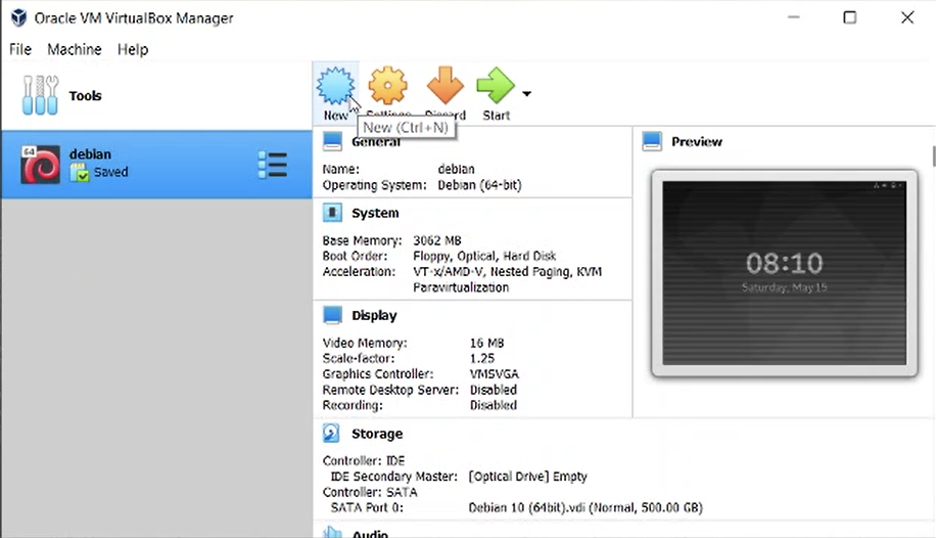
First of all, you need to download Oracle Linux iso file from edelivery.oracle.com or from oracle.com. After that, run VirtualBox, click New button and create new virtual machine:
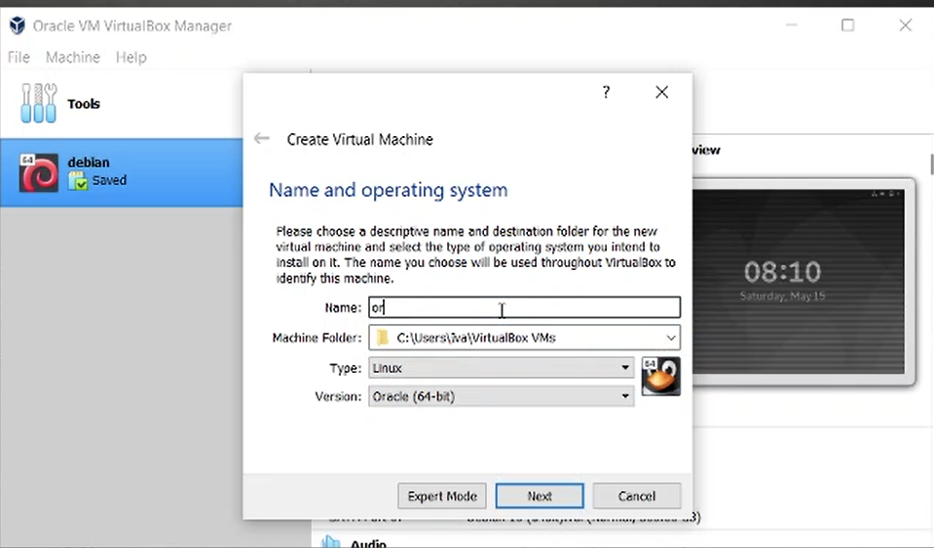
2. Set Name of the Virtual Machine and select operation system as follows, click Next
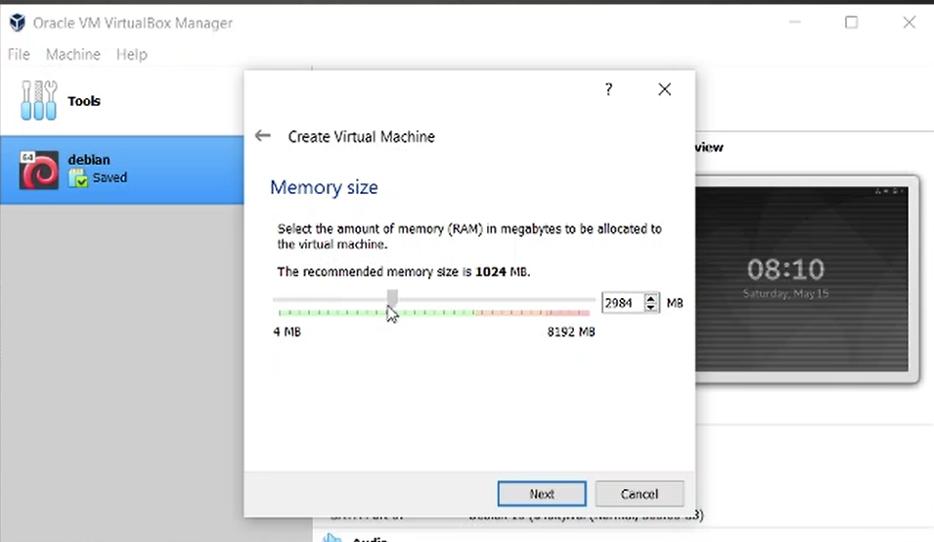
3. Select appropriate RAM amount, 3GB RAM is recommended for normal processing, click on Next button and jump to next step
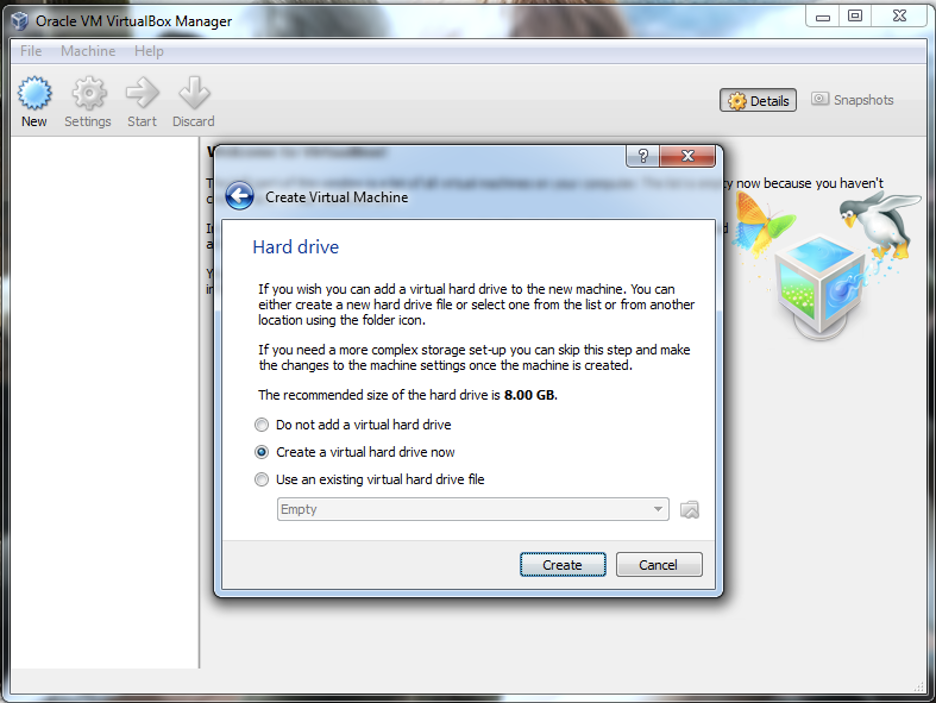
4. Now, Select Create a virtual hard disknow option and click Create button
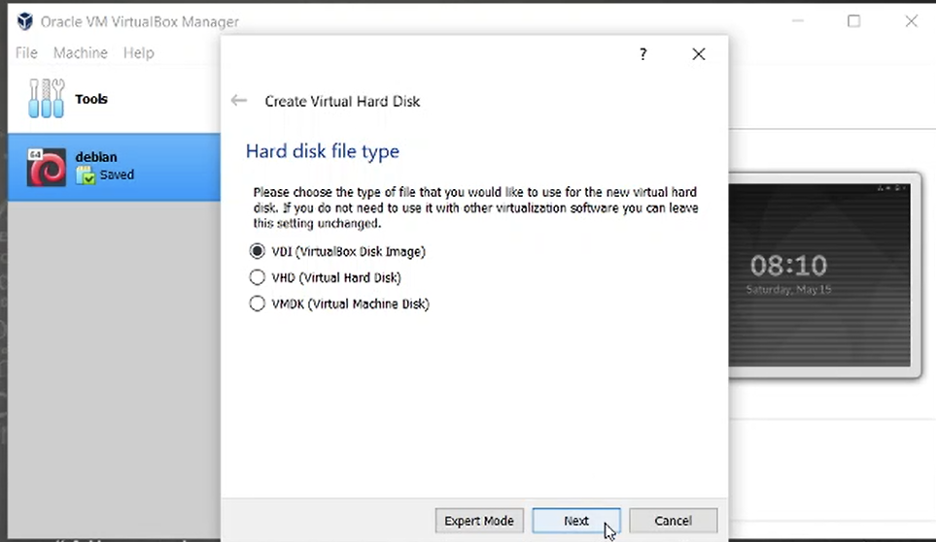
5. Select VDI(virtualbox Disk image)
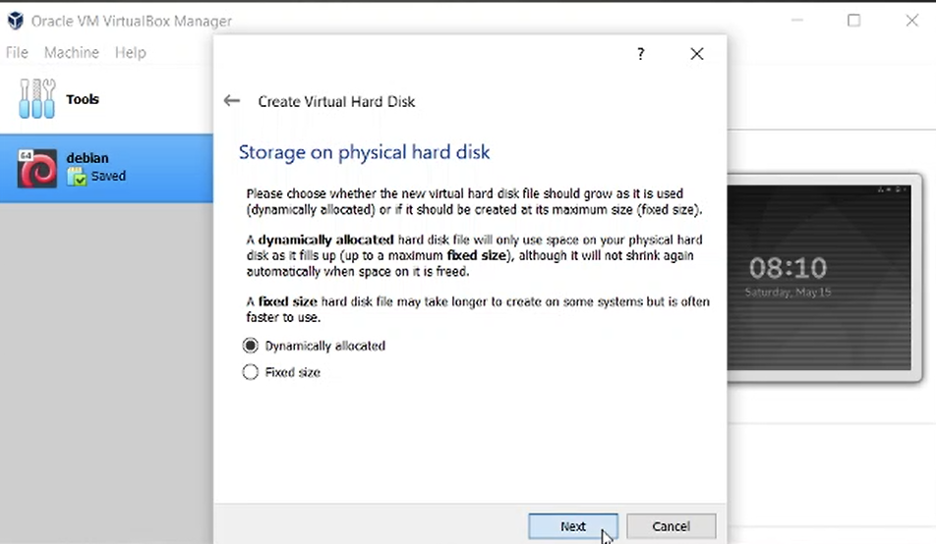
6. Select Dynamically allocated if you don’t want take hard disk space immediately
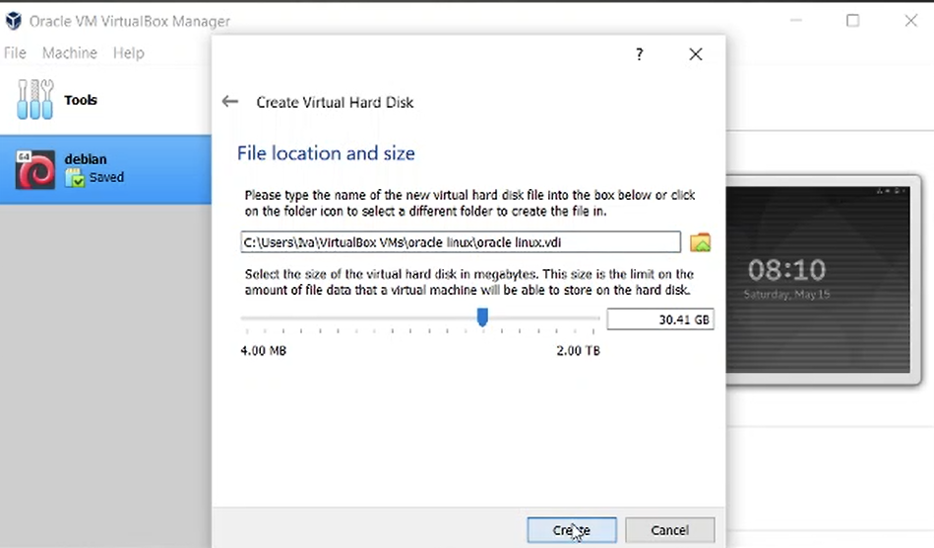
7. Select file size (disk size for VB) and the location, click Create button to finish virtual machine creation process
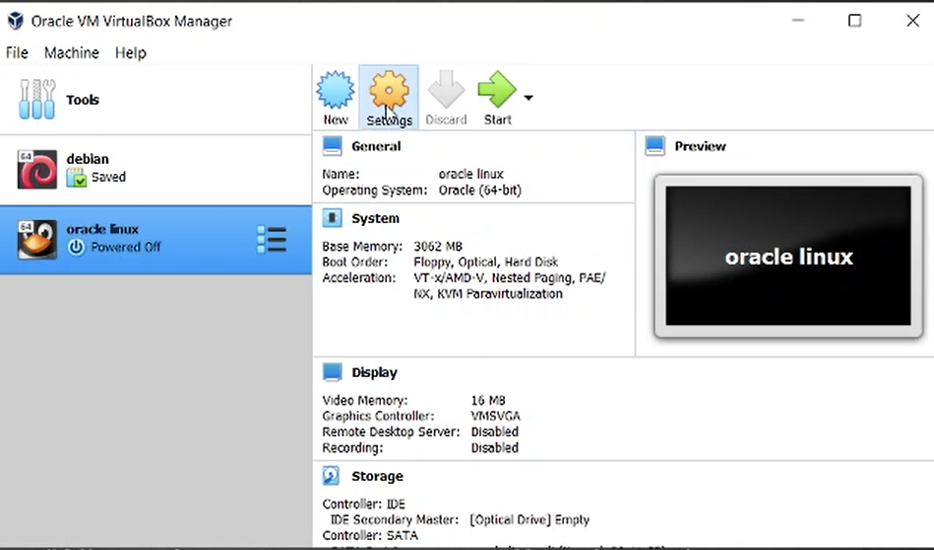
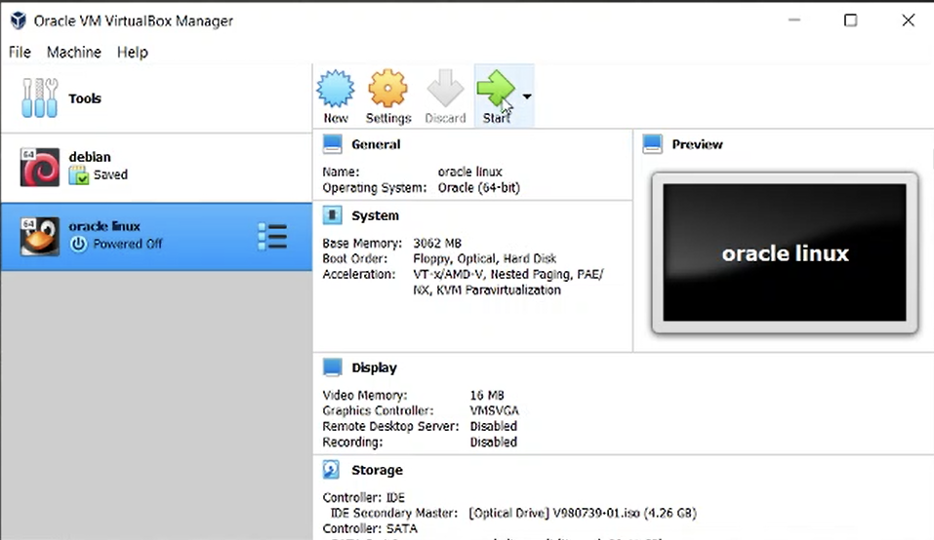
8. Virtual machine is already is created. Before we open/start VM, we load iso file in the machne, click Settings and follow me
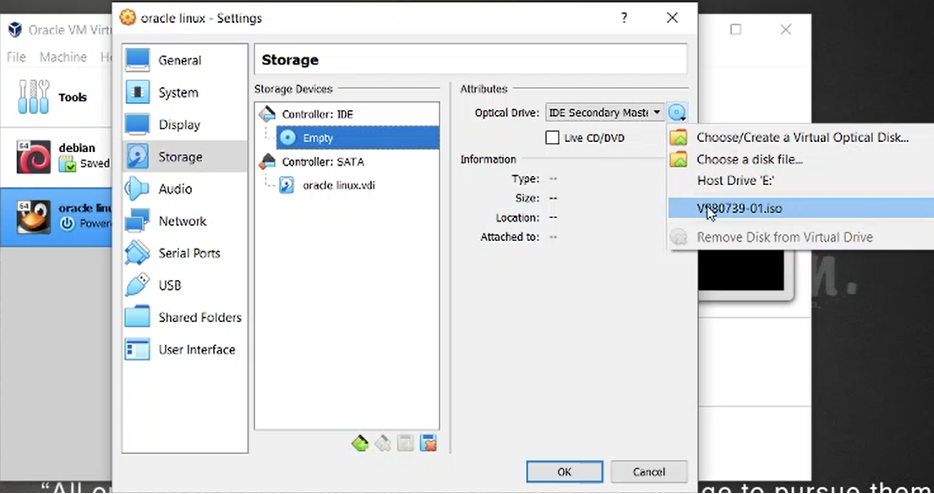
9. Navigate to Storage and click CD icon, on the right side of the window, under attributes, click CD icon and add virtual machine’s .iso file.
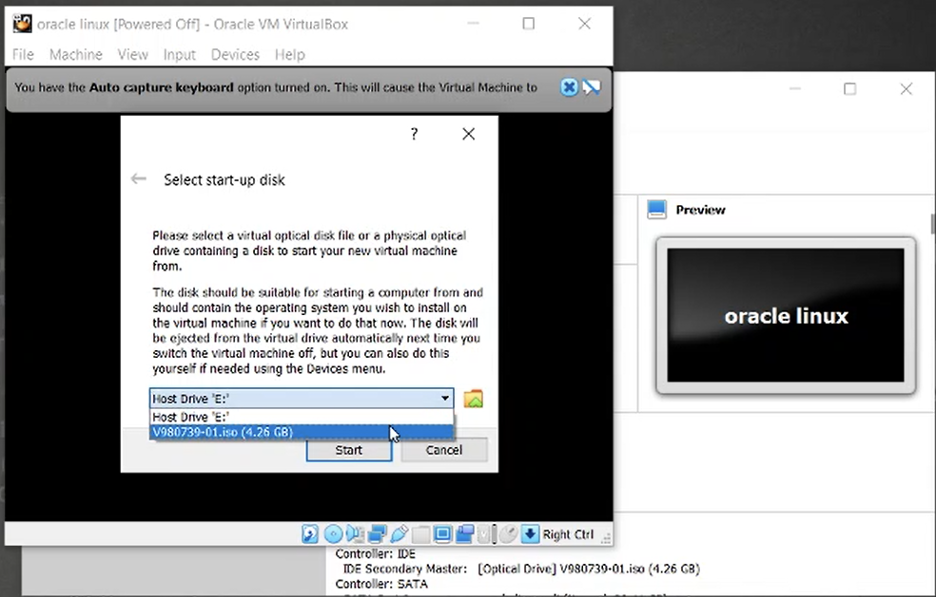
10. After that, you can click start button
11. Select .iso files or click folder icon and open folder where .iso file is located, select it and click start
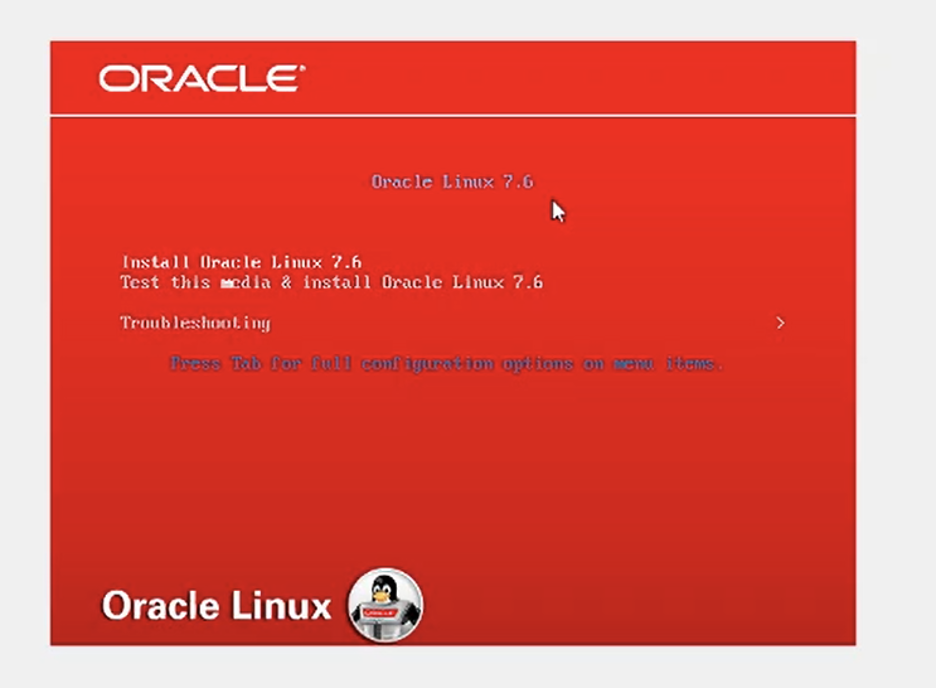
12. Next step is OS installation process, here you select Install Oracle linux 7.6 and click enter to start installation process:
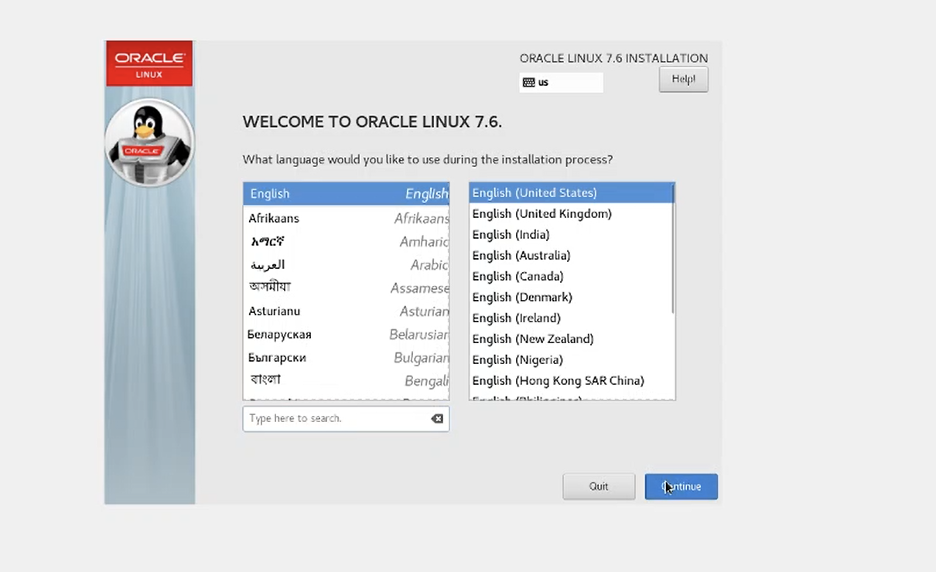
13. Select system language and click continue
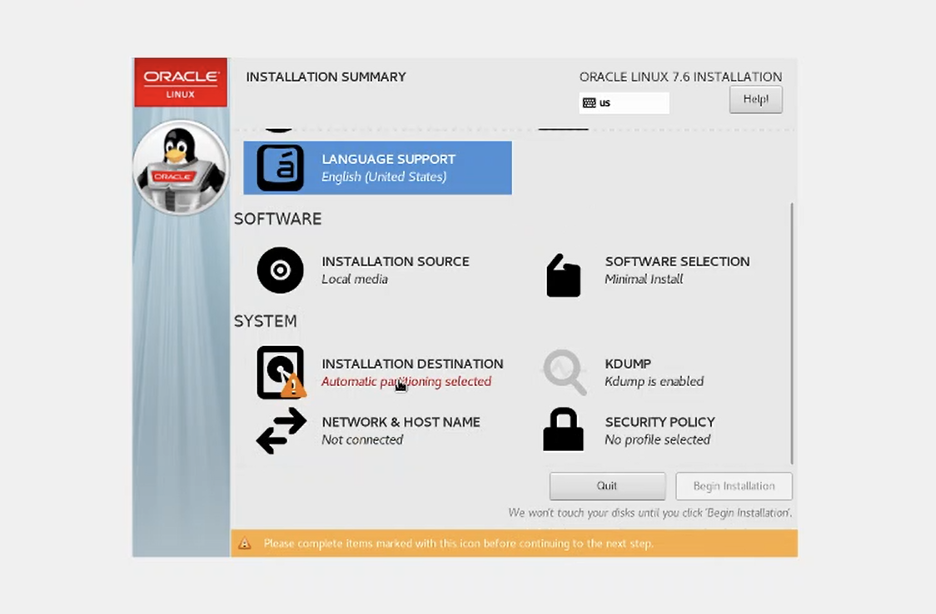
14. Select installation destiantion
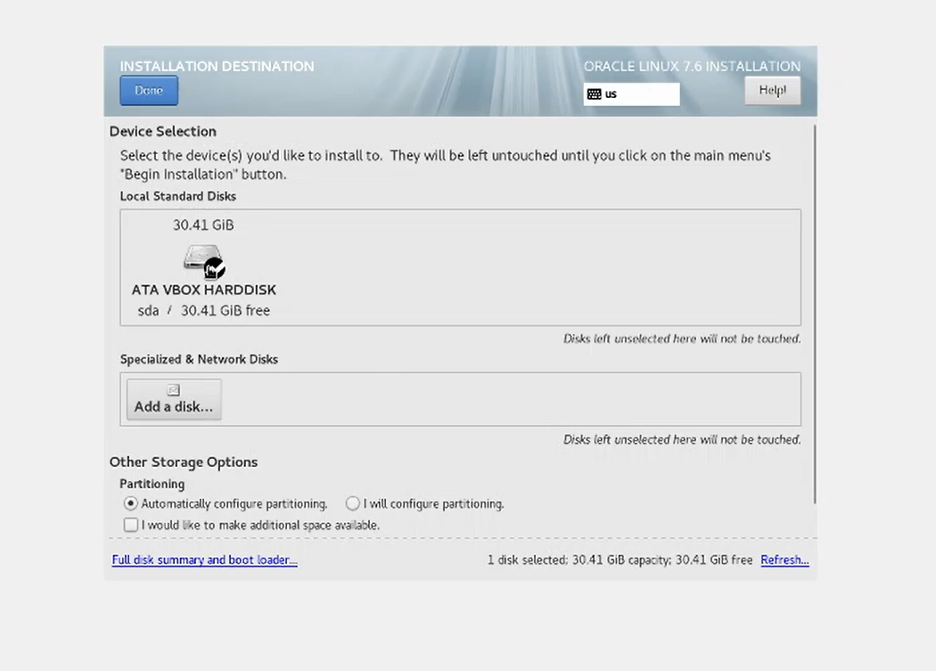
15. Select the disk where you want to install system. You can select virtual disk, that you have created in the previous step or add a new one. Select disk and click Done button;
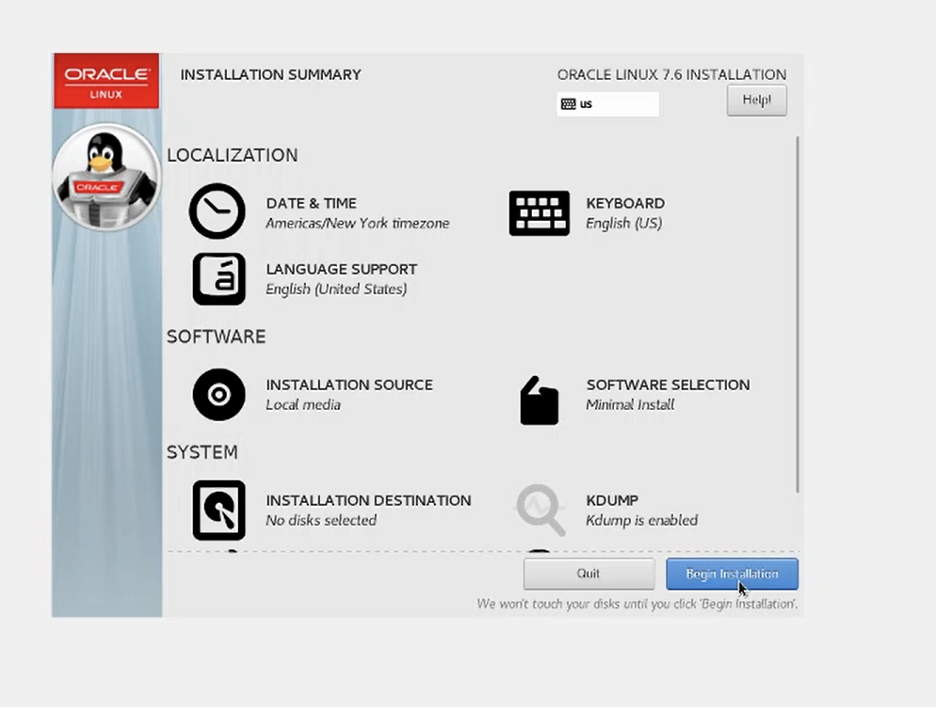
16. Now all parameter is ready. Click Begin Installation and wait for finishing the process
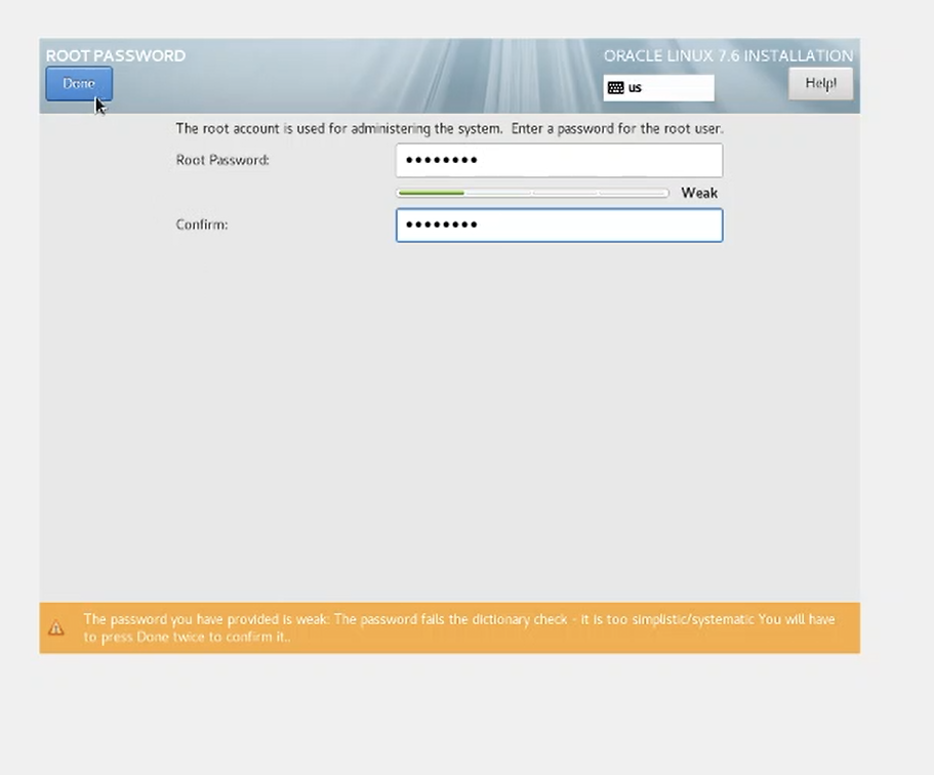
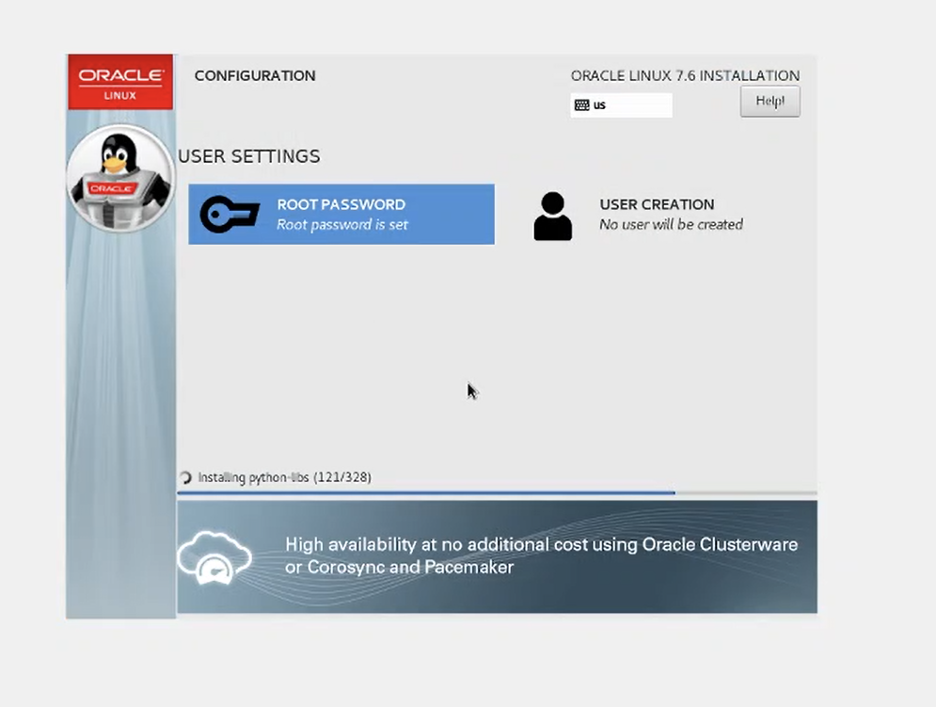
17. Set password and click Done
18. Installation is in progress, need to wait more
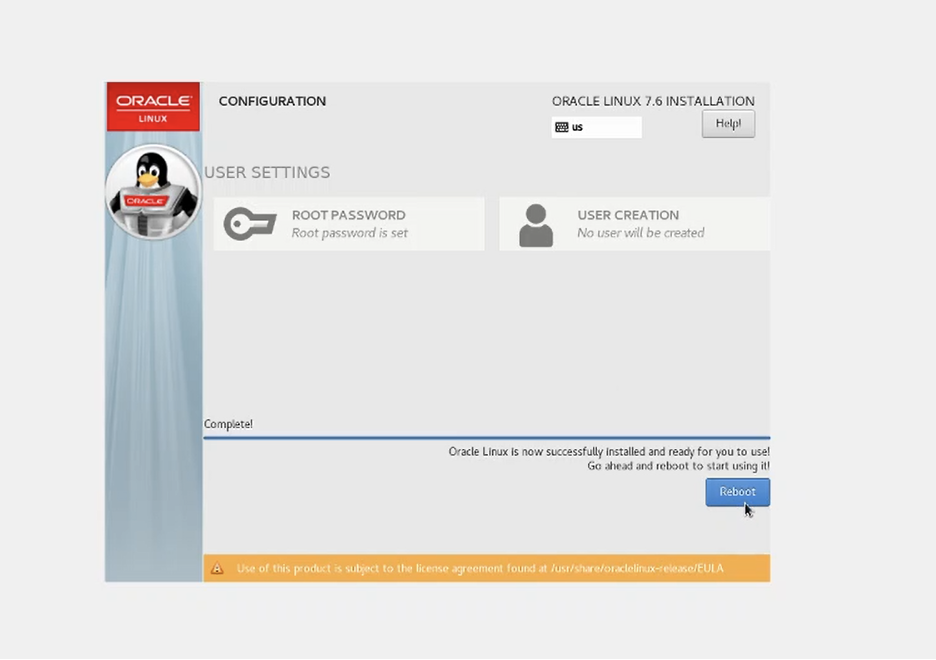
19. Installation proess is finished, click Roboot button and move to the next step:
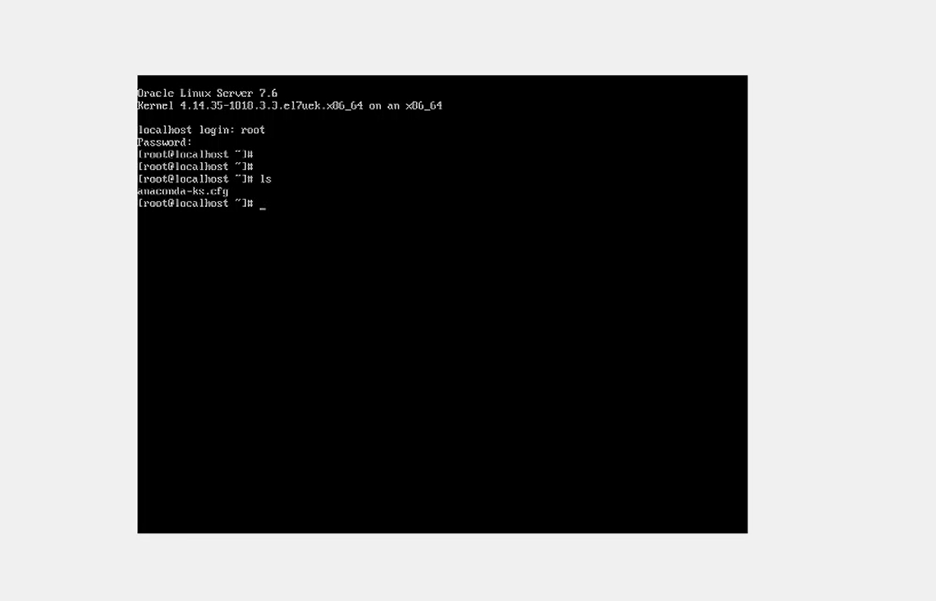
20. Installation is finised now, you can start working with Oracle Linux:
This blog post belongs to my student at Business and Technology University Saba Lapanashvili, thank you Saba for participating in this project.
Requirements:
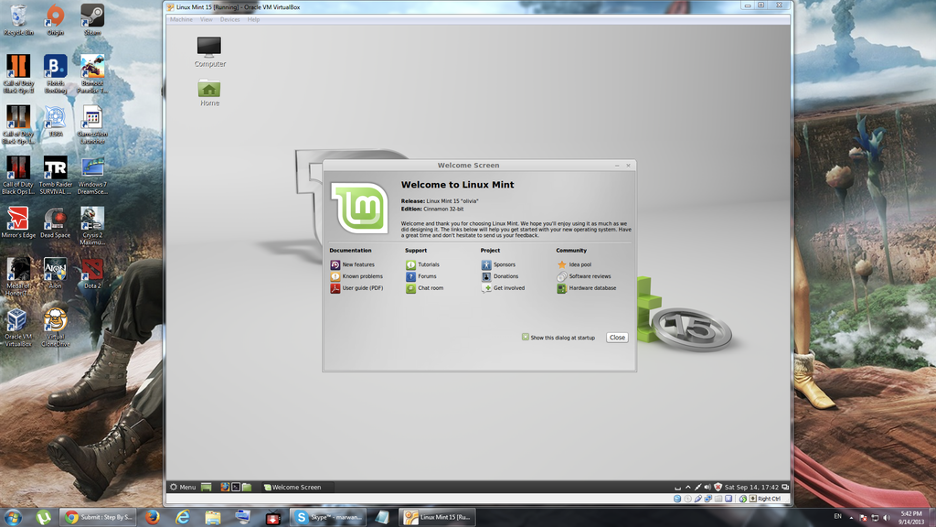
– VirtualBox – Linux iso file ( For example Linux Mint 15 )
Step 1: Choose System Type
– After installing VirtualBox, click New – Fill the Name field: e.g Linux Mint 15 – Select Type: Linux – Select Version: Ubuntu
Step 2: Select the Amount of RAM
– Select the amount of RAM, e.g 2048 MB = 2 GB
Step 3: Configure Hard Disk Settings
– Choose Create a virtual hard drive now, to make a virtual disk space – Select the VDI – Choose Dynamically allocated – Select the amount of hard drive size
Step 4: Choose Linux ISO File
Now we have done hardware settings
– Click Start to launch system – Choose your system iso file from your computer, for example my system iso file is (linuxmint-15-cinnamon-dvd-64bit.iso)
Step 5: Install Linux and Make Account
– Click on the Install Linux Mint – And select Erase disk and install Linux Mint – Then press Install Now – Make your account – Press Continue
Step 6: Congratulations
Congratulations now you have Linux on your Windows.








 DBA Knowledge Base