Oracle’s Password File: remote_login_passwordfile

Oracle’s password file helps you to authenticate the database until the instance has been started. As you can guess, the password cannot be saved in DB , because DBAs will not be able to access database until instance is started.

There are two methods to authentication the DBA:

1. OS authentication.

2. Password file authentication.

The initialization parameter remote_login_passwordfile indicates which method should be used.

Available Values:

1. NONE : No password file is used.  Authentication happens via OS.

2. EXCLUSIVE: This is a default value. Password file can only be used by one database. It enables you to grant SYSDBA or SYSOPER privileges to the users other than SYS. You are also able to change their passwords, which can’t be done in SHARED mode.

Note: Entries in password file is created automatically when you grant SYSDBA or SYSOPER privileges to the user. If user has any of these privileges, entry exists in password file. If you revoke  both of them entry will be deleted automatically.

To check what user entries are located in passwordfile:

select * from v$pwfile_users;

3. SHARED: Means password file is shared and one or more database can use it. But this also means that ONLY SYS user can be added to the password file. And you are not able to change its password.  

Note: Password file can contain non-SYS users, only if they were added before the value of this parameter has been changed to SHARED.

Note:  In Real Application Clusters each instance must have the same value.

Password file is created with the orapwd.

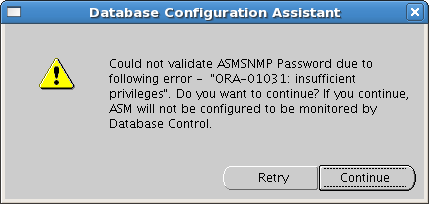
Could not validate ASMSNMP password due to…During DB creation

If you are creating database using DBCA and came across the following error:

Screenshot-Database Configuration Assistant

Do the following:

bash-3.2$ . oraenv
ORACLE_SID = [RDBMS] ? +ASM
The Oracle base for ORACLE_HOME=/u02/app/11.2.0/grid is /u01/app/oracle
bash-3.2$ sqlplus / as sysasm

SQL*Plus: Release 11.2.0.1.0 Production on Mon May 21 18:59:20 2012

Copyright (c) 1982, 2009, Oracle.  All rights reserved.
Connected to:
Oracle Database 11g Enterprise Edition Release 11.2.0.1.0 – 64bit Production
With the Automatic Storage Management option

SQL> create user ASMSNMP identified by testpas1;
create user ASMSNMP identified by testpas1
*
ERROR at line 1:
ORA-01990: error opening password file ‘/u02/app/11.2.0/grid/dbs/orapw’

SQL> exit
Disconnected from Oracle Database 11g Enterprise Edition Release 11.2.0.1.0 – 64bit Production
With the Automatic Storage Management option
bash-3.2$ echo $ORACLE_HOME
/u02/app/11.2.0/grid
bash-3.2$ cd /u02/app/11.2.0/grid/dbs/
bash-3.2$ orapwd file=orapw+ASM password=testpas1 entries=2
bash-3.2$ ls
ab_+ASM.dat  hc_+ASM.dat  init+ASM.ora  init.ora  orapw+ASM  spfile+ASM.ora
bash-3.2$ sqlplus / as sysasm

SQL*Plus: Release 11.2.0.1.0 Production on Mon May 21 19:01:20 2012

Copyright (c) 1982, 2009, Oracle.  All rights reserved.
Connected to:
Oracle Database 11g Enterprise Edition Release 11.2.0.1.0 – 64bit Production
With the Automatic Storage Management option

SQL> create user ASMSNMP identified by testpas1;

User created.

SQL> grant sysdba to ASMSNMP;

Grant succeeded.

That’s it. Re-run DBCA.

Could not validate ASMSNMP password due to…During DB creation

If you are creating database using DBCA and came across the following error:

Screenshot-Database Configuration Assistant

Do the following:

bash-3.2$ . oraenv
ORACLE_SID = [RDBMS] ? +ASM
The Oracle base for ORACLE_HOME=/u02/app/11.2.0/grid is /u01/app/oracle
bash-3.2$ sqlplus / as sysasm

SQL*Plus: Release 11.2.0.1.0 Production on Mon May 21 18:59:20 2012

Copyright (c) 1982, 2009, Oracle.  All rights reserved.
Connected to:
Oracle Database 11g Enterprise Edition Release 11.2.0.1.0 – 64bit Production
With the Automatic Storage Management option

SQL> create user ASMSNMP identified by testpas1;
create user ASMSNMP identified by testpas1
*
ERROR at line 1:
ORA-01990: error opening password file ‘/u02/app/11.2.0/grid/dbs/orapw’

SQL> exit
Disconnected from Oracle Database 11g Enterprise Edition Release 11.2.0.1.0 – 64bit Production
With the Automatic Storage Management option
bash-3.2$ echo $ORACLE_HOME
/u02/app/11.2.0/grid
bash-3.2$ cd /u02/app/11.2.0/grid/dbs/
bash-3.2$ orapwd file=orapw+ASM password=testpas1 entries=2
bash-3.2$ ls
ab_+ASM.dat  hc_+ASM.dat  init+ASM.ora  init.ora  orapw+ASM  spfile+ASM.ora
bash-3.2$ sqlplus / as sysasm

SQL*Plus: Release 11.2.0.1.0 Production on Mon May 21 19:01:20 2012

Copyright (c) 1982, 2009, Oracle.  All rights reserved.
Connected to:
Oracle Database 11g Enterprise Edition Release 11.2.0.1.0 – 64bit Production
With the Automatic Storage Management option

SQL> create user ASMSNMP identified by testpas1;

User created.

SQL> grant sysdba to ASMSNMP;

Grant succeeded.

That’s it. Re-run DBCA.

Candidate ASM disks not showing

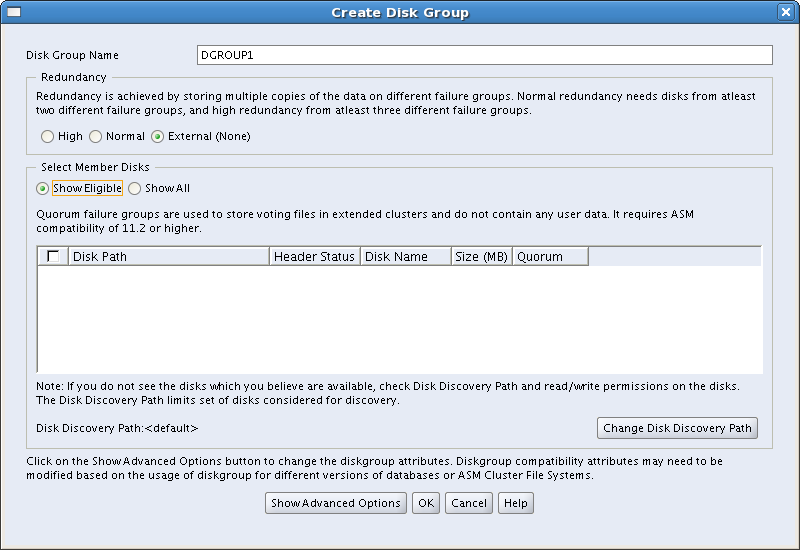
If you are in the middle of grid installation, and trying to create ASM disk group but Eligible(Candidate) disks location is empty, for example like this:Screenshot-Create Disk Group

moreover you have configured candidate disks using /etc/init.d/oracleasm and listdisks command showing the disk.

bash-3.2$ /etc/init.d/oracleasm listdisks

VOL1

Then follow my steps that may help:

1. Click “Change Disk Discovery Path” button

2. Enter the path /dev/oracleasm/disks and click OK

Screenshot-Change Disk Discovery Path

3. The picture should look like this:

Screenshot-Create Disk Group-1

That’s it. GOOD LUCK!

PL/SQL developer error_Could not initialize oci.dll

If you have the following error after trying to connect database using PL/SQL Developer

image

It means that you don’t have 32bits client installed.

Install 32bits client instead of 64bits version.

I hope, this simple solution will help you. Good Luck!

Backup SQL Server 2008 using Symantec Netbackup 7.0(Windows)

Hello all,

Today we will discuss how to backup SQL Server 2008 using Symantec Netbackup.

It is assumed that Netbackup Server is installed and you already have set up connection between Master and Media servers. If it is so, let’s start.

First of all, you should install Netbackup Client on the server where SQL database is located.

Client Server Configuration

1. Download installation file from the internet(I will provide download link later)

2. Run Setup.exe

Click Next-> Check I agree….-> Next ->

image

enter Master Server Name

Let’s stop here! and add more actions before we do this.

* Add the following entries in C:\Windows\System32\drivers\etc\hosts

192.168.1.110  netBackupMaster

Master server ip and hostname .

Also you should have already opened connection between client server and master server (bidirectional TCP port 13724).

So my window look like this :

image

There may appear the window like this:

image

Click Yes –> Then Install-> Finish.

Prepare Backup Script

* Open  NetBackup MS SQL Client (Start->All Programs->Symantec NetBackup->NetBackup Agents).

* Fill the section Userid and Passwod for SQL Server Standard or Mixed Security with the correct credentials.

*From the menu bar choose File->Backup SQL Server objects

** select databases
**
choose Save instead of Launch immediately
**
click Backup, save the .bch file in your desired location.

Master Server Configuration

In NetBackup Server Administration Console go to the Clients-> in the menu bar Actions-> Configure Client->

image

Enter the ip address of the client, where SQL Server is installed.

In the Client Properties window  go to the section Servers –> Click first Add button and enter master server name(for me it will be netBackupMaster) , select entry in Additional servers  and click Make Master. After this you should see in  Master Server and Additional server  text boxes the name of the master you entered now.
In the section Client Name check if the value is correct. Click OK.

Create Backup Policy

In Policies->
* Attributes
** Policy type: MS-SQL-Server
* Schedules
** indicate your desired schedule
* Clients
** Click New button and enter ip or hostname  of the client, indicate its operating system…it is simple
* Backup Selection
** Click New button and find our created .bch script, click OK

Do Manual Backup to test it .

That is all.

In addition, create folder dbclient in C:\Program Files\Veritas\NetBackup\logs\ for troubleshooting purposes. There will be located log files, which is very useful for problem solving with Netbackup.

Oracle recycle bin

There exits two recycle bins USER_RECYCLEBIN  the same as RECYCLEBIN and DBA_RECYCLEBIN.

PREPARING DEMO…

–Create a test table

CREATE TABLE testtb (testcol NUMBER);

–Insert row

INSERT  INTO testtb VALUES(1);

COMMIT;

–Drop it

DROP TABLE  testtb;

–Query recycle bin

SELECT OBJECT_NAME,ORIGINAL_NAME,DROPTIME 
FROM   RECYCLEBIN;

–Output

OBJECT_NAME                     | ORIGINAL_NAME | DROPTIME

----------------------------------------------------------------------

BIN$nNV1TgjzTeeusBT1fqxeyw==$0  | TESTTB        | 2011-04-05:11:14:46

As you can see Oracle renames table to a system generated name which starts with BIN$.

PURGING….DELETING

This table is not actually dropped, it is just renamed and is still taking the place in the tablespace.

To relieve the space there is several ways:

–Globally clear the recycle bin

PURGE DBA_RECYCLEBIN;

–Clear recycle bin by tablespace

PURGE TABLESPACE users;

–Clear recycle bin in you schema

 PURGE RECYCLEBIN;
or
 USER_RECYCLEBIN;

–Purge individual object

PURGE TABLE "BIN$nNV1TgjzTeeusBT1fqxeyw==$0"

IMPORTANT NOTE!!!

In one of the Oracle tests, there is the question which says that you cannot purge object from the recycle bin by specifying its original name.

Like that:

PURGE TABLE testtb

BUT it works!!!

–Check it

SELECT OBJECT_NAME,ORIGINAL_NAME,DROPTIME 
FROM   RECYCLEBIN;

–Output

OBJECT_NAME  |  ORIGINAL_NAME | DROPTIME 

Sometimes Oracle purges objects itself from recycle bin in the following cases:

* When user hits its quota limit on the tablespace
      At that point oracle purges objects from the recycle bin using FIFO method. So purges the oldest one until it’s enough.

* Before a datafile is autoextended .

SELECTING…

I am using table which is created in DEMO section.

–Query

SELECT * FROM "BIN$nNV1TgjzTeeusBT1fqxeyw==$0"; 

–Output

TESTCOL 

1

FLASHBACKING…RECOVERING

FLASHBACK TABLE testtb TO BEFORE DROP

–Query

SELECT * FROM  testtb

–Output

TESTCOL 

1 

Now let’s do the following:

–Create a test table

CREATE TABLE testtb (testcol NUMBER);

–Drop it

DROP TABLE  testtb;

–Check the recycle bin

SELECT OBJECT_NAME,ORIGINAL_NAME,DROPTIME 
FROM   RECYCLEBIN;

–Output

OBJECT_NAME                    | ORIGINAL_NAME | DROPTIME

--------------------------------------------------------------------

BIN$wkk5qTDzS7OsaI+LHOVv6g==$0 | TESTTB        | 2011-04-05:14:07:08

Again repeat these steps:

–Create a test table

CREATE TABLE testtb (testcol NUMBER);

–Drop it

DROP TABLE  testtb;

–Check the recycle bin

SELECT OBJECT_NAME,ORIGINAL_NAME,DROPTIME 
FROM   RECYCLEBIN;

–Output

OBJECT_NAME                   | ORIGINAL_NAME | DROPTIME 

-------------------------------------------------------------------

BIN$wkk5qTDzS7OsaI+LHOVv6g==$0| TESTTB        | 2011-04-05:14:07:08 

BIN$ZdI0ZO98R8mLymiv96CALA==$0| TESTTB        | 2011-04-05:14:07:12

If you flashback the TESTTB table , the most resent one will be flashbacked. Let’s check it:

–Flashback table

FLASHBACK TABLE testtb TO BEFORE DROP

–Check the recycle bin

SELECT OBJECT_NAME,ORIGINAL_NAME,DROPTIME 
FROM   RECYCLEBIN;

–Output

OBJECT_NAME                    | ORIGINAL_NAME | DROPTIME 

--------------------------------------------------------------------

BIN$wkk5qTDzS7OsaI+LHOVv6g==$0 | TESTTB        | 2011-04-05:14:07:08

Look at the DROPTIME, it shows that the oldest entry was left in the recycle bin.

But if you want to flashback that one, not the current one, do it:

Assume that we have not flashbacked any table and we have the following entries in the recycle bin:

OBJECT_NAME                   | ORIGINAL_NAME | DROPTIME 

------------------------------------------------------------------

BIN$wkk5qTDzS7OsaI+LHOVv6g==$0| TESTTB        | 2011-04-05:14:07:08 

BIN$ZdI0ZO98R8mLymiv96CALA==$0| TESTTB        | 2011-04-05:14:07:12

And now we want to flashback the table which was dropped for the first time.

FLASHBACK TABLE "BIN$wkk5qTDzS7OsaI+LHOVv6g==$0" TO BEFORE DROP

–Check the recycle bin

SELECT OBJECT_NAME,ORIGINAL_NAME,DROPTIME
FROM   RECYCLEBIN;

–Output

OBJECT_NAME                    | ORIGINAL_NAME | DROPTIME 

--------------------------------------------------------------------

BIN$ZdI0ZO98R8mLymiv96CALA==$0 | TESTTB        | 2011-04-05:14:07:12

But if the table by this name already exist, then you will need to rename it before flashbacking:

FLASHBACK TABLE "BIN$wkk5qTDzS7OsaI+LHOVv6g==$0" 
TO BEFORE DROP RENAME TO testtb1

When the table is dropped and placed into the recycle bin the following objects that refers to that table also are placed in the recycle bin:

* Indexes

* LOG segments

* Triggers etc…

BUT the following objects are not placed into the recycle bin:

* Bitmap join indexes

* Materialized view logs

* Referential integrity constraints

So when you flashback the table the following objects such as bitmap join indexes, materialized view logs, referential integrity constraints will not be recovered.

If you drop index before dropping a table, this index will not be recovered during flashbacking the table. The same is with other objects that should be located into the recycle bin.

DISABLING RECYCLING…

The initialization parameter RECYCLEBIN identifies if the dropped object should be placed into the recycle bin or not.

The default value is ON, means that it should.

You can disable it at the system or session level.

ALTER SESSION SET RECYCLEBIN=OFF

After that no object will be placed into the recycle bin, consequently they can’t be flashbacked. If there were objects into the recycle bin before setting RECYCLEBIN  parameter to OFF you are able to flashback them.

There is another way to delete object without locating it into the recycle bin:

DROP TABLE testtb;
;

!!!IMPORTANT

Recycle bin exists for the tables only in non-SYSTEM, locally managed tablespaces. 

So you can’t flashback the table from recycle bin in SYS schema, because this schema  is located in SYSTEM tablespace and doesn’t have any recycle bin.
Changing SYSMAN password(can cause problems)

After changing SYSMAN password from PL/SQL Developer, Enterprise Manager showed me: Agent Unreachable. I started to drill down and checked status of the agent on Oracle server. It showed me that agent was started. But after running the following:

emctl upload

It showed me the exact error: ORA-28000: the account is locked.

Let’s clarify: I’ve changed SYSMAN password, but EM stores and uses the old password during connecting(because changes from PL/SQL developer was not reflected to EM repository) . That’s why SYSMAN account was going to lock.

If you try to go to the EM URL it will show some unusual messages, that database is in shutdown or needs recovery. Don’t do anything! (this is caused because of the SYSMAN password has been changed, neither database is down nor needs recovery)

Let’s just solve it.

1. Stop dbconsole

emctl stop dbconsole

2. Go to the file $ORACLE_HOME/<hostname_sid>/sysman/config/emoms.properties and change the following lines to:

oracle.sysman.eml.mntr.emdRepPwd=<your_new_password>

oracle.sysman.eml.mntr.emdRepPwdEncrypted=FALSE

Don’t worry about plain text password , it will be encrypted automatically after you save the file.

3. Start dbconsole

emctl start dbconsole

Enjoy!

Tablespace Backup Using Cron on Linux

Let’s do all things, step by step:

1. Create directories for Backup, Script and Logs.

mkdir -p /u02/Backup/Backup

mkdir -p /u02/Backup/Scripts

mkdir -p /u02/Backup/Logs

2. Create backup script.

export ORACLE_BASE=/u01/app/oracle

export ORACLE_HOME=/u01/app/oracle/product/11.2.0/db_1

export ORACLE_SID=my_sid

$ORACLE_HOME/bin/rman target / msglog /u02/Backup/Logs/BackupTBS_MYTABLESPACE.log append << EOF

run{

backup tablespace MYTAVLESPACE format '/u02/Backup/Backup/BackupTBS_MYTABLESPACE_%T.bkp';

delete noprompt backup of tablespace MYTABLESPACE completed before 'SYSDATE-1';

}

EOF

save this script as  MYTABLESPACE_disk_backup.sh

3. Change permissions and owner of this file.

chown oracle:oinstall MYTABLESPACE_disk_backup.sh

chmod a+x MYTABLESPACE_disk_backup.sh

4. Create cron job.

su - oracle

crontab -e

--add the following line(this script will run at 8:00 PM everyday)

00 20 * * * /u02/Backup/Scripts/MYTABLESPACE_disk_backup.sh

cron format is the following:

minute (0-59), hour (0-23, 0 = midnight), day (1-31), month (1-12), weekday (0-6, 0 = Sunday)
*                    *                                    *                *                   *

asterisk means –> every

5. Reload cron service

su -

service crond reload

That is all.

Setup netbackup to send mails

1. Installing and configuring BLAT 1.1 Download BLAT from here  http://sourceforge.net/projects/blat/ 1.2 Extract files, copy blat.exe and paste it into C:\Windows\System32 (indicate the correct path for your System32). 1.3 From the command line run the following:

> cd C:\Windows\System32
> blat -install <email server addr> <sender's addr>

Note: <sender’s addr> is the valid email account, which will be the primary sender of the email notifications. Example:

> blat -install mailserver.company.ge useraccount@company.ge

1.4 Testing the installation validity. Create a text file, for example, C:\textfile.txt with some text into it. And run the following from command line:

> blat C:\textfile.txt –s some_subject –to useraccount@company.ge

If blat is working,  useraccount@company.ge account should receive the mail. 2. Configuring nbmail.cmd script. 2.1 This script should be located in <install_path>\Veritas\NetBackup\bin , if not , go to the <install_path>\Veritas\NetBackup\bin\goodies and copy nbmail.cmd to <install_path>\Veritas\NetBackup\bin and then modify the script by the following way: For NetBackup 4.5 and 5.x systems find the following:

@rem @blat %3 -s %2 -t %1 -i NetBackup -server WARTHOG –q

For NetBackup 6.0 or 7.0 systems find the following:

@REM @IF "%~4"=="" (
@REM blat %3 -s %2 -t %1 -i NetBackup -server WARTHOG –q
@REM ) ELSE (
@REM blat %3 -s %2 -t %1 -i NetBackup -server WARTHOG -q -attach %4
@REM )

2.2 Remove all “@REM”. 2.3 Replace “WARTHOG” with the mail server name: For NetBackup 4.5 and 5.x systems find the following:

@rem @blat %3 -s %2 -t %1 -i NetBackup -server mailserver.company.ge –q

For NetBackup 6.0 or 7.0 systems find the following:

@REM @IF "%~4"=="" (
@REM blat %3 -s %2 -t %1 -i NetBackup -server mailserver.company.ge –q
@REM ) ELSE (
@REM blat %3 -s %2 -t %1 -i NetBackup -server mailserver.company.ge -q -attach %4
@REM )

3 Configure Netbackup to send mails to recipients.

3.1 Open Netbackup Administration Console We will use Master Servers and/or Clients properties under “NetBackup Management”-> “Host Properties”.

1. If you want NetBackup to send notification just  about Failed backups, do the following(just):

1.1 Write the mail address(or addresses, separated by commas) to where email notification should be sent  into “Master Servers” –> Properties –> “Global Attributes“->”Administrator email address“(It will cause Symantec to send mails about backups that ended with non-zero status)

2.  If you want to receive notifications about Failed and Successful backups as well, do the following:

2.1 Write the mail address(or addresses, separated by commas) to where email notification should be sent  into “Master Servers” –> Properties –> “Universal Settings” –> “Client Administrator’s email

and  check  “Server sends mail”(means server where netbackup is installed will send) or “Client sends mail”(if client, that is backed up, can send mails)….I prefer to check  “Server sends mail”.

2.2  Under  “Clients“->Properties –> “Universal Settings” check “Server sends mail”(if you’ve checked it in “Master Servers” –> Properties –> “Universal Settings”) or “Client sends mail”(if you’ve checked it in “Master Servers” –> Properties –> “Universal Settings”). So do the same for clients as you did  for master server, or it will fail.

and  in “Client Administrator’s email” write the mail address(or addresses, separated by commas) to where email notification should be sent.

That is all.