Install New Unicode Character Set in Oracle(Locale Builder)

Locale Builder is an utility to view, modify, or define locale-specific data. As well as to create your own formats for language, territory, character set, and linguistic sort.

I will show you how to create .nlb(binary file) from .nlt(text file).

First of all, let’s discuss what NLT file is.

NLT file content is in xml format which can be created by Oracle Locale Builder(located in %ORACLE_HOME%\nls\builders\lbuilder.bat.)

1. Run lbuilder.bat

Choose File->New->Character Set.

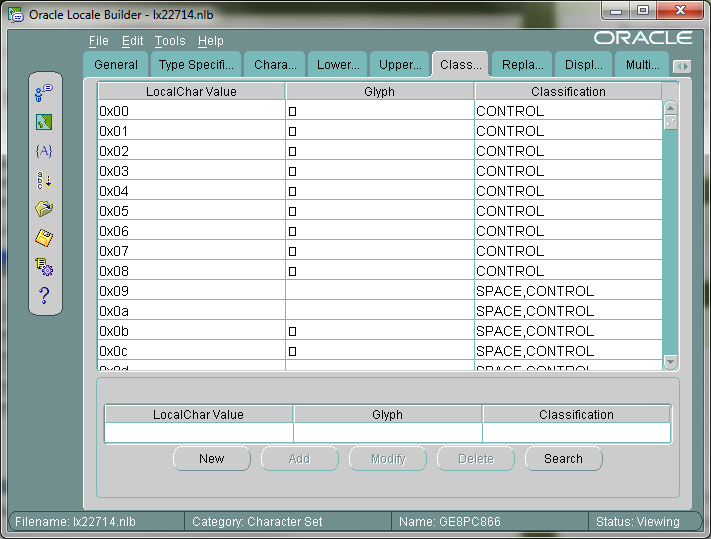
As you can see every field is free, for better understanding let me open already created character set

Oracle_Locale_Builder_General


Oracle_Locale_Builder_Type_Specific


Oracle_Locale_Builder_Character_Data_Mapping

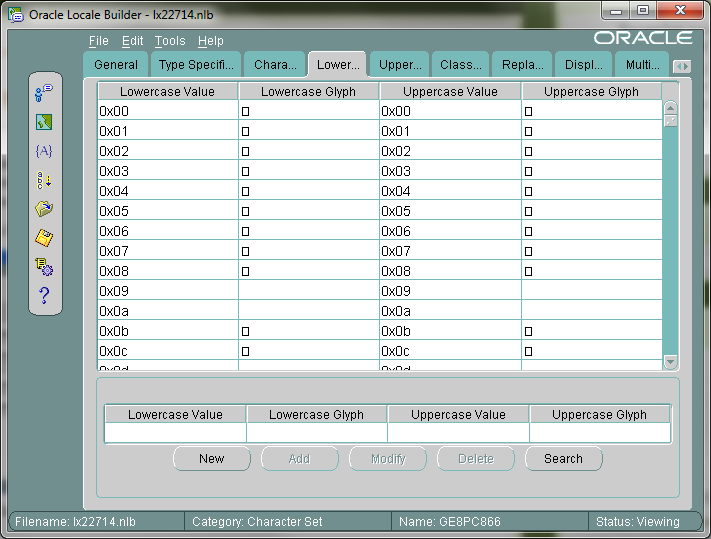
Oracle_Locale_Builder_LowerToUppercase_Mapping

Oracle_Locale_Builder_UpperToLowercase_Mapping

Oracle_Locale_Builder_Character_Classification

Oracle_Locale_Builder_Replacement_Characters

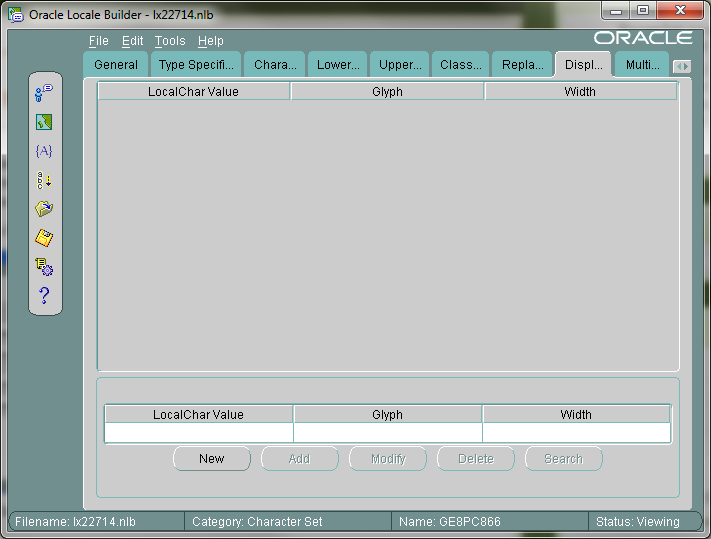
Oracle_Locale_Builder_Display_Width

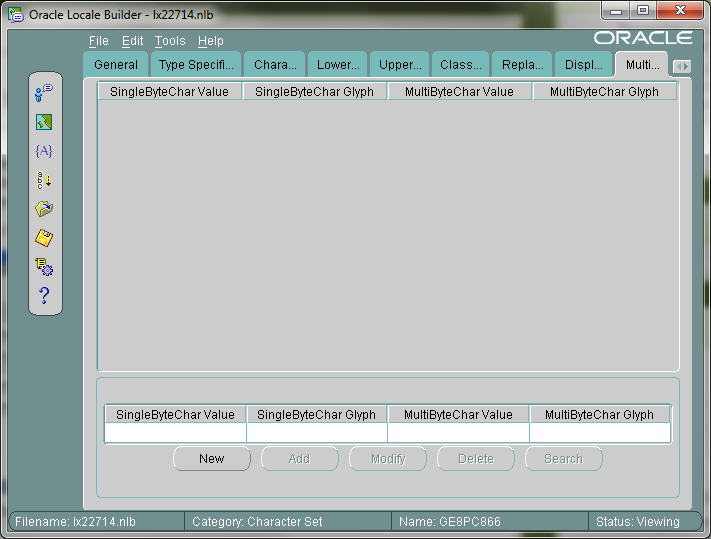
Oracle_Locale_Builder_Multibyte_Equivalent

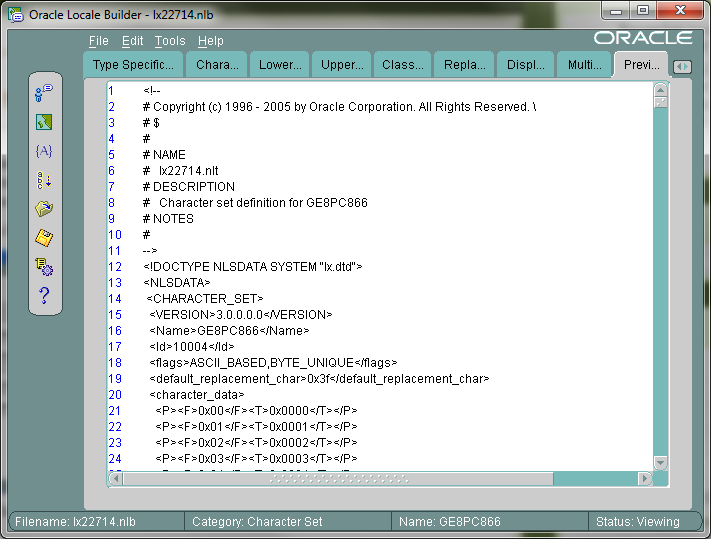
And the last one shows the NLT file content.

Oracle_Locale_Builder_Preview_NLT

As you can see content is in XML format.

As I said previously NLT file is a text file, but Oracle needs NLB, binary file. Oracle Locale Builder gives the ability to create NLB file from NLT file. Let’s do it.

I consider the situation when we already have NLT file.

2. Run Locale Builder.

Click Generate NLB icon.

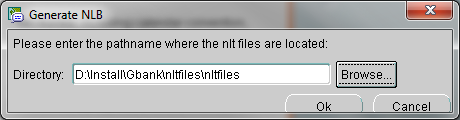
Oracle_Locale_Builder_Generate_NLB

Choose the path where your NLT files are.

Be careful, after browsing the folder path I’ve noticed that something wrong is in the path:

Oracle_Locale_Builder_Generate_NLB_BrowsePath

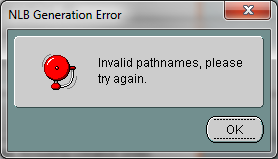
There, nltfiles folder name is displayed twice. Let’s see what happens if we click OK.

Oracle_Locale_Builder_NLB_Generation_Error

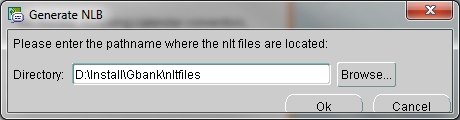
So I decided to delete second nltfiles and click OK.

Note: If you highlight folder where NLT files are, so do not enter inside, and click Open during browsing, everything will be OK.

Oracle_Locale_Builder_Generate_NLB_BrowsePath2

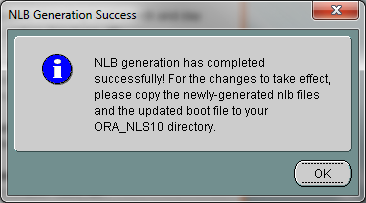
Oracle_Locale_Builder_NLB_Generation_Success

NLB files are located in the same directory where NLT files are so for me it is D:\Install\Gbank\nltfiles.

Just a little advice: Save old lx0boot.nlb and lx1boot.nlb files and then replace them by new one, for to avoid any incompatibility .

Copy all of them and paste into %ORACLE_HOME%\nls\data.

New unicode character set is already installed.To use it, do the following:

1. Start->Run->regedit->HKEY_LOCAL_MACHINE\SOFTWARE\ORACLE\KEY_…-> find and modify NLS_LANG value to AMERICAN_AMERICA.newCharacterSetName(this name can be  found in .nlt file in a  <name> tag for me it is GE8PC866)

2.Open PL/SQL Developer->choose Tools->Preferences…->Fonts->Select-> and then choose Font:.

Retrieve Web-Page Content as XML format in Oracle

In Oracle, there exists a package UTL_HTTP, by which you can make HTTP requests directly from database.
You can use this package if you want to read a webpage.

I will write a simple script, which will send a request to google site and retrieve its content.

declare
v_content  long;
v_url           varchar2(40):=’www.google.com’;
begin
v_content := utl_http.request(v_url);

dbms_output.put_line( v_content );
end;

Note that this code works well if page size is not more than 2GB(Because LONG type saves maximum 2GB).

For larger pages we should use REQUEST_PIECES. By this method you are not limited to 2GB, but  you can indicate maximum bytes by yourself. I will use maximum 100000 bytes.

declare
v_content   utl_http.html_pieces;
v_url            varchar2(25):=’www.google.com’;
begin
v_content := utl_http.request_pieces( v_url,100000);

for i in 1 .. v_content .count
loop
dbms_output.put_line( v_content (i) );
–exit when ( i = 2 );
end loop;
end;

This script will return all content from the web-page. If you want to retrieve just several lines from there, uncomment “exit when ( i = 2 );” and write desired number of lines instead of 2.

Note that the page is returned as an array not as a single variable.

That is all.

LOB datatypes in Oracle

LOBs support storing large, unstructured objects such as audio, video, picture, text, etc.

Before the LOB, there was LONG and LONG RAW datatypes which also were storing large objects. Oracle still supports it, but strongly recommends using LOBs instead of them. LONG and LONG raw have many restrictions and have less opportunity than LOBs. So let’s discuss their differences:

  1. Table can store multiple LOBs, while you are restricted to use only one LONG column per table.
  2. A LOB can store maximum 4GB in Oracle 8, 8TB in Oracle 9i/10g, 128TB in Oracle 11g. While LONG column can store maximum 2GB.
  3. Table containing LOBs can be partitioned, while table with LONG column cannot be partitioned.
  4. When you are using LOBs you are able to access its data randomly, while you must sequentially read LONG type data from beginning to end.
  5. LOBs can be used in user defined data types (except NCLOB), while LONG cannot be used.

LOB datatypes can be stored inline (within a table) or out-of line (within a tablespace, using a LOB locator) or as an external file (BFILE).

BLOB

BLOBs are binary objects, used to store binary, raw data. BLOBs participate into transaction and can be rolled back or committed.

CLOB

CLOBs are character LOBs. Used to store single byte character set (large texts, xml…). They also participate into transactions.

NCLOB

NCLOBs are used to store multi-byte character data, which corresponds to the national character set defined into the database. They also are participating into transactions.

Three of them are types of Internal LOBs; there also exists external LOB called BFILE. It is the single type, which is external.

BFILE

BFILE is short for Binary File, which is stored outside the database. It is stored into the Operating System as a file. It doesn’t participate into transactions. The amount of file is also limited by OS. BFILEs are read only. They only support random reads, means not sequential read. The changes to the BFILEs can be done through OS.


Moving Tables with LOB columns to a diff. tablespace

In the previous post I discussed how to move table and its indexes to a different tablespace, and I also mentioned that moving tables with LOB columns to a different tablespace is performed by the different way. So here it is how to do this.

First of all, let’s create a test table with LOB column.

CREATE TABLE TST_TABLE(
COL_ID          NUMBER CONSTRAINT TEST_PK PRIMARY KEY,
COL_CLOB   CLOB
);

–Insert one row into this table

INSERT INTO TST_TABLE
VALUES(1,’FIRST ROW’);
COMMIT;

–Query it

SELECT * FROM TST_TABLE

–Result

COL_ID   | COL_CLOB
——————————-
1              | <CLOB>

Now let’s check table’s current tablespace.

SELECT TABLE_NAME
,TABLESPACE_NAME
FROM DBA_TABLES
WHERE TABLE_NAME=’TST_TABLE’

–Result

TABLE_NAME  | TABLESPACE_NAME
—————————————————
TST_TABLE     | SYSTEM


Assume that we have already created a test tablespace, let’s say it is called TST_TBS.

–Move table to TST_TBS tablespace

ALTER TABLE TST_TABLE MOVE TABLESPACE TST_TBS

–Let’s check the result

SELECT TABLE_NAME
,TABLESPACE_NAME
FROM DBA_TABLES
WHERE TABLE_NAME=’TST_TABLE’

–Result

TABLE_NAME  | TABLESPACE_NAME
————————————————–
TST_TABLE     | TST_TBS

When you create a table with LOB column, oracle automatically creates LOB segment and LOB index. If you do not indicate their(LOB segment and LOB index) names and where they  should be kept, oracle names them itself and creates in the same tablespace as the table is.

By default, segment name starts with SYS_LOB… and index name starts with SYS_IL…

Let’s check what indexes are already created for our table.

SELECT INDEX_NAME                 AS INDX_NM
,INDEX_TYPE                 AS  INDX_TP
,TABLESPACE_NAME   AS TBS_NM
,STATUS
FROM DBA_INDEXES
WHERE TABLE_NAME=’TST_TABLE’

–Result

INDX_NM                                      | INDX_TP | TBS_NM | STATUS
—————————————————————————————–
SYS_IL0000055912C00002$$| LOB         | SYSTEM  | VALID
TEST_PK                                      | NORMAL | SYSTEM  | UNUSABLE

Or you can query the following to identify segment name and index name.

SELECT COLUMN_NAME           AS CLN_NM
,SEGMENT_NAME        AS SEGMENT
,TABLESPACE_NAME  AS TBS_NM
,INDEX_NAME                AS INDX_NM
FROM USER_LOBS
WHERE TABLE_NAME=’TST_TABLE’

–Result

CLN_NM     |SEGMENT                                         | TBS_NM | INDX_NM
———————————————————————————————————————-
COL_CLOB|SYS_LOB0000055912C00002$$| SYSTEM |SYS_IL0000055912C00002$$

Because of, by default LOB column is stored outside of the table it is still located in the SYSTEM tablespace(was not moved).

In order to move LOB column to a different tablespace, you should run the following command.

ALTER TABLE TST_TABLE MOVE LOB(COL_CLOB)
STORE AS (TABLESPACE TST_TBS);

–Check it

SELECT COLUMN_NAME         AS CLN_NM
,SEGMENT_NAME       AS SEGMENT
,TABLESPACE_NAME AS TBS_NM
,INDEX_NAME               AS INDX_NM
FROM USER_LOBS
WHERE TABLE_NAME=’TST_TABLE’

–Result

CLN_NM     |SEGMENT                                         |TBS_NM  | INDX_NM
———————————————————————————————————————–
COL_CLOB|SYS_LOB0000055912C00002$$|TST_TBS |SYS_IL0000055912C00002$$

Let’s query the following:

SELECT INDEX_NAME               AS INDX_NM
,INDEX_TYPE                AS INDX_TP
,TABLESPACE_NAME AS TBS_NM
,STATUS
FROM DBA_INDEXES
WHERE TABLE_NAME=’TST_TABLE’

–Result

INDX_NM                                       | INDX_TP | TBS_NM | STATUS
——————————————————————————————
SYS_IL0000055912C00002$$ | LOB         | TST_TBS |  VALID
TEST_PK                                       | NORMAL | SYSTEM  | UNUSABLE

As you can see, LOB index was automatically moved to the new tablespace, but normal index still is in the same tablespace. To move it to a different tablespace, run the following:

ALTER INDEX TEST_PK REBUILD TABLESPACE TST_TBS

–Check it

SELECT INDEX_NAME               AS INDX_NM
,INDEX_TYPE                AS INDX_TP
,TABLESPACE_NAME AS TBS_NM
,STATUS
FROM DBA_INDEXES
WHERE TABLE_NAME=’TST_TABLE’

–Result

INDX_NM                                       | INDX_TP | TBS_NM | STATUS
——————————————————————————————
SYS_IL0000055912C00002$$ | LOB         | TST_TBS |  VALID
TEST_PK                                       | NORMAL | TST_TBS |  VALID


After rebuilding an index, it became valid. As I also said in the previous post , if at least one index of the table is not valid DML operations will fail.

Moving tables and indexes to a different tablespace

Moving table to a different tablespace can be done by several ways:

  1. Using Export/Import.
  2. Or by the following clause:

ALTER TABLE schemaName.tableName REBUILD TABLESPACE tablespaceName;

I will discuss the second variant now.

–Let’s create a test table.

CREATE TABLE TESTTABLE(
TESTCOLUMN NUMBER CONSTRAINT TEST_PK PRIMARY KEY
);

–Insert one row into that table

INSERT INTO TESTTABLE
VALUES(1);
COMMIT;

–Let’s see rowid value

SELECT ROWID,TESTCOLUMN
FROM TESTTABLE;

–Result

ROWID                                | TESTCOLUMN
——————————————————–
AAANoRAABAAAPVSAAA  | 1

Before you move table to a different tablespace, you must have created  this tablespace before.

–Now let’s create a test tablespace.

CREATE TABLESPACE testTablespace
DATAFILE   ‘C:\ORACLE\PRODUCT\10.2.0\ORADATA\ORCL\testTablespace01.DBF’
SIZE 5242880
AUTOEXTEND ON NEXT 1310720 MAXSIZE 32767M
LOGGING ONLINE PERMANENT BLOCKSIZE 8192
EXTENT MANAGEMENT LOCAL AUTOALLOCATE
SEGMENT SPACE MANAGEMENT AUTO

–Let’s see table’s current tablespace

SELECT TABLE_NAME,TABLESPACE_NAME
FROM DBA_TABLES
WHERE TABLE_NAME=’TESTTABLE’;

–Result

TABLE_NAME  | TABLESPACE_NAME
—————————————————-
TESTTABLE     | SYSTEM

–Move this table to a test tablespace

ALTER TABLE TESTTABLE MOVE TABLESPACE TESTTABLESPACE;

–See again table’s current tablespace

SELECT TABLE_NAME,TABLESPACE_NAME
FROM DBA_TABLES
WHERE TABLE_NAME=’TESTTABLE’;

–Result

TABLE_NAME  | TABLESPACE_NAME
—————————————————-
TESTTABLE     | TESTTABLESPACE

–Let’s see again rowid value

SELECT ROWID,TESTCOLUMN
FROM TESTTABLE;

–Result

ROWID                                | TESTCOLUMN
——————————————————–
AAANoSAAHAAAAAMAAA | 1

As you can see rowid was changed. It makes indexes of this table unusable. To check it, run the following query.

SELECT INDEX_NAME,TABLE_NAME,STATUS,TABLESPACE_NAME
FROM DBA_INDEXES
WHERE TABLE_NAME=’TESTTABLE’;

–Result

INDEX_NAME | TABLE_NAME | STATUS       | TABLESPACE_NAME
—————————————————————————————–
TEST_PK         | TESTTABLE    | UNUSABLE | SYSTEM

Any DML operation on this table will cause an error, because an index is not valid. Let’s check it:

INSERT INTO TESTTABLE
VALUES(2);
COMMIT;

–Error

ORA-01502: index ‘SYS.TEST_PK’ or partition of such index is in unusable state

This happens because you have moved test table to another tablespace, and this operation changed rowid value. The index still refers to the old rowid value. To solve this, you must rebuild the index.

ALTER INDEX TEST_PK REBUILD TABLESPACE TESTTABLESPACE;

This command will rebuild the index and also moves it to TESTTABLESPACE tablespace. If you want to rebuild index without moving it to another tablespace. Simply, run the following command:

ALTER INDEX TEST_PK REBUILD;

–Let’s check its status

SELECT INDEX_NAME,TABLE_NAME,STATUS
FROM DBA_INDEXES
WHERE TABLE_NAME=’TESTTABLE’

–Result

INDEX_NAME | TABLE_NAME | STATUS  | TABLESPACE_NAME
—————————————————————————————
TEST_PK         | TESTTABLE    | VALID       | TESTTABLESPACE

You must do this action for each index, to make DML operation resumable on this table.

Note that, if table contains LOB columns this variant doesn’t work. Moving tables with LOB columns to another tablespace is discussed here.

How to Load JavaScript Contents Dynamically

This post is related to my previous post in terms of performance of loading page. Compressing and Combining .js files is very good thing to do. But not all .js files are essential for page functionality in the very first seconds after site is loaded. Almost in all web applications we are facing that situation. Application has many users with different privileges and roles. Not all list of menu is accessible for every user and in most cases user will not open all menus in one session. So, it has no purpose to load all .js files for the first time, because most of them will not be executed at all. Let’s make our architecture so that a .js file was loaded only after demand on function that is defined there. To explain better I’ll give very clear example. For example I have a web application with menu items (Let’s call them applications or subapplications ):

  • Menu 1
  • Menu 2
  • Menu 3

After the first load of site it is enough to load just those contents that displays my menu. And after click on Menu 1 firstly, let’s download that .js files where are defined functionality of Menu 1 and secondly, execute the functions that creates and displays the layout of Menu 1. I think I’m clear what I want to do. To approach the goal we have to create a singleton class that handles application content loading staff. All .js content will be downloaded by this class except essential files for displaying initial layout of web application. And this is the class that handlers dynamic loading:

(function(){
  var appManager, loadScript, head, App;
  appManager = {};
  appManager.cache = {}; //App instances will be cached here
  /**
  * Loads JavaScript from specified URL in DOM
  * @param {string} src
  *     URL for JavaScript file
  * @param {function} callBack
  *     function that will be called after file downloading finishes.
  *     Usually callBack function will call one of the function that
  *     is defined in newly downloaded file.
  */
  loadScript = function(src, callBack){
    var script;
    //get and cache head of document
    head && (head = document.getElementsByTagName("head")[0]);
    script = document.createElement('script'); //create script tag
    script.type = 'text/javascript';
    //listen to moment when downloading finishes (for IE)
    script.onreadystatechange= function() {
      if (this.readyState == 'complete') callBack();
    };
    //listen to moment when downloading finishes (for others than IE)
    script.onload = callBack;
    script.src = src; //assing src property to script tag
    head.appendChild(script); //append to head to begin download.
  };
  /**
  * Application class that has properties:
  *  name - name of subapplication
  *  src - URL of application's .js file
  *  callBack - function that will be executed after file loads,
  *  status - weather application file is downloaded or not.
  */
  App = function(name, callBack){
    this.name = name;
    /**
    * .js file name is considered to be
    * dirName + "_min.js" in directory
    * named dirName.
    */
    this.src = name + "/" + name + "_min.js";
    this.callBack = callBack;
    this.status = 'instantiated';
    /**
    * Cache application because not to
    * create and download more than once
    * the same application.
    */
    appManager.cache[name] = this;
  };
  /**
  * Method of App class that downloads its
  * .js file and executes callback function
  */
  App.prototype.load = function(){
    var that;
    this.status = 'loading';
    that = this;
    loadFinished = function(){
      that.callBack();
      that.status = 'loaded';
    };
    loadScript(that.src, loadFinished);
  };
  /**
  * By this function will be loaded applications
  * from global scope.
  * @param {string} appName
  *       Name of application, typically name of application
  *       and the name of directory under which application
  *       .js files are.
  * @param {function} callBack
  *        Function that will be executed after application
  *        loads.
  */
  appManager.load = function(appName, callBack){
    var app;
    /**
    * Create an application or get it from cache if it was created
    * before.
    */
    app = this.cache[appName] || new App(appName, callBack);
    if(app.isLoaded()){
      /**
      * If application is taken from cache and its file is already
      * downloaded then directly execute callBack.
      */
      callBack();
    }else if(app.isLoading()){
      /**
      * If application is taken from cache and the process of
      * downloading is in progress do nothing.
      */
      return;
    }else{
      /**
      *  Application is created for the first time and load it.
      */
      app.load();
    }
  };
  //make appManager global.
  window.appManager = appManager;
})();

This code is useful for understanding an idea and to run demos. But in real application, when there are many changes at runtime, this class also needs some additional functionalities such as: dependences on applications, some special files to be downloaded except core file and so on…

Now we have got dynamically loaded JavaScript content architecture.

Understanding sysobjects table in SQL Server

System tables and views are very useful objects that may be queried in many times by database background processes itself or by DBAs. These objects sometimes contain columns that are not so easy to understand what they are for. Here, in this post I will discuss  mostly used content of SYSOBJECT table.

Take into the consideration, that updating or deleting rows in these tables are not recommended. Background processes do it for you.

The most useful columns in SYSOBJECT table are name, id, xtype, uid, parent_obj, crdate.

As you can guess name column saves the name of the database object. Id column is the unique number for this object. xtype shows the type of this object, where:

  • AF = Aggregate function (CLR)
  • C = CHECK constraint
  • D = Default or DEFAULT constraint
  • F = FOREIGN KEY constraint
  • L = Log
  • FN = Scalar function
  • FS = Assembly (CLR) scalar-function
  • FT = Assembly (CLR) table-valued function
  • IF = In-lined table-function
  • IT = Internal table
  • P = Stored procedure
  • PC = Assembly (CLR) stored-procedure
  • PK = PRIMARY KEY constraint (type is K)
  • RF = Replication filter stored procedure
  • S = System table
  • SN = Synonym
  • SQ = Service queue
  • TA = Assembly (CLR) DML trigger
  • TF = Table function
  • TR = SQL DML Trigger
  • TT = Table type
  • U = User table
  • UQ = UNIQUE constraint (type is K)
  • V = View
  • X = Extended stored procedure

I’ve got this list from the internet,most of them are useful to know.

uid                – saves the user id, which is the owner of this object.
parent_obj – Id of the parent object. For example, for constraint parent_obj will be the ID
                        of the table, on which this constraint was defined.
crdate         -Object creation date.

There are several other tables, which shows the user objects:

–Shows the table columns owned by the current user.

select *
from information_schema.columns

–Shows the tables owned by the current user.

select *
from information_schema.tables

–Shows the list of all functions and procedures owned by the current user.

select *
from information_schema.routines

Real World Scenario

One day, the person came to me and asked if it was possible to find the table name when you just know the column name. I told him yes Smile and wrote the following simple query:

select a.name as columnName
           ,b.name as tablename
from SYSCOLUMNS as a,SYSOBJECTS as b
where a.ID=b.ID
and a.name=’column_name’

I hope this post was useful for you…

Compressing and Combining all .js Files

Most of the people are trying to: make their front-end in Web, port their applications from Desktop to Web, make Rich Internet Applications (RIA) … that’t why webification is a global process. Webifying has a lot of advantages but, of course, rises some problems. One of the problem is a huge amount of web content most of which are JavaScript files. If your application is big enough (>60 files or hundrends of files) then your bottleneck will be load of web site. So, let’s do the tool that minifies the size of JavaScript content. Since a developer is always limited in time and sometimes the time that is given is too small, let’s use existing tools to accomplish our goal.

I chose Closure Compiler. It removes comments, spaces, new lines; does obfuscation and finally size of compressed file is very small. It is very simple to install, the only thing is to run a single .jar file. Let’s download it, extract and get “compiler.jar”. Save this file in “/home/giorgi/jars/” directory (instead of “giorgi” use existing user):

mkdir /home/giorgi/jars
cp compiler.jar /home/giorgi/jars

We will use it in command line and sample command is (make sure that you are in /home/giorgi/jars directory or where you have saved “compiler.jar”):

java -jar compiler.jar --js myJs.js --js_output_file myJs_min.js

As you guess myJs.js is original file and myJs_min.js will be compressed file. We can give multiple .js files to compress and combine in a single file:

java -jar compiler.jar --js myJs.js --js anotherMyJs.js --js_output_file myJs_min.js

If your application is multilanguage then you have to give –charset UTF-8 as parameter.

Writing commands by hand is wasting time, in this case. So, to make Closure Compiler much more useful let’s make a sample script that will generate and execute commands for us. Typically it is needed to compress files under some special directory where are .js files of web application. So, our script must compress files under one directory. Let’t do it by Python. The script must look for .js files under directory and subdirectories, collect their names and then generate a command line. It will look like this:

#!/usr/bin/python
#The above line indicates that this file
#must be run by python interpreter
import os;
import re;
#regular expression that matches .js file
a = re.compile('^.*\.js$')
#initially command looks like this
compress_command = 'java -jar /home/giorgi/jars/compiler.jar'
#get full path of current working directory
#(under which are .js file of our application)
cwd_full = os.getcwd()
#extract the name of current directory
cwd = cwd_full[cwd_full.rindex('/') + 1:]
#in all subdirectories check all
#files if it is .js file then add to command
for root, dirs, files in os.walk('../' + cwd):
    for name in files:
        if a.match(name):
            compress_command += ' --js ' + root + '/' + name

#add output file and charset to command.
#output file will be: nameOfCurrentDirectory + "_min.js"
compress_command += ' --js_output_file ' + cwd + '_min.js --charset UTF-8'
os.system(compress_command) #execute generated command.
  • Let’s save this python script in file and name as “do_js_compression.py”
  • Make it runnable: chmod +x do_js_compression.py
  • Make it global, so that we can execute it from every directory. So copy it to “/bin” directory:
    cp do_js_compression.py /bin
  • Now we are able to run this script for all applications. For this we have to move to application direcotry and run this script:
    cd /home/giorgi/app
    do_js_compression.py

    And we will get the file “app_min.js” that is combined and compressed file of all .js files. And we solved our performance problem by one step…

How to Mount/Unmount Directory in Solaris

Let’s follow the steps.

1. Use format utility to define the disk on which you want to mount directory.

# format

Searching for disks…done

–I have disk named c0d0.
AVAILABLE DISK SELECTIONS:
0. c0d0 <DEFAULT cyl 2085 alt 2 hd 255 sec 63>
/pci@0,0/pci-ide@1,1/ide@0/cmdk@0,0

–Choose the disk number, in my case it is 0.
Specify disk (enter its number): 0

selecting c0d0
Controller working list found
[disk formatted, defect list found]
Warning: Current Disk has mounted partitions.
/dev/dsk/c0d0s0 is currently mounted on /. Please see umount(1M).
/dev/dsk/c0d0s1 is currently used by swap. Please see swap(1M).
/dev/dsk/c0d0s7 is currently mounted on /export/home. Please see umount(1M).

FORMAT MENU:
disk       – select a disk
type       – select (define) a disk type
partition  – select (define) a partition table
current    – describe the current disk
format     – format and analyze the disk
fdisk      – run the fdisk program
repair     – repair a defective sector
show       – translate a disk address
label      – write label to the disk
analyze    – surface analysis
defect     – defect list management
backup     – search for backup labels
verify     – read and display labels
save       – save new disk/partition definitions
volname    – set 8-character volume name
!<cmd>     – execute <cmd>, then return
quit

–Type p to define the partition table.
format> p

PARTITION MENU:
0      – change `0′ partition
1      – change `1′ partition
2      – change `2′ partition
3      – change `3′ partition
4      – change `4′ partition
5      – change `5′ partition
6      – change `6′ partition
7      – change `7′ partition
select – select a predefined table
modify – modify a predefined partition table
name   – name the current table
print  – display the current table
label  – write partition map and label to the disk
!<cmd> – execute <cmd>, then return
quit

Type p to display the current table.
partition>p

Current partition table (original):
Total disk cylinders available: 2085 + 2 (reserved cylinders)

Part      Tag    Flag     Cylinders        Size            Blocks
0       root            wm      70 – 921      6.53GB       (852/0/0)    13687380
1       swap         wu       3   – 69          525.56MB  (67/0/0)      1076355
2     backup        wm     0   – 2084     15.97GB     (2085/0/0)  33495525
3 unassigned   wm     0                    0                   (0/0/0)         0
4 unassigned   wm     0                    0                   (0/0/0)         0
5 unassigned   wm     0                    0                   (0/0/0)         0
6 unassigned   wm     0                    0                   (0/0/0)         0
7 unassigned   wm     0                    0                   (0/0/0)         0

partition>

–Let’s stop here and discuss this situation.

So as you can see, there are several directories that already use some cylinders, but just several of them are mounted. To see what directories or disk slices are mounted you should open /etc/vfstab file:

#device        device        mount        FS    fsck    mount    mount
#to mount    to fsck        point        type    pass    at boot    options
#
fd    –    /dev/fd    fd    –    no    –
/proc    –    /proc    proc    –    no    –
/dev/dsk/c0d0s1    –    –    swap    –    no    –
/dev/dsk/c0d0s0    /dev/rdsk/c0d0s0    /    ufs    1    no    –

/devices    –    /devices    devfs    –    no    –
sharefs    –    /etc/dfs/sharetab    sharefs    –    no    –
ctfs    –    /system/contract    ctfs    –    no    –
objfs    –    /system/object    objfs    –    no    –
swap    –    /tmp    tmpfs    –    yes    –

As you can see, 2 directories are already mounted.
These are:
root (/), mounted on the disk slice 0(c0d0s0),
swap , mounted on the disk slice 1(c0d0s1)

Note that, you should choose free cylinders.If you choose the cylinders that are already in use you may not get the desired result. For example, if we choose cylinders from 71 to 900, that are already in use by root directory, then mount some directory, for example u0, on this slice(which we have allocated on these cylinders). After entering in u0 directory, you will see the files that are located in root directory(So it will not be empty)

Not let’s continue…

–Let’s choose the second slice(It is not mouned)

partition> 2
Part      Tag    Flag     Cylinders        Size            Blocks
2     backup    wm       0 – 2084       15.97GB    (2085/0/0) 33495525

–Type the name for the partition, in our case usr
Enter partition id tag[backup]: usr

–Press enter, leave default
Enter partition permission flags[wm]:

–Type the starting cylinder number, in our case 922
Enter new starting cyl[3]: 922

–I choose 200mb as the partition size
Enter partition size[18683595b, 1163c, 2084e, 9122.85mb, 8.91gb]: 200mb

–To save the changes type label
partition>label

Ready to label disk, continue? y

–Press Ctrl+c to quite
partition> ^C

2. Let’s create the directory, that should be mounted, for example /u0

# cd /
# mkdir u0

3. Open /etc/vfstab file again, but now for editing and enter the following entry:

#device        device        mount        FS    fsck    mount    mount
#to mount    to fsck        point        type    pass    at boot    options
#
fd    –    /dev/fd    fd    –    no    –
/proc    –    /proc    proc    –    no    –
/dev/dsk/c0d0s1    –    –    swap    –    no    –
/dev/dsk/c0d0s0    /dev/rdsk/c0d0s0    /    ufs    1    no    –
/dev/dsk/c0d0s2    /dev/rdsk/c0d0s2    /u0    ufs    1    yes    –
/devices    –    /devices    devfs    –    no    –
sharefs    –    /etc/dfs/sharetab    sharefs    –    no    –
ctfs    –    /system/contract    ctfs    –    no    –
objfs    –    /system/object    objfs    –    no    –
swap    –    /tmp    tmpfs    –    yes    –

Highlighted entry indicates that /u0 directory is mounted on c0d0s2 disk slice. One more thing that you should note is that if you want to mount this directory at startup you should write yes below the “mount at boot” column(If it is not necessary write no instead of yes).

4. Mount directory

# mount /u0

If everything is OK it will show nothing, but if you get the following error:

mount: /dev/dsk/c0d0s2 is not this fstype

Which means that there is no file system on this slice, then let’s create it.

First of all, you should comment, or temporarily remove the following entry from /etc/vfstab

#device        device        mount        FS    fsck    mount    mount
#to mount    to fsck        point        type    pass    at boot    options
#
fd    –    /dev/fd    fd    –    no    –
/proc    –    /proc    proc    –    no    –
/dev/dsk/c0d0s1    –    –    swap    –    no    –
/dev/dsk/c0d0s0    /dev/rdsk/c0d0s0    /    ufs    1    no    –
#/dev/dsk/c0d0s2    /dev/rdsk/c0d0s2    /u0    ufs    1    yes    –
/devices    –    /devices    devfs    –    no    –
sharefs    –    /etc/dfs/sharetab    sharefs    –    no    –
ctfs    –    /system/contract    ctfs    –    no    –
objfs    –    /system/object    objfs    –    no    –
swap    –    /tmp    tmpfs    –    yes    –

Go to the console and run the following command:

newfs /dev/dsk/c0d0s2
newfs: construct a new file system /dev/rdsk/c0d0s2: (y/n)? y

Now uncomment previous entry from /etc/vfstab , and run the following

# mount /u0

To check that it is mounted, again use format utility

# format
Searching for disks…done

AVAILABLE DISK SELECTIONS:
0. c0d0 <DEFAULT cyl 2085 alt 2 hd 255 sec 63>
/pci@0,0/pci-ide@1,1/ide@0/cmdk@0,0
Specify disk (enter its number): 0
selecting c0d0
Controller working list found
[disk formatted, defect list found]
Warning: Current Disk has mounted partitions.
/dev/dsk/c0d0s0 is currently mounted on /. Please see umount(1M).
/dev/dsk/c0d0s1 is currently used by swap. Please see swap(1M).
/dev/dsk/c0d0s2 is currently mounted on /u0. Please see umount(1M).

The highlighted entry shows that /u0 is already mounted on c0d0s2 disk slice.

To unmount directory

# umount /u0

Oracle 10g RAC Single Node Installation on Solaris 10

1. Pre-Installation Tasks

Create oracle user and appropriate groups

First of all, you should have already mounted /u0 on some slice of disk. If you don’t know how to mount directory on disk Smile click here.

Go to the folder /u0 and create the following directories.

cd /u0 mkdir –p app/oracle

Create oinstall and dba groups.

groupadd oinstall groupadd dba

Create oracle user and assign it oinstall and dba groups.

useradd –s /bin/ksh –d /u0/app/oracle –g oinstall –G dba oracle

Where,
-s option  specifies the user default  shell (i.e. Korn shell) ,
-d option specifies the home directory for oracle user (i.e.  /opt/app/oracle ) ,
-g option specifies the primary group (i.e. oinstall)
-G option specifies the secondary  group (i.e. dba)

Make oracle user as the owner of app folder.

chown –R oracle:oinstall app

Change the password for oracle user.

passwd oracle

Configuring SSH

Create RSA and DSA keys on each node.

Log in as the oracle user and go to the ORACLE_BASE directory(For me oracle_base directory is /u0/app/oracle).

mkdir .ssh

Generating RSA and DSA keys.

/usr/bin/ssh-keygen -t rsa /usr/bin/ssh-keygen -t dsa

Add keys to an authorized key file, this file should exist in .ssh directory. If it doesn’t exist, create it. Change your direction to .ssh directory and run the following.

ssh charly1 cat /u0/app/oracle/.ssh/id_rsa.pub >> authorized_keys ssh charly1 cat /u0/app/oracle/.ssh/id_dsa.pub >> authorized_keys

Enabling ssh user equivalency.

/usr/bin/ssh-agent $SHELL /usr/bin/ssh-add

To prevent Oracle clusterware installation errors caused by stty commands, add the following text in oracle user’s profile (you should change your directory to oracle home directory and open “.profile” for editing).

if [ -t 0 ]; then stty intr ^C fi

Network Requirements

We should create second IP interface.
Open or create the file /etc/hostname.e100g1 and enter the following text:

Host1-priv

Add the following entries into /etc/host file:

20.0.0.100           Host1 loghost 192.168.2.117   Host1-priv 20.0.0.105          Host1-vip

Where 192.168.2.117 is a private IP address and 20.0.0.105 is a virtual IP address of the server.

Connect as a root user and create /etc /hosts.equiv file. Then open this file for editing and enter the following text:

Host1 oracle

Configuring Kernel Parameters

To add the system parameters open /etc/system file and add the following entries:

set shmsys:shminfo_shmmax = 4294967295 set shmsys:shminfo_shmmin = 1 set shmsys:shminfo_shmmni = 100 set shmsys:shminfo_shmseg = 10 set semsys:seminfo_semmni = 100 set semsys:seminfo_semmns = 1024 set semsys:seminfo_semmsl = 256 set md:mirrored_root_flag=1 set noexec_user_stack=1

Identifying Required Software Directories

Creating an Oracle Base Directory

mkdir -p /u0/app/oracle chown -R oracle:oinstall /u0/app/oracle chmod -R 775 /u0/app/oracle

Creating the Oracle Clusterware Home Directory

mkdir -p /u0/app/oracle/product/10.2.0/crs chown -R root:oinstall /u0/app/oracle/product/10.2.0/crs chmod -R 775 /u0/app/oracle/product/10.2.0/crs

2. Installing Oracle Clusterware

First of all, you should download Oracle Clusterware from the oracle site.

Verifying Oracle Clusterware Requirements with CVU

Extract downloaded file and run runcluvfy.sh file, which should be located in clusterware/cluvfy folder.

./runcluvfy.sh comp nodecon -n Host1 –verbose

Installing Oracle Clusterware with OUI

Initialize the devices that you want to use for the Oracle Cluster Registry (OCR) and Voting Disk(VD)

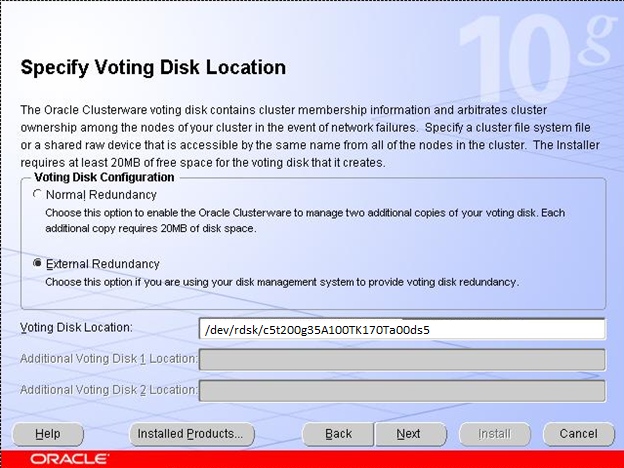
1.Voting file– uses by the cluster synchronization service deamons for monitoring information across the cluster. It’s size around 20MB(use format utility and reserve 200MB on 5th slice)

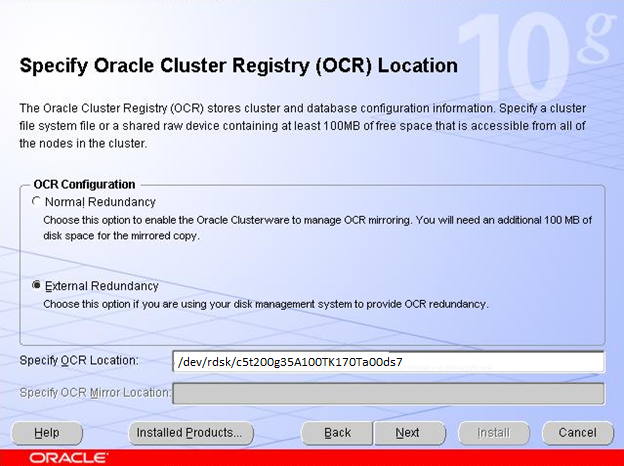
2. Oracle cluster registry(OCR file) it maintain information about the high-availability components such as cluster node list, CRS application profiles(Virtual interconnect protocol address, services). It’s size around 200MB(use format utility and reserve on 7th slice)

For voting disk

dd if=/dev/zero of=/dev/rdsk/c5t200g35A100TK170Ta00ds5 bs=125829120 count=1 chown oracle:dba /dev/rdsk/c5t200g35A100TK170Ta00ds5
chmod 660 /dev/rdsk/c5t200g35A100TK170Ta00ds5

For OCR

dd if=/dev/zero of=/dev/rdsk/c5t200g35A100TK170Ta00ds7 bs=125829120 count=1 chown root:dba /dev/rdsk/c5t200g35A100TK170Ta00ds7
chmod 660 /dev/rdsk/c5t200g35A100TK170Ta00ds7

Connect as the oracle user and run runInstaller.sh, located in CRS installation.

./runInstaller
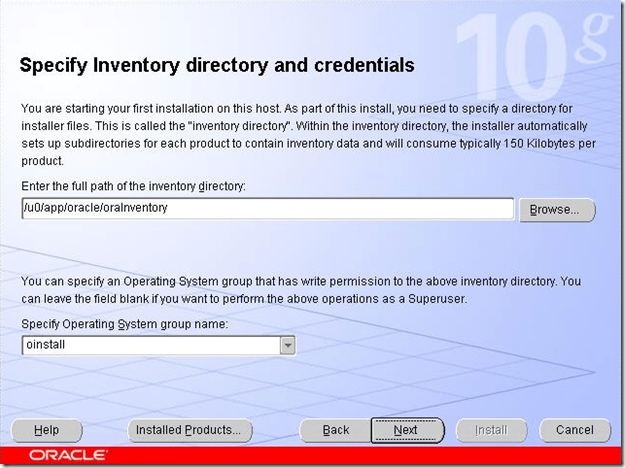
Specify Inventory Directory and Credentials

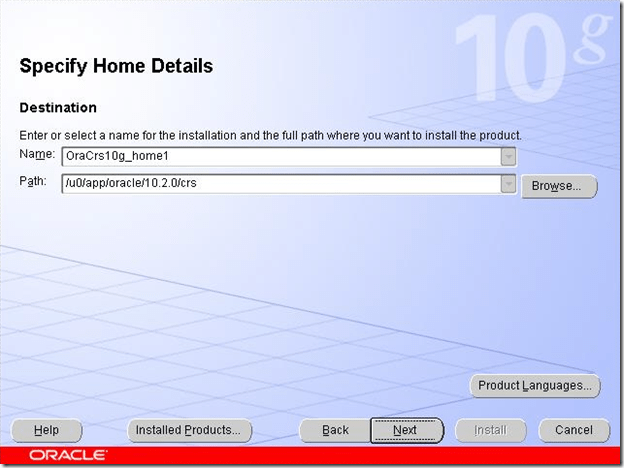
Specify Home Details

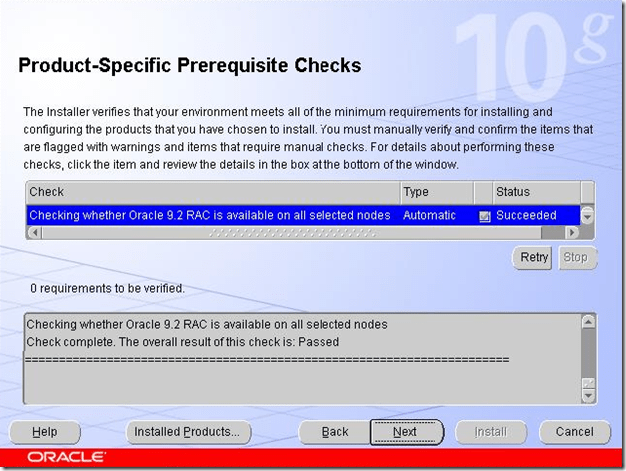
Product-Specific Prerequisite Checks

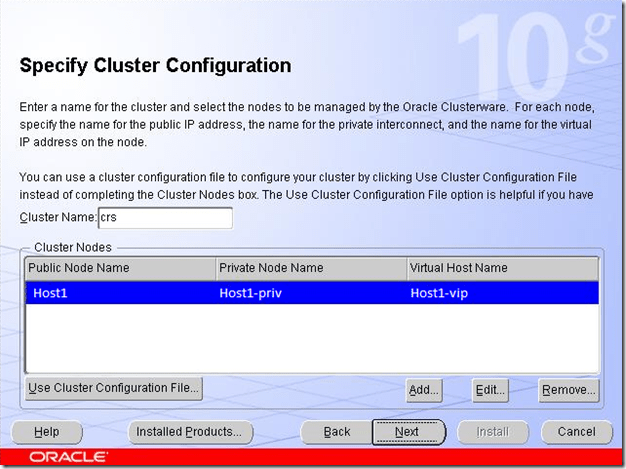
Specify Cluster Configuration

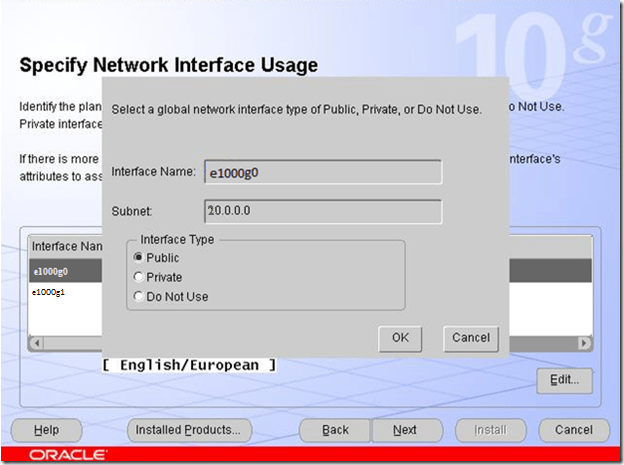
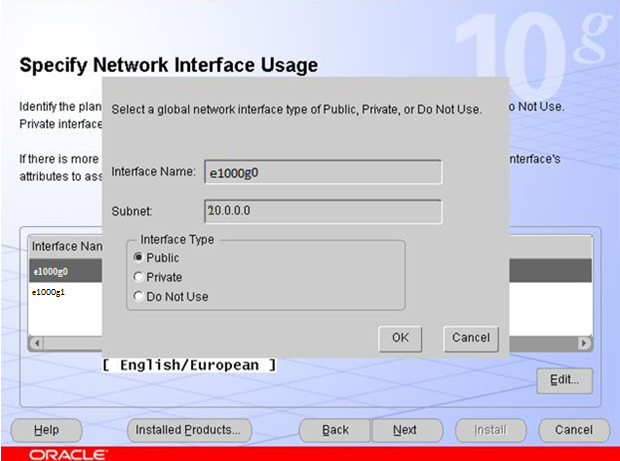
Specify Network Interface Usage

Specify OCR Location

Specify Voting Disk Location

OrainstRoot.sh and root.sh

Run these scripts and then click OK.
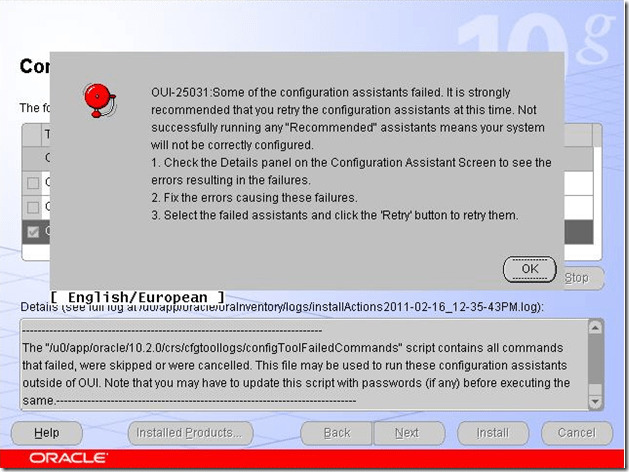
OUI-25031

Now we should run ./vipca and configure Host1-vip virtual ip address(20.0.0.105).

Go to the installation window, click ok and retry install failed component.


Installing Oracle database files
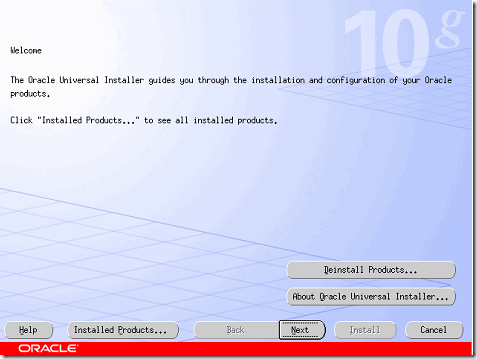

Welcome_Oracle_OUI

Select Installation Type

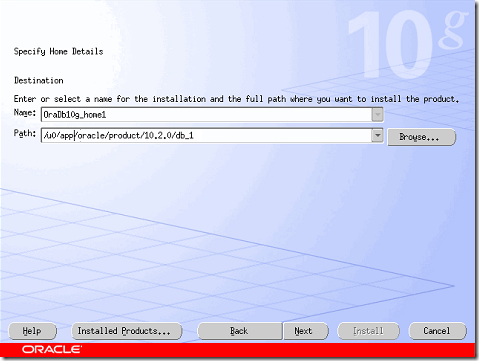
Specify Home Details

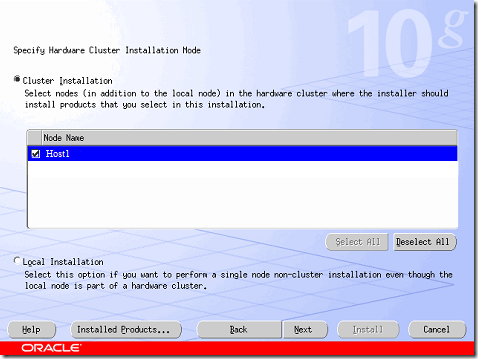
Specify Hardware Cluster Installation Node

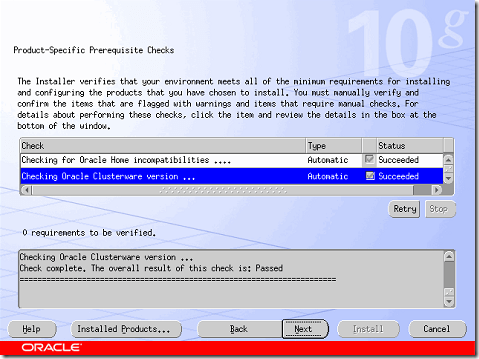
Product-Specific Prerequisite Ckecks

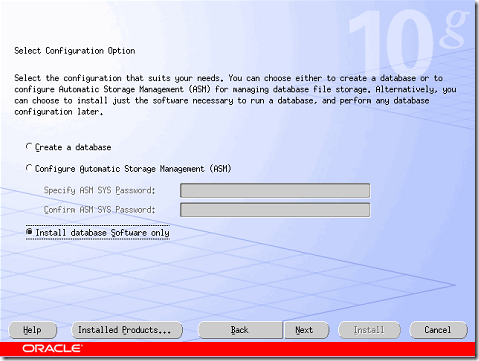
Select Configuration Option

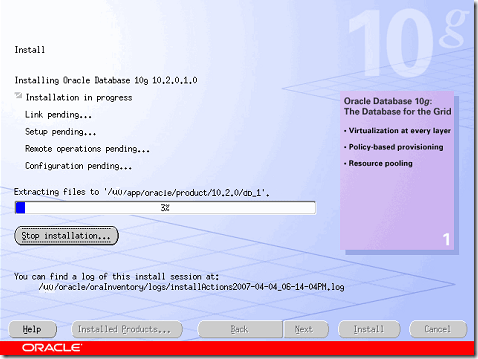
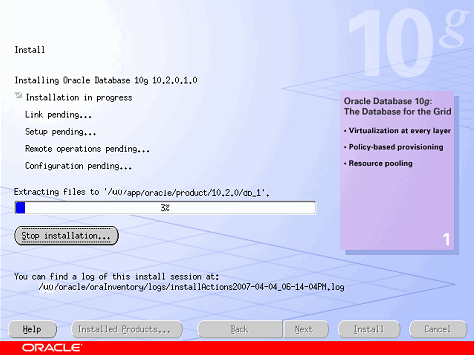
OUI_Install

Run root.sh script and click OK, then click Exit button.

Configure oracle listener by netca.

Configuring ASM
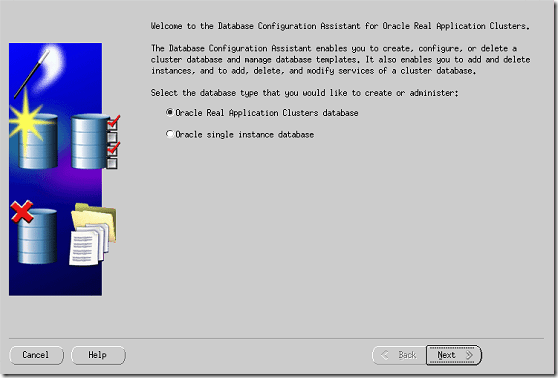
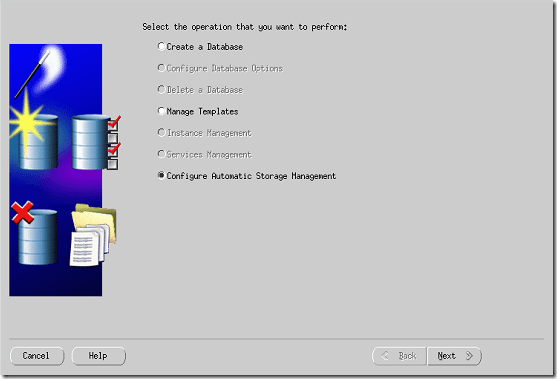
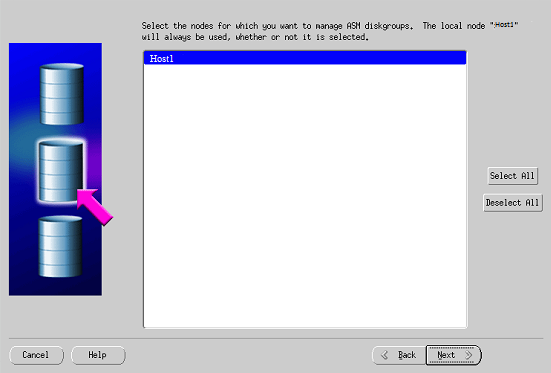
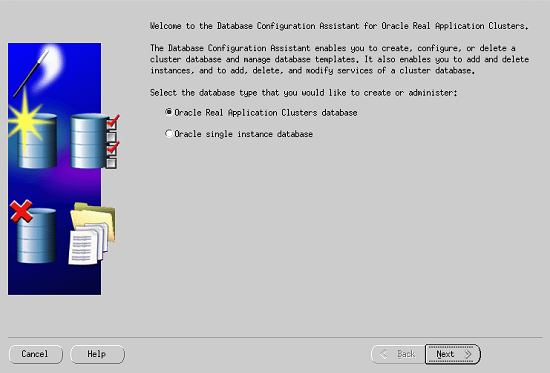
DBCA Oracle RAC

Configure ASM

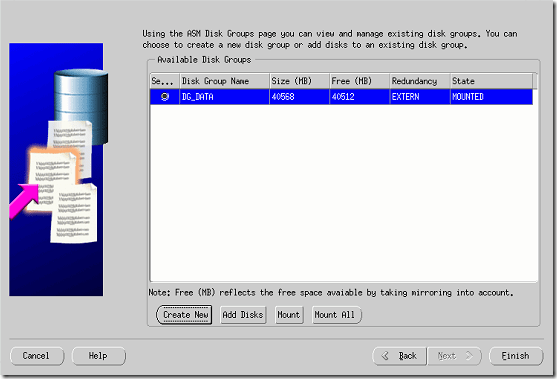
ASM diskgroups

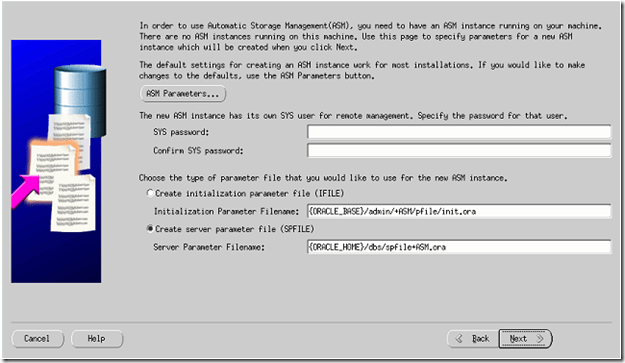
ASM Instance

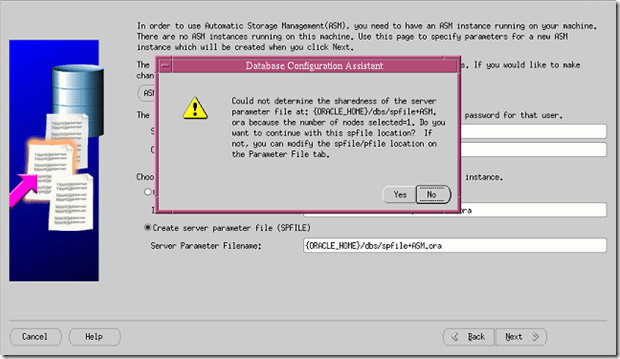
{ORACLE_HOME}/dbs/spfile+ASM error

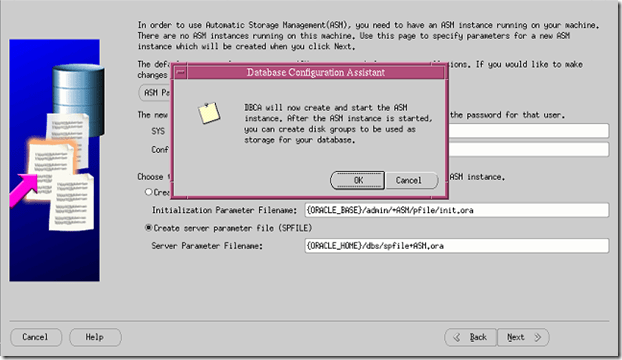
DBCA will create and start ASM

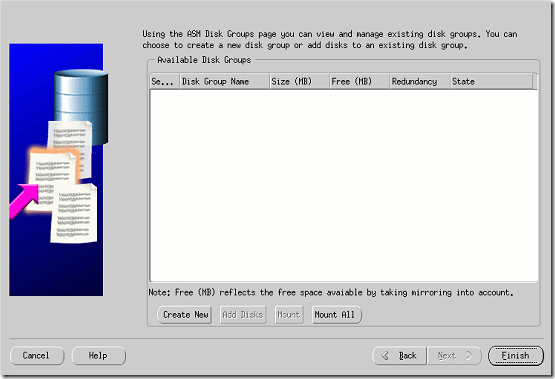
No diskgroups

Run the following command, for to make oracle user owner for the following disk slice

chown oracle:oinstall /dev/rdsk/c5156D778A145a11d0s6
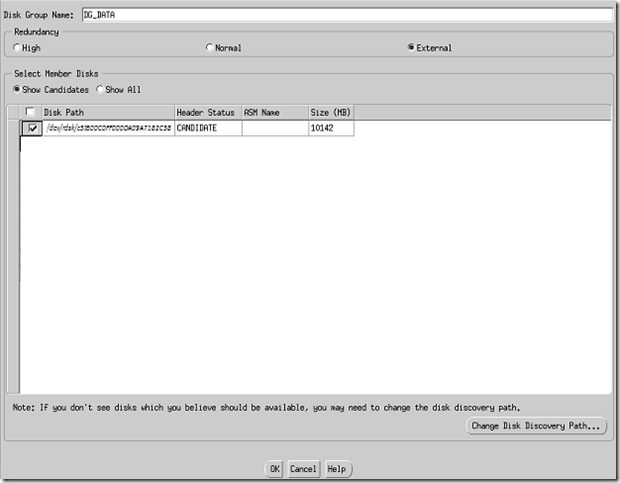
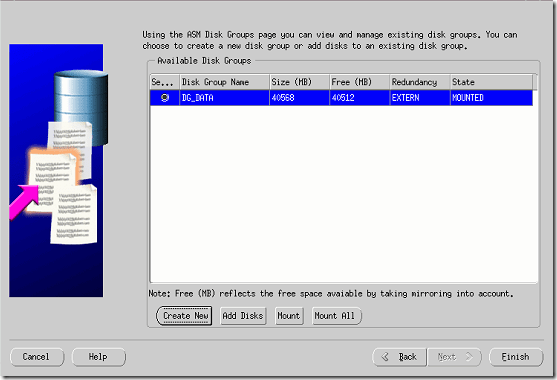
DG_DATA Disk group Name

Choose Disk group

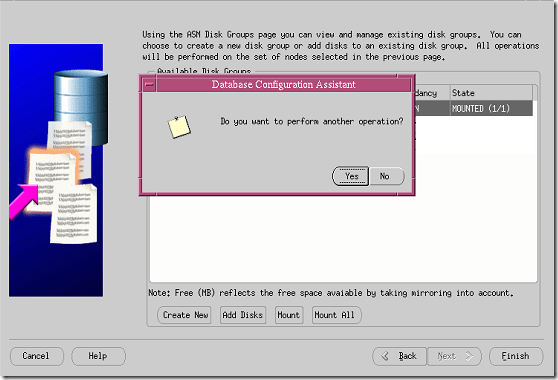
Perform Another Operation Alert

Creating database using DBCA


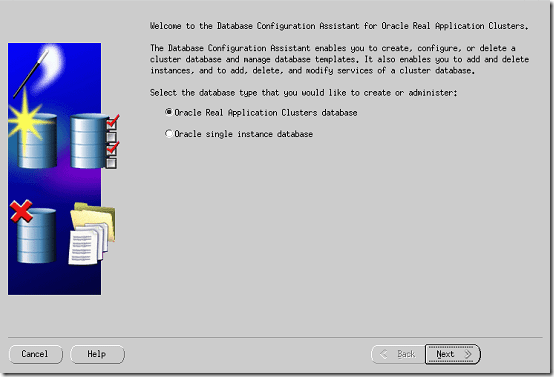
DBCA RAC Database

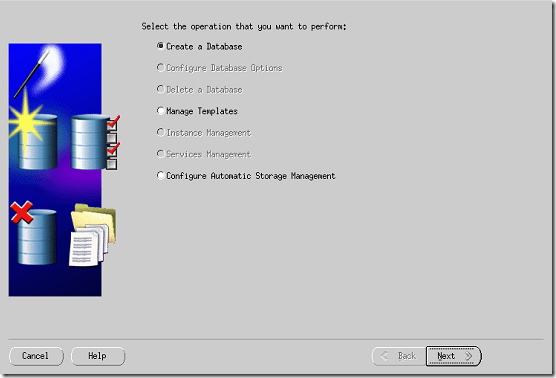
DBCA Create a Database

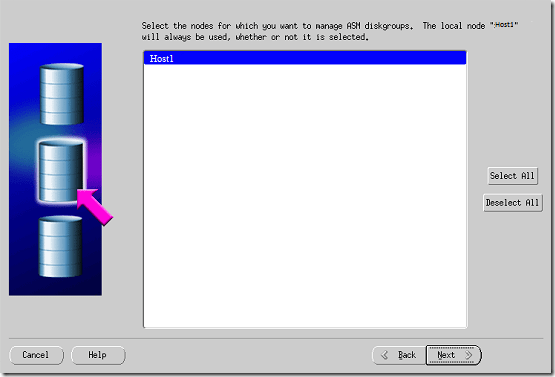
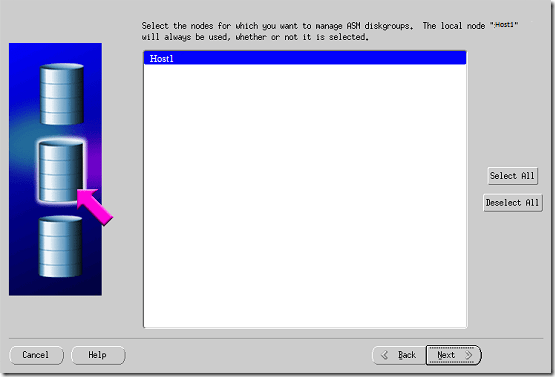
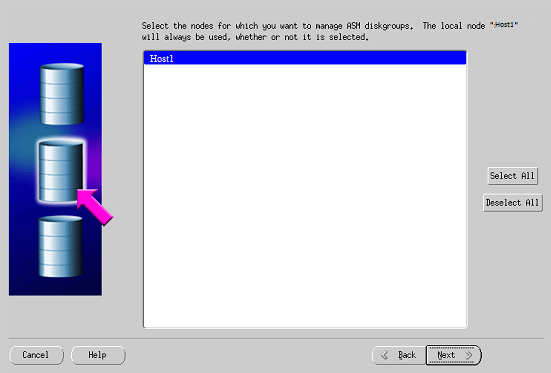
Choose Node

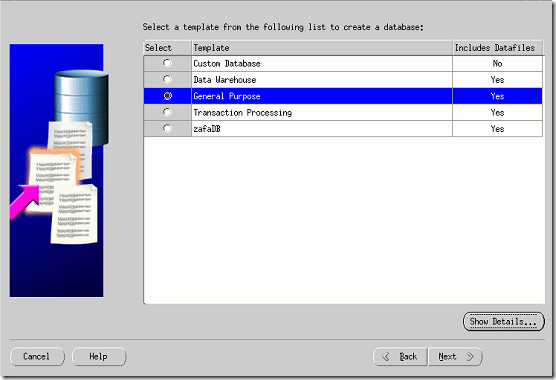
DBCA general purpose

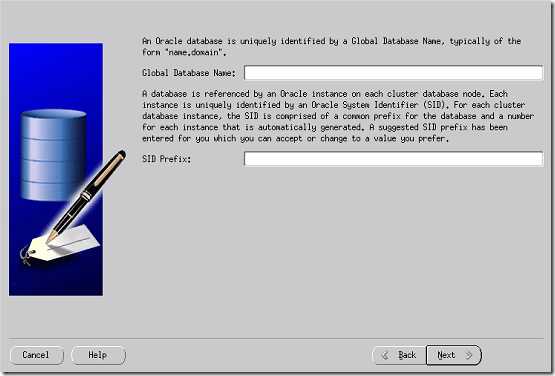
Global Database Name

Click Next>> and check/uncheck Configure the Database with Enterprise Manager.
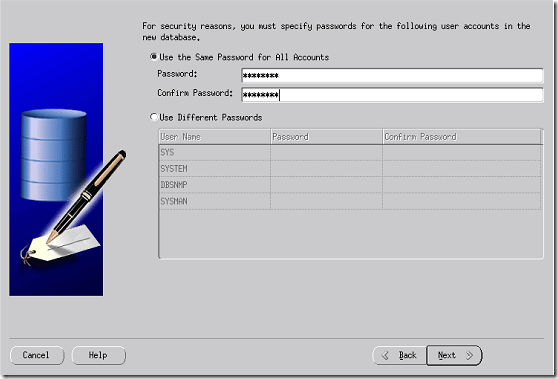
Specific Passwords for accounts

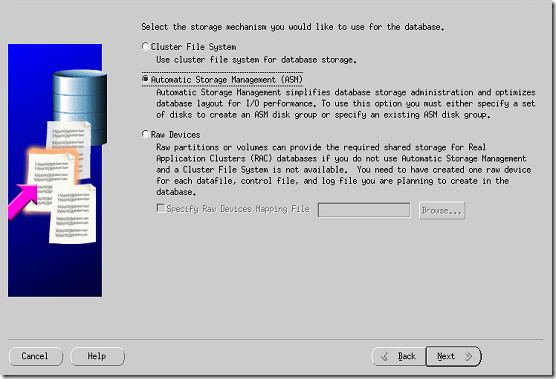
ASM

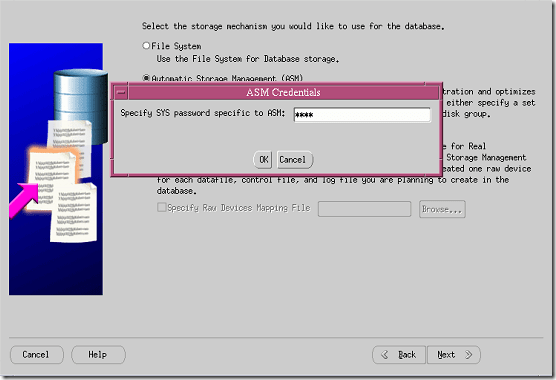
SYS password for ASM Alert

Choose Disk Group

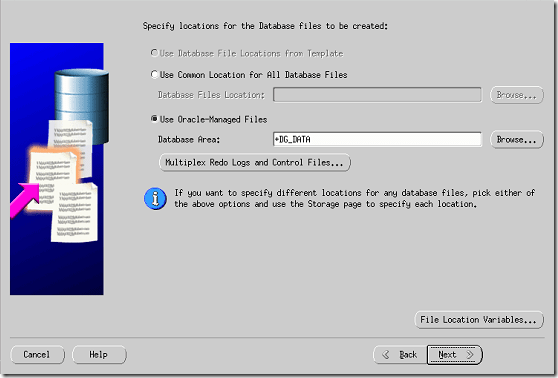
Use OMF

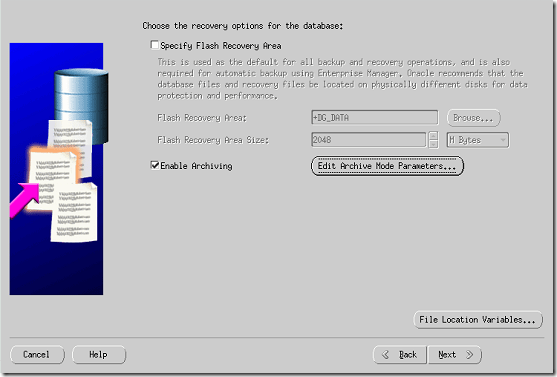
Enable Archiving

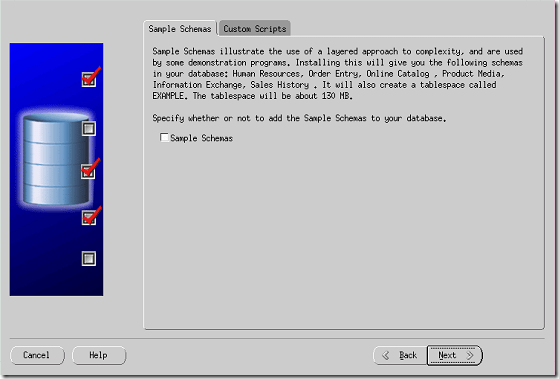
Sample Schemas

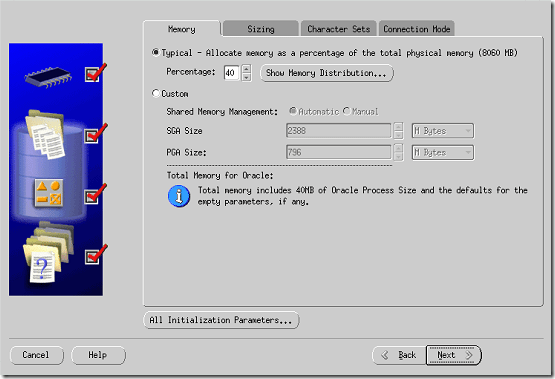
DBCA Memory tab

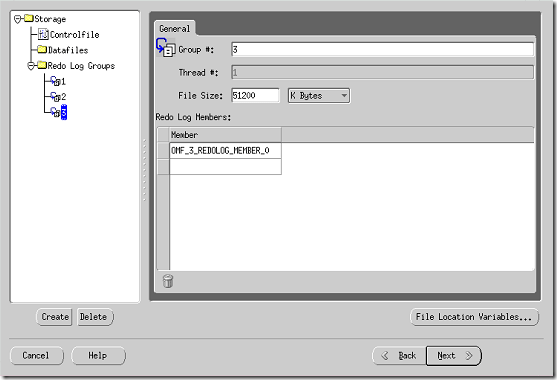
DBCA General tab

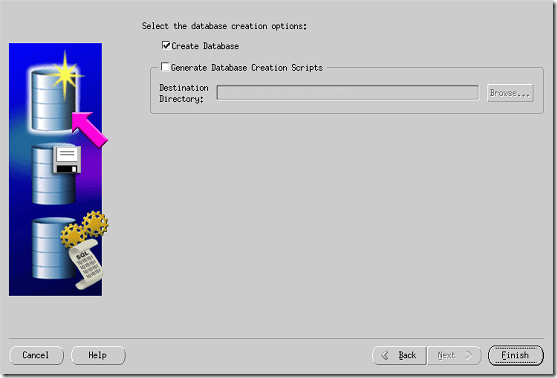
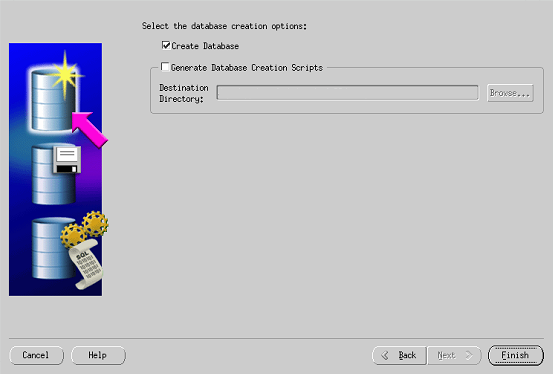
DBCA Create Database