Create a Local Yum Repository for Oracle Linux 6

0. Just to note –repoid parameter has two dashes in front (- – repoid). Unfortunately wordpress makes it one dash. Please, do not blame me 🙂

1. Create OEL.repo file in /etc/yum.repos.d and add the following entry

# vi /etc/yum.repos.d/OEL.repo

[oraclerpms]
name=OracleEnterpriseLinux
baseurl=http://yum.oracle.com/repo/OracleLinux/OL6/latest/$basearch/
gpgcheck=1
gpgkey=file:///etc/pki/rpm-gpg/RPM-GPG-KEY-oracle
enabled=1

2. Install yum-utils and createrepo packages

# yum install yum-utils createrepo

3. It is better to add another disk and create repository there, do not use / disk(disk where OS is installed) for repository. It is just a best practice.

Create necessary folders:

# mkdir -p /OEL_repo/OEL6/latest
# mkdir -p /OEL_repo/logs
# mkdir -p /OEL_repo/scripts

4. Download rpms.
If you are using proxy you may need to set proxy parameters like  export http_proxy=http://proxy_server_ip:proxy_port/

/usr/bin/reposync –newest-only –repoid=oraclerpms -p /OEL_repo/OEL6/latest

5. After download completes create repository on downloaded rpms:

/usr/bin/createrepo /OEL_repo/OEL6/latest/oraclerpms/getPackage/

####################
The above steps should be done every time you want to update your local repository, so let’s create script and place all them in one file.

vi /OEL_repo/scripts/repo_sync.sh

#!/bin/bash

LOG_FILE=/OEL_repo/logs/repo_sync_$(date +%Y.%m.%d).log

# Delete old logs
find /OEL_repo/logs/repo_sync* -mtime +5 -delete; >> $LOG_FILE 2>&1

#Clean cache
yum clean all

# Sync repositories
/usr/bin/reposync /usr/bin/reposync –newest-only –repoid=oraclerpms -p /OEL_repo/OEL6/latest >> $LOG_FILE 2>&1

/usr/bin/createrepo /OEL_repo/OEL6/latest/oraclerpms/getPackage/ >> $LOG_FILE 2>&1

2. Change permissions for the executable script:

# chmod u+x /OEL_repo/scripts/repo_sync.sh

3. Set up a CRON job to run the script on a daily basis. The following entry runs the script each day at 01:00.

0 1 * * * /OEL_repo/scripts/repo_sync.sh > /dev/null 2>&1

###############

1. Install the Apache HTTP servers, start it and make sure it restarts automatically on reboot.

# yum install httpd
# service httpd start
# chkconfig httpd on

2. Create directory and place link there

mkdir -p /var/www/html/OEL_repo/OEL6/latest
ln -s /OEL_repo/OEL6/latest/oraclerpms/getPackage/ /var/www/html/OEL_repo/OEL6/latest/x86_64

# cd /var/www/html
# wget http://public-yum.oracle.com/RPM-GPG-KEY-oracle-ol6

Note: /var/www/html is the default DocumentRoot directory. To check yours(sysadmin may have changed it) please check /etc/httpd/conf/httpd.conf file and find the keyword DocumentRoot

##############

1. Configure clients

vi /etc/yum.repos.d/local-ol6.repo

[oraclerpms]
name=Oracle Linux $releasever Latest ($basearch)
baseurl=http://RepositoryServerHostname.domain.ge/OEL_repo/OEL6/latest/$basearch/
gpgkey=http://RepositoryServerHostname.domain.ge/RPM-GPG-KEY-oracle-ol6
gpgcheck=1
enabled=1

Now you are able to install packages on clients by

# yum install ntp

Upgrade Oracle Database from 11g to 12c

  1. Download Oracle 12c software fromhttp://www.oracle.com/technetwork/database/enterprise-edition/downloads/database12c-linux-download-1959253.html

    unzip files:

    unzip linuxamd64_12102_database_1of2.zip
    unzip linuxamd64_12102_database_2of2.zip
  2. Make another home for 12c.
    mkdir -p /u01/app/oracle/product/12.1.0/dblb
  3. Change permissions for /u01 directory.  If 11g home is also located in /u01 you have already done the steps bellow. Just check that permissions are the following:
    chown -R oracle:oinstall /u01
    chmod -R 775 /u01
  4. Change the following parameters in response file, other parameters just leave blank.
    Response file is located in installation directory… extract_drectory/database/response/db_install.rsp

     oracle.install.option=INSTALL_DB_SWONLY
     ORACLE_HOSTNAME=DBServerHostname
     UNIX_GROUP_NAME=oinstall
     INVENTORY_LOCATION=/u01/app/oraInventory
     SELECTED_LANGUAGES=en
     ORACLE_HOME=/u01/app/oracle/product/12.1.0/dblb
     ORACLE_BASE=/u01/app/oracle
     oracle.install.db.InstallEdition=EE
     oracle.install.db.DBA_GROUP=dba
     oracle.install.db.OPER_GROUP=dba
     oracle.install.db.BACKUPDBA_GROUP=dba
     oracle.install.db.DGDBA_GROUP=dba
     oracle.install.db.KMDBA_GROUP=dba
     SECURITY_UPDATES_VIA_MYORACLESUPPORT=false
     DECLINE_SECURITY_UPDATES=true
  5. Go to the 12c installation folder  and run runInstaller, to install 12c home:
     ./runInstaller -silent -responseFile /install/database/response/db_install.rsp  -waitforcompletion -showProgress

    When it asks , connect to the server via root user and run

    /u01/app/oracle/product/12.1.0/dblb/root.sh
  6. At this time your database should be turned on from 11g home. Connect to the database via SYS user and run the following scripts: emremove.sql will remove EM repository. olspreupgrade.sql will run preupgrade scripts

    You should also purge the recyclebin. For reducing upgrade time.

    Note: these scripts should be run to the open database , that is turned on by 11g

    export ORACLE_HOME=/u01/app/oracle/product/11.2.0/dblb
     sqlplus / as sysdba
     @/u01/app/oracle/product/12.1.0/dblb/rdbms/admin/emremove.sql
     @/u01/app/oracle/product/12.1.0/dblb/rdbms/admin/olspreupgrade.sql
     purge recyclebin;
  7. Run DBUA from 12c home to upgrade existing database
    export ORACLE_HOME=/u01/app/oracle/product/11.2.0/dblb
    /u01/app/oracle/product/12.1.0/dblb/bin/dbua -silent \
    -sid ORCL \
    -oracleHome /u01/app/oracle/product/11.2.0/dblb \
    -diagnosticDest /u01/app/oracle \
    -recompile_invalid_objects true \
    -degree_of_parallelism 40 \
    -upgradeTimezone \
    -emConfiguration NONE \
    -keepHiddenParams \
    -gatheringStatistics \
    -upgrade_parallelism 40
  8. To check that everything was upgraded successfully, after successful message from the previous command, check the following:
    cat /etc/oratab
    ORCL:/u01/app/oracle/product/12.1.0/dblb:N
    cat /u01/app/oraInventory/ContentsXML/inventory.xml
     <VERSION_INFO>
     <SAVED_WITH>12.1.0.2.0</SAVED_WITH>
     <MINIMUM_VER>2.1.0.6.0</MINIMUM_VER>
     </VERSION_INFO>

    Update the following parameters in your  .bash_profile:

     export ORACLE_HOME=/u01/app/oracle/product/12.1.0/dblb
     export LD_LIBRARY_PATH=/u01/app/oracle/product/12.1.0/dblb/lib
  9. Network file configuration. Stop listener that was previously started from 11g. Move listener.ora and tnsnames.ora files to 12c home and rename them in old location. Start the listener from 12c home.
    /u01/app/oracle/product/11.2.0/dblb/bin/lsnrctl stop
    cp /u01/app/oracle/product/11.2.0/dblb/network/admin/listener.ora /u01/app/oracle/product/12.1.0/dblb/network/admin
    cp /u01/app/oracle/product/11.2.0/dblb/network/admin/tnsnames.ora /u01/app/oracle/product/12.1.0/dblb/network/admin
    mv /u01/app/oracle/product/11.2.0/dblb/network/admin/tnsnames.ora /u01/app/oracle/product/11.2.0/dblb/network/admin/tnsnames.ora.old
    mv /u01/app/oracle/product/11.2.0/dblb/network/admin/listener.ora /u01/app/oracle/product/11.2.0/dblb/network/admin/listener.ora.old
    /u01/app/oracle/product/12.1.0/dblb/bin/lsnrctl start
  10. Connect to the database using 12c home and check again the version in v$instance view:
    export ORACLE_HOME=/u01/app/oracle/product/12.1.0/dblb
    sqlplus / as sysdba
    select instance_name,version,status
    from v$instance;
  11. If you want to deinstall 11g home run the following :
    /u01/app/oracle/product/11.2.0/dblb/deinstall/deinstall

Install Backup Exec Client(Remote Agent) on Linux

RALUS is a remote agent installation , simply Linux client of Backup exec that can be retrieved from Backup Exec installation DVD in LinuxUnixMac folder.

Some details:

Client Server IP: 10.0.1.100
Client Hostname: orcl_node
Domain: sa.ge
Media Server IP: 192.168.1.100

Create some installation directory and locate RALUS installation file to this folder.

1. Installation

# mkdir /0
# cd /0
# tar -xvf RALUS_RMALS_RAMS-4164.5.tar
# ./installralus

Step 1:

Enter the system names separated by spaces on which to install RALUS: (oracle-node1.tbilisi.gov.ge)10.0.1.100

Checking system communication:

Checking OS version on 10.0.1.100 ………….. Linux 2.6.18-194.el5
Checking system support for 10.0.1.100 … Linux 2.6.18-194.el5 supported by RALUS

Initial system check completed successfully.

Press Enter.

Step 2:

Press Enter.

Step 3:

If the output is:

Checking file system space ……………. required space is available

Then  press Enter

Step 4:

To display the Remote Agent as a selection in a media server’s backup selection tree, and to be able to specify a local network for use between the Remote Agent and a media server, enter the names or IP addresses of the media servers that you want the Remote Agent on ‘10.0.1.100’ to communicate with.

An IP Address: XXX.XXX.XXX.XXX
A Host Name: COMPUTERNAME

Enter a directory host:192.168.1.100

Do you want to add another name or address for this agent? [y, n] (n)

Step 5:

If the information is correct press Enter

Step 6:

In this step beoper group will be created if it doesn’t exist and root user will be added to this group.

Press Enter

Press Enter

Press Enter (choosing y option by default)

Press Enter(choosing n option by default)

Press Enter (choosing y option by default)

Press Enter

Step 7 :

Checking VRTSralus package ………………………… not installed

Press Enter

Step 8:

Installing VRTSralus 13.0.4164 on 10.0.1.100 …… done 1 of 1 steps

Press Enter

Step 9 :

Creating configuration files on 10.0.1.100  ………………… Done

Press Enter

RALUS installation is complete, now it’s time to configure it.

2. Configuration on Client

Step 1:

Run AgentConfig:

# /opt/VRTSralus/bin/AgentConfig

Symantec Backup Exec Remote Agent Utility
Choose one of the following options:
1. Configure database access
2. Configure Oracle instance information
3. Quit
Please enter your selection: 1

Configuring machine information
Choose one of the following options:
1. Add system credentials for Oracle operations
2. Edit system credentials used for Oracle operations
3. Remove system credentials used for Oracle operations
4. View system credentials used for Oracle operations
5. Quit
Please enter your selection: 1
     Enter a user name that has local system credentials: oracle
Enter the password:
Re-enter password:
Validating credentials…….
Do you want to use a custom port to connect to the media server during Oracle operations? (Y/N): N
     Commit Oracle operation settings to the configuration file? (Y/N): Y
     SUCCESS: Successfully added the entry to the configuration file.

Configuring machine information
Choose one of the following options:
1. Add system credentials for Oracle operations
2. Edit system credentials used for Oracle operations
3. Remove system credentials used for Oracle operations
4. View system credentials used for Oracle operations
5. Quit
Please enter your selection: 5

Symantec Backup Exec Remote Agent Utility
Choose one of the following options:
1. Configure database access
2. Configure Oracle instance information
3. Quit
Please enter your selection: 2

If this computer is a RAC node, you must perform additional steps for configuration before you continue. Refer to the readme for these additional steps.

Configuring the Oracle Agent
Choose one of the following options:
1. Add a new Oracle instance to protect
2. Edit an existing Oracle instance
3. Delete an existing Oracle instance
4. View Oracle instance entries that have been added in the Remote Agent Utility
5. Quit
Please enter your selection: 1
     Select an Oracle instance to configure
Entry 1. orcl
Enter the number 0 to go back
Enter your selection: 1
     Enter the Oracle database SYSDBA user name: SYS
Enter the Oracle database SYSDBA password:
Re-enter password:
Validating credentials…….
Enter the media server name or IP address:      The length of the entered data is greater than the maximum permitted length.
Enter the media server name or IP address: 192.168.1.100
     Do you use a recovery catalog? (Y/N):N
     Do you want to use a customized job template? (Y/N): N
     Commit Oracle operation settings to the configuration file? (Y/N): Y
     Created symbolic link for /opt/VRTSralus/bin/libobk.so at /u01/app/oracle/product/11.2.0/db_1/lib/libobk.so
SUCCESS: Successfully added the entry to the configuration file.

Configuring the Oracle Agent
Choose one of the following options:
1. Add a new Oracle instance to protect
2. Edit an existing Oracle instance
3. Delete an existing Oracle instance
4. View Oracle instance entries that have been added in the Remote Agent Utility
5. Quit
Please enter your selection: 5

Symantec Backup Exec Remote Agent Utility
Choose one of the following options:
1. Configure database access
2. Configure Oracle instance information
3. Quit
Please enter your selection: 3

Start agent:

# /etc/init.d/VRTSralus.init start
Starting Symantec Backup Exec Remote Agent ……
Starting Symantec Backup Exec Remote Agent:                              [  OK  ]

3. Configuration on Media Server

To make media server see your client do the following steps:

Step 1:

Run Start->-All Programs>Symantec Backup Exec->Backup Exec 2010

Step 2:

Tools->Options->Oracle –>click Modify List button->click New button and fill the following fields, by the following way:

Oracle or DB2 Server: 10.0.1.100
Logon Account  ->>>>click New button –>click New button and fill the following fields, by the following way:

User name: oracle
Password: enter oracle password for client server
Confirm Password: enter the password again
Account Name: oracle

click OK.

You will also need to configure SYS  user account.

And choose oracle in Logon Account  field.

click OK.

Do the same steps for 2 more times, just change Oracle or DB2 Server filed to orcl_node(instead of 10.0.1.100) for the first time and orcl_node.sa.ge for the second time

Step 3:

On media server , in hosts file add client entry.

That is all.

Change Hostname in Linux(Red Hat)

1. Change the value of the HOSTNAME parameter to the new hostname:

# vi /etc/sysconfig/network

HOSTNAME=newhostname

2.  Edit hosts file:

# vi /etc/hosts

192.168.1.100    newhostname     newhostname.sa.ge

3. Reboot the system.

4. Check that the new hostname is set:

# hostname

newhostname    

Change boot mode in Linux

There are 6 boot modes.

0 –  Halt (Shutdown)
1 – Single user mode
2 – Not yet implemented
3 – Full multi-user command line mode
4 – Not used.
5 – Full multi-user Graphical User Interface mode
6 – Reboot

Default mode is written into /etc/inittab file.

By changing the following line in that file,  the default boot mode will be changed:

id:5:initdefault:

If it is production server and you don’t need to use GUI interface you can set default boot mode to 3. This is beneficial, because  the mode 3 takes less memory(RAM)  than the mode 5.

id:3:initdefault:

Note: Be careful while changing the default mode, because the following values like 0(shutdown) or 6(reboot) will cause problems. Never try to set these values, I mean 0 or 6.

How to restore file permissions of the installed package to its default on Linux?

Hello all,

(Please, note that in command string instead of “” there are two dashes “- -“ like “–setperms” it is “– -setperms”)

By mistake, I run the following command on / directory:

chmod -R 777 *

I stopped this command, but unfortunately some file permissions were changed.

Because of that, I was not able to connect to the server with WinSCP and ssh was not working.

I looked in to the /var/log/messages and found the following entry:

Sep  6 15:02:37 stbynode sshd[24226]: fatal: /var/empty/sshd must be owned by root and not group or world-writable.

I run the following command on another server:

ls -la /var/empty/sshd
total 16
drwx–x–x 3 root root 4096 Sep 3 21:07 .
drwxr-xr-x 3 root root 4096 Sep 3 21:07 ..
drwxr-xr-x 2 root root 4096 Sep 3 21:36 etc

On my server it was:

ls -la /var/empty/sshd
total 16
drwxrwxrwx 3 root root 4096 Sep 3 14:00 .
drwxrwxrwx 3 root root 4096 Sep 3 14:00 ..
drwxrwxrwx 2 root root 4096 Sep 3 14:00 etc

You can change these permissions by hand (that will be boring if not only one file permissions have been changed)but there exist one very useful command:

rpm  –setperms {packagename}

This will reset package permissions, because of rpm database contains permission information.

So I run the following :

for p in $(rpm -qa); do rpm –setperms $p; done

Note this script will reset permissions of the  installed package, not user created file…

After completed this command , I was able to connect to the server with WinScp and  /var/empty/sshd permissions were set to drwxr-xr-x

To avoid such kind of situation my advice would be to save permission information everyday. By running the following command using crontab:

find / -exec stat –format “chmod %a ${MPOINT}%n” {} \; > /tmp/permissionsbackup.sh

Good Luck , I hope the post was helpful…

locate: command not found

Error message:

-bash: locate: command not found

Cause:

Locate is not installed.

Solution:

Find your OS installation disk and in Server folder find package like : mlocate-* ,  for me it is mlocate-0.15-1.el5.2.x86_64.rpm , and install it.

[root@node1 Server]# rpm -Uvh mlocate-0.15-1.el5.2.x86_64.rpm
warning: mlocate-0.15-1.el5.2.x86_64.rpm: Header V3 DSA signature: NOKEY, key ID 1e5e0159
Preparing… ########################################### [100%]
1:mlocate ########################################### [100%]

If you try to run locate again you will receive the following error:

locate: can not open `/var/lib/mlocate/mlocate.db’: No such file or directory

To solve, run:

updatedb

Congratulations, you are able to run locate without any error!

Reducing a root LVM

In this post I want to reduce root volume to free up the space for other volumes. Let’s discuss it step by step:

1. Download Linux system rescue disk such as SYSTEMRESCUECD or KNOPPIX available as a bootable CD-ROM . I prefer systemrescuecd.

Official site for systemrescuecd: http://www.sysresccd.org . Direct download link is this.
Official site for knoppix: http://www.knoppix.net

2.  Boot  SYSTEMRESCUECD on start-up. This step is done because we need volume, that should be shrunk, to be unmounted. As you know root volume cannot be unmounted when the OS is running on it.

3.  Make all LVM volumes found available to the rescue kernel:

root@sysresccd ~ % lvm vgchange -a y

4. List logical volume names:

root@sysresccd ~ % ls /dev/VolGroup00/
LogVol00 LogVol01

5. Before shrinking file system , it is recommended to check file system and fix any errors:

root@sysresccd ~ %  e2fsck -f /dev/VolGroup00/LogVol00

6. After the check is successful, shrink the file system on LVM. I am reducing it to 50G.

root@sysresccd ~ % resize2fs -f /dev/VolGroup00/LogVol00 50G

7.  Re-run e2fsck.

root@sysresccd ~ %  e2fsck -f /dev/VolGroup00/LogVol00

8.  Now reduce the logical volume itself to 50G.

root@sysresccd ~ % lvm lvreduce -L50G /dev/VolGroup00/LogVol00

Note : If you want to reduce size of the volume by some value, you should use minus sign in front of the number value like : –L  -50G.

Reboot the system.

Install Oracle Database 11g on Linux with ASM

Let’s assume that you have already installed Linux on your server. And disks are already bounded to the server.

1. Creating OS groups and users.

#Creating groups for Grid Infrastructure

groupadd asmadmin
groupadd asmdba
groupadd asmoper

#Creating groups for Oracle Software

groupadd oinstall
groupadd dba
groupadd oper

#Creating user for Grid Infrastructure

useradd -g oinstall -G dba,asmadmin,asmdba,asmoper -d /home/grid grid

#Creating user for Oracle Software

useradd -g oinstall -G dba,oper,asmdba -d /home/oracle oracle

#Setting password for users

passwd grid
passwd oracle

2. Creating necessary directories

mkdir -p /u01/app/grid
mkdir -p /u01/app/11.2.0/grid
mkdir -p /u01/app/oracle
chown -R grid:oinstall /u01
chown oracle:oinstall /u01/app/oracle
chmod -R 775 /u01

3. Creating .bash_profile-s

#For Oracle user

su – oracle
vi .bash_profile

if [ -f ~/.bashrc ]; then
. ~/.bashrc
fi

ORACLE_SID=orcl; export ORACLE_SID

ORACLE_UNQNAME=orcl; export ORACLE_UNQNAME

JAVA_HOME=/usr/local/java; export JAVA_HOME

ORACLE_BASE=/u01/app/oracle; export ORACLE_BASE

ORACLE_HOME=$ORACLE_BASE/product/11.2.0/db_1
export ORACLE_HOME

ORACLE_TERM=xterm; export ORACLE_TERM

NLS_DATE_FORMAT=”DD-MON-YYYY HH24:MI:SS”
export NLS_DATE_FORMAT

TNS_ADMIN=$ORACLE_HOME/network/admin; export TNS_ADMIN

ORA_NLS11=$ORACLE_HOME/nls/data; export ORA_NLS11

PATH=.:${JAVA_HOME}/bin:${PATH}:$HOME/bin:$ORACLE_HOME/bin
PATH=${PATH}:/usr/bin:/bin:/usr/bin/X11:/usr/local/bin
PATH=${PATH}:/u01/app/common/oracle/bin
export PATH

LD_LIBRARY_PATH=$ORACLE_HOME/lib
LD_LIBRARY_PATH=${LD_LIBRARY_PATH}:$ORACLE_HOME/oracm/lib
LD_LIBRARY_PATH=${LD_LIBRARY_PATH}:/lib:/usr/lib:/usr/local/lib
export LD_LIBRARY_PATH

CLASSPATH=$ORACLE_HOME/JRE
CLASSPATH=${CLASSPATH}:$ORACLE_HOME/jlib
CLASSPATH=${CLASSPATH}:$ORACLE_HOME/rdbms/jlib
CLASSPATH=${CLASSPATH}:$ORACLE_HOME/network/jlib
export CLASSPATH

THREADS_FLAG=native; export THREADS_FLAG

export TEMP=/tmp
export TMPDIR=/tmp

umask 022

#For Grid user

su – grid
vi .bash_profile

if [ -f ~/.bashrc ]; then
. ~/.bashrc
fi

ORACLE_SID=+ASM; export ORACLE_SID

JAVA_HOME=/usr/local/java; export JAVA_HOME

ORACLE_BASE=/u01/app/grid; export ORACLE_BASE

ORACLE_HOME=/u01/app/11.2.0/grid; export ORACLE_HOME

ORACLE_TERM=xterm; export ORACLE_TERM

NLS_DATE_FORMAT=”DD-MON-YYYY HH24:MI:SS”; export NLS_DATE_FORMAT

TNS_ADMIN=$ORACLE_HOME/network/admin; export TNS_ADMIN

ORA_NLS11=$ORACLE_HOME/nls/data; export ORA_NLS11

PATH=.:${JAVA_HOME}/bin:${PATH}:$HOME/bin:$ORACLE_HOME/bin
PATH=${PATH}:/usr/bin:/bin:/usr/bin/X11:/usr/local/bin
PATH=${PATH}:/u01/app/common/oracle/bin
export PATH

LD_LIBRARY_PATH=$ORACLE_HOME/lib
LD_LIBRARY_PATH=${LD_LIBRARY_PATH}:$ORACLE_HOME/oracm/lib
LD_LIBRARY_PATH=${LD_LIBRARY_PATH}:/lib:/usr/lib:/usr/local/lib
export LD_LIBRARY_PATH

CLASSPATH=$ORACLE_HOME/JRE
CLASSPATH=${CLASSPATH}:$ORACLE_HOME/jlib
CLASSPATH=${CLASSPATH}:$ORACLE_HOME/rdbms/jlib
CLASSPATH=${CLASSPATH}:$ORACLE_HOME/network/jlib
export CLASSPATH

THREADS_FLAG=native; export THREADS_FLAG

export TEMP=/tmp
export TMPDIR=/tmp

umask 022

4. Setting resource limits

Edit the following files:

# /etc/security/limits.conf

[root@orcl ~]# cat >> /etc/security/limits.conf <<EOF
grid soft nproc 2047
grid hard nproc 16384
grid soft nofile 1024
grid hard nofile 65536

oracle soft nproc 2047
oracle  hard nproc 16384
oracle soft nofile 1024
oracle hard nofile 65536
EOF

# /etc/pam.d/login

[root@orcl ~]# cat >> /etc/pam.d/login <<EOF
session required pam_limits.so
EOF

# /etc/profile

[root@orcl ~]# cat >> /etc/profile <<EOF
if [ \$USER = “oracle” ] || [ \$USER = “grid” ]; then
if [ \$SHELL = “/bin/ksh” ]; then
ulimit -p 16384
ulimit -n 65536
else
ulimit -u 16384 -n 65536
fi
umask 022
fi
EOF

# /etc/csh.login

[root@orcl ~]# cat >> /etc/csh.login <<EOF
if ( \$USER == “oracle” || \$USER == “grid” )
then
limit maxproc 16384
limit descriptors 65536
endif
EOF

# /etc/hosts

[root@orcl ~]#  vi /etc/hosts

127.0.0.1 localhost.localdomain localhost
192.168.34.150 orcl

5. Installing ASMlib and creating disk groups

Download link: http://www.oracle.com/technetwork/topics/linux/asmlib/index-101839.html

# To know your kernel version

uname -r
2.6.18-194.el5xen

# Download the following files

oracleasm-support-2.1.7-1.el5.x86_64.rpm
oracleasm-2.6.18-308.el5-2.0.5-1.el5.x86_64.rpm

oracleasmlib-2.0.4-1.el5.x86_64.rpm

# Installing

rpm -Uvh oracleasm-support-2.1.7-1.el5.x86_64.rpm
rpm -Uvh oracleasm-2.6.18-308.el5-2.0.5-1.el5.x86_64.rpm
rpm -Uvh oracleasmlib-2.0.4-1.el5.x86_64.rpm

# Configure ASM

/usr/sbin/oracleasm configure -i

Default user to own the driver interface []: grid
Default group to own the driver interface []: asmadmin
Start Oracle ASM library driver on boot (y/n) [n]: y
Scan for Oracle ASM disks on boot (y/n) [y]: y
Writing Oracle ASM library driver configuration: done

# Load ASM kernel module

/usr/sbin/oracleasm init

##Partition available disks for ASM

#list available disks and partitions

fdisk -l

#partitioning

fdisk /dev/sdb

Command (m for help): n
Command action
e extended
p primary partition (1-4)
p
Partition number (1-4): 1
First cylinder (1-52216, default 1):
Using default value 1
Last cylinder or +size or +sizeM or +sizeK (1-52216, default 52216):
Using default value 52216

Command (m for help): w
The partition table has been altered!

Calling ioctl() to re-read partition table.
Syncing disks.

fdisk /dev/sdc

Command (m for help): n
Command action
e extended
p primary partition (1-4)
p
Partition number (1-4): 1
First cylinder (1-52216, default 1):
Using default value 1
Last cylinder or +size or +sizeM or +sizeK (1-52216, default 52216): +100M

Command (m for help): w
The partition table has been altered!

Calling ioctl() to re-read partition table.
Syncing disks.

# Restart the server

init 6

# Creating ASM disks

/usr/sbin/oracleasm createdisk VOL1 /dev/sdb1
/usr/sbin/oracleasm createdisk CRSVOL /dev/sdc1

# List disks

/usr/sbin/oracleasm listdisks
VOL1
CRSVOL

# Testing disk discovery, that is used by DBCA

oracleasm-discover

Using ASMLib from /opt/oracle/extapi/64/asm/orcl/1/libasm.so
[ASM Library – Generic Linux, version 2.0.4 (KABI_V2)]
Discovered disk: ORCL:CRSVOL [208782 blocks (106896384 bytes), maxio 512]
Discovered disk: ORCL:VOL1 [838849977 blocks (429491188224 bytes), maxio 512]

6. Installing Oracle Grid Infrastructure

Download link: http://download.oracle.com/otn/linux/oracle11g/R2/linux.x64_11gR2_grid.zip

Login as a grid user.

# Unzip and install

mkdir  /home/grid/myinstall
unzip /tmp/linux.x64_11gR2_grid.zip  -d  /home/grid/myinstall

cd /home/grid/myinstall
chmod -R 777 *
./runInstaller

Choose the following options:

6.1. Install and Configure Grid Infrastructure for a Standalone Server

6.2.  English

6.3. English

6.4.
Disk Group Name: CRS
Redundancy: External
Add Disks->Candidate Disks, choose just  ORCL:CRSVOL

6.5. Speciify password(s).

6.6.
ASM Database Administrator(OSDBA) Group : asmdba
ASM Instance Administration Operator(OSOPER) Group: asmoper
ASM Instance Administrator(OSASM) Group: asmadmin

6.7.
Oracle Base: /u01/app/grid
Software Location: /u01/app/11.2.0/grid

6.8. On the pop-up windows press Yes.

6.9. Inventory Directory: /u01/app/oraInventory

6.10. On the prerequisite checks page, there will be failed checks. To solve:

6.10.1 Press Fix & Check Again
6.10.2 Login as root user and run the following:

[root@orcl ~]# /tmp/CVU_11.2.0.1.0_grid/runfixup.sh

6.10.3 Press OK on the Execute Fixup window

Left just libaio* and unixODBC* packages that should be installed. To solve:

6.10.4 Mount Oracle Enterprise Linux installation disk and go to the Server folder, where rpms are located.

[root@orcl Server]# rpm -Uvh libaio-devel-0.3.106-5.i386.rpm
warning: libaio-devel-0.3.106-5.i386.rpm: Header V3 DSA signature: NOKEY, key ID 1e5e0159
Preparing…                ########################################### [100%]
1:libaio-devel           ########################################### [100%]
[root@orcl Server]# rpm -Uvh libaio-devel-0.3.106-5.x86_64.rpm
warning: libaio-devel-0.3.106-5.x86_64.rpm: Header V3 DSA signature: NOKEY, key ID 1e5e0159
Preparing…                ########################################### [100%]
1:libaio-devel           ########################################### [100%]
[root@orcl Server]# rpm -Uvh unixODBC-2.2.11-7.1.i386.rpm
warning: unixODBC-2.2.11-7.1.i386.rpm: Header V3 DSA signature: NOKEY, key ID 1e5e0159
Preparing…                ########################################### [100%]
1:unixODBC               ########################################### [100%]
[root@orcl Server]# rpm -Uvh unixODBC-2.2.11-7.1.x86_64.rpm
warning: unixODBC-2.2.11-7.1.x86_64.rpm: Header V3 DSA signature: NOKEY, key ID 1e5e0159
Preparing…                ########################################### [100%]
1:unixODBC               ########################################### [100%]
[root@orcl Server]# rpm -Uvh unixODBC-devel-2.2.11-7.1.i386.rpm
warning: unixODBC-devel-2.2.11-7.1.i386.rpm: Header V3 DSA signature: NOKEY, key ID 1e5e0159
Preparing…                ########################################### [100%]
1:unixODBC-devel         ########################################### [100%]
[root@orcl Server]# rpm -Uvh unixODBC-devel-2.2.11-7.1.x86_64.rpm
warning: unixODBC-devel-2.2.11-7.1.x86_64.rpm: Header V3 DSA signature: NOKEY, key ID 1e5e0159
Preparing…                ########################################### [100%]
1:unixODBC-devel         ########################################### [100%]

6.10. 5   Press Check Again.(There should not be any error)

6.11.

[root@orcl ~]# /u01/app/oraInventory/orainstRoot.sh
[root@orcl ~]# /u01/app/11.2.0/grid/root.sh

Press enter…

7. Creating ASM disk groups for database

Connect as a grid user.

[grid@orcl ~]$ asmca

7.1 Press Create button.

7.2
Disk Group Name: DATA
Redundancy: External(None)
Select Member Disks->Show Eligible, choose ORCL:VOL1

8. Installing Database, create instance on ASM

Connect as an oracle user.

Download Link: http://www.oracle.com/technetwork/database/enterprise-edition/downloads/index.html?ssSourceSiteId=ocomen

Unzip downloaded file to /home/oracle/myinstall.

[oracle@orcl linux.x64_11gR2_database]$ ./runInstaller

8.1 Uncheck “I with to receive security updates via My Oracle Support”

8.2 On the pop-up window choose yes.

8.3 Install database software only

8.4 Single instance database installation

8.5 English

8.6 Enterprise Edition (4.29GB)

8.7
Oracle Base: /u01/app/oracle
Software Location:  /u01/app/oracle/product/11.2.0/db_1

8.8
Database Administrator(OSDBA) Group: dba
Database Operator(OSOPER) Group: oper

8.9 I have some failed checks that are fixable so I press Fix & Check Again button, login as a root user and run:

[root@orcl ~]# /tmp/CVU_11.2.0.1.0_oracle/runfixup.sh

Click OK on the Execute Fixup window.

8.10

[root@orcl ~]# /u01/app/oracle/product/11.2.0/db_1/root.sh
Press Enter…
y
y
y

9. Run DBCA as an oracle user.

[oracle@orcl ~]$ dbca

and follow the steps (choose ASM instead of File System option)

That’s all.
Install PL/SQL Developer under Wine on Linux

First of all, let’s install Wine.

Note: when in the beginning there is # sign, means user is root and where there is $ the user is oracle.

Installing Wine

But if you have internet access you can run just the following :

# sudo apt-get install wine

Because of I don’t have internet on my server, I use the following steps to install wine.

0. Before installing wine you must have flex version 2.5.33 or more.

Download link: http://flex.sourceforge.net/

# cd flex-2.5.33
# make
# make install
# make clean
# make distclean
# flex –version

1. Download wine installation from: http://www.winehq.org/download/

Section: Wine Source Downloads

My downloaded file is named wine-1.3.13.tar.bz2.

2. Extract

# tar -jxvf wine-1.3.13.tar.bz2
#  cd wine-1.3.13
#  ./configure
#  make depend
#  make
#  make install

It needs some time to complete, so be patient. 🙂

Installing the Oracle Client

1. Download file from here: http://www.oracle.com/technetwork/database/features/instant-client/index-097480.html

I choose Instant Client for Microsoft Windows (32-bit) and then instantclient-basic-nt-11.2.0.3.0.zip here are all files required to run OCI, OCCI, and JDBC-OCI applications.

2. Extract

$ unzip instantclient-basic-nt-11.2.0.3.0.zip

3. Create necessary directories, locate software and set variables

Run winecfg, it will create .wine directory under $HOME.

$ winecfg

Under Drives tab, there will be entries like:

Letter   |  Drive Mapping
C:         |  ../drive_c
Z:          | /

Means our C drive will be $HOME/.wine/drive_c

Now create directories……..

$ cd $HOME/.wine/drive_c
$ mkdir -p oracle/bin
$ mkdir -p oracle/network/admin

Go to the directory where you have extracted instantclient_11_2 and copy its content to oracle/bin directory:
$ mv instantclient_11_2/*  $HOME/.wine/drive_c/oracle/bin

Now we have all neccessary .dll files in $HOME/.wine/drive_c/oracle/bin the same as C:\oracle\bin

Modifying regedit…

$ wine regedit

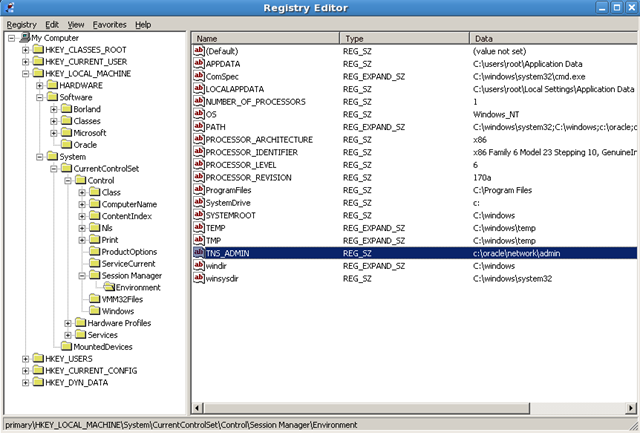
Under HKEY_LOCAL_MACHINE\Software add new key called Oracle.
Under HKEY_LOCAL_MACHINE\System\CurrentControlSet\Control\SessionManager\Environment
Edit the following values at the end of the PATH variable: c:\oracle;c:\oracle\bin
Create new string value named TNS_ADMIN with the value data c:\oracle\network\admin.

image

Now place sqlnet.ora and tnsnames.ora files into the c:\oracle\network\admin directory:

–SQLNET.ORA

SQLNET.AUTHENTICATION_SERVICES= (NTS)

NAMES.DIRECTORY_PATH= (TNSNAMES, EZCONNECT)

–TNSNAMES.ORA

ORCL =
(DESCRIPTION =
(ADDRESS = (PROTOCOL = TCP)(HOST = compname)(PORT = 1521))
(CONNECT_DATA =
(SERVER = DEDICATED)
(SERVICE_NAME = orcl)
)
)

Installing PL/SQL Developer

1. Download the software from here(note, it is a trial): http://www.allroundautomations.com/

Install and run the software.

You will see incomplete login window, where “Connect as” field is not displayed.

Now let’s solve this:

1. Close the window and under Preferences->Oracle->Connection fill the following fields:

Oracle Home (empty is autodetect): C:\oracle
OCI library (empty is autodetect): C:\oracle\bin\oci.dll

2. Preferences-> User Interface->Appearance  uncheck Faded disabled buttons

Re-run PL/SQL Developer.

That’s it.