Install Guest Additions_use Shared Folders

Let’s assume that we have Linux as a guest OS.

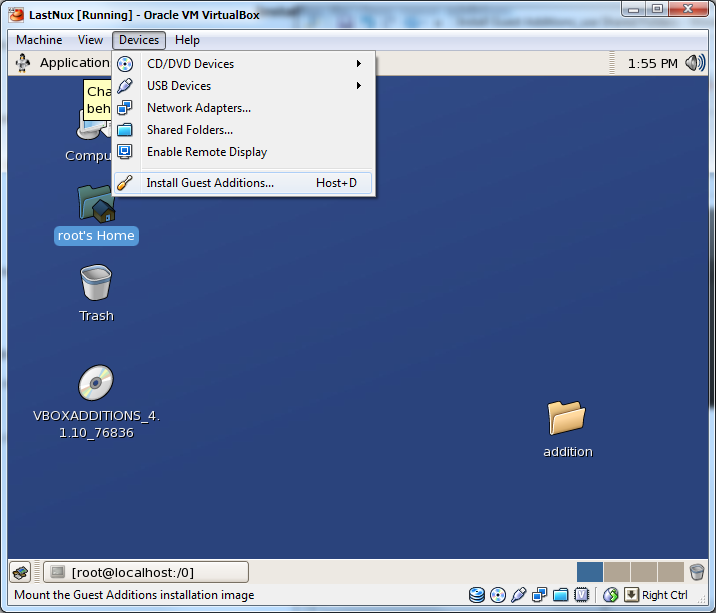
1. Install Guest Additions…

image

2. There will appear disk called like “VBOXADDITIONS_4.1.10_76836”. Copy content of the disk to another folder like this.

# mkdir /root/Desktop/addition

# cp /media/VBOXADDITIONS_4.1.10_76836  /root/Desktop/addition

# cd  /root/Desktop/addition

# sh ./VBoxLinuxAdditions.run

It will install guest additions.

Now reboot the system.

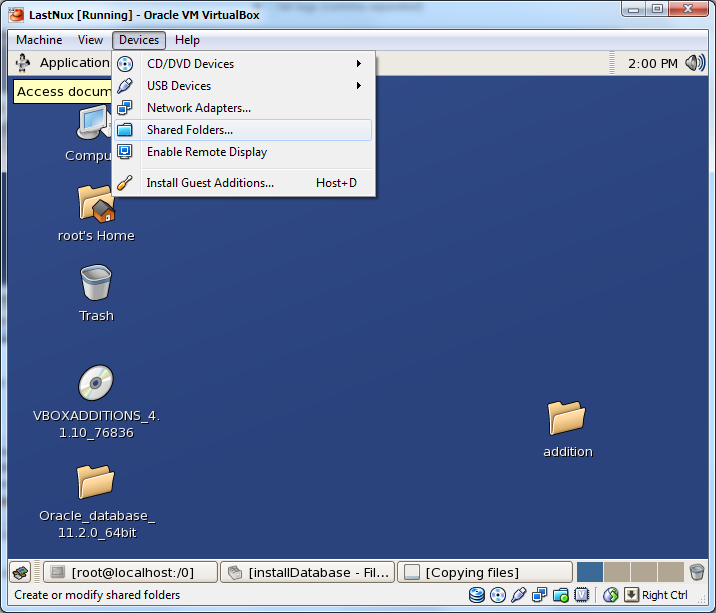
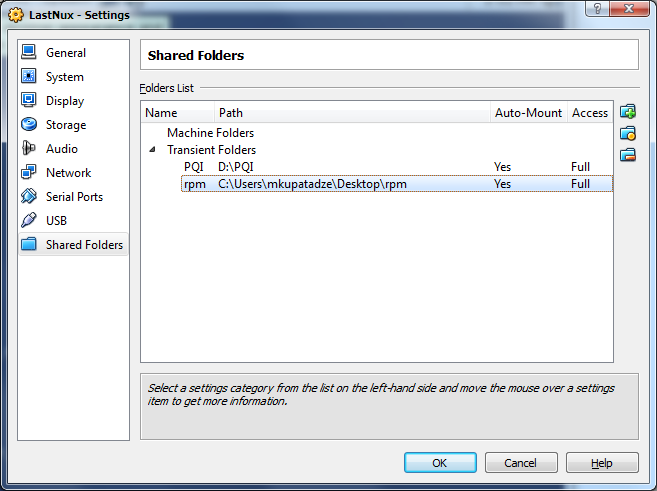
To use shared folder do this:

1.

image

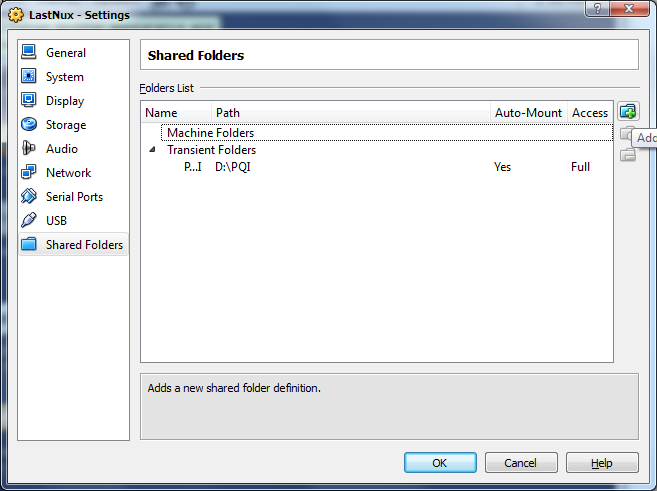
2. Click add

image

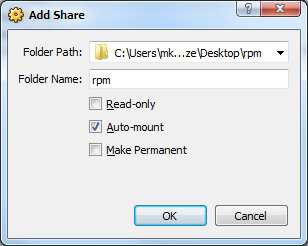
3.

image

4.

image

5. Mount the content of shared folder to guest directory, like this:

# mkdir /0

# sudo mount -t vboxsf rpm /0

Desired content will be located in /0.

Tablespace Backup Using Cron on Linux

Let’s do all things, step by step:

1. Create directories for Backup, Script and Logs.

mkdir -p /u02/Backup/Backup

mkdir -p /u02/Backup/Scripts

mkdir -p /u02/Backup/Logs

2. Create backup script.

export ORACLE_BASE=/u01/app/oracle

export ORACLE_HOME=/u01/app/oracle/product/11.2.0/db_1

export ORACLE_SID=my_sid

$ORACLE_HOME/bin/rman target / msglog /u02/Backup/Logs/BackupTBS_MYTABLESPACE.log append << EOF

run{

backup tablespace MYTAVLESPACE format '/u02/Backup/Backup/BackupTBS_MYTABLESPACE_%T.bkp';

delete noprompt backup of tablespace MYTABLESPACE completed before 'SYSDATE-1';

}

EOF

save this script as  MYTABLESPACE_disk_backup.sh

3. Change permissions and owner of this file.

chown oracle:oinstall MYTABLESPACE_disk_backup.sh

chmod a+x MYTABLESPACE_disk_backup.sh

4. Create cron job.

su - oracle

crontab -e

--add the following line(this script will run at 8:00 PM everyday)

00 20 * * * /u02/Backup/Scripts/MYTABLESPACE_disk_backup.sh

cron format is the following:

minute (0-59), hour (0-23, 0 = midnight), day (1-31), month (1-12), weekday (0-6, 0 = Sunday)
*                    *                                    *                *                   *

asterisk means –> every

5. Reload cron service

su -

service crond reload

That is all.

Centos 5 wireless problem SIOCSIFFLAGS: No such file or directory

0. Connect as a root user.

1. First of all determine which wireless card you have:

/sbin/lspci | grep Wireless

My output is :

02:00.0 Network controller: Intel Corporation PRO/Wireless5100 ANG…

1.Download firmware from here.(This is for 5100,5300 and 5350 (iwlang))

2. Install downloaded package:

rpm -Uvh iwl5000-firmware-8.24.2.12-1.elrepo.noarch.rpm

3. Reload iwlagn module

modprobe -r iwlagn;
modprobe iwlagn

4. Start wlan0

ifconfig wlan0 up

5. Enable Network Manager:

chkconfig NetworkManager on
service NetworkManager start

That’s all!

User’s $HOME/.dmrc file is being ignored…(ERROR)

After changing my user’s home directory each logging to the computer was arising the following warning:

“User’s $HOME/.dmrc file is being ignored. This prevents the default session and language from being saved. File should be owned by user and have 644 permission. User $HOME directory must be owned by user and not writable by other users”

I solved it by the following way:

--Connect by your user.

chmod 644 ~/.dmrc
chown your_user_name ~/.dmrc
chmod 700 ~
chown your_user_name ~

Log out then Log in again…It should solve.

Gtk-WARNING **: cannot open display: :0.0

Connect as a normal user(I mean user who is logged into the x server).

!!!Not as a root user!!!

And allow any local user to load X displays:

$ xhost +

To disable it run the following:

$ xhost –

How to move datafile to another location?

First of all, let’s determine in what tablespace this datafile is:

select file_name,
       tablespace_name
from dba_data_files

—My output on Windows

FILE_NAME                                                TABLESPACE_NAME
-------------------------------------------------------- ------------------
C:\ORACLE\PRODUCT\10.2.0\ORADATA\ORCL\USERS01.DBF        USERS
C:\ORACLE\PRODUCT\10.2.0\ORADATA\ORCL\SYSAUX01.DBF       SYSAUX
C:\ORACLE\PRODUCT\10.2.0\ORADATA\ORCL\UNDOTBS01.DBF      UNDOTBS1
C:\ORACLE\PRODUCT\10.2.0\ORADATA\ORCL\SYSTEM01.DBF       SYSTEM
C:\ORACLE\PRODUCT\10.2.0\ORADATA\ORCL\EXAMPLE01.DBF      EXAMPLE
D:\TESTTBS.DBF                                           TESTTBS

—My output on Linux

FILE_NAME                            TABLESPACE_NAME
------------------------------------ -----------------
/u0/ORADATA/ORCL/USERS01.dbf         USERS
/u0/ORADATA/ORCL/SYSAUX01.dbf        SYSAUX
/u0/ORADATA/ORCL/UNDOTBS01.dbf       UNDOTBS1
/u0/ORADATA/ORCL/SYSTEM01.dbf        SYSTEM
/u0/ORADATA/ORCL/EXAMPLE01.dbf       EXAMPLE
/u7/TESTTBS.dbf                      TESTTBS

1. TESTTBS tablespace should be taken to offline:

alter tablespace TESTTBS offline

2. Datafile should be moved to another location manually:

—On Windows

copy D:\TESTTBS.DBF C:\ORACLE\PRODUCT\10.2.0\ORADATA\ORCL

—On Linux

cp /u7/TESTTBS.DBF /u0/ORADATA/ORCL/TESTTBS.DBF

3.

—On Windows

alter tablespace TESTTBS rename datafile 'D:\TESTTBS.DBF' to 'C:\ORACLE\PRODUCT\10.2.0\ORADATA\ORCL\TESTTBS.DBF'

—On Linux

alter tablespace TESTTBS rename datafile '/u7/TESTTBS.DBF ' to '/u0/ORADATA/ORCL/TESTTBS.DBF'

4. Take TESTTBS tablespace to online

alter tablespace TESTTBS online

5. Check datafile location and tablespace status:

select file_name,
       tablespace_name
from dba_data_files

—My output on Windows

FILE_NAME                                                TABLESPACE_NAME
-------------------------------------------------------- ------------------------------
C:\ORACLE\PRODUCT\10.2.0\ORADATA\ORCL\USERS01.DBF        USERS
C:\ORACLE\PRODUCT\10.2.0\ORADATA\ORCL\SYSAUX01.DBF       SYSAUX
C:\ORACLE\PRODUCT\10.2.0\ORADATA\ORCL\UNDOTBS01.DBF      UNDOTBS1
C:\ORACLE\PRODUCT\10.2.0\ORADATA\ORCL\SYSTEM01.DBF       SYSTEM
C:\ORACLE\PRODUCT\10.2.0\ORADATA\ORCL\EXAMPLE01.DBF      EXAMPLE
C:\ORACLE\PRODUCT\10.2.0\ORADATA\ORCL\TESTTBS.DBF        TESTTBS

—My output on Linux

FILE_NAME                            TABLESPACE_NAME
------------------------------------ -----------------
/u0/ORADATA/ORCL/USERS01.dbf         USERS
/u0/ORADATA/ORCL/SYSAUX01.dbf        SYSAUX
/u0/ORADATA/ORCL/UNDOTBS01.dbf       UNDOTBS1
/u0/ORADATA/ORCL/SYSTEM01.dbf        SYSTEM
/u0/ORADATA/ORCL/EXAMPLE01.dbf       EXAMPLE
/u0/ORADATA/ORCL/TESTTBS.dbf         TESTTBS


SQL> select tablespace_name,
  2         status
  3  from dba_tablespaces
  4  where tablespace_name='TESTTBS'
  5  /

TABLESPACE_NAME                STATUS
------------------------------ ---------
TESTTBS                        ONLINE

That’s all.

Install SQL Developer on Open Suse

This post will be very useful for whom is new in Linux and is trying to install SQL Developer.

1. Donwload SQL Developer installation from Oracle SQL Developer RPM for Linux.

2. Install that rpm package:

> su
Password:

# rpm -Uhv sqldeveloper-3.0.04.34-1.noarch.rpm

3. Download JDK from here.

Go to the directory, where you have downloaded JDK:

> su
Password:

Make it executable:

#chmod a+x jdk-6u25-linux-i586-rpm.bin

Run that file:

# ./jdk-6u25-linux-i586-rpm.bin

4. Add/change the following environment variables:

JAVA_HOME=$JAVA_HOME:/usr/java/jdk1.6.0_25/
PATH=$PATH:/opt/sqldeveloper/

Note: That variables should be added/edited in .profile, if you don’t want to set them every time you log on.

5. Run SQL Developer:

# sqldeveloper

If you have some problems with running it, simply exit from the terminal and reconnect it and try above steps again. Or check environment variables if they are correctly set. This may help.


Open Suse desktop turns black problem [SOLVED]

I don’t know how, but I have had enabled desktop effects on my Open Suse, which caused computer screen to turn black when computer was not in use during some minutes.I couldn’t see my mouse pointer, it did not have any reaction on pressing keys. Just CTRL+ALT+F1(turning to console mode) worked.

I have found a good solution and I want to share it with you.

Assume that you see a black screen now.

Go to the console mode:

CTRL+ALT+F1

Go to the following location:

cd .kde4/share/config

Edit the following file:

vi kwinrc

Find the following entry:

[Compositing]

Enabled=true

Change value true to false, the output should look like this:

[Compositing]

Enabled=false

Note: If you do not know how to edit file from command line do the following: press “i” key, which makes file writable in a console, now you can move to your desired line by arrow keys and change the value, after that press “Esc” key and type the following: “:wq” which means save the changes and quite.

Switch back to graphical mode:

CTRL+ALT+F7

Restart X-Graphics Server:

CTRL+ALT+BACKSPACE (twice, fast)

Now you should see the login screen.


How to change MAC address in Open Suse

Connect as a root user:

> su
Password:

Go to the following location:

> cd /etc/init.d

and edit the following file by some editor, I prefer to use vi editor.

> vi boot.local

Press “i” key, which means enabling insert mode, and then add the following entries:

/sbin/ifconfig eth0 down
/sbin/ifconfig eth0 hw ether 7F:G2:A4:30:R1:H7
/sbin/ifconfig eth0 up

7F:G2:A4:30:R1:H7 is the MAC address, enter yours.

after that click ESC key and type:

:wq

which means write and quite.

Now reboot the system :

>reboot

That it, I hope this post will help someone 🙂


Installing Google Chrome in Open Suse

I couldn’t install Google Chrome browser by single-click. I found it a little bit difficult to install that browser on Open Suse, that is why I am writing this post.

I hope my post will be useful for most of the people . Smile

First of all LSB (Linux Standard Base Core) package should be installed.

The goal of the LSB is to develop and promote a set of open standards that will increase compatibility among Linux distributions and enable software applications to run on any compliant system even in binary form. In addition, the LSB will help coordinate efforts to recruit software vendors to port and write products for Linux Operating System.

Connect as a root user:

mariam@linux-jg40:~/Downloads> su
Password:

Install that package

linux-jg40:/home/mariam/Downloads# yast2 -i lsb

Download Google Chrome installation package for Open Suse from here.

Choose appropriate radio button: 32bit or 64bit.
Accept the license terms.

After that install Google Chrome.

linux-jg40:/home/mariam/Downloads# yast2 -i google-chrome-stable_current_i386.rpm

Note:

i386 indicates that this package is for 32bit OS
x86_64 —-is for 64bit

If after that Chrome is installed but doesn’t start up then run the following:

linux-jg40:/home/mariam/Downloads# zypper in libpng12-0

You can show the shortcut on the desktop by the following way:

Right click on the Desktop Folder-> choose Create New-> Link to Application.

Go to the Application tab and fill the following textboxes.

Note: In Command field there is written /opt/google/chrome/google-chrome.

Properties for Program.desktop

Click OK.

To change icon for the shortcut : Go to the General tab and click squared box, choose Other icons and clickbrowse, choose icon and click OK.

Happy browsing!