Backup and restore LUN0 and OS disk in Azure
May 12, 2021 Leave a comment
==================================Backup process
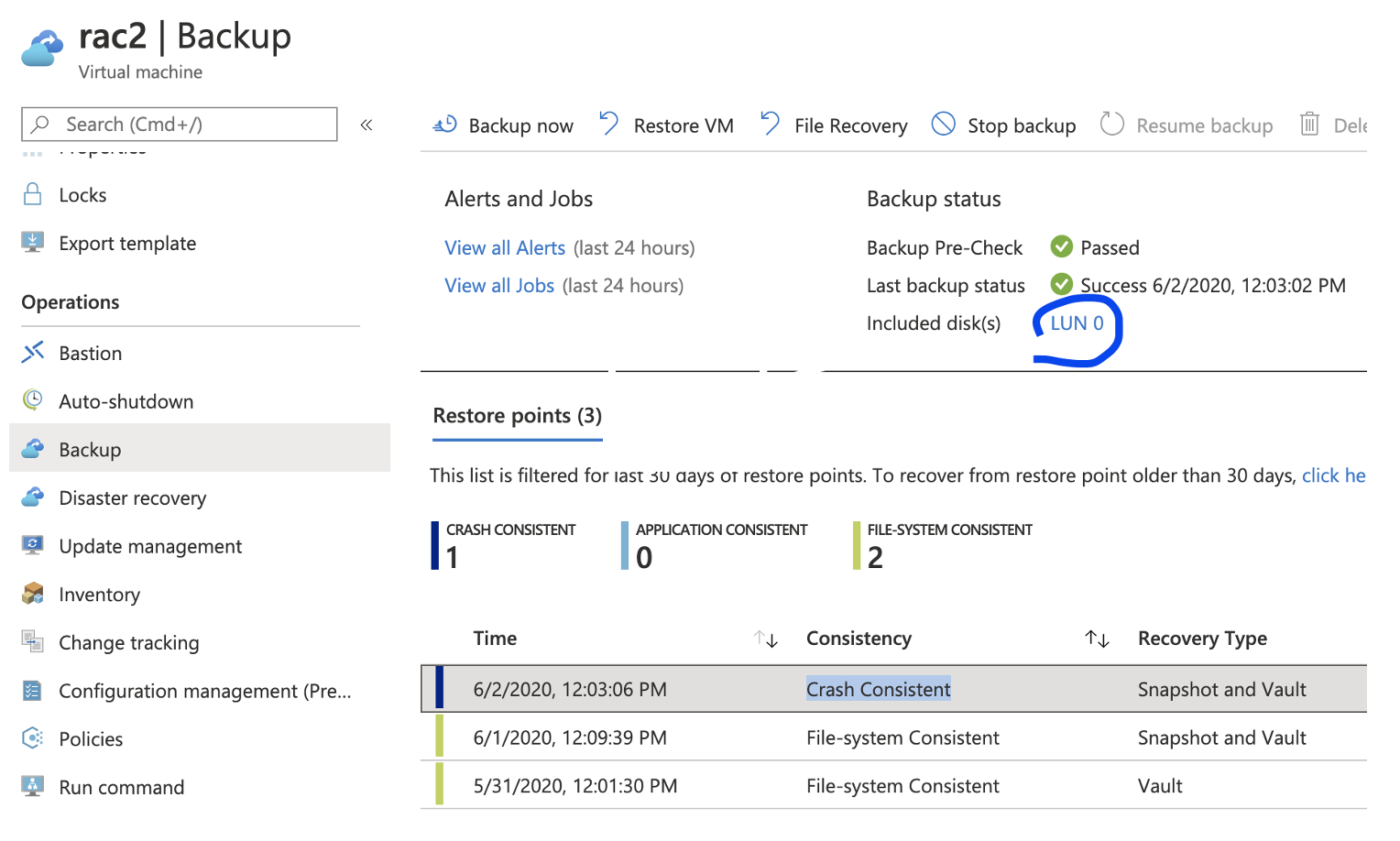
1. Configure backup for rac2 which includes only LUN0 (+ OS disk, by default)
Backup configuration script from CLI:
az backup protection enable-for-vm --resource-group marirac --vault-name vault485 --vm rac2 --policy-name mkpolicy --disk-list-setting include --diskslist 0
Check settings from Portal:
2. Create test files on / and /u01
[root@rac2 ~]# touch /u01/mari_u01
[root@rac2 ~]# ll /u01/mari_u01
-rw-r–r– 1 root root 0 Jun 2 15:24 /u01/mari_u01
[root@rac2 ~]# touch /mari_root
[root@rac2 ~]# ll /mari_root
-rw-r–r– 1 root root 0 Jun 2 15:24 /mari_root
==================================Restore process
1. Find the latest restore point from Azure CLI:
az backup recoverypoint list --vault-name vault485 --resource-group marirac -c rac2 -i rac2 --backup-management-type AzureIaasVM
2. Restore OS and LUN0 disks:
az backup restore restore-disks --resource-group marirac --vault-name vault485 -c rac2 -i rac2 --target-resource-group marirac --storage-account mzx41qmarivol2asrcache --diskslist 0 --rp-name 5638874691908752817

The above script restores them as managed disks, that are not attached to anything. Note restore did not replace the disk, it just restores as a new disk.
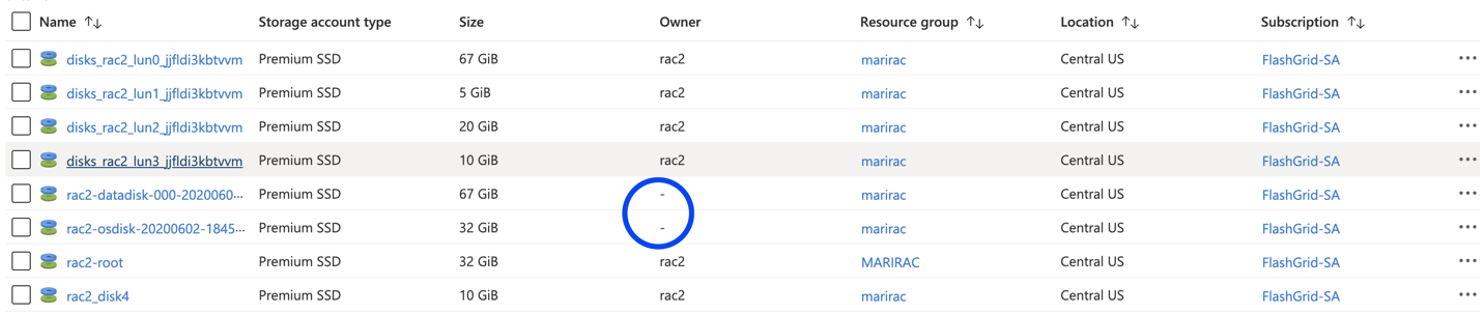
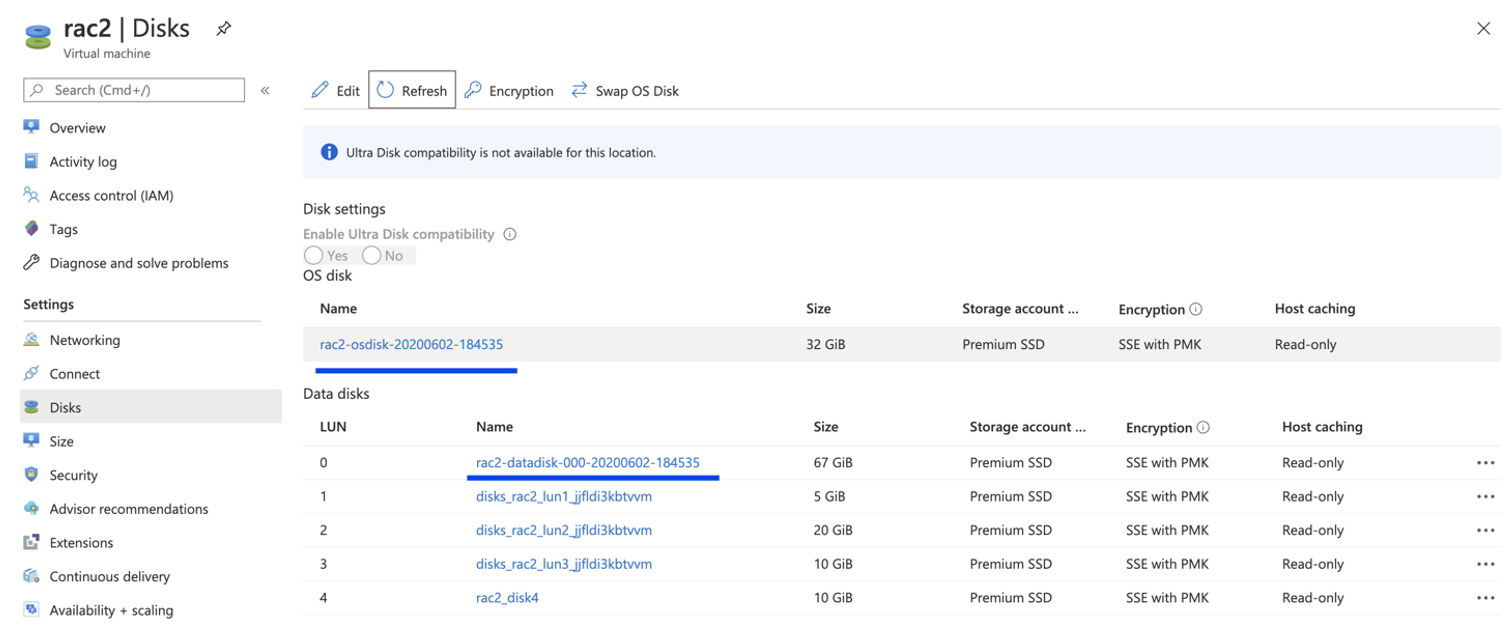
3. To replace disks do the following:
Detach old LUN0 -> Save -> Attach restored disk as Lun 0.
To replace existing OS disk with restored one, click Switch OS disk and then start the VM.
4. Check that files are not there anymore:
[root@rac2 ~]# ll /mari_root
ls: cannot access /mari_root: No such file or directory
[root@rac2 ~]# ll /u01/mariu01
ls: cannot access /u01/mariu01: No such file or directory

