Configure Oracle 11g database to connect with AD(Domain) user using Kerberos5

Problem:

Application config files contain plain text passwords. Which is insecure and should be changed to encrypted passwords or not indicate them at all 🙂

The last solution can be achieved by KERBEROS authorization. So users will connect to the database using Active Directory user and will not indicate username/password. Like it happens in SQL Server with Windows Authorization.

So at the end of this post domain user connected to the windows computer will be able to connect to the database without indicating username and password.

========Details==============

AD Server:

Ip: 192.168.11.10

Hostname: ADSERVER.DOMAIN.GE

Realm: DOMAIN.GE

===========================

Database Server:

Ip: 192.168.11.15

Hostname: DBSERVER.DOMAIN.GE

Database Name/SID: ORCL

===========================

Client:

Ip: 192.168.11.20

Domain User: MARIAMI.DOMAIN.GE

Client Home: D:\app\oracle\product\11.2.0\client_1

===========================

Let’s start..

========AD configuration

1. Under DOMAIN.GE /Users  create a new user with the same name as the hostname of the database (with lowercase letters).

First name             : dbserver.domain.ge
Fill name               : dbserver.domain.ge
User logon name : dbserver.domain.ge
User logon name (pre-Windows 2000): DOMAIN \ dbserver.domain.ge

Next >

I prefer to check “Password never expires”  and uncheck “User must change password at next logon

Next >

Finish

Right click on the newly created user , choose Properties -> choose tab Account ->in Account options section -> check “Do not require Kerberos preauthentication

2. Generate keytab file using ktpass.exe

ktpass.exe -princ oracle/dbserver.domain.ge@DOMAIN.GE -ptype KRB5_NT_PRINCIPAL -mapuser dbserver.domain.ge -crypto ALL -pass qwert123QWERT  -out d:\keytab

========Database Server Configuration

export ORACLE_SID=ORCL
export ORACLE_HOME=/u01/app/oracle/product/11.2.0/db
export TNS_ADMIN=/u01/app/oracle/product/11.2.0/db/network/admin

mkdir -p $TNS_ADMIN/kerberos

Copy keytab file generated on AD server and place it in $TNS_ADMIN/kerberos/  location.

Create krb5.conf file.

vim $TNS_ADMIN/kerberos/krb5.conf

[libdefaults]
default_realm = DOMAIN.GE

[realms]
DOMAIN.GE = {
kdc = adserver.domain.ge:88
}

[domain_realm]
.domain.ge = DOMAIN.GE
domain.ge = DOMAIN.GE

File  is case sensitive 🙂 try to not make case sensitive errors.  AD server hostname is in lowercase letters.

So $TNS_ADMIN/kerberos/ contains two files:

ls  $TNS_ADMIN/kerberos/

keytab    krb5.conf

Configure sqlnet.ora file.

Note that at this time if you mistakenly configure sqlnet.ora file , connections to the database will cause error. Be very careful when configuring on production server. But you can solve this error in 3 seconds , by replacing new sqlnet.ora with old sqlnet.ora or just change parameter

SQLNET.AUTHENTICATION_SERVICES= (BEQ, KERBEROS5)

to

SQLNET.AUTHENTICATION_SERVICES= (BEQ)

vim $TNS_ADMIN/sqlnet.ora
SQLNET.KERBEROS5_KEYTAB = /u01/app/oracle/product/11.2.0/db/network/admin/kerberos/keytab

SQLNET.AUTHENTICATION_SERVICES= (BEQ, KERBEROS5)

SQLNET.KERBEROS5_CONF = /u01/app/oracle/product/11.2.0/db/network/admin/kerberos/krb5.conf

SQLNET.KERBEROS5_CONF_MIT = TRUE

SQLNET.AUTHENTICATION_KERBEROS5_SERVICE = oracle

ADR_BASE = /u01/app/oracle

SQLNET.KERBEROS5_CC_NAME=/u01/app/oracle/product/11.2.0/db/network/admin/kerberos/cache_file

#TRACE_LEVEL_SERVER = SUPPORT

#TRACE_UNIQUE_SERVER = on

#TRACE_DIRECTORY_SERVER = /u01/app/oracle/traces

#TRACE_FILE_SERVER = server

DIAG_ADR_ENABLED = OFF

#TRACE_TIMESTAMP_SERVER = ON

Note: I have commented TRACE_* parameters , because it is not necessary if everything is OK , but if connection fails then you will need these parameters to be uncommented to generate more informative trace file to solve the problem.

Connect to the database via sqlplus and create database user corresponding to the domain user, using uppercase letters.

sqlplus / as sysdba

create user “MARIAMI.DOMAIN.GE” identified externally.

grant connect, resource to “MARIAMI.DOMAIN.GE”;

ALTER SYSTEM SET os_authent_prefix=” SCOPE=SPFILE;

ALTER SYSTEM SET remote_os_authent=FALSE SCOPE=SPFILE;

shutdown immediate;

startup;

Generate ticket

$ okinit -e 23 -f dbserver.domain.ge

Enter the password of dbserver.domain.ge username , in our case qwert123QWERT.

Note, it will generate a cache file called cache_file(SQLNET.KERBEROS5_CC_NAME parameter in sqlnet). It has expire time (8 hours) and after it is passed , connection to the database without password will not work. So you will need a cronjob to run the above command every 7 or less hours. But for now you have 8 hours to configure kerberos and test the connection.. )

========Client Configuration

1. Configure sqlnet.ora

SQLNET.AUTHENTICATION_KERBEROS5_SERVICE = oracle

SQLNET.KERBEROS5_CONF_MIT = true

SQLNET.KERBEROS5_CC_NAME=OSMSFT://

DIAG_ADR_ENABLED = OFF

SQLNET.AUTHENTICATION_SERVICES= (beq, kerberos5)

SQLNET.KERBEROS5_CONF = d:\app\oracle\krb5.ini

#TRACE_LEVEL_CLIENT = SUPPORT

#TRACE_UNIQUE_CLIENT = on

#TRACE_DIRECTORY_CLIENT = D:\app\oracle

#TRACE_FILE_CLIENT = client

#TRACE_TIMESTAMP_CLIENT = ON

#SQLNET.KERBEROS5_KEYTAB = C:\krb5\v5srvtab

2. Copy krb5.conf file content from db server and name it as .ini instead of .conf

–krb5.ini

[libdefaults]
default_realm = DOMAIN.GE

[realms]
DOMAIN.GE = {
kdc = adserver.domain.ge:88
}

[domain_realm]
.domain.ge = DOMAIN.GE
domain.ge = DOMAIN.GE

3. tnsnames.ora , nothing special.

ORCL =

(DESCRIPTION =
(ADDRESS = (PROTOCOL = TCP)(HOST = 192.168.11.15)(PORT = 1521))
(CONNECT_DATA =
(SERVER = DEDICATED)
(SERVICE_NAME = ORCL)
)
)

4.  Add kerberos5 in C:\windows\system32\drivers\etc\services:

Before:

kerberos 88/tcp krb5 kerberos-sec #Kerberos

kerberos 88/udp krb5 kerberos-sec #Kerberos

After:

kerberos 88/tcp kerberos5 krb5 kerberos-sec #Kerberos

kerberos 88/udp kerberos5 krb5 kerberos-sec #Kerberos

Try to connect without password. /@ORCL  together.

sqlplus /@ORCL

With PL/SQL Developer , do not indicate username and password just sid and try to connect. I have noticed that PL/SQL Devloper version 9 doesn’t worked for me version 10 worked.

Note: If you are using shared servers and during connecting to the database returns ORA-01017: invalid username/password; logon denied. The problem may be the following, that  you changed sqlnet.ora after instance startup. The problem is that shared servers read sqlnet.ora just before instance startup, so if you change any parameters in sqlnet.ora file after instance startup then shared servers will not recognize it. The only solution is to restart database, to re-read sqlnet.ora file.

Oracleasm deletedisk failed Unable to clear disk

I’ve deleted disk from ASM diskgroup:

ALTER DISKGROUP DATA01 DROP DISK DISK6;

After it finished dropping the disk and all extents were moved to the remaining disks, I tried to delete disk from the ASM library and return it to the system:

oracleasm deletedisk -v DISK6

Clearing disk header: oracleasm-write-label: Unable to open device "/dev/oracleasm/disks/DISK6": Device or resource busy
failed
Unable to clear disk "DISK6"

The reason is that oracle leaves the disk open even after removing it from the diskgroup.

There are two solutions:________________________________________________

1. One for  24/7 databases:

–Find the device name

[root@r2n1 ~]# blkid |grep oracleasm

/dev/sdd1: LABEL="DISK6" TYPE="oracleasm"

–Clear the device header manually

Make sure, you use the right device name. If you specify wrong device name, the operation is unrecoverable.

su –

dd if=/dev/zero of=/dev/sdd1 bs=1024 count=100

or

dd if=/dev/zero of=/dev/oracleasm/disks/DISK6 bs=1024 count=100

If you have RAC system , run dd on all nodes.

Another solution:

1. Reboot the server

# reboot

Or

Restart database instance and CRS services

–Shutdown database

$ export ORACE_SID=orcl
$ export ORACLE_HOME=/u01/app/oracle/product/11.2.0/db_1
$ sqlplus / as sysdba
SQL> shutdown immediate;

–Shutdown CRS services

./crsctl stop crs

–Start CRS services

./crsctl start crs

–Start database

$ export ORACE_SID=orcl
$ export ORACLE_HOME=/u01/app/oracle/product/11.2.0/db_1
$ sqlplus / as sysdba
SQL> startup;

2. Then delete the disk.

oracleasm deletedisk -v DISK6

PIN_PACKS-TRIGGER-INVALID, DBMS_SHARED_POOL.KEEP must be declared 10g

To resolve the issue, do the following:

1. Connect as SYSDBA

$sqlplus / as sysdba

2. Create DBMS_SHARED_POOL package , grant necessary privileges and create dba_keepsizes view.

@?/rdbms/admin/dbmspool.sql

3. Recompile the trigger

alter trigger PIN_PACKS compile;

DBMS_SQLPA – PACKAGE BODY – INVALID 10g

To resolve the issue, do the following:

1. Connect as SYSDBA

$ sqlplus / as sysdba

2. Drop plan table

SQL> drop table plan_table;

Table dropped.


3. Recreate plan table

SQL> @?/rdbms/admin/utlxplan

Table created.

4. Re-create dbms_sqlpa package and public synonym

SQL> @?/rdbms/admin/prvtspao.plb

PL/SQL procedure successfully completed.

Package created.

No errors.

Synonym created.

No errors.

Package body created.

No errors.

5. Recompile all objects

SQL> @?/rdbms/admin/utlrp.sql

DBMS_SQLPA – PACKAGE BODY – INVALID 10g

To resolve the issue, do the following:

1. Connect as SYSDBA

$ sqlplus / as sysdba

2. Drop plan table

SQL> drop table plan_table;

Table dropped.


3. Recreate plan table

SQL> @?/rdbms/admin/utlxplan

Table created.

4. Re-create dbms_sqlpa package and public synonym

SQL> @?/rdbms/admin/prvtspao.plb

PL/SQL procedure successfully completed.

Package created.

No errors.

Synonym created.

No errors.

Package body created.

No errors.

5. Recompile all objects

SQL> @?/rdbms/admin/utlrp.sql

Add/Drop ASM disks to DISKGROUP on RAC(or Standalone)

Note: The steps are described for RAC, but you can easily guess what are the steps for the standalone database.

1. First of all find the disk or partition name, that should be added to the ASM.

fdisk -l

My disk partition name is /dev/sdi1.

2. Assign the disk to ORACLEASM.

–On node1

/etc/init.d/oracleasm createdisk DISK7 /dev/sdi1

3. Scan disks in ALL NODES and list them to check if is presented.

–On node1

/etc/init.d/oracleasm scandisks
/etc/init.d/oracleasm listdisks

–On node2

/etc/init.d/oracleasm scandisks
/etc/init.d/oracleasm listdisks

4. Change the environment to the grid infrastructure, by setting ORACLE_SID to +ASM and so on :

$ . oraenv
ORACLE_SID = [media1] ? +ASM1
The Oracle base for ORACLE_HOME=/u01/app/11.2.0/grid is /u01/app/oracle

# Connect as an SYSASM

sqlplus / as sysasm

Note: If you don’t remember the password for the sysasm user see How to reset SYSASM password.

# Find the diskgroup name

SQL> select name from v$asm_diskgroup;

NAME
——————————
DATA01

# Increase power limit, if you want, to complete rebalance operation in a short time.

SQL>  alter system set asm_power_limit=10

# Indicate disks location by the parameter asm_diskstring

SQL> alter system set asm_diskstring=’ORCL:DISK*’

SQL> alter diskgroup DATA01 add disk ‘ORCL:DISK7’;

It will do the rebalance automatically.

# To drop the disk , do the following:

SQL >  alter diskgroup DATA01 drop disk DISK7;

It will rebalance first and then drops the disk automatically.

You can see the current operation in v$asm_operation view.

Note: Until the view v$asm_operation contains a record you are able to undrop the disks by the following way:

SQL> alter diskgroup DATA01 undrop disks;

If the operation is already completed , you are not able to undrop the disk . But you can re-add the disk , if you want.

That is all.

How to reset SYSASM password

By sysasm user can maintain ASM instance. The main idea is to separate storage administrator and database administrator responsibilities. To reset its password, do the following:

[oracle@r1n1 ~]$ . oraenv
ORACLE_SID = [orcl1] ? +ASM1
The Oracle base for ORACLE_HOME=/u01/app/11.2.0/grid is /u01/app/oracle

[oracle@r1n1 ~]$ asmcmd
ASMCMD> orapwusr –modify –password sys
Enter password: ********

Upgrade 10g XE to 11g XE

I’ve had a lot of trouble with 10g XE. Especially with its upgrading process to 11g XE. So I want to share my experience with you.

There are at least 2 options to do the upgrade.

First one is backup/restore and second one is export/import.

Note: I ‘ve installed 10g XE and 11g XE on separate servers(because couldn’t handle to install them together)

Note2: The 1st one doesn’t worked for me and is described shortly. The 2nd  one worked for me and is fully descriptive.

1. Take utlu112i.sql script from 11g XE and place it on 10g XE server.

2. Run this script on 10g XE.

Go to the gen_inst.sql file location or indicate a full path to the file:

sqlplus sys as sysdba @gen_inst.sql

3. Backup 10g XE database.

4. Restore to 11g XE

5. Startup upgrade.

6. Run the following scripts on 11g XE.

–Upgrade

sqlplus sys as sysdba @catupgrd.sql

–Recompile

sqlplus sys as sysdba @utlrp.sql

BUT these steps that are described on most of the blogs and sites did not work for me.

Another option that worked for me is export/import.

1. Take gen_inst.sql script from 11g XE.

2. Place and run this script on 10g XE.

sqlplus sys as sysdba @gen_inst.sql

It will generate install.sql, gen_apps.sql and other .sql files

3. On 10g XE

CREATE DIRECTORY DUMP_DIR AS ‘C:\oraclexe\dump_dir’;

GRANT read, write ON DIRECTORY DUMP_DIR TO public;

expdp ‘sys/passwd as sysdba’ full=Y EXCLUDE=SCHEMA:\"LIKE \’APEX_%\’\",SCHEMA:\"LIKE \’FLOWS_%\’\" directory=DUMP_DIR dumpfile=DB10G.DMPlogfile=expdpDB10G.log

expdp ‘sys/passwd as sysdba’ TABLES=FLOWS_FILES.WWV_FLOW_FILE_OBJECTS$ directory=DUMP_DIR dumpfile=DB10G2.dmp logfile=expdpDB10G2.log

Note: if ‘sys/passwd as sysdba’  doesn’t work try without it and then enter the credentials.

expdp  full=Y EXCLUDE=SCHEMA….
Username: sys@XE as sysdba
Password: *****

4. Import to 11g XE

CREATE DIRECTORY DUMP_DIR AS ‘C:\oraclexe\dump_dir’;
GRANT read, write ON DIRECTORY DUMP_DIR TO public;

impdp  ‘sys/passwd as sysdba’ full=Y directory=DUMP_DIR dumpfile=DB10G.DMP logfile=expdpDB10G1.log

impdp  ‘sys/passwd as sysdba’ directory=DUMP_DIR TABLE_EXISTS_ACTION=APPEND  TABLES=FLOWS_FILES.WWV_FLOW_FILE_OBJECTS$ dumpfile=DB10G2.DMP logfile=expdpDB10G1b.log

5. Run install.sql. It will run other scripts itself.

sqlplus sys as sysdba @install.sql

Configure Oracle database to use SSL with self-signed certificate

You can use Oracle SSL to encrypt data exchange between Oracle database and Oracle client.

For the first time, let’s check that data is not encrypted by default when the client is selecting some info from the database.

For demonstration of this I will use WireShark.

Checking…

1. Run WireShark and highlight network card by which you use to connect to the database. For me it is “”Local Area Connection 3”.

image

2. click Capture Options and in Capture Filter write :

src host 192.168.171.153 and dst host 192.168.59.51 and tcp port 1521

Description: src host –is client ip
dst host – is database ip
tcp port – is the database port number

This means to capture requests from client(192.168.171.153) to the database(192.168.59.51) using tcp port 1521.

3. click Start.

4. Connect to the database and run testing select:

select *
from dual

WireShark with a lot of rows will contain the row consisting the following text, that contains our select

image

Configuring SSL…

Wallet configuration on DB server

0. Lets create working folder called /0 for simplicity.

mkdir /0

chmod –R 777 /0

1. Create certification request using Oracle Wallet Manager (/u01/app/oracle/product/11.2.0/db_1/bin/owm).

su – oracle

owm

image

2.  Wallet->New

image

3.  Enter the password, which protects wallet from opening. OK

4. Click Yes(for creating necessary folders for wallet)

image

5. Click Yes(for creating certification request)

image

6. Fill the items by your info.

7. click OK

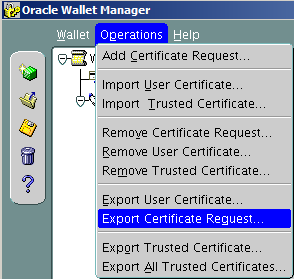
8. Highlight certification request and from menu choose Operations->Export Certificate Request

image

9. Save the file with the extension .csr in /0 folder

image

10. Download ssl.ca-0.1.tar.gz file for to generate trusted and user certificates.

Here I want to note that trusted certificate is like a public key which will be sent to the client and user certificate is like a private key which has only the database server.

Move downloaded file to the /0 folder and extract. Then move certification request to the extracted folder.

cd /0/
tar -xvf ssl.ca-0.1.tar.gz
mv /0/CerReq.csr  /0/ssl.ca-0.1/

1.10  Create a self-signed root certificate by running the new-root-ca.sh script. This will create a file called ca.crt

cd /0/ssl.ca-0.1/

./new-root-ca.sh
No Root CA key round. Generating one
Generating RSA private key, 1024 bit long modulus
…………………++++++
………………………………………………………..++++++
e is 65537 (0x10001)
Enter pass phrase for ca.key:enter the password
Verifying – Enter pass phrase for ca.key:enter the password

Self-sign the root CA…
Enter pass phrase for ca.key:enter the password
You are about to be asked to enter information that will be incorporated
into your certificate request.
What you are about to enter is what is called a Distinguished Name or a DN.
There are quite a few fields but you can leave some blank
For some fields there will be a default value,
If you enter ‘.’, the field will be left blank.
—–
Country Name (2 letter code) [MY]:GE
State or Province Name (full name) [Perak]:.     <- here is written dot (.)
Locality Name (eg, city) [Sitiawan]:Tbilisi
Organization Name (eg, company) [My Directory Sdn Bhd]:MjM
Organizational Unit Name (eg, section) [Certification Services Division]:IT
Common Name (eg, MD Root CA) []:ca_root
Email Address []:mariam.kupa@gmail.com

1.11 Create the self-signed server certificate by running the sign-server-cert.sh script.

./sign-server-cert.sh CerReq
CA signing: CerReq.csr -> CerReq.crt:
Using configuration from ca.config
Enter pass phrase for ./ca.key:enter the password for the ca
Check that the request matches the signature
Signature ok
The Subject’s Distinguished Name is as follows
commonName            : .PRINTABLE:’MjM’
organizationalUnitName: .PRINTABLE:’IT’
organizationName      : .PRINTABLE:’MjM’
localityName          : .PRINTABLE:’Tbilisi’
countryName           : .PRINTABLE:’GE’
Certificate is to be certified until Nov  5 12:40:48 2014 GMT (365 days)
Sign the certificate? [y/n]:y
1 out of 1 certificate requests certified, commit? [y/n]y
Write out database with 1 new entries
Data Base Updated
CA verifying: CerReq.crt <-> CA cert
CerReq.crt: OK

1.12 From the wallet manager import these certificates.

image

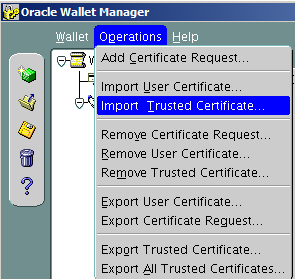
Operations-> Import Trusted Certificate

image

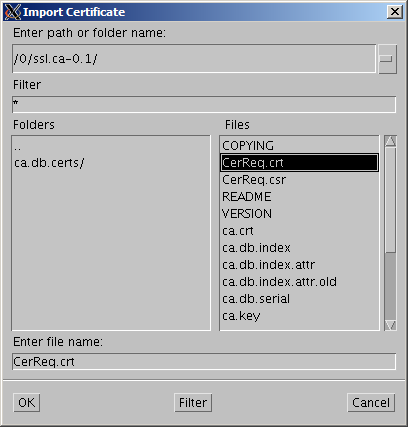
Select a file that contains the certificate. click OK.

image

Choose ca.crt

image

image

Choose CerReq.crt

Save the wallet from the menu Wallet->Save

image

click OK.

image

Check Auto Login and Exit.

Oracle Advanced Security and listener Configuration on DB Server

1.

su – oracle

netmgr

Choose Profile->Oracle Advanced Security-> SSL

choose server

image

Fill the items as it is shown on the picture, except that you should indicate your own wallet location. For me it is /u01/app/oracle/product/11.2.0/db_1/owm/wallets/oracle

Click File->Save Network Configuration.

2. Change listener entry on the database server by adding port 2484 using protocol TCPS :

# listener.ora Network Configuration File: /u01/app/oracle/product/11.2.0/db_1/network/admin/listener.ora
# Generated by Oracle configuration tools.

SID_LIST_LISTENER =
(SID_LIST =
(SID_DESC =
(GLOBAL_DBNAME = orcl)
(ORACLE_HOME = /u01/app/oracle/product/11.2.0/db_1)
(SID_NAME = orcl)
)
)

SSL_CLIENT_AUTHENTICATION = FALSE

WALLET_LOCATION =
(SOURCE =
(METHOD = FILE)
(METHOD_DATA =
(DIRECTORY = /u01/app/oracle/product/11.2.0/db_1/owm/wallets/oracle)
)
)

LISTENER =
(DESCRIPTION_LIST =
(DESCRIPTION =
(ADDRESS = (PROTOCOL = TCP)(HOST = server.gov.ge)(PORT = 1521))
)
(DESCRIPTION =
      (ADDRESS = (PROTOCOL = TCPS)(HOST = server.gov.ge)(PORT = 2484))
    )
)

ADR_BASE_LISTENER = /u01/app/oracle

Look at the highlighted section , I am using 2484 as a port  number ,which is Oracle recommended port for SSL , and  TCPS as a protocol .

Restart the listener

lsnrctl stop

lsnrctl start

Client Configuration

1.  Do the same steps as we did on the database server.

1.1 Create new wallet

1.2 Create certificate request

1.3 Copy trusted certificate, which we have generated on the database server

1.4 Import only trusted certificate.

1.5 Save

1.6  Check Auto Login and Save.

2. Run Network Manager

2.1 Profile->Oracle Advanced Security –>SSL

choose client.

image

Fill items as it is shown on the picture(indicate your wallet location)

3. Configure tnsnames.ora by the following entry:

orcl_ssl=
(DESCRIPTION =
(ADDRESS = (PROTOCOL = TCPS)(HOST = server.gov.ge)(PORT = 2484))
(CONNECT_DATA =
(SERVER = DEDICATED)
(SERVICE_NAME = orcl)
)
)

Check again by WhireShark.

You will see that no rows will contain clear words. Everything is encrypted.

Note: If you have any certification validation failure errors, first try to stop listener and start again..or write me on the comment and I will try to help you.

Accidentally deleted Central Inventory-How to re-create it?

Details:

Users: Oracle, Grid.
Homes: /u01/app/oracle/product/11.2.0/db_1 ,  /u01/app/11.2.0/grid
Local inventory: /u01/app/oracle/product/11.2.0/db_1/inventory ,  /u01/app/11.2.0/grid/inventory
Central inventory: /u01/app/oraInventory (it was accidentally deletedSad smile )

To Check:

0.

su  – oracle

1.

cd /u01/app/oracle/product/11.2.0/db_1/OPatch/

2.

./opatch lsinventory

Invoking OPatch 11.2.0.1.7

Oracle Interim Patch Installer version 11.2.0.1.7
Copyright (c) 2011, Oracle Corporation.  All rights reserved.

Oracle Home       : /u01/app/11.2.0/grid
Central Inventory : /u01/app/oraInventory
   from           : /etc/oraInst.loc
OPatch version    : 11.2.0.1.7
OUI version       : 11.2.0.3.0
Log file location : /u01/app/11.2.0/grid/cfgtoollogs/opatch/opatch2013-11-04_15-06-56PM.log

OPatch failed to locate Central Inventory.
Possible causes are:
    The Central Inventory is corrupted
    The oraInst.loc file specified is not valid.
LsInventorySession failed: OPatch failed to locate Central Inventory.
Possible causes are:
    The Central Inventory is corrupted
    The oraInst.loc file specified is not valid.

OPatch failed with error code 73

To Solve:

OUI is the great tool by which you can re-create Central or Local inventories.

Find the owner of the /u01/app folder. For me it is grid.

[oracle@oracle01 ~]$ ls -la /u01
total 12
drwxr-xr-x.  3 grid oinstall 4096 Sep 10 15:36 .
dr-xr-xr-x. 27 root root     4096 Oct 24 17:20 ..
drwxr-xr-x.  6 grid oinstall 4096 Nov  4 17:43 app

Login by the same user and run:

–To attach Oracle home

[grid@oracle01 ~]$ /u01/app/oracle/product/11.2.0/db_1/oui/bin/runInstaller -silent -attachHome -invPtrLoc /etc/oraInst.loc oracle_home="/u01/app/oracle/product/11.2.0/db_1" ORACLE_HOME_NAME="OraDb11g_home1"
Starting Oracle Universal Installer…

Checking swap space: must be greater than 500 MB.   Actual 8191 MB    Passed
The inventory pointer is located at /etc/oraInst.loc
The inventory is located at /u01/app/oraInventory
‘AttachHome’ was successful.

–To attach Grid home

[grid@oracle01 ~]$ /u01/app/11.2.0/grid/oui/bin/runInstaller -silent -attachHome -invPtrLoc /etc/oraInst.loc oracle_home="/u01/app/11.2.0/grid" ORACLE_HOME_NAME="Ora11g_gridinfrahome1"
Starting Oracle Universal Installer…

Checking swap space: must be greater than 500 MB.   Actual 8191 MB    Passed
The inventory pointer is located at /etc/oraInst.loc
The inventory is located at /u01/app/oraInventory
‘AttachHome’ was successful.


Check again:

[oracle@oracle01 OPatch]$ ./opatch lsinventory -all
Invoking OPatch 11.2.0.1.7

Oracle Interim Patch Installer version 11.2.0.1.7
Copyright (c) 2011, Oracle Corporation.  All rights reserved.

Oracle Home       : /u01/app/oracle/product/11.2.0/db_1
Central Inventory : /u01/app/oraInventory
   from           : /etc/oraInst.loc
OPatch version    : 11.2.0.1.7
OUI version       : 11.2.0.3.0
Log file location : /u01/app/oracle/product/11.2.0/db_1/cfgtoollogs/opatch/opatch2013-11-04_18-01-36PM.log

Lsinventory Output file location : /u01/app/oracle/product/11.2.0/db_1/cfgtoollogs/opatch/lsinv/lsinventory2013-11-04_18-01-36PM.txt

——————————————————————————–
List of Oracle Homes:
  Name          Location
   Ora11g_gridinfrahome1         /u01/app/11.2.0/grid
   OraDb11g_home1         /u01/app/oracle/product/11.2.0/db_1

Installed Top-level Products (1):

Oracle Database 11g                                                  11.2.0.3.0
There are 1 products installed in this Oracle Home.

There are no Interim patches installed in this Oracle Home.

——————————————————————————–

OPatch succeeded.